
The self-order kiosk
The style setting Self-Order View turns a register into an order screen for guests. The sample layout SELFORDER uses it:
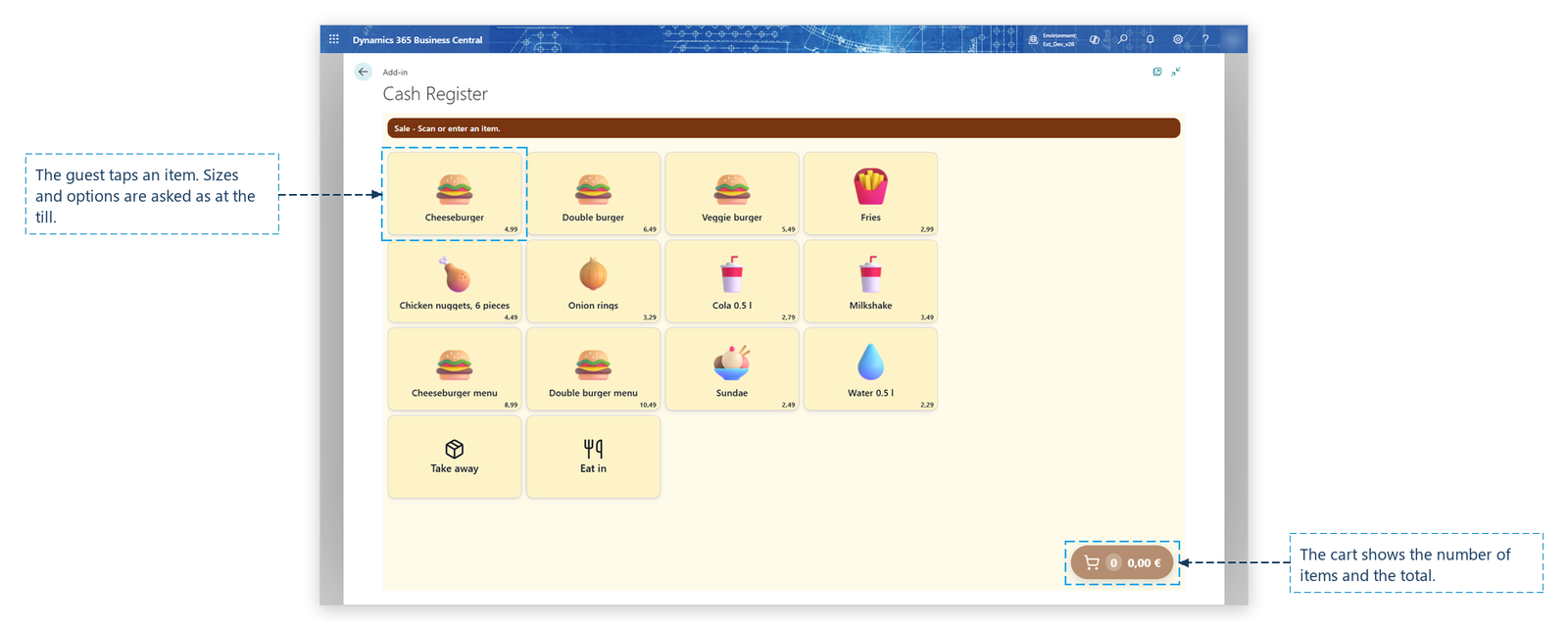
- The screen shows the item tiles with pictures and prices, and the order type keys. The receipt panel, the input line and the number pad are hidden.
- A tap on a tile adds the item to the cart. Sizes and choices are asked as at the till.
- The cart in the bottom right corner shows the number of items and the total.
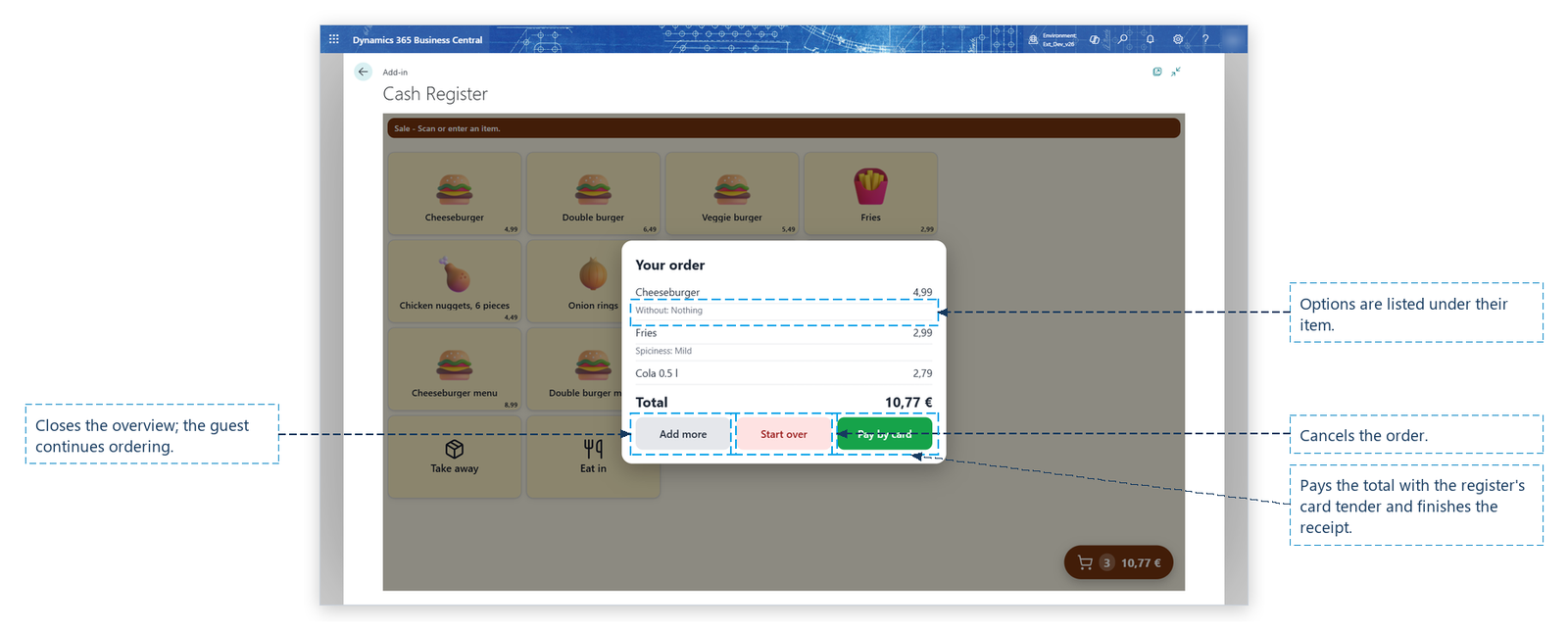
- A tap on the cart opens Your order: the lines, the choices, the total, and Add more, Start over and Pay by card.
- Pay by card pays the total with the register's card tender and finishes the receipt; the next order starts with an empty cart.
Set up a kiosk
- Run Create sample layouts and Create demo items for sample layouts. The layout SELFORDER is created with the items of the burger restaurant.
- On the cash register setup of the kiosk, set Template Code to SELFORDER.
- The register needs an allowed tender of type Card and, for real payments, a card terminal (see Set up the card terminal).
- To use another layout as an order screen, select Self-Order View on the style of the layout, and set Screen Mode to Full Screen Locked.
Note: After the payment the next order starts with the salesperson of the previous one; the guest is not asked for a salesperson code.