
Tax free for customers outside the EU
Customers resident outside the EU can buy without VAT; the refund is handled by a tax-free provider. This chapter sets up tax-free for a register, describes the sale to such a customer, and the classifications and entries involved.
Before you start
Do this once; the owner or a consultant does it, not the cashiers at every sale.
- The cash register HAUPT / TEST exists and the items, customers and tenders are ready (chapter Set up the point of sale).
- Two number series for the tax-free documents. On No. Series (standard Business Central) create a series for the tax-free invoices, for example TAXFREE-INV, and one for the credit notes of cancelled documents, for example TAXFREE-CR.
- A zero VAT rate for tax-free sales. In VAT Posting Setup (standard Business Central) the VAT business posting group of the non-EU customer posts 0 %; without it, tax-free sales book VAT and the refund doesn't match the books.
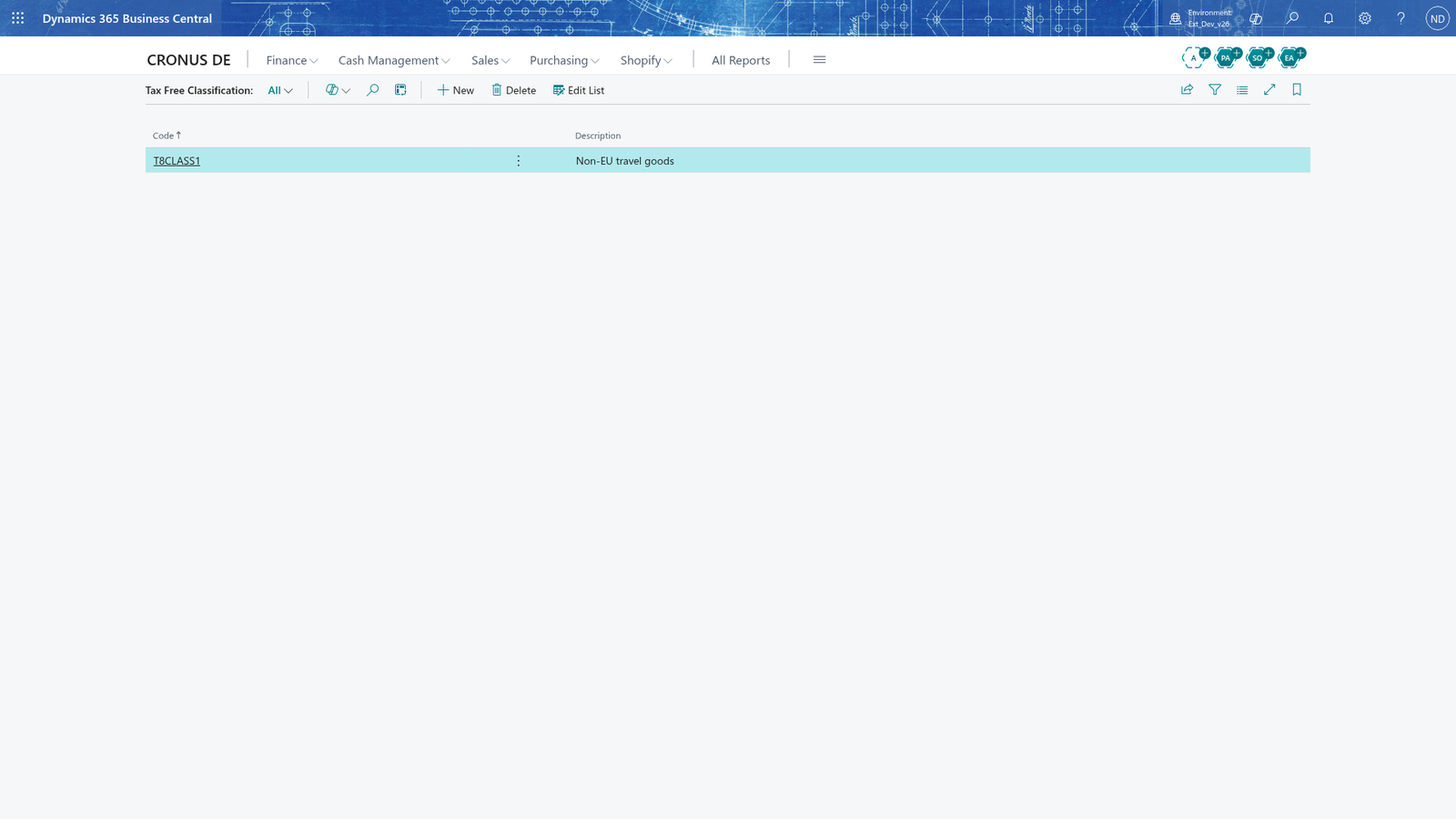
- Tax free classification codes. Keep the codes the cashiers may choose on a receipt that is tax exempt (task "Keep the classifications for tax-free items").
- Provider account. Global Blue (or the Planet Payment provider) has given the register its shop username, password, Shop ID, Desk ID and the IC2 Integra URLs. Tax-free issuing inside the POS needs popup windows in the browser, either generally or for the register's address.
- (Only for Italy) An Azure Blob Storage account: its name, its access key and the name of the container for the Fattura PA XML files.
Set up tax free for a cash register
The administrator keeps one tax-free setup per register; all work is on the setup card.
- Search for Tax Free Setup List and open it. The list shows Location, Cash Register, Provider and Active for every setup.
- Double-click the row for HAUPT and TEST (or create a new row) to open the Tax Free Setup Card.
- In Location, enter HAUPT; in Cash Register, enter TEST.
- In Provider, choose Global Blue. Only the fields of the chosen provider are shown.
- Turn on Active.
- In Country Specification, choose Germany.
- In Shop Invoice Nos., choose TAXFREE-INV; in Credit Note Nos., choose TAXFREE-CR.
- In the Global Blue group, enter the credentials for this register: Shop Username, Shop Password (hidden), Shop ID and Desk ID.
- Enter the IC2 Integra Service, IC2 Integra UI and IC2 Integra Bridge URLs and the IC2 Integra Language the provider gave for the register.
- Choose Tab to keep the card. Then choose Test in the Process group: the Tax Free Test page opens for this setup, so you can check the configuration before the first customer.
- On the test page, in Process, choose the process to run: Authentication, Eligibility Detection, Validation, Issue, Void, Reprint or another one.
- In Receipt Filter, enter the receipt numbers, for example 10001; leave it empty to use the receipt with the lowest number of the register.
- Choose Admin Mode; the message Admin mode is activated. confirms it. All processes except Authentication need the admin mode. The app installs one permission set, All, for its users; Admin Mode needs the standard SUPER permission set.
- Choose Execute. The Transaction group shows Uri, Request, Result and Response; a refused process shows The tax free test failed.
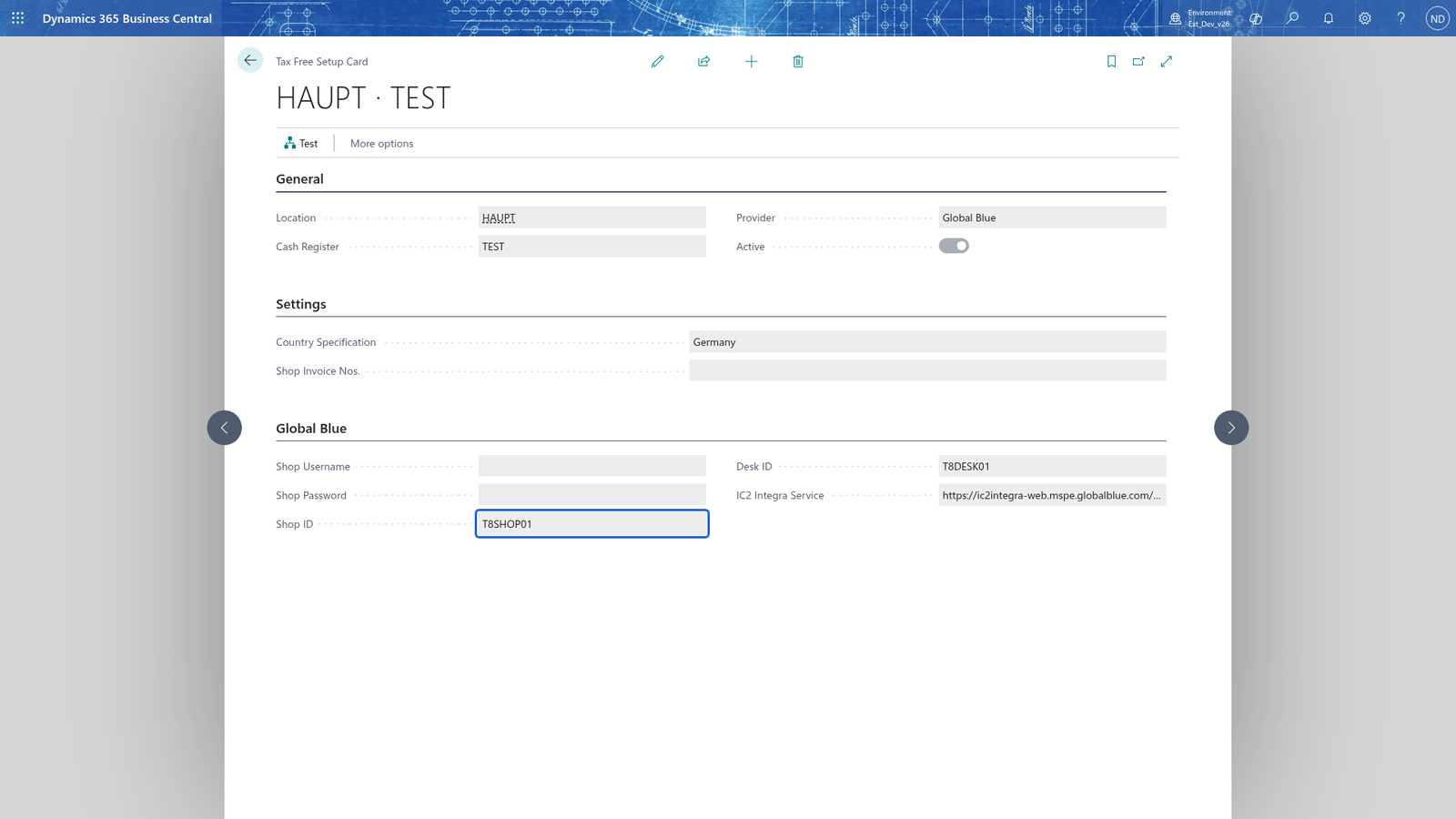
Note: The setup card shows only the fields of the selected provider: the Global Blue fields for Global Blue, and Merchant ID, Merchant VAT Number, Country Code, Terminal ID and URL for Planet Payment. A country you choose must be one the provider supports: Global Blue issues in Germany, Austria, France, Spain and Italy.
Note: The tax-free setup belongs to the cash register (Location + Cash Register), and the POS uses the setup of the register you are signed into: the tax-free entry and the test both run for HAUPT/TEST.
Sell to a customer outside the EU
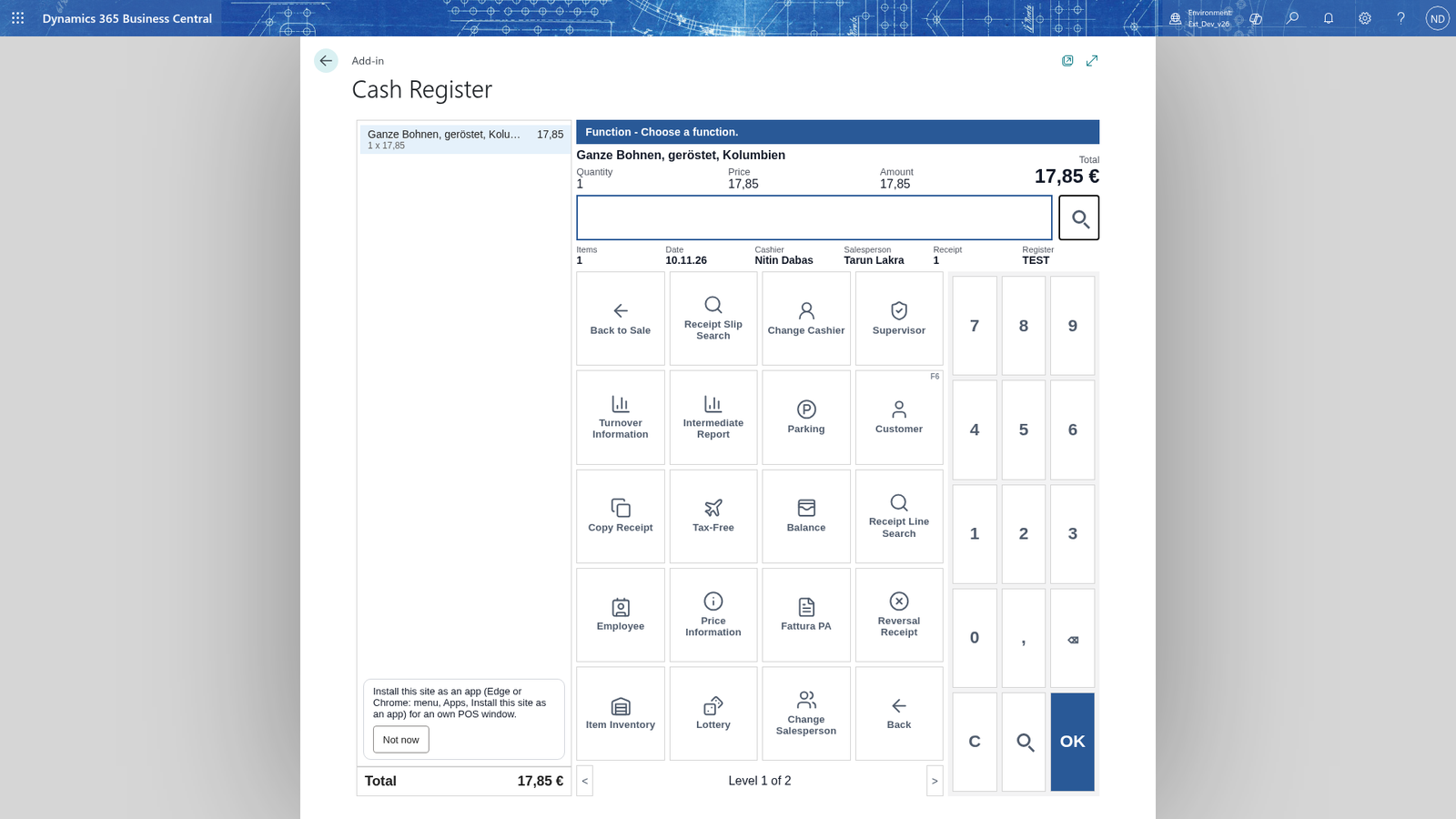
- Sign in to the POS as the salesperson and open the cash register HAUPT/TEST.
- Enter the customer; for a customer resident outside the EU the receipt is sold tax-free.
- Sell the items.
- Close the receipt and pay with tender 1 Cash; the receipt prints.
A tax-free entry is created for the receipt:
Note: Tax free works only if the tax-free setup of the register is active and the customer is not in the EU; otherwise the sale carries VAT.
Keep the classifications for tax-free items
If the tax-free setup is active, the cashiers can choose a tax-free classification on a receipt, so a customer receives a tax-exempt receipt. The administrator maintains the codes once.
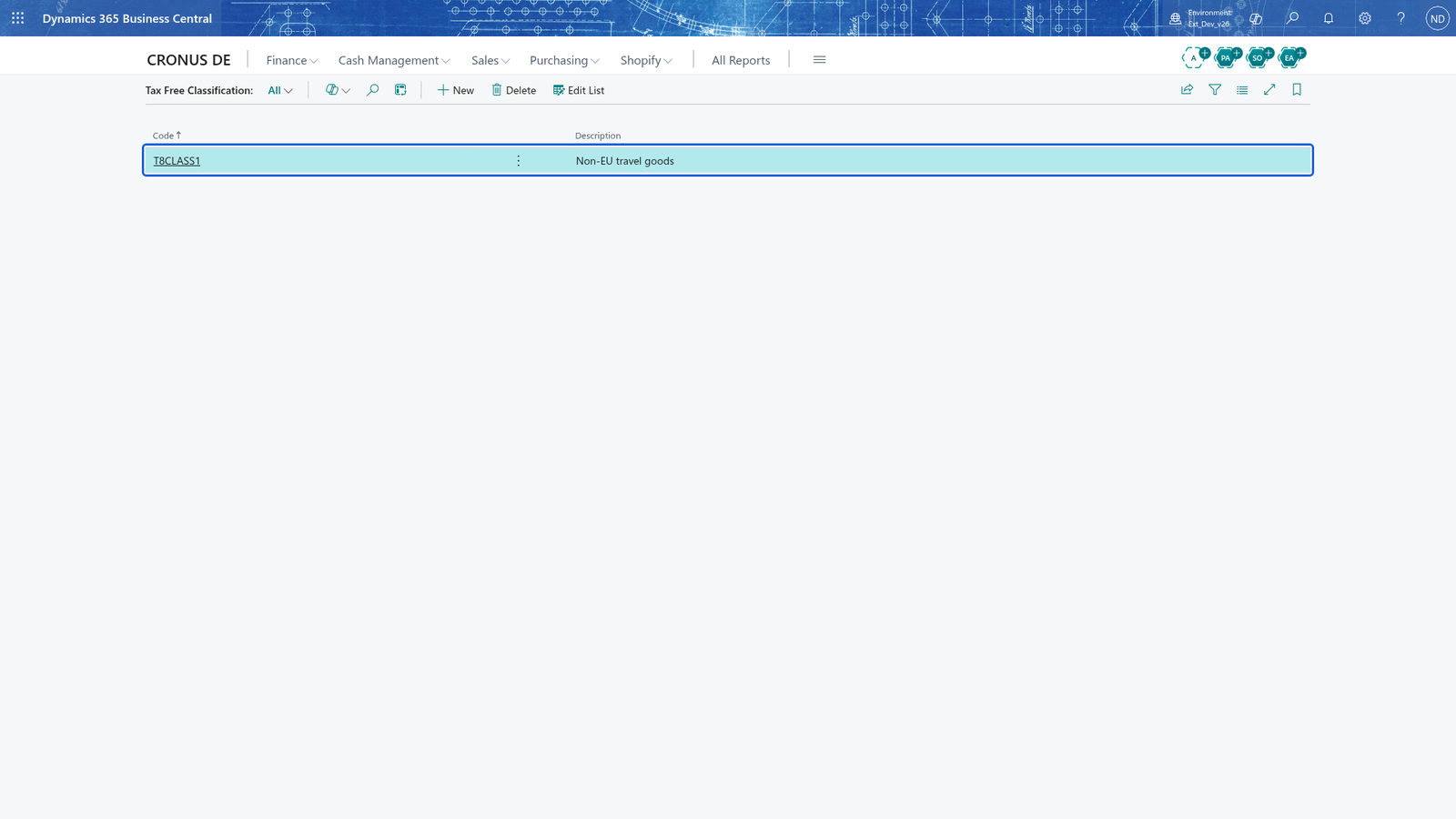
- Search for Tax Free Classification and open it.
- Enter a Code, for example EXPORT.
- Enter a Description, for example Sale to a customer outside the EU.
- Enter a second code the same way, for example NON-EU with the description Customer outside the EU.
Look at the tax-free entries
Every tax-free transaction the POS ran is kept, so you can check what was sent and what the provider answered.
- Search for Tax Free Entries and open it. Each row shows Entry No., Location, Cash Register, Receipt ID, Date/Time, Provider, Transaction-ID, Process and Successfully.
- Failures are shown in red.
- Double-click a row to open the Tax Free Entry card. It shows Entry No., Date/Time, Provider and Successfully, the Receipts of the transaction and, in Transaction, the Process, Request, URI and Response.
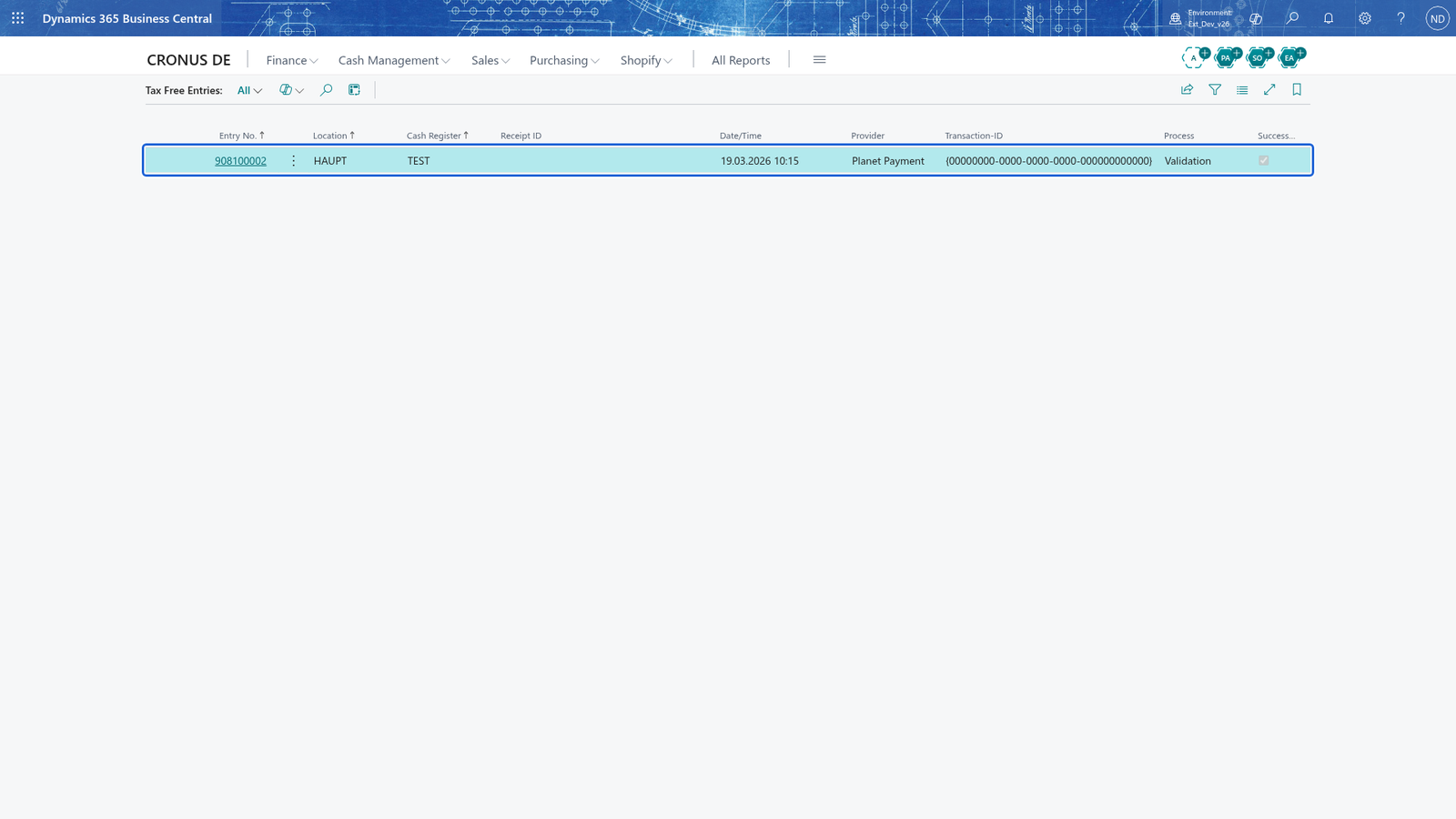
Note: Every tax-free call is stored with the request the POS sent, the URI it was sent to, the provider's answer, the result code and whether it succeeded, and the Transaction-ID groups the transactions that belong together.
Set up the Italian Fattura PA export
Italian stores must deliver their receipts as Fattura PA data. The administrator sets the export up once.
- Search for Fattura PA Setup and open it.
- Turn on Active.
- In Fattura PA Nos., choose the number series for the Fattura PA invoice records, for example FATTURAPA.
- In Upload Type, choose Azure Blob Storage.
- In ABS Storage Account, enter the name of the storage account.
- In ABS Shared Key, enter the access key of the storage account. It is hidden, is kept in isolated storage and is never stored in the setup table.
- In ABS Export Container, enter the name of the container, for example fatturapa.
- To see the exported files, open Record Export Buffers. Each row shows File Name, Progressive No., Date, Has Error, Error Text and Exported. Select a row and choose Download to save its Fattura PA XML file.
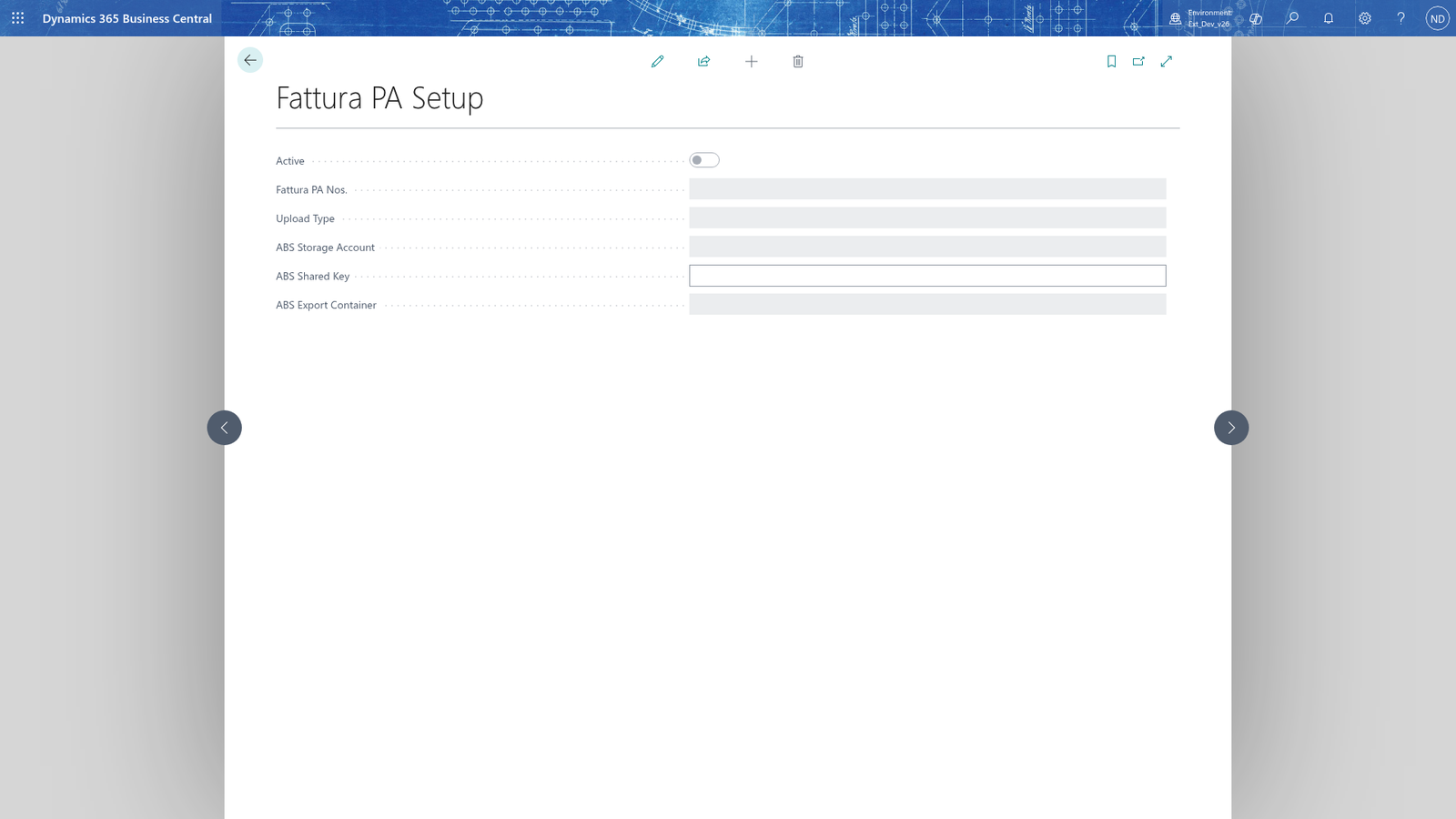
Note: Fattura PA Nos. must be filled in before Active can be switched on: the invoice records and the export files need the numbers of this series.
What happens
- Each tax-free process stores a tax-free entry with the location, cash register, date and time, provider, process, URI, request, response, result code, Successfully and a Transaction-ID that groups the transactions belonging together.
- The tax-free entry keeps the receipts of the transaction; the list shows their first number as Receipt ID, and the entry card lists them in Receipts.
- With the tax-free setup active, sales to customers outside the EU are booked at 0 % VAT:
- You can check every tax-free transaction in Tax Free Entries (list) and the Tax Free Entry card; there you read the request the POS sent and the provider's answer.
- Tax-free entries are read-only: they are created by the tax-free processes, not by the user. To undo a wrong issue, use the Void process (or the test page with Admin Mode and Void); the voided transaction is kept as another entry.
- The VAT is assigned through the VAT Assignments list: which VAT posting groups apply for a sale (and, on returns, the Ret. posting groups with Ret. VAT %).
If something goes wrong
Where a message shows %1, %2 or %3, the app fills in the actual value: the receipt number, the location and cash register of the setup (for example HAUPT and TEST) or the cause the provider reported.
- Tax free is not set up for cash register %1 %2. Create and activate a Tax Free Setup for it.: the register you sell on has no tax-free setup. Create one in Tax Free Setup List for that location and cash register.
- The Tax Free Setup of cash register %1 %2 is not active. Activate it before using tax free.: the setup exists but Active is off. Turn it on on the Tax Free Setup Card.
- Only an administrator can activate the admin mode. Ask an administrator with the administrator permission set to activate it first.: the test page needs Admin Mode for every process except Authentication. The app installs one permission set, All; Admin Mode needs the standard SUPER permission set, so the administrator activates it with a user that has SUPER.
- No receipt found for the cash register %1.: the register has no receipt yet, so the test has nothing to run on. Complete a receipt first.
- Receipt %1 was not found.: the Receipt Filter doesn't match a receipt of the register. Correct the number.
- The tax free test failed.: the provider refused the process. Open the entry on Tax Free Entries (in red) and read its Response.
- A tax-free document has already been issued for receipt %1.: the receipt is issued once. Void it first.
- Receipt %1 has no issued tax-free document, so it cannot be voided. / so it cannot be reprinted.: the receipt has no issued document; issue it first.
- The tax-free %1 for receipt %2 failed: %3: the provider did not accept the process; the message says what. Fix the cause (for example a wrong Shop ID or an expired password) and run the process again.
- The tax-free provider %1 is not supported.: the setup has a provider the app doesn't handle; choose Global Blue or Planet Payment on the setup card.
- The setup must have a number series in Fattura PA Nos. before it can be activated.: choose Fattura PA Nos. on the Fattura PA Setup card before you turn on Active.
- The file %1 has no content to download.: the selected export record has no file; choose another row in Record Export Buffers.
- Tax-free sales still book VAT: the customer's VAT business posting group isn't mapped to the zero rate in VAT Posting Setup; correct the mapping.