
Sizes and choices
An item can have item variants (for example sizes) and option groups (for example spiciness). After such an item, the till asks first for the variant and then for each option group. The variants are standard Business Central item variants with their prices in the sales price lists; the options are set up on the page POS Item Options.
Procedure at the till:
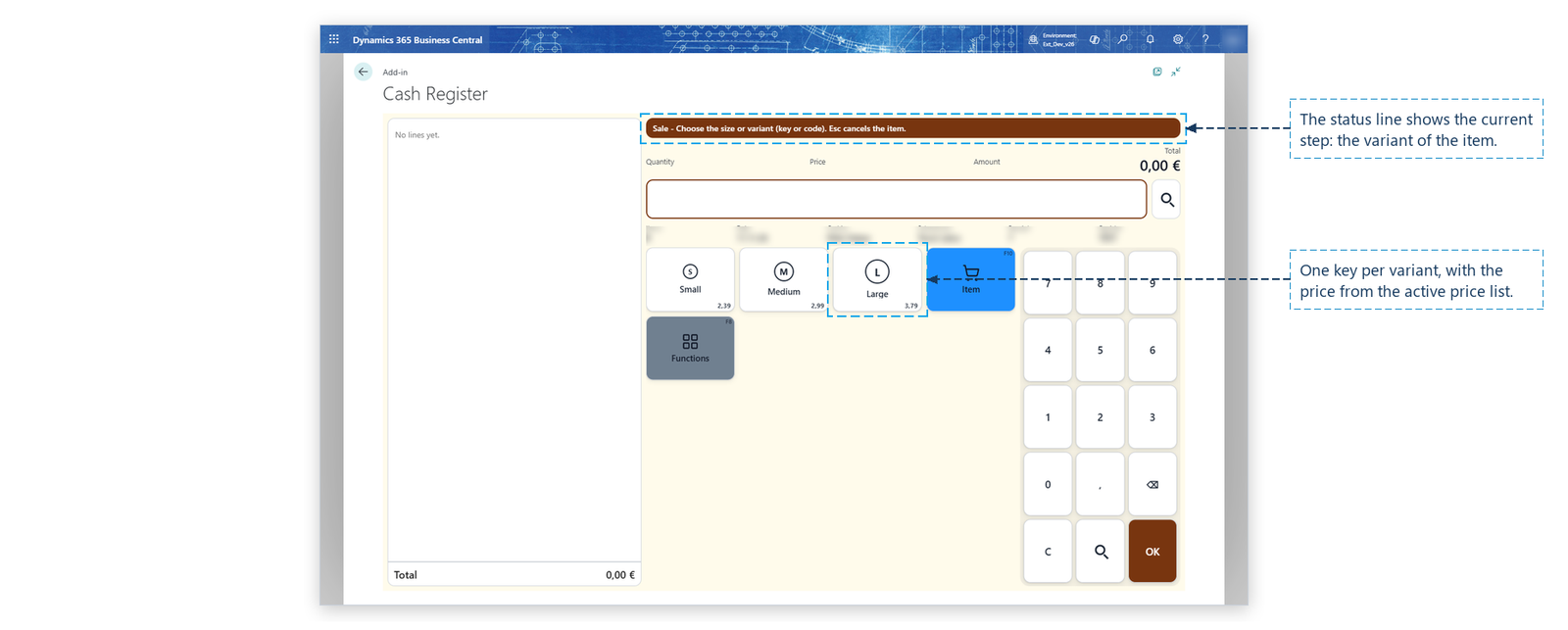
- Choose the item, for example an item. The status line shows Choose the size or variant (key or code). Esc cancels the item. One key is shown per variant, with its price.
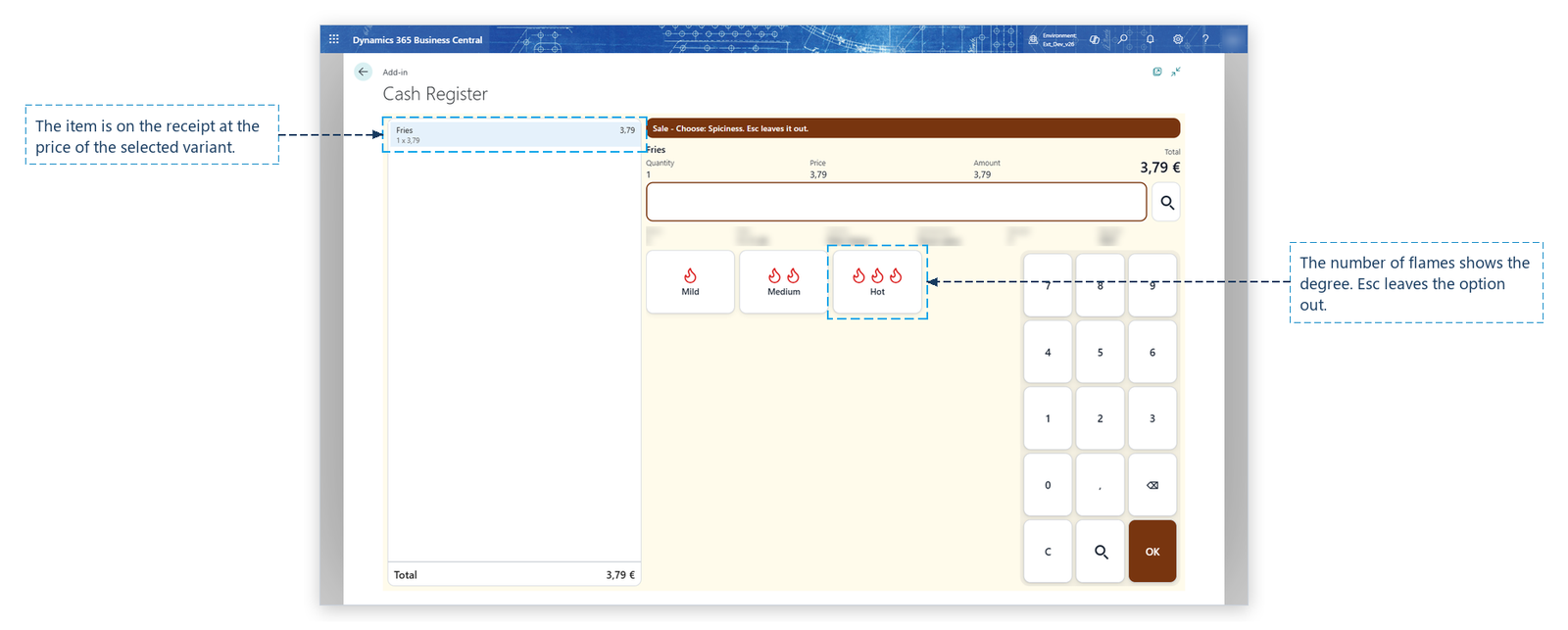
- Choose the variant, for example Large. The line is added at the price of the variant.
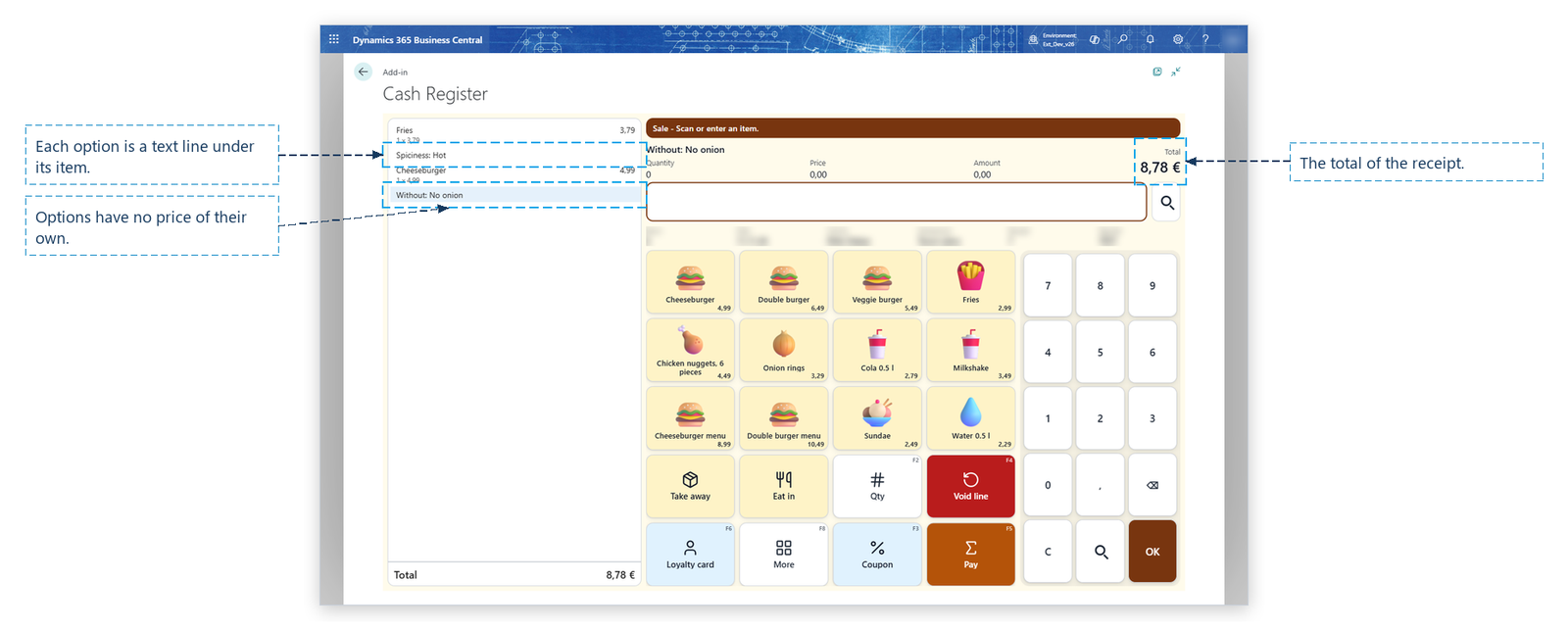
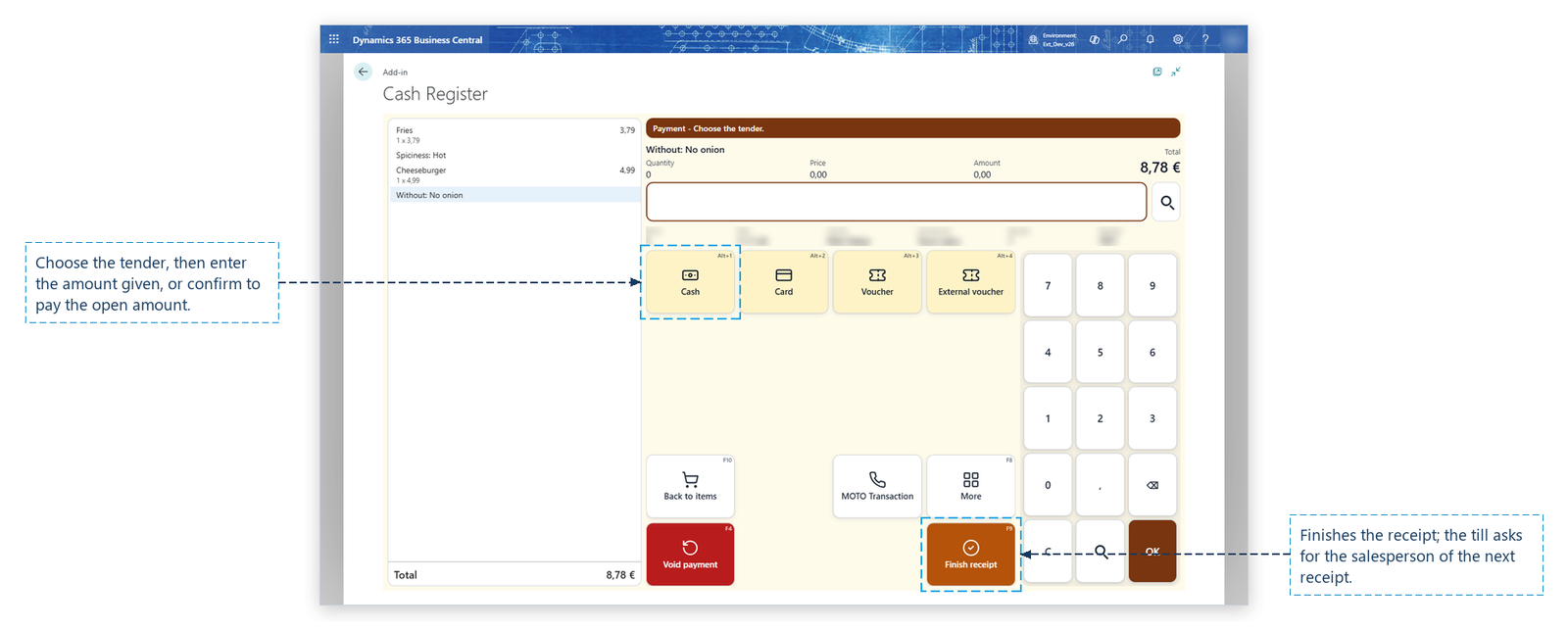
- The status line shows Choose: Spiciness. Esc leaves it out. Choose an option, for example Hot. The option is added as a text line under the item.
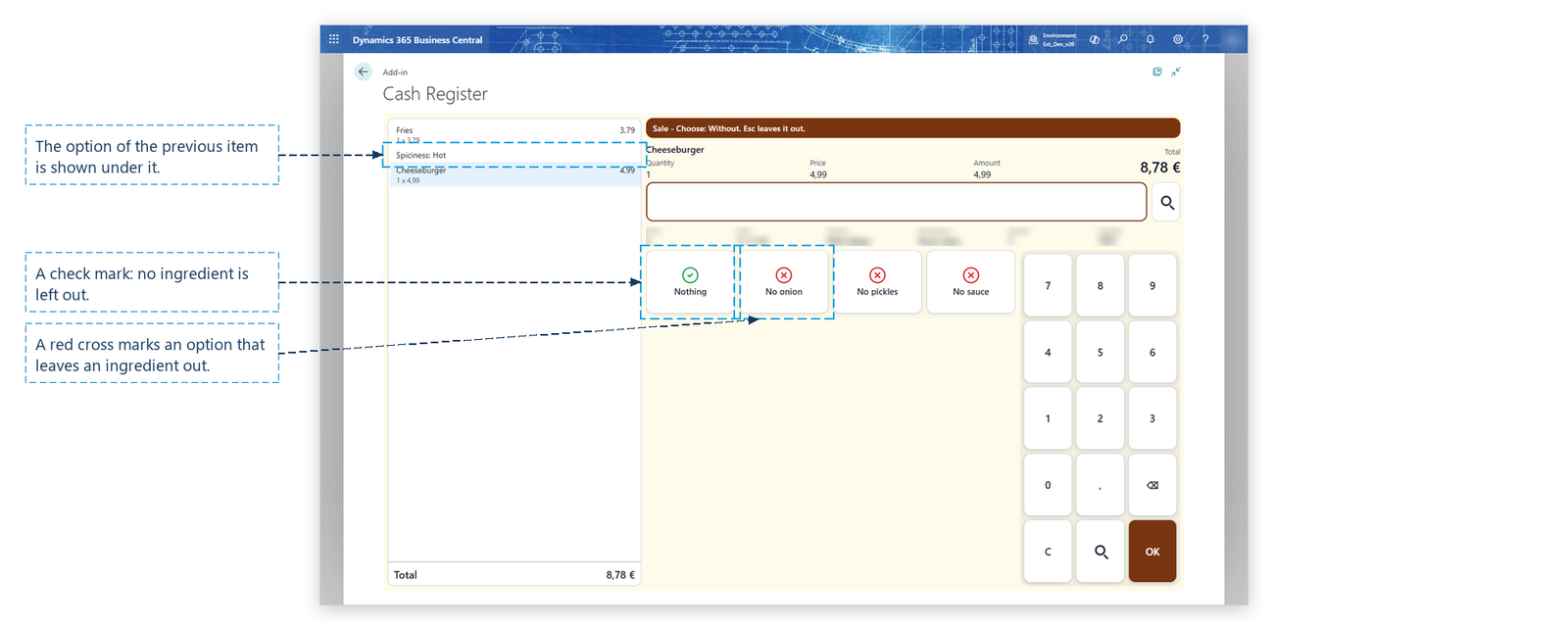
Tip: Esc while the size is asked cancels the item. Esc while a choice is asked leaves that choice out, and the next one is asked.
Set up sizes (item variants)
Sizes are standard Business Central item variants.
- Open the item card (an item) and choose Variants.
- Add one line per size: Code S, Description Small; M Medium; L Large.
The till asks for the variant for every item that has variants. The demo items contain further examples: T-shirts in S, M, L and XL, jeans in waist 30, 32 and 34, coffee drinks in three sizes, regular and large menus, and chicken buckets of 8, 12 and 16 pieces.
Give each size its price (price list)
The price of each size comes from a sales price list, so it can differ by size, customer group and date.
- Open Sales Price Lists and create a list (the demo items use QPOS-DEMO). Assign-to Type: All Customers. Select Price Includes VAT.
- Add a line per size: Product Type Item, Product No. the fries' item number, Variant Code L, Unit Price 3.79.
- Set the list's Status to Active.
A variant without its own price line is sold at the unit price of the item. The variant keys show the price that applies.
Set up choices (POS Item Options)
Options without a price of their own, such as spiciness, milk, without onion or gift wrap, are set up as POS Item Options.
- Search for POS Item Options.
- Add a line per choice: Item No. (or Item Category Code for every item of a category), Option Group (Spiciness), Position (1, 2, 3...) and Option (Mild, Medium, Hot).
- Several groups per item are asked one after the other, in the order of the groups.
| Example | Option group | Options |
|---|---|---|
| an item, wings, strips | Spiciness | Mild, Medium, Hot |
| Cappuccino, latte | Milk | Regular milk, Oat milk, Soy milk |
| Coffee | Extra | No extra, Extra shot, Vanilla syrup |
| Bread | Slicing | Whole, Sliced |
| Burgers | Without | Nothing, No onion, No pickles, No sauce |
| Grill burgers | Doneness / Toppings | Medium, Well done / Classic, No vegetables, Extra sauce |
| Chicken bucket | Recipe | Original, Spicy |
| Mugs, snow globes, chocolates | Gift wrap | No gift wrap, Gift wrap |
Note: An option has no price. For a choice with a surcharge, use an item variant with its own price, or a separate item.