
Salespeople and their sign-in at the till
Every receipt is created under a salesperson, who signs in at the till with a code and a password. This chapter sets up salesperson groups and their rights, assigns salespeople to groups and locations, sets passwords and blocks salespeople who no longer work at the till.
Before you start
Do this once, before handing out groups:
- The salespeople exist in Salespeople/Purchasers.
- The location they work at exists: HAUPT (standard Locations). Default Location holds a location code.
- Each person who works with the salesperson pages has the app's permission set All (shown as QUAB all objects): on the Users page, add it to the cashiers. It is the only permission set the app installs and gives access to all POS pages; a user with SUPER needs no further set.
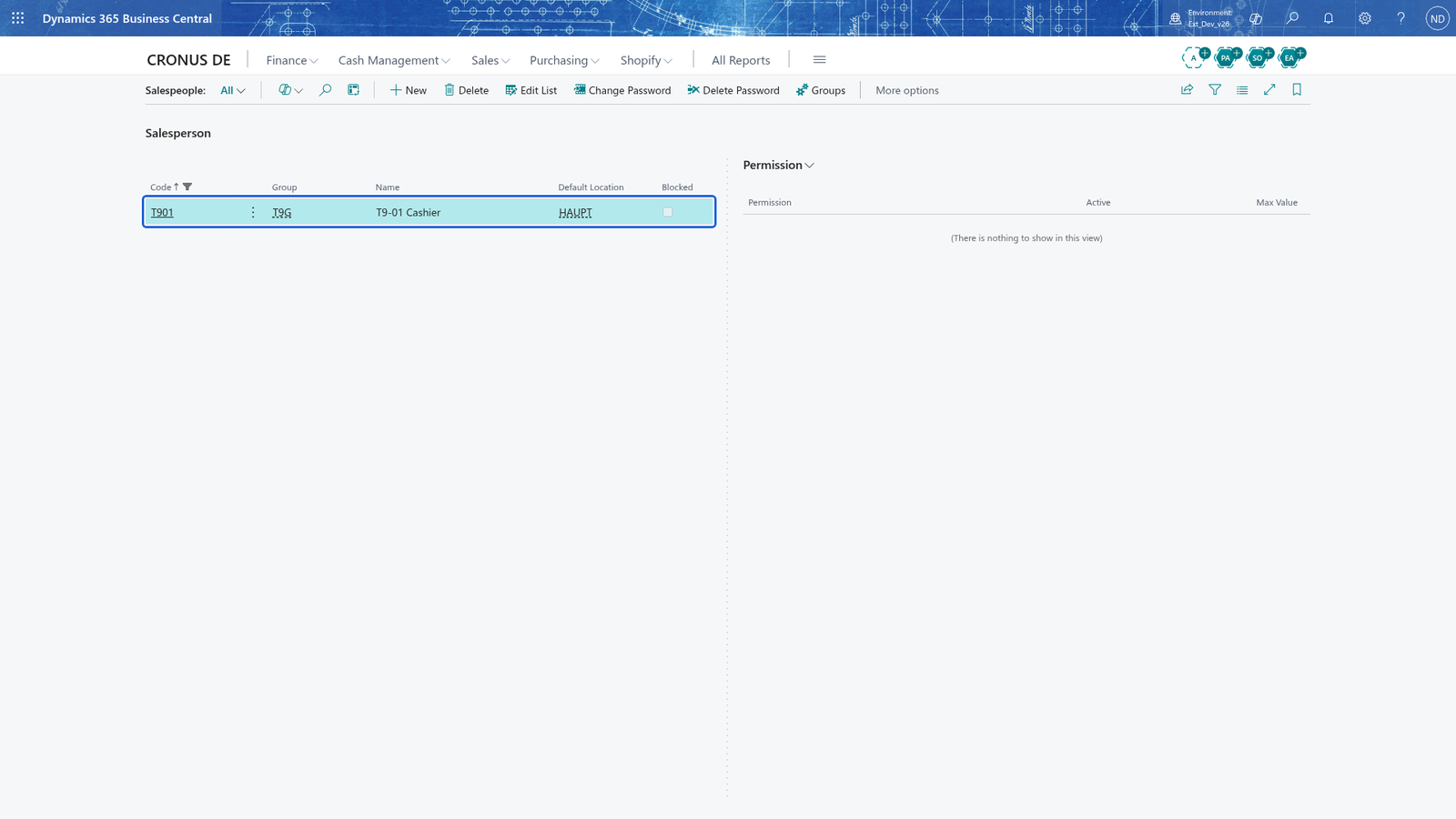
- Search for Salespeople and open it. It shows Code, Group, Name, Default Location and Blocked for every salesperson, and a Permission part on the right. The Options group holds Change Password, Delete Password and Groups.
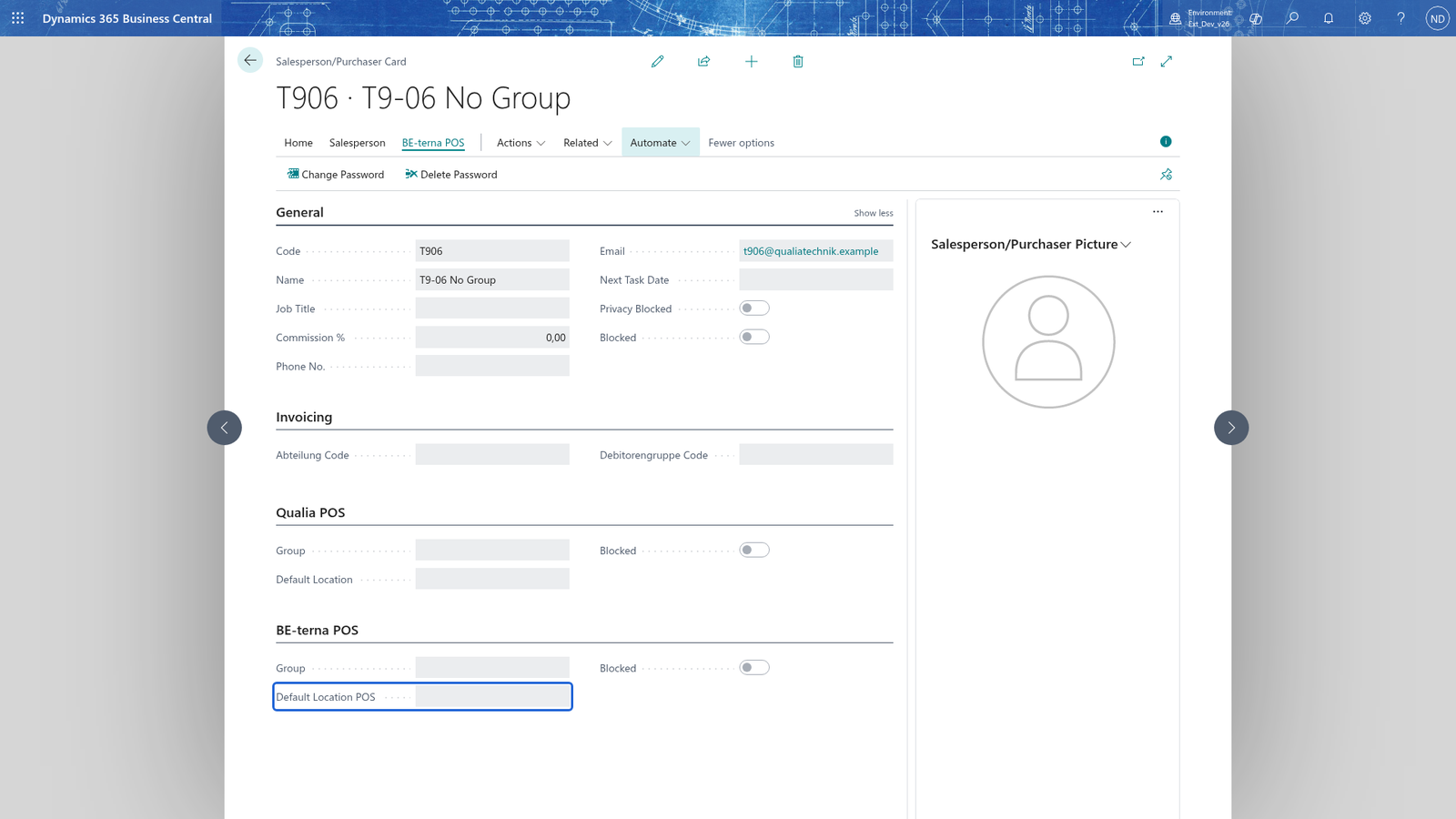
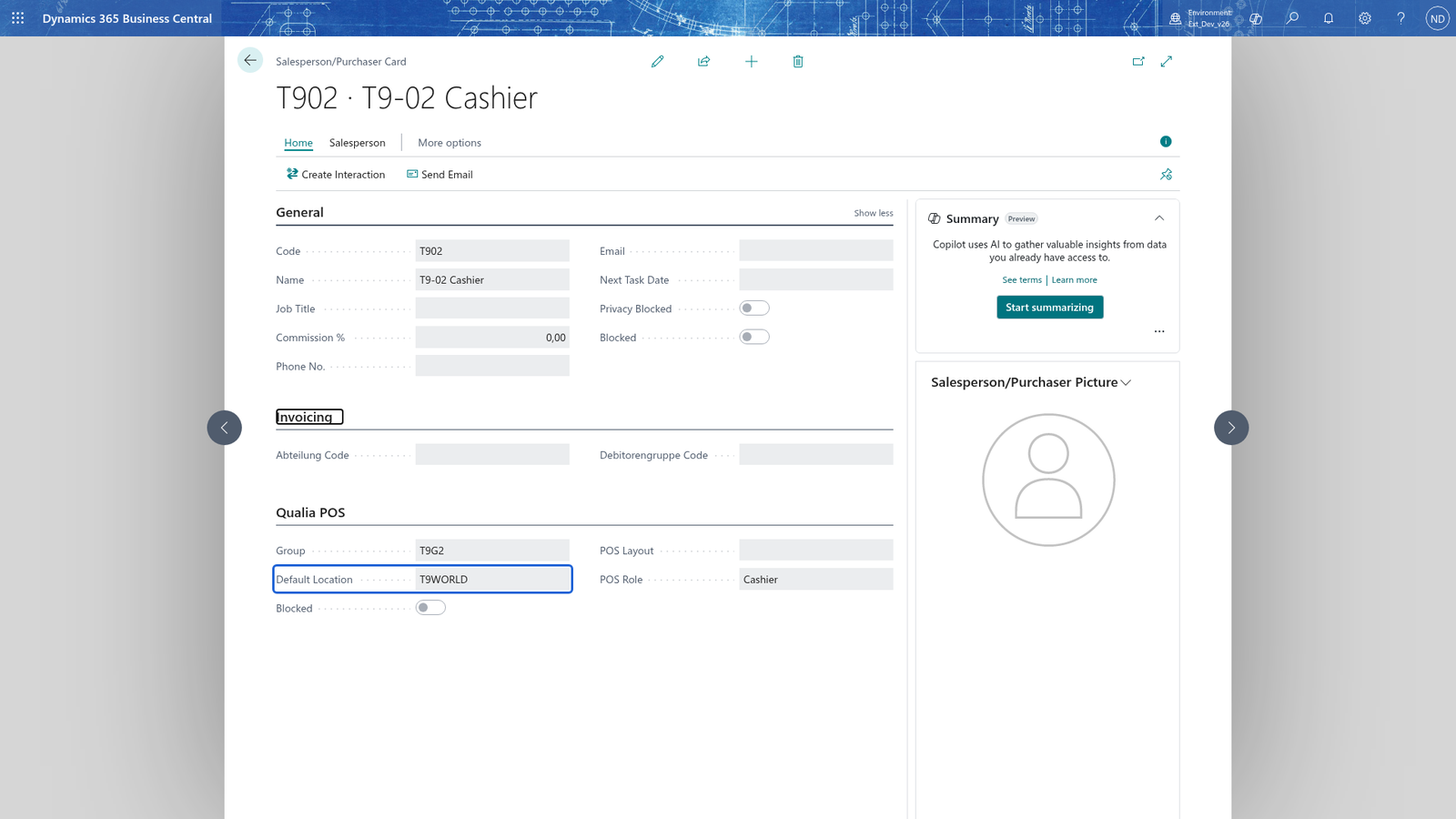
- You set the POS settings on this list. The same fields are on the Salesperson/Purchaser Card under QUALIA POS, which also has the Change Password and Delete Password actions.
Create the salesperson groups
A group holds the rights that one kind of seller gets; you set them once and then give the group to the salespeople. The administrator needs a cashier group and a supervisor group.
- Open the Salespeople and choose Groups.
- Choose New. In Code, enter CASHIER.
- Turn on Discount Permission. This switches on Discount allowed and Reduce Allowed for the group.
- In **Max.
- Turn on Open cash drawer allowed and Cash counting allowed so the cashiers can open the drawer and count the till.
- Choose New again. In Code, enter ADMIN.
- Turn on Supervisor.
- Close the page.
Note: Supervisor means "all functions are allowed": it switches on every right of the group at once - discount, reduce, returns, reversals, register closing, new price, selection, cash book, employee and customer rights.
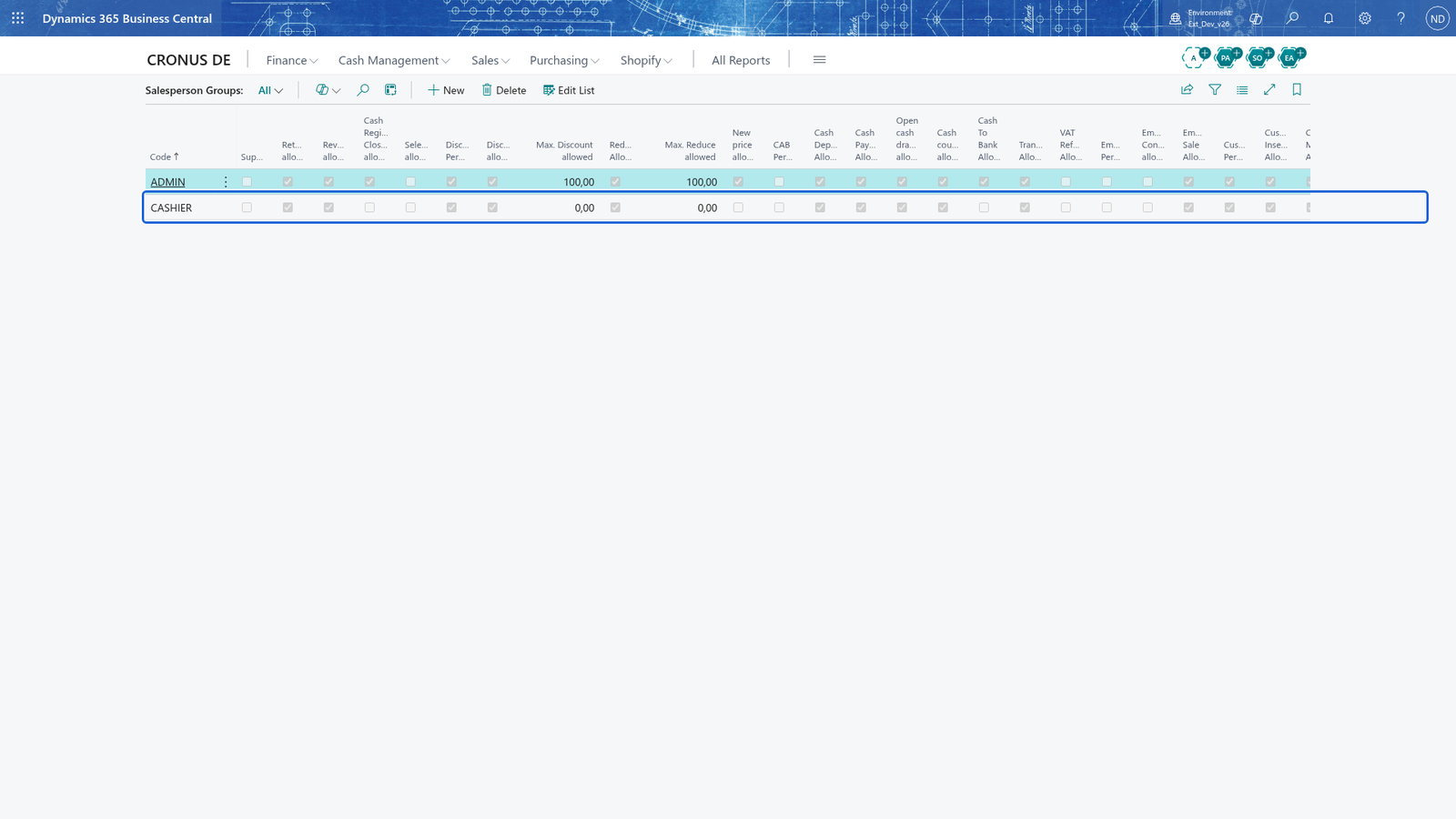
Note: Discount Permission, CAB Permission, Employee Permission and Customer Permission switch on or off a whole family of rights at once (for example CAB Permission covers deposit, payout, cash to bank, transfer, VAT refund and cash counting); the switch shows on when every right of the family is set. To set a single right, use a column such as Return allowed or Cash counting allowed.
Give each salesperson their group, location and block
Now the groups go to the people.
- Open the Salespeople.
- Select the salesperson and enter the Salesperson Group, for example CASHIER.
- In Default Location, enter the location this salesperson works at, for example HAUPT.
- Leave Blocked off so the salesperson can work at the POS.
- Repeat for each salesperson; give the supervisors the group ADMIN.
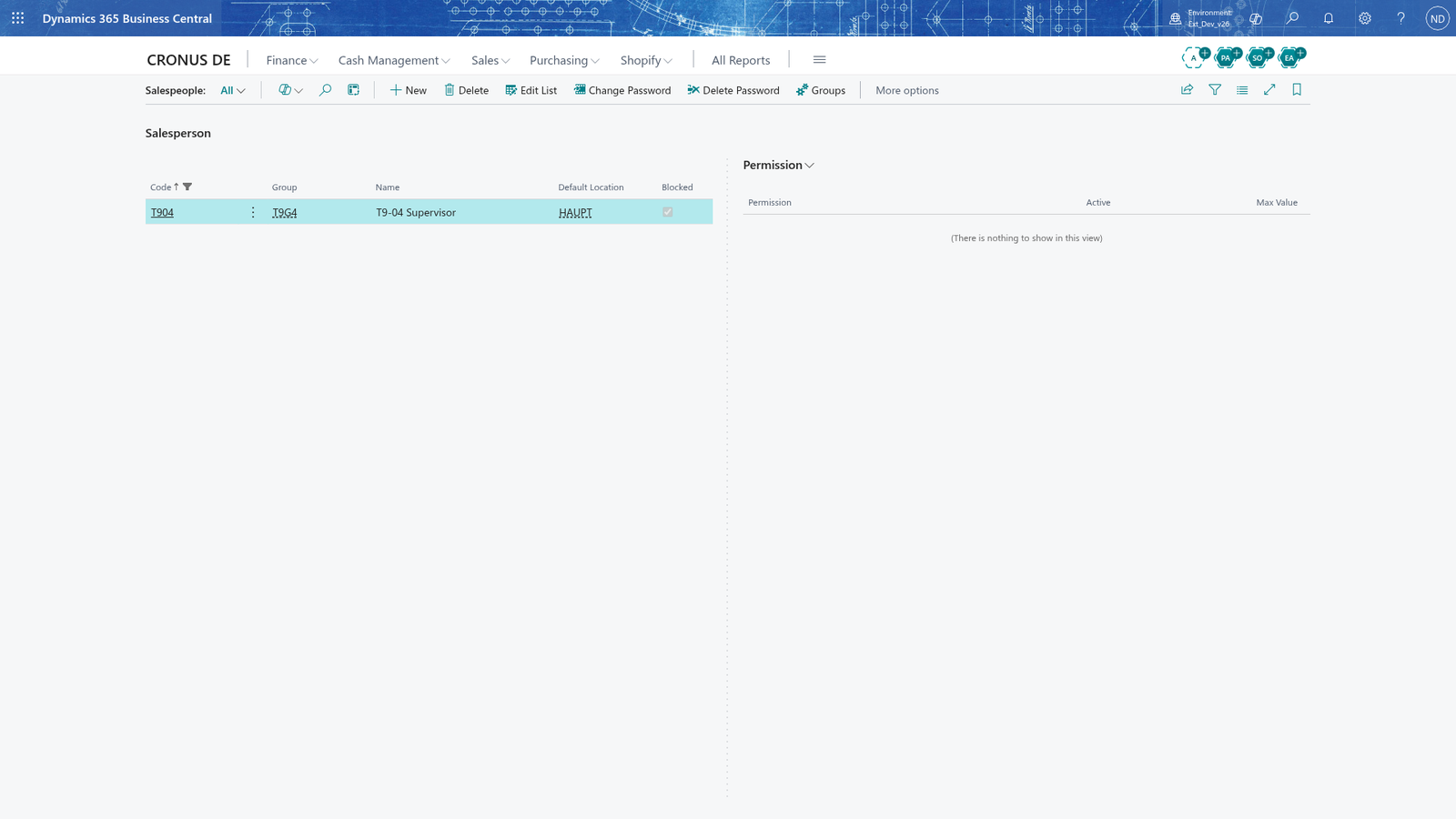
The list now shows all three sellers with their group, location and block.
Note: A salesperson keeps the POS group they were first given: once Group holds a group, you cannot enter a different one. Give the group when you set the salesperson up for the POS; if it was the wrong group, clear Group, save, and then choose the new group.
Note: A salesperson without a group works with their own rights. Give everyone a group so the rights are maintained in one place.
Blocking someone: turn on Blocked. The POS refuses the sign-in of a blocked salesperson, while their Business Central login still works. Turn Blocked off again to let them sell.
Set a salesperson's sign-in password
The cashiers and the supervisor sign in at the till with a password; a salesperson who is only named on a receipt does not need one.
- Open Salespeople and select the salesperson.
- Choose Change Password. The cashier has no password yet, so the dialog asks only for New Password and Confirm New Password.
- In New Password, enter the password you give the cashier, for example Pos2026.
- In Confirm New Password, enter the same password again.
- Choose OK.
- To change a password later, choose Change Password again: the dialog then also asks for Old Password; enter the salesperson's current password there.
- Give a second cashier and the administrator their passwords the same way.
- The salesperson then signs in with the code alone.
Note: The password is stored only as an encrypted value, never in plain text. A new password that is the same as the old one is still stored differently.
See what a salesperson may do at the till
For the selected salesperson, the Permission part shows the five permission kinds Supervisor, Discount, CAB, Employee and Customer, which of them are Active and, for the discount, the Max Value.
- Open Salespeople and select the salesperson.
- Read the Permission part on the right: the cashier is in CASHIER, so Discount is active with the group's maximum of 10 %.
Note: A permission kind is active only when the salesperson holds every right of that family: CAB for example needs deposit, payout, cash to bank, transfer, VAT refund and cash counting. A supervisor shows all five kinds active.
What happens
- What is stored: the group, the default location and the block are saved on the salesperson record; the password is stored encrypted with its own salt, so the plain text is never kept. Delete Password removes it and the salesperson signs in with the code alone.
- The sign-in: the POS accepts the sign-in when the salesperson code exists, Blocked is off and - when a password is stored - the entered password is the stored one. A salesperson with no stored password signs in without one until Change Password sets one.
- The rights during the sale: the POS reads the rights from the salesperson's group at the sign-in, so the cashier may discount up to 10 % while a cashier without discount rights cannot. Functions such as unlocking a locked register or closing the register need a supervisor sign-in.
- Where to check it: the Salespeople shows Group, Default Location and Blocked and the Permission part; on the Salesperson/Purchaser Card the same fields are under QUALIA POS.
- How to undo it: turn Blocked off, clear Group before choosing another one, and Delete Password to remove a password.
If something goes wrong
- The old password is not correct. The Old Password you entered is not the salesperson's current one. Enter it again, or choose Delete Password and set a new password with Change Password.
- The new password and its confirmation are different. The two entries are not the same, or New Password was left empty. Enter the same password twice.
- Salesperson/Purchaser is already assigned to a POS Group and cannot be changed to another Group. Specify a new Salesperson/Purchaser. A salesperson keeps the group they were given first. Clear Group, save, and then choose the new group.
- The Default Location is refused. The code you entered is not a location. Choose or type a location code that exists, for example HAUPT.
- A salesperson cannot sign in at the till. The code is wrong, Blocked is on or the password is wrong. Check the code, the block and the password on the Salespeople; Blocked is easy to miss.
- A salesperson cannot give the discount. The group's Discount Permission must be on and Max. Discount allowed must be at least the discount. Check the group on the Salespeople.