
Payments and tenders (cash, cards, vouchers, gift cards and coupons)
A tender is a method of payment at the till: cash, card, voucher, gift card or invoice. This chapter sets up the tenders of a register, the card terminal, vouchers, gift cards and coupons, and shows where the payments of each tender can be reviewed.
Before you start
Do this once, before the first sale; the setup chapter creates the register itself.
- The cash register HAUPT / TEST exists (the setup chapter created it), and the G/L accounts of the tenders exist in the chart of accounts: cash 1810 (cash-to-bank 1610), card 1830, difference 1820, tip 1810, voucher 1900, unknown voucher 1950 and gift card 1990.
- The app ships the tenders 1 Cash, 2 Card, 3 Voucher, 4 UnknownVoucher, 5 Voucher Card and 6 Invoice. Activate the ones the counter uses (see the first task).
- For card payments, the card terminal is plugged in or reachable at the register (for ZVT, an IP address and port, or a COM port) and its protocol (ZVT or provider account) is known.
- The voucher setup generates the voucher codes the counter sells (see "Sell a voucher"); the gift card setup turns the gift card on for the register (see "Issue, load and pay with a gift card").
- A campaign with coupons exists if the shop hands coupons out (campaigns chapter); coupons are generated on the Coupons page (see "Create and redeem coupons").
Check the tenders and activate the card tender
Search for Tenders and open it. The list shows one row per tender, per register. Check that tender 2 Card has Type Card, its G/L Account (the card account, 1830) and its Difference G/L Account (1820), and set Allowed on it so the register can ask for it at the counter.
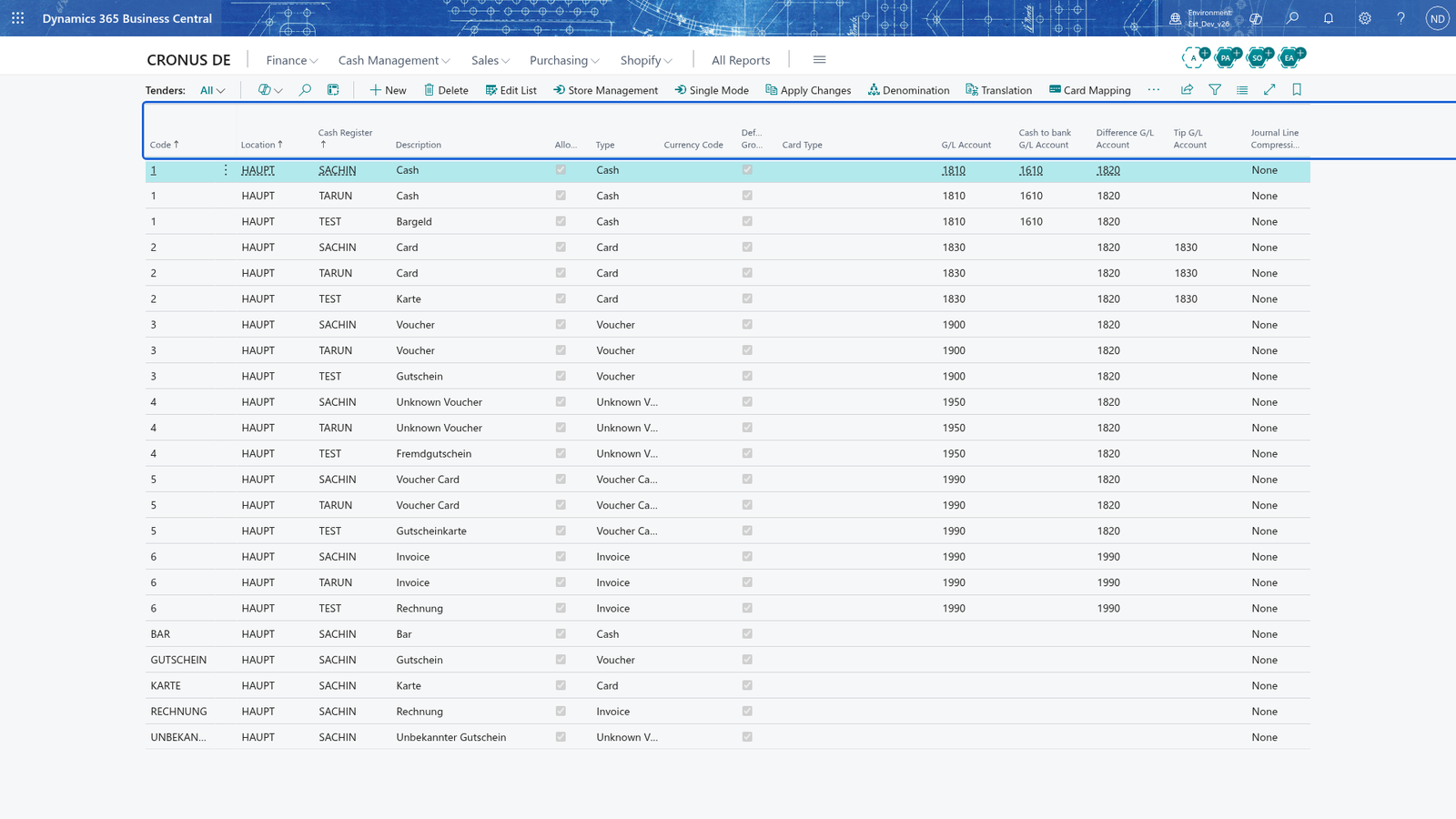
For each tender you set up:
- In Type, choose what the tender is: Cash, Card, Voucher, UnknownVoucher, Voucher Card, Invoice or Other. The type decides how the register handles the money.
- In Allowed, turn it on so the tender can be chosen at the counter.
- In G/L Account, enter the account the money is booked to (the card account, 1830).
- In Difference G/L Account, enter the account that catches any difference (1820).
- Use the options the way the money must behave: Overpayment Allowed lets the customer pay more than the total (useful for a tip), Prevent Split Payment stops that tender being combined with another, Refund Allowed lets a refund use the tender, and Use for Counting marks tenders that are counted when the till is closed.
- To start from an existing tender, choose Apply Changes to copy the selected tender to a new one.
A tender can also open the drawer (Open Drawer, useful for cash) and ask for a text when it is paid (Capture Text). Default makes it the tender the register picks first, and Default Group keeps it in a group of tenders offered together.
Note: Tip G/L Account shows only when Type is Cash; it lets a cash payment book a tip to its own account.
Note: A tender marked Prevent Split Payment cannot be combined with another tender on the same sale; leave it off unless you need it, because most sales take one tender.
Set up the card terminal and make a card payment at the till
A card tender does not touch the cash drawer. It talks to a card terminal, so set that terminal up once per register. Search for Payment Terminal Card and open it for HAUPT/TEST.
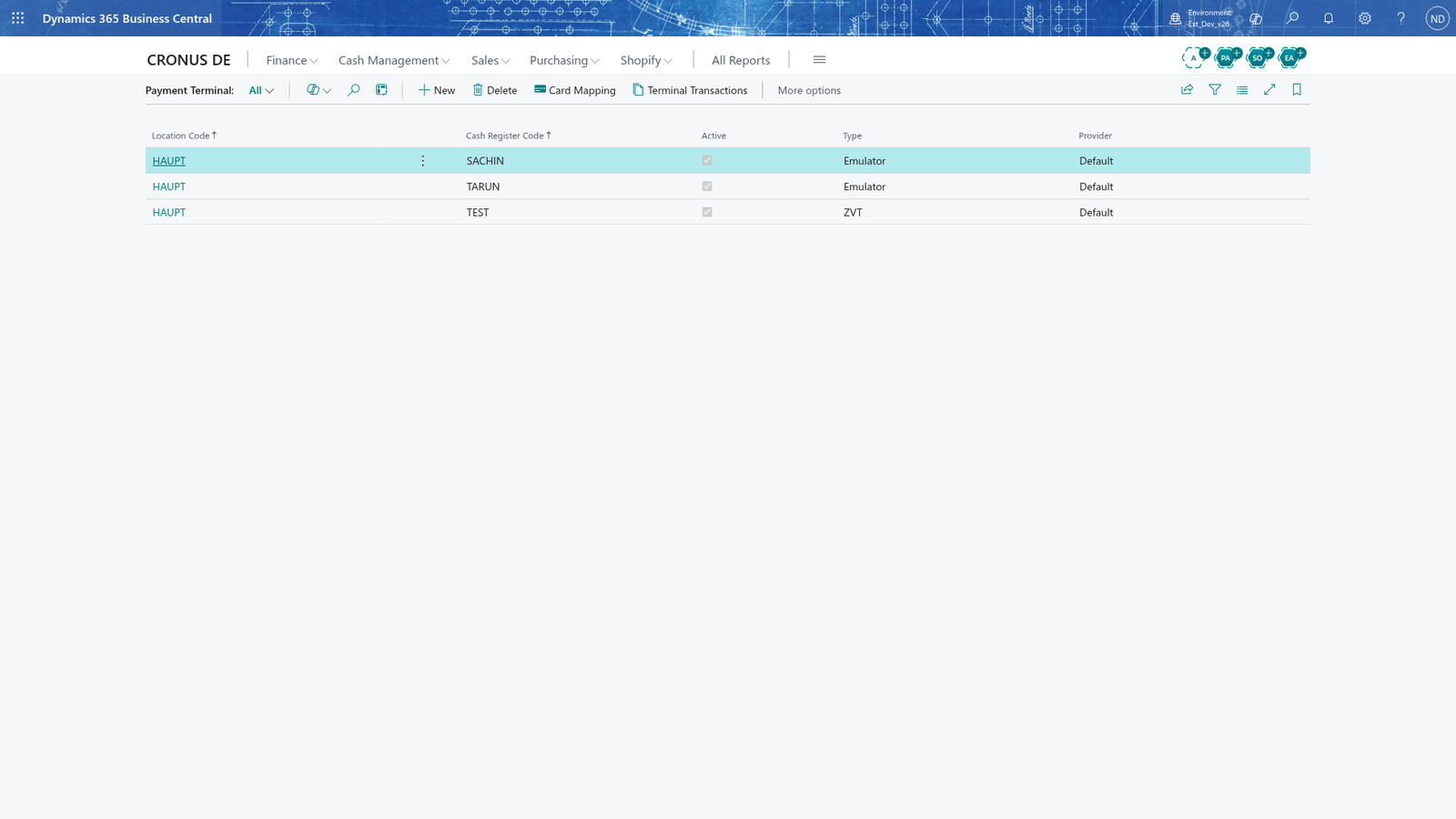
- In Location Code, choose the register's location (HAUPT), and in Cash Register Code the register (TEST).
- In Type, choose the protocol the terminal speaks. The story's terminal speaks ZVT; Adyen, Wallee and Worldline use provider accounts.
- In Provider, choose the provider, if the type needs one.
- For ZVT, choose the Communication Type (IP Address or COM Port) and fill in the address (e.g. IP Address and Port) or the COM Port and Baudrate that reach the terminal.
- Turn on Active so the register may use the terminal.
- If you print a SEPA mandate on the terminal receipt, turn on Print Debit Text and type the Debit Text.
- To use the same debit text on every terminal, choose Copy debit text and check the message that says how many setups it copied to.
Test Transaction sends a small test payment to the terminal so you can see the link works; the terminal answers and the page says "Test transaction completed successfully." Terminal Transactions opens the list of card transactions the register has made.
Finally link the card tender to its card type. In Tenders, choose the tender 2 Card, and choose Card Mapping to open the Card Mapping list.
- If the list is empty, choose Initialize. It creates the known return values of the ZVT and Worldline protocols, each already linked to the POS card type. Existing rows keep the card type you set.
- Edit Card Type only where the terminal reports a card value you need to give its own POS card type.
- On the card tender in Tenders, the Card Type and Card Type Preset fields are shown when Type is Card, so the tender knows which card types it accepts.
Note: Card Mapping is the link between what the terminal prints as a card value and the POS card type on the tender. Without it, or with the wrong card type, a card tender will not offer the right cards.
Note: Initialize only adds rows that are missing. Existing rows keep their Card Type, so you never lose a mapping you changed.
Make a card payment at the till. Once the card tender is allowed and the register's terminal is Active, the cashier takes the customer's card payment on the register (the Cash Register page) itself, not on a setup page:
- At the end of the sale, the register offers the tenders that are Allowed on this register. Choose tender 2 Card.
- Enter the amount the customer pays by card, or press OK to pay the open amount.
- The register sends the amount to the ZVT card terminal; the customer holds the card and approves it on the terminal.
- When the terminal approves, the payment is stored as a payment line and the sale continues. If part of the sale is still open, the cashier pays it with another tender, e.g. 225.50 with tender 1 Cash.
The receipt prints with both payments; you check them later in the payment line list.
Sell a voucher
Vouchers are generated in Business Central, sold at the counter and redeemed with tender 3 Voucher. The administrator generates the codes once:
- Search for Voucher Setup and open it.
- In Count, enter how many vouchers to generate (the setup uses 100).
- In Length, enter the number of characters of the voucher code (the setup uses 10).
- For printed vouchers you want to hand out (promotion vouchers with a fixed value), enter Default Amount (50.00); vouchers printed by the register itself take their value from the sale instead. Leave it blank if you sell the vouchers at the counter for any amount.
- Choose Create. The message says "100 voucher(s) created."
- Turn on Post Voucher Amount only if loading and emptying vouchers must create finance bookings; the voucher reasons' accounts are then used.
- The Voucher Types part on the same card holds the voucher types with their revenue and VAT settings; keep the default type unless the shop sells different kinds of vouchers.
A generated voucher is still Open. The cashier sells it at the counter like any other article: the sale line is entered as a Voucher with the code of the printed or listed voucher, and the customer pays it with any tender, for example tender 1 Cash with EUR 50.00. The receipt prints, and the voucher is Issued and gets its expiration date.
The administrator checks it in Business Central:
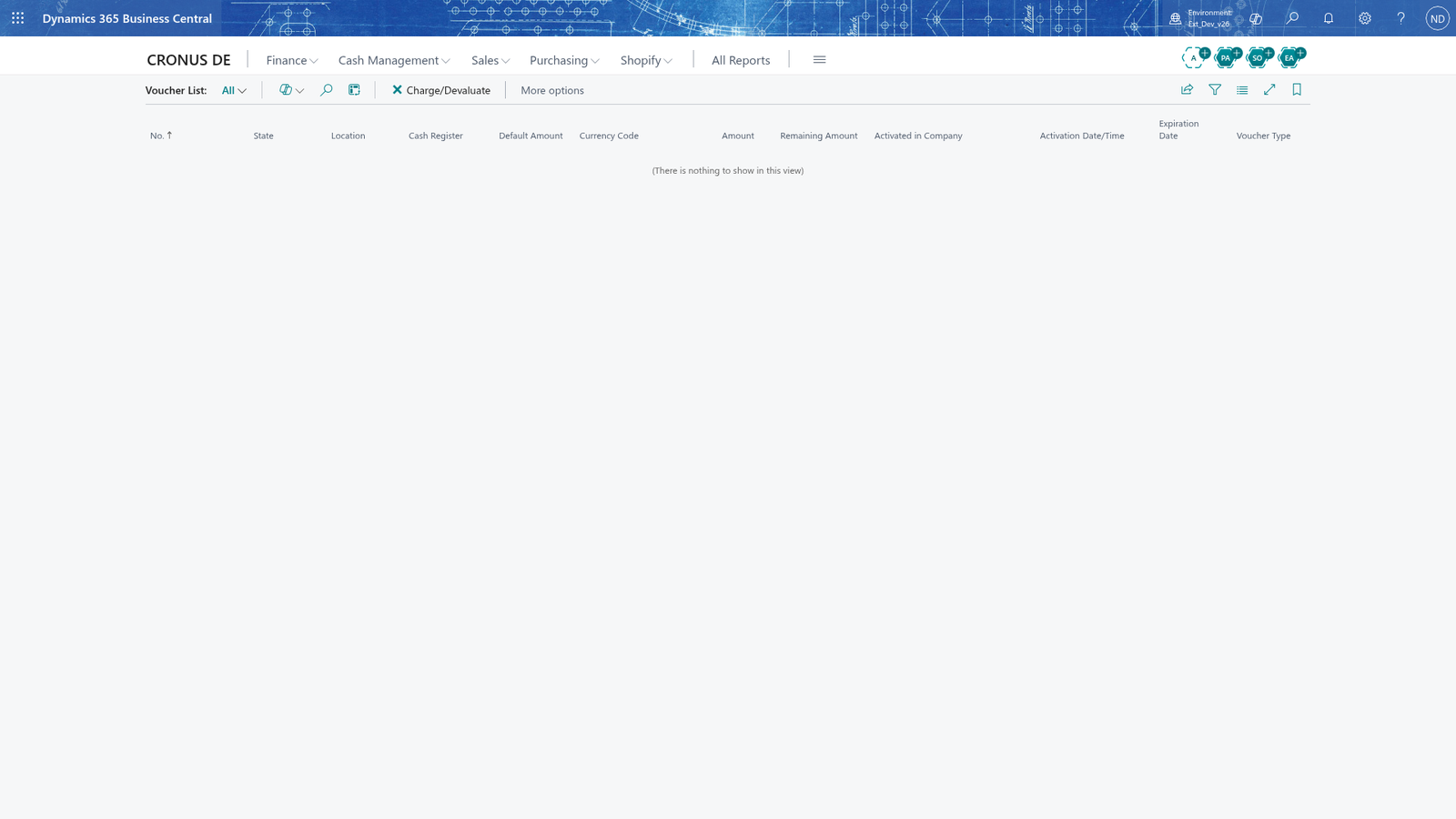
- Search for Voucher List. Find the voucher: State is Issued, Amount is 50.00 and Remaining Amount is 50.00.
- Search for Voucher Entry List. The voucher's Activation entry of 50.00 is shown with its receipt.
Note: A voucher can only be sold while it is Open; a voucher that is already Issued gives "Voucher... has already been issued." and a generated voucher that nobody sells stays Open.
Redeem a voucher with tender 3, and write it off
The customer comes back with the voucher. The cashier finishes the sale and pays it with the voucher:
- At the payment step of the sale, choose tender 3 Voucher.
- Enter the voucher code in the input line.
- Enter the amount the voucher must pay; if the voucher has exactly the open amount, use the total.
- The payment line is stored with tender 3 Voucher and the voucher's Remaining Amount drops (here to 0.00). The receipt prints.
Check it in Voucher Entry List: the voucher's Redemption entry (shown as a reduction) is kept with the receipt.
To write off a voucher that will never be redeemed, or to load extra value onto one, use Charge/Devaluate:
- Search for Voucher List, select the voucher and choose Charge/Devaluate.
- On the Voucher Recharge page choose Voucher Reason (its accounts and journal are shown), enter Amount - positive to charge, negative (for example -50.00) to devaluate - and optionally Customer No. and Expiration Date.
- Enter or scan the Voucher No. to add the voucher to the lines under the card.
- Choose Charge/Devaluate and confirm. The message says "The vouchers were charged or devaluated."
Note: The voucher reasons are kept in Voucher Reasons: Code, Description, Voucher Account No., Balance Account No. and the journal the recharge posts with. If the voucher setup books voucher amounts, the reason needs a Balance Account No.
Issue, load and pay with a gift card
A gift card is a stored value a customer can pay with later; the shop sells it as an article. The cashier issues it at the counter; the administrator switches the register on for it once.
Search for Gift Card List and check the card for HAUPT/TEST. If no setup exists yet, choose Initialize all cash register setups; the message says how many new setups were created. Open the setup in Gift Card Card and set it up:
- In Provider, keep Standard (own solution); Point4More, AVS, Knistr and SVS show their own credential fields and fill them in from the provider.
- Turn on Active.
- Type names the card in the register's buttons and messages (here Voucher Card).
- Turn on Deduct Amount if a payment may use only part of the card; otherwise the card is always paid in full.
- Turn on Print Remaining Amount to print the balance on the receipt when the card is used.
- Turn on the actions the till may do: Activation Allowed (issue the card), Credit Allowed (top it up), Balance Allowed (check the balance), Debit Allowed (pay with it) and Payout Allowed (pay out a card).
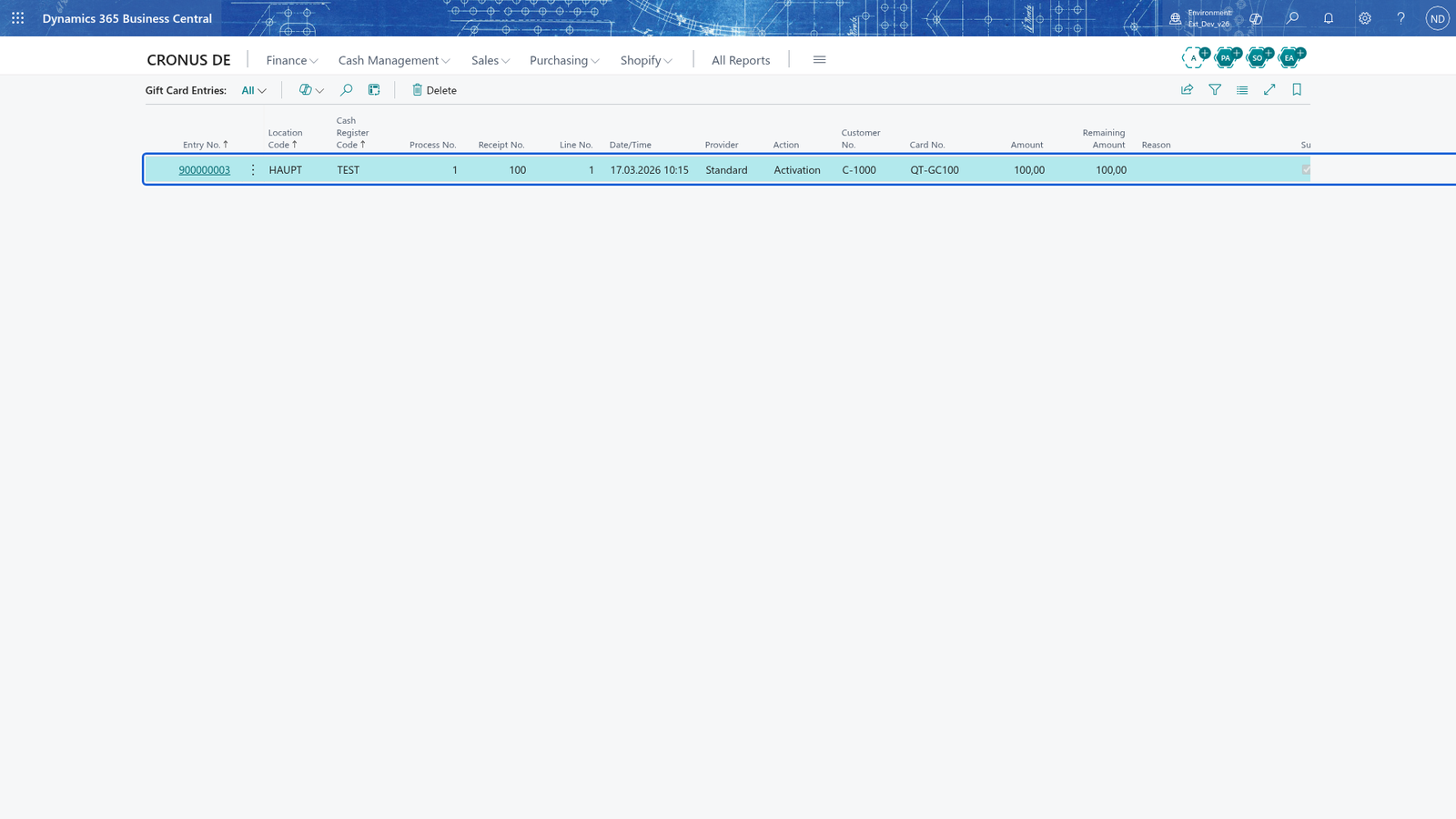
Issue or load the card at the counter. The cashier takes the money in cash (or on any tender) and puts the value on the card with tender 5 Voucher Card:
- At the payment step of the sale, choose tender 5 Voucher Card.
- Enter the gift card number.
- Enter the amount (for example 100.00). The card is activated with that value, or topped up if it already had one.
The customer pays with the card on a later sale: choose tender 5 Voucher Card, enter the card number and the amount. The card's balance drops, and the rest of the receipt can be paid with another tender.
Note: Every gift card movement (activation, top-up, payment, reversal, payout, devaluation) is kept as an entry; the card's value is the sum of its successful entries. Find them in Gift Card Entries (filter Card No.) with the Action, Amount, Receipt No. and Remaining Amount, and see the card itself in Gift Card List (card number, customer, Remaining Amount, Devaluated).
A card that must not be used any more is written off: select it in Gift Card List and choose Devaluate. The card's Devaluated box is set, and the remaining value is kept for the records.
Create and redeem coupons
The administrator creates them from the campaign:
- The Coupon Wizard opens.
- In Length, keep 10: the coupon code has that many characters.
- In Count Of, enter how many coupons to generate (for example 1).
- In Validity, choose Multiple so the code can be redeemed several times, or Unique for a single use.
- In Max Count Of Redemptions, enter how often the coupon may be redeemed (10; 0 means unlimited).
- In Sales Type, choose who may redeem it. All lets every customer; Customer, Contact or Segment also needs the number in Sales Filter.
- Choose Discount Type (Discount in percent or Reduce to a fixed price), enter Discount Value (for 10 %: 10) and Discount Usage (receipt or line).
- Enter Start Date and Expiration Date; a blank date means no limit.
- Choose Apply. The coupons appear in Coupons with State Issued.
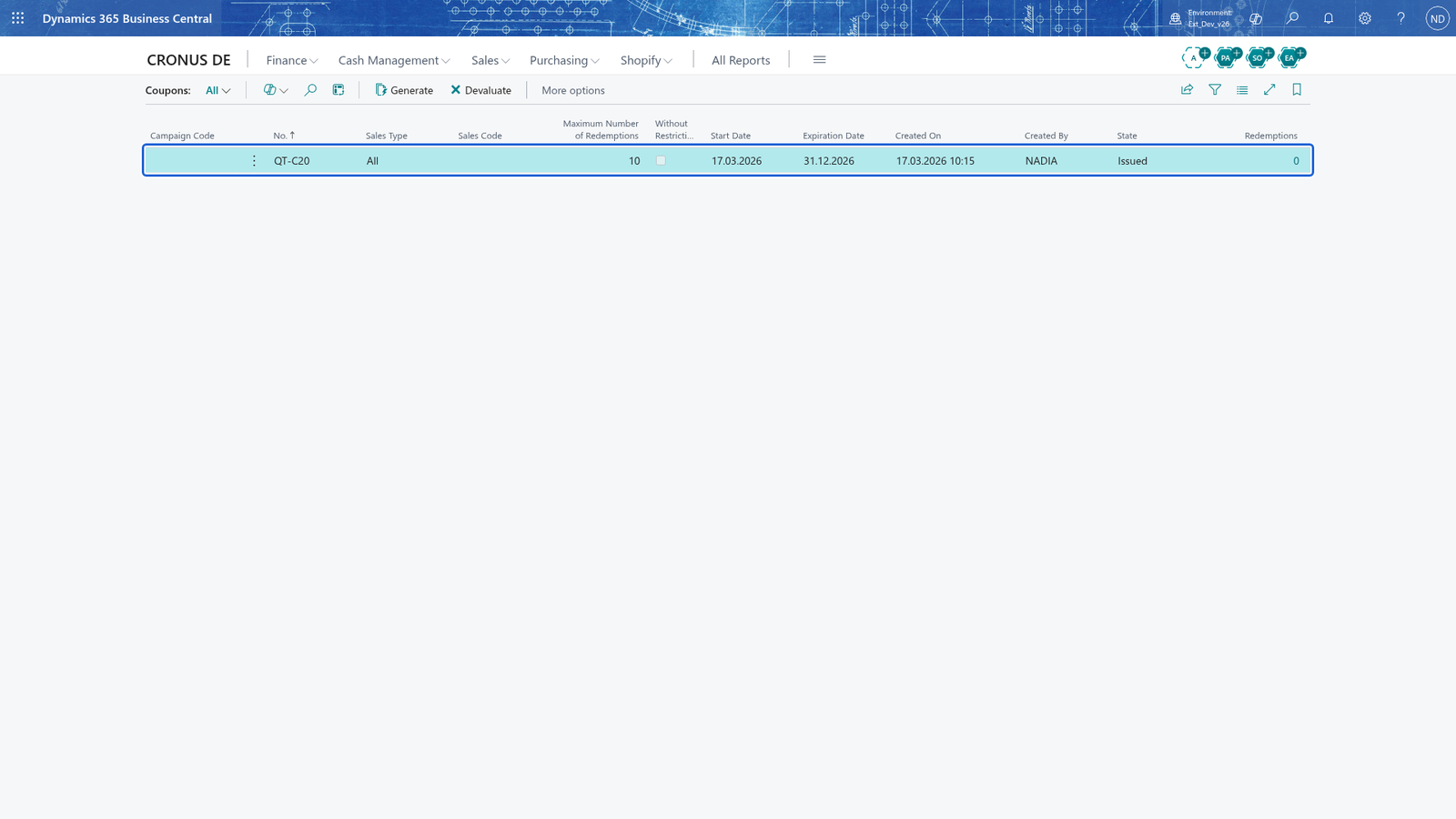
The customer redeems the coupon at the counter: the cashier enters or scans the coupon code during the sale, and the campaign's discount (here 10 %) is given to the line or the receipt. In Coupons the coupon's Redemptions count goes up. A coupon is no longer valid when it is expired or has used up its redemptions.
A coupon that must not be used any more is cancelled: select it in Coupons and choose Devaluate; its State becomes Devaluated.
Note: A coupon that has reached its redemptions, has expired or is not yet valid gives an error at the register; the coupon keeps its Redemptions count, which you see in Coupons.
See what each tender took at the counter
After sales are imported you can read how much each tender took. In the analysis (Analysis of all Tenders, caption 'Analysis of all Tenders') you see, per tender, Total Amount Per Day and Total Receipts Per Day for the chosen day, and Total Amount Per Month and Total Receipts Per Month for its month. The figures come from payment lines that were not reversed, so a reversed payment is not counted. To find one payment, open Payment Lines and filter by register and date: it shows the receipt number, the tender, Amount (LCY), Reversal, the G/L Account it was posted to and the Identification No. (a card or voucher number).
What happens
- Every payment is stored as a payment line with its tender, so it can be found and counted.
- Selling a voucher changes its State from Open to Issued and writes an Activation entry with the amount; redeeming it writes a Redemption entry and lowers the Remaining Amount. Both are visible in Voucher List and Voucher Entry List.
- Activating, loading, paying with or writing off a gift card writes one entry per action in Gift Card Entries; Gift Card List shows each card's Remaining Amount (the sum of its successful entries) and whether it is Devaluated.
- A redeemed coupon raises its Redemptions in Coupons; the campaign's discount is on the receipt as a discount line.
- At the end of the day the payments flow into Business Central through the finance import (finance chapter) and are booked to the tender's G/L account (card 1830, voucher 1900, gift card 1990).
- Card, voucher and gift card payments leave no cash in the drawer, so Use for Counting is normally left off these tenders; it is only ticked for tenders the cashier counts when the till closes.
- The tender analysis and the payment line list show, per tender and per day, how much was taken and how many receipts used it, so you can reconcile each tender to its account.
If something goes wrong
- The card tender is not offered at the counter: the tender is not allowed. Open Tenders, choose the tender and turn on Allowed; also make sure the register's card terminal setup is Active.
- "Test transaction completed successfully." but the sale fails at the terminal: the card tender has no card mapping. Choose Card Mapping, Initialize it and edit the Card Type of the value the terminal reports.
- The test transaction does not reach the terminal: the IP Address, Port or COM Port on the payment terminal card are wrong, or the ZVT Password is not set; correct the communication settings and try again.
- Enter a count and a length greater than zero in the voucher setup before you generate vouchers.: Count or Length on Voucher Setup is 0; enter both and choose Create again.
- "Voucher QT-V100 has not been issued." / "Voucher QT-V100 has already been issued.": you can only sell an Open voucher and pay with an Issued one; sell the voucher first, or pick another code in Voucher List.
- "The remaining amount of voucher QT-V100 is not sufficient. Remaining amount: 25.00.": the sale asks for more than the voucher holds; lower the amount paid with the voucher and pay the difference with another tender.
- "Voucher QT-V100 expired on 31.12.2026." / "Voucher QT-V100 has been devaluated and can no longer be used.": the voucher is no longer valid; the customer must pay another tender. A devaluated voucher keeps its remaining amount for the records but cannot be redeemed.
- "There are no open vouchers.": all generated vouchers are sold; increase Count in the voucher setup and choose Create.
- "Enter the voucher reason." / "Enter the amount." / "Enter or scan at least one voucher number before you charge or devaluate.": the recharge form needs its Voucher Reason, Amount and at least one Voucher No. line before you choose Charge/Devaluate.
- "Enter the balance account no. for the voucher reason...": the voucher reason has no Balance Account No. but the voucher setup books voucher amounts; maintain the reason in Voucher Reasons.
- "The gift card function is not active for this cash register." / "No gift card setup exists for cash register TEST (HAUPT). Enter the gift card setup first.": turn on Active in the gift card setup for HAUPT/TEST, or choose Initialize all cash register setups in Gift Card List.
- "Enter the card number of the gift card." / "The card number QT-GC100 of the gift card is not valid.": enter the printed card number; check it against the card list, and create the card's setup or mapping if it is new.
- "The action Credit is not allowed for the gift card at the cash register HAUPT/TEST. Activate it on the gift card setup.": turn on the action the till needs (Activation Allowed, Credit Allowed, Balance Allowed, Debit Allowed or Payout Allowed) in the gift card setup.
- "The gift card QT-GC100 has already been activated.": the card was issued before; pay with it (debit) or top it up with Credit Allowed instead of activating it again.
- "The balance 20.00 of gift card QT-GC100 is not enough for the amount 100.00.": the card does not hold enough; pay the difference with another tender, or top the card up first.
- "The coupon QT-C20 is not valid before 17.03.2026." / "The coupon QT-C20 expired on 31.12.2026 and can no longer be redeemed.": the sale date is outside the coupon's Start Date / Expiration Date; enter the dates in the wizard when you generate the coupons.
- "The coupon QT-C20 has reached its maximum number of redemptions 10.": all allowed uses are done; generate a new batch of coupons for the campaign.
- "The coupon QT-C20 is Devaluated and can no longer be redeemed.": the coupon was cancelled; a couponing campaign must use its own coupons.
- "A discount coupon cannot give more than 100 percent.": Discount Value in the wizard is more than 100 for a percent discount; lower it or use Reduce.
- "The expiration date cannot be before the start date.": enter a Start Date not later than the Expiration Date in the wizard.
- The amount was paid twice or the customer changes their mind before the receipt prints: reverse the payment line; the analysis ignores reversed lines, and the reversed amount flows back to the tender's account through the finance import.