
Items, images, cross-selling and customer surveys
The till sells standard Business Central items, resources and payment methods. This chapter covers the POS fields on items, item categories, resources, units of measure, payment methods, customer templates and employees, item pictures, cross-selling rules and customer surveys.
Before you start
The cash register HAUPT / TEST exists with its quick selections (the setup chapter), and the locations and their posting setup exist, because reservations and assigned destination locations refer to locations. Items, categories, resources, units of measure, payment methods, customer templates and employees are kept on their standard Business Central cards; open those pages once and check the app's POS fields:
- Search for Item Card and open the item. In Quantity Precision, enter how finely a quantity of this item is rounded at the POS, for example 0.1 if you sell tenth pieces.
- Check the categories on the Item Categories list: Tax-Free Allowed says whether items of the category may be sold tax-free to customers outside the EU, and Tax-Free Classification gives the classification that then applies.
- On the Resource List you also see Register Text, which decides whether text is registered for the resource at the POS.
- Check the units of measure on the Units of Measure list: Auto. Quantity Change (the quantity may change automatically at the POS), UoM Code Fattura PA and Quantity Precision.
- Check the payment methods on the Payment Methods list: POS Usage tells Business Central how the method is used at the POS.
- On the Customer Templ. Card, turn on POS Template for the template that is used when a cashier registers a customer at the register.
- On the Employee Card, the QUALIA POS group sets what an employee may get: Group (the discounts of the group apply to the employee), Discount Type (employee discount, price group or cost price), Discount Code, Contingent (the discount quota per year) and Overdraft Contingent.
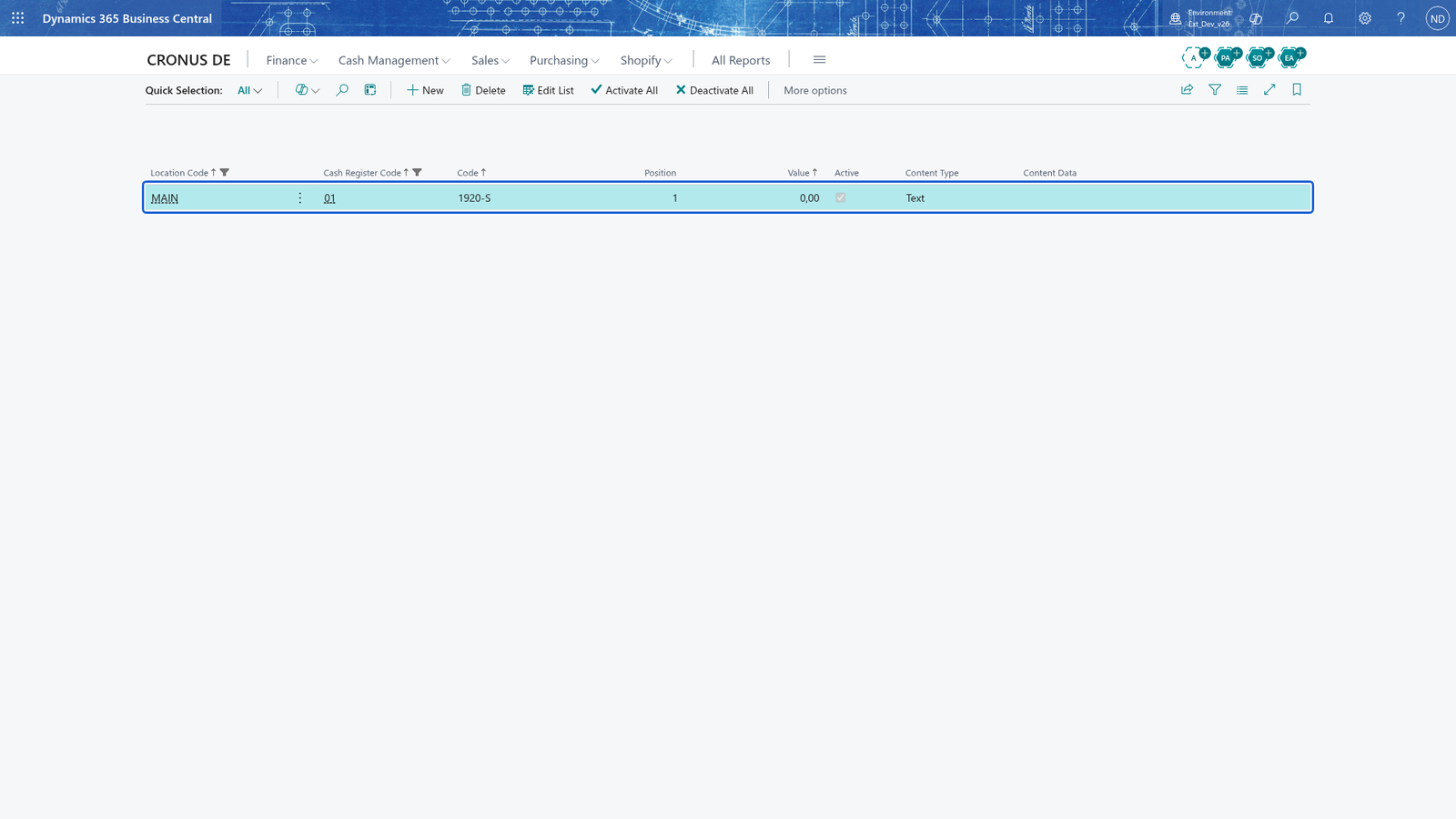
- Check the keys the cashiers press at the register on the Quick Selection list: keys are kept per cash register and category (tender, customer, item, resource, reason) with Position and Content Type, and up to 12 keys per category are shown at the register. Activate All and Deactivate All work on the keys you have filtered on, so filter the list to HAUPT / TEST first.
Note: Quantity Precision is entered between 0 and 1 on items and on units of measure; leave it as it is unless you sell a fraction of a piece.
Note: An employee's Discount Code only works if the discount reason it names is marked as an employee discount (type Discount or Reduce) and has a value greater than 0; for Discount Type Price Group the price group must already exist on the Customer Price Groups page.
Find items by variant and by reference
Customers bring the box or the label of a machine, or scan a barcode; the item's reference numbers are what the register looks up, so give each item the numbers its own product carries. Items sold in variants are sold at the register by their variant code.
- Search for Item Card and open the item.
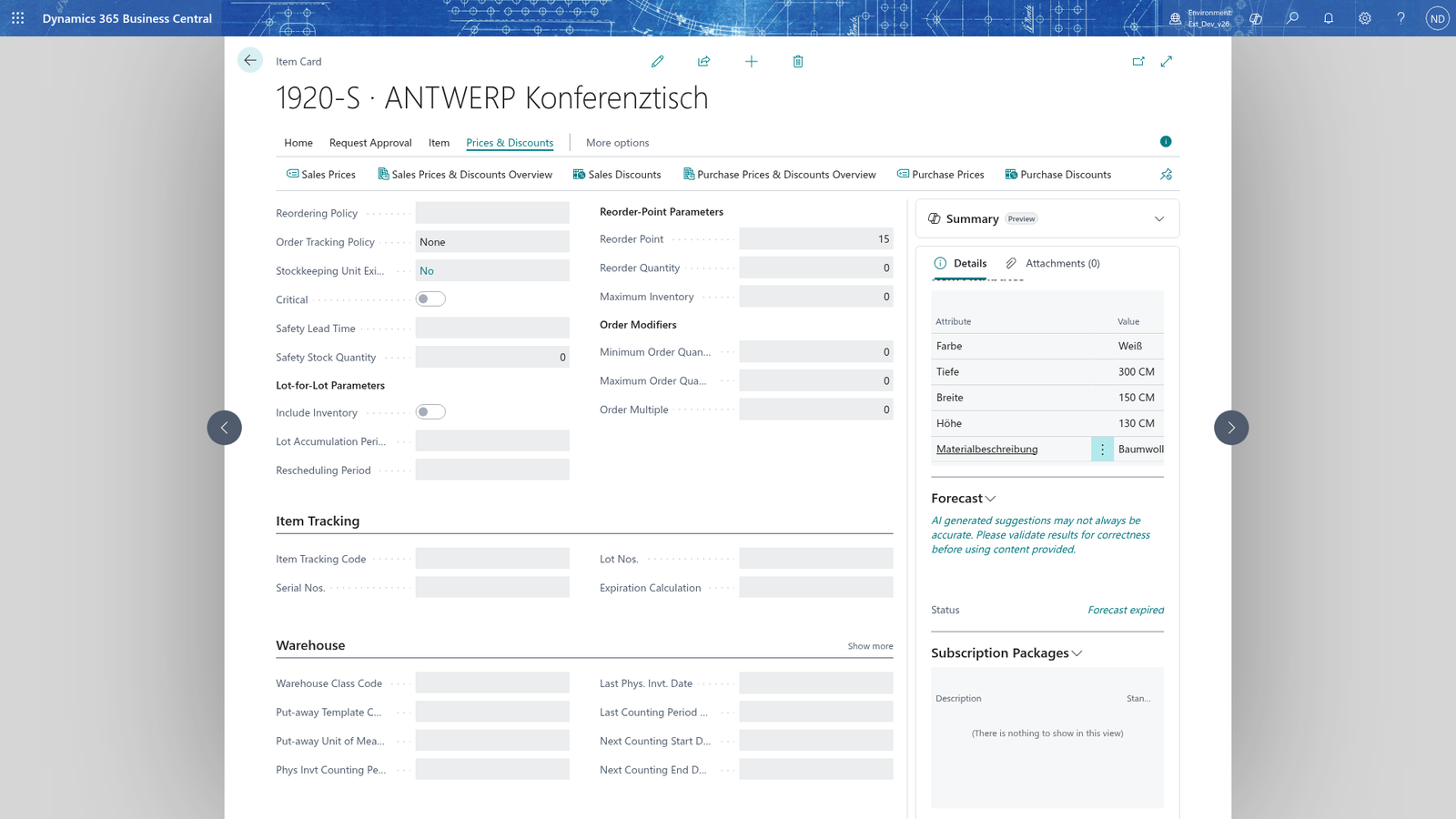
- Below the item fields, the item's reference list holds the numbers that identify the item. Choose New.
- In Reference No., enter the number the customer's product carries, for example the barcode number 4006381333931.
- In Reference Type, choose the kind of number: the barcode, a vendor item number, or Weight or Price for a barcode that also carries a weight or a price.
- In Description, enter the text the till shows for the item.
- For a variant, also fill in Variant Code, so the reference belongs to that variant only.
- Repeat for PART-100 Coin Mechanism (and for the item), so the spare parts and machines can be sold by scanning.
Note: A scanned number must lead to exactly one item, so the same reference number of the same reference type cannot be kept for two items, variants or units of measure. Business Central refuses the second one with the name of the item that already uses it.
Upload an item picture
Receipts and the screens of the register can show a picture; the picture is stored once and then used under its code, for example in a receipt text below the shop header.
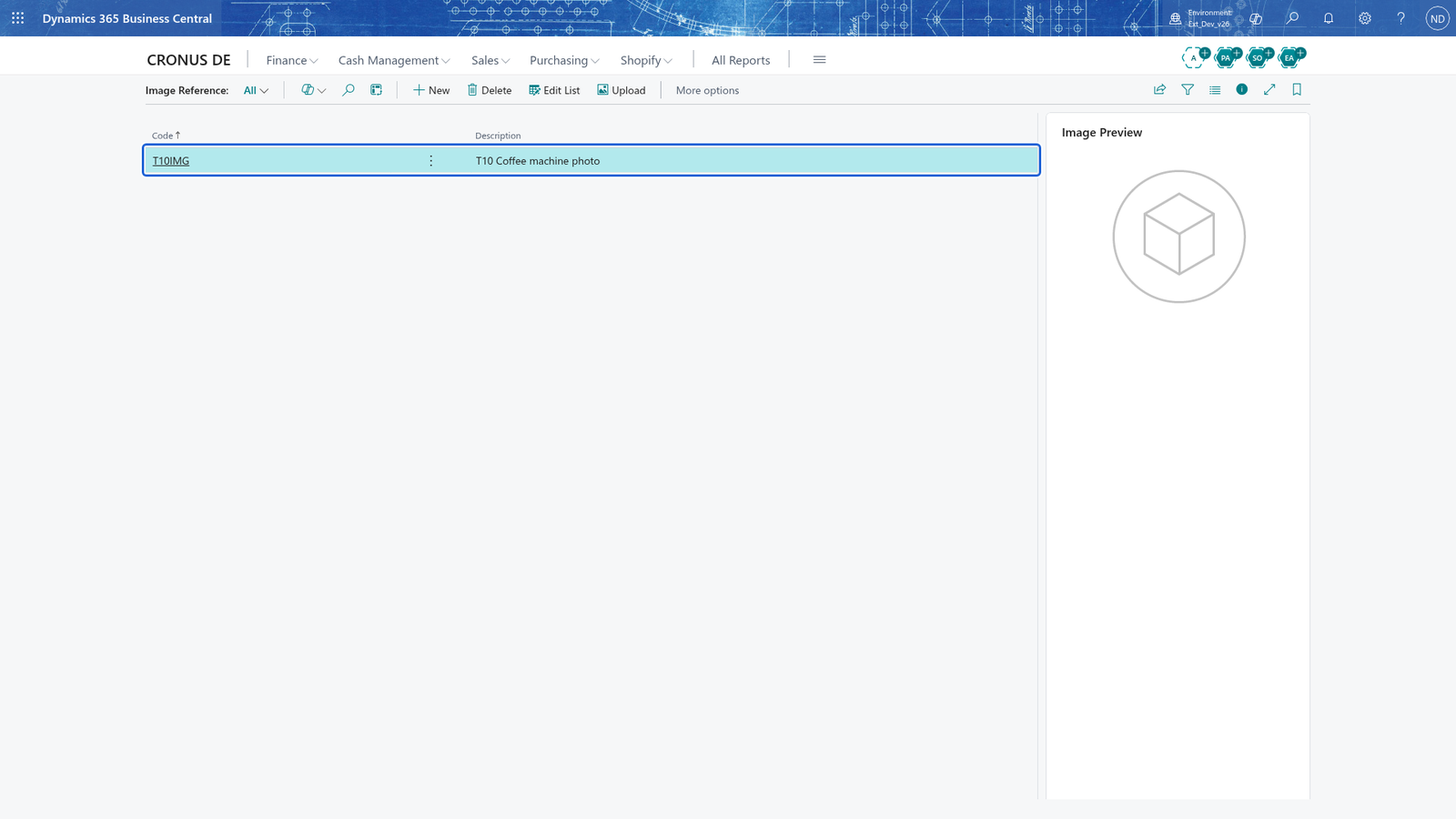
- Search for Image Reference and open it.
- In a new line, enter the Code of the picture, for example the item number.
- Enter the Description of the picture.
- Select the line and choose Upload, choose the picture (jpg, jpeg, png, gif, tif, bmp or tiff) and confirm.
- The Image Preview fact box at the bottom shows the uploaded picture.
Note: The code is the reference that a receipt text line uses later, so choose it carefully: once a receipt has been printed with it, changing it breaks the reference.
Offer the installation service when a machine sells
The cashier sees the offer while the customer is at the till.
- Search for Cross Selling List and open it.
- Choose New.
- In Origin Type, choose Item, and in Origin Code choose the item that triggers the offer.
- In Code, choose the item or resource the till offers.
- In Description, enter the text the register shows for the offer, for example Installation Service.
- Repeat for every item that should trigger an offer.
- On the Cash Register Card of HAUPT / TEST, make sure Cross Selling Allowed is on.
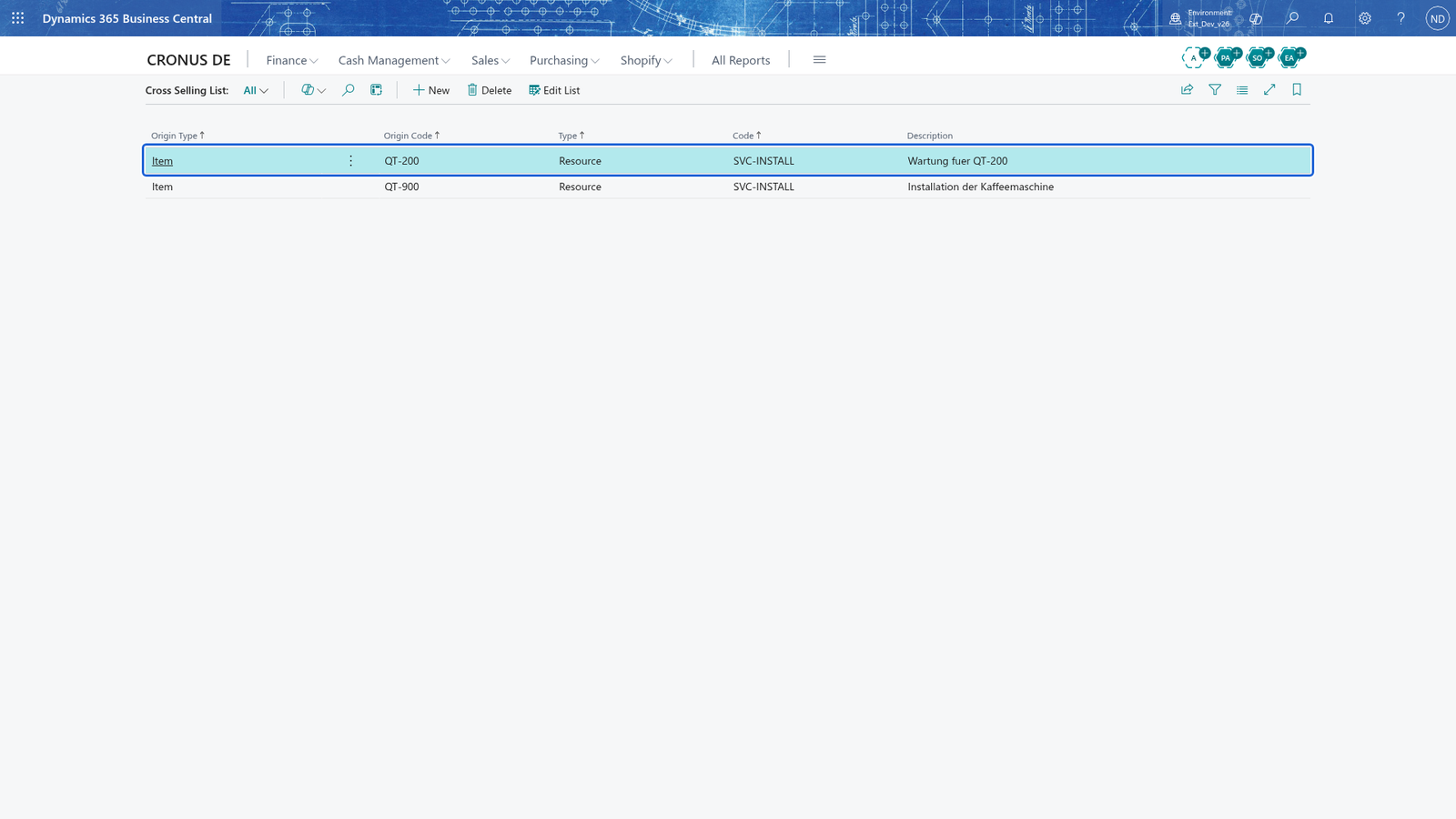
Note: The origin (type and code) is what the customer buys; the type and code of the offer is what the customer accepts or declines. The offer is only made at a register on which cross-selling is allowed.
Ask "How did you hear about us?" (customer survey)
A customer survey is a short survey the register asks when the receipt is closed; the customer's answer is stored per receipt so you can later see where the customers come from.
- Search for Demoscop. Queries and choose New; the card of the new query opens.
- In Question Code, enter a code for the survey question, for example SOURCE.
- In Question, enter the text the customer reads on the screen, for example How did you hear about us?.
- In Priority, enter 1; when several questions exist, this is the order in which they are asked.
- Below the question, in the answers list, add the possible answers: Answer Code TECH with Description From a technician, and further answers such as FRIEND / From a friend, ADVERTISEMENT / Advertisement and INTERNET / Internet.
- Turn on Active.
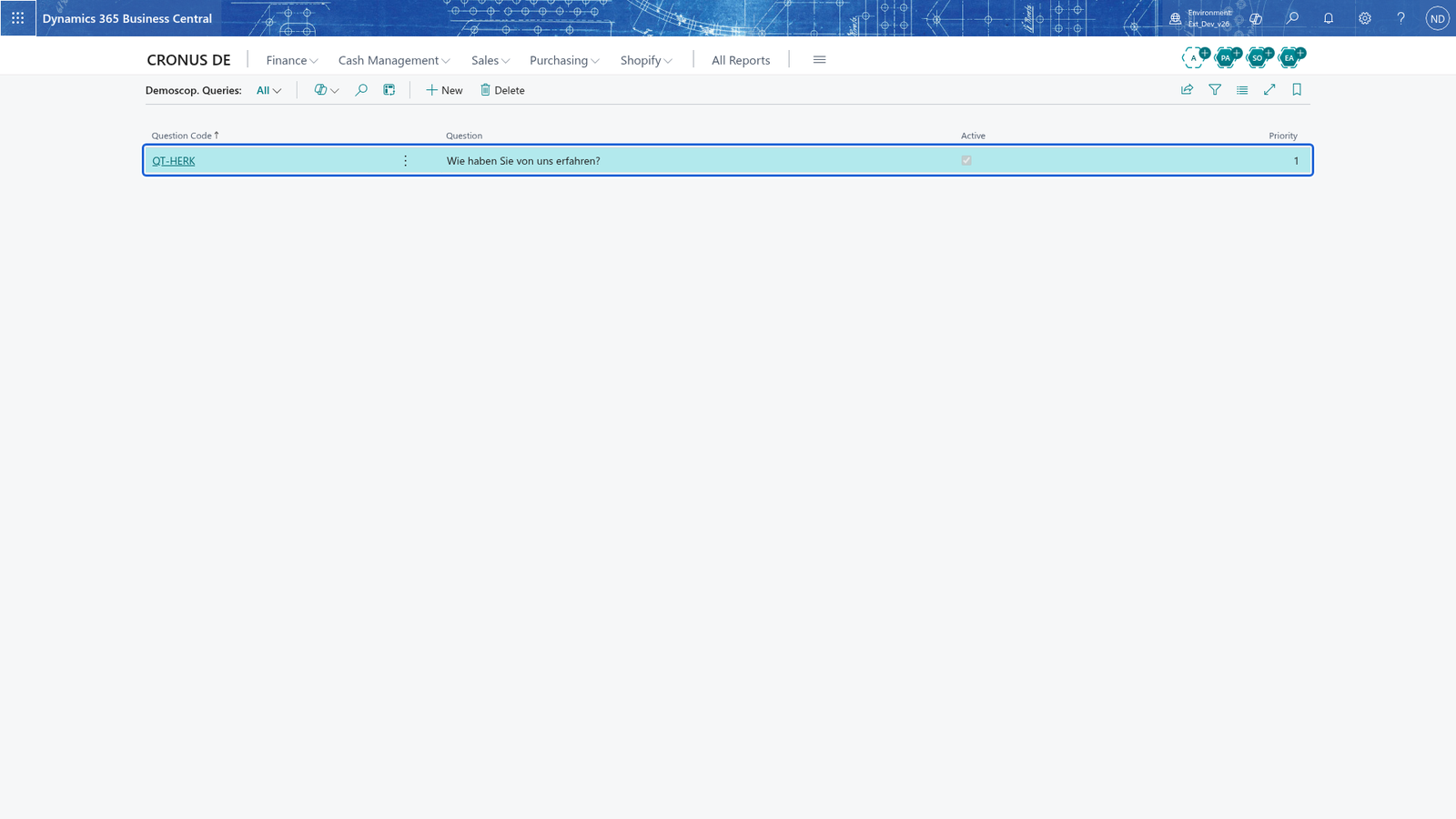
Note: A question can only be activated after at least one answer has been entered.
Note: To limit a question to single registers, or to block it for one register, use the Demoscopic Query Mapping page: enter Location, Cash Register and Code (the question) and set Excluded.
What happens
- The item reference is kept on the standard item reference table, so the register finds the item when the number is scanned.
- The picture is stored with the image reference and is used through its code, for example by a receipt text line.
- The cross-selling rule is stored on the Cross Selling List and applies whenever the origin item or resource is sold at a register that allows cross-selling.
- The customer survey is stored with its answers on the Demoscop. Queries list. Each answer a customer gives becomes a line on the Demosc. Results List with location, register, process number, receipt number, question code, answer code, answer description, date and time.
- Every employee discount given is kept as an entry with its date, time, location, cash register, receipt and Discount Amount (LCY). On the Employee Discounts page, choosing an employee shows their entries in the Discounts part; Discount Amount is the total used, which counts against the employee's Contingent.
- A reservation taken at the register is a record on the Reservations list (location, cash register, process number, number, posting date, customer, number of items, expiry date, reservation type). Choose a row to open the Reservation Card: it shows where the reservation was made, for whom (customer or employee), the Gross Amount incl. VAT, the Expire Date and the lines. How long a reservation stays valid and whether a customer is needed is set once on the Reservation Mapping page: Post Transfer, Receipt Type Description, Transfer Location Code, Duration (a date formula such as 3D for three days) and Customer Required.
- For sales, returns and home orders you can say on which location the stock change is posted. On the Assigned Locations card enter Location and Cash Register; the Sale, Return Reason and Home Order parts below show the destination location for each use. The most specific setup (with location and cash register) wins; without a destination location, returns go back to the warehouse of the register.
If something goes wrong
- Item reference 4006381333931 is already used for item QT-150, variant and unit of measure.: another item, variant or unit of measure already has this reference number of the same reference type; choose another number, or remove the reference from the other record.
- Discount code STAMM is not a valid employee discount reason of type Discount or Reduce with a value greater than 0 for discount type Discount.: the reason in Discount Code of the employee is not kept as an employee discount; keep the reason on the discount reason page as an employee discount (type Discount or Reduce) with a value, or choose another reason.
- Price group MITARBEITER does not exist. Create it first on the Customer Price Groups page.: for discount type Price Group, the price group named in Discount Code must exist; create it there first.
- The question cannot be switched on (Active): there is no answer yet. Enter at least one answer in the answers list first.
- The question is asked at the wrong register: look at the lines for that question on the Demoscopic Query Mapping page and correct or remove them.
- No offer appears at the till: the Cross Selling List has no rule for the sold item or resource, or the register's Cross Selling Allowed is off; the POS only looks for offers when a line of the origin item or resource is on the receipt.
- Nothing is uploaded: Code was empty when you chose Upload. Enter the code and the description, and choose Upload again.
- A reservation has no expiry date: Duration on the Reservation Mapping is empty, so the cashier has to enter the expiry date at the register. Fill in the duration to save the cashier that step.