
Fiscalization (signed receipts, operational log, DSFinV-K export)
Fiscalization is what makes the receipts of a cash register legally valid: the signature of the technical security module (TSE) is attached to every signed receipt and archived, and the whole communication with the fiscal provider is kept so it can be checked later. At the company the owner the administrator sets up fiscalization once for the single register HAUPT / TEST, reviews the signed receipts in the fiscal transactions list, records the incidents the register has to log (a lost internet connection, a hardware The register closings of the day to the tax authority. The administrator performs all of this; the cashiers the cashier and A second cashier only sell.
Note: The actual signing of the receipts is done by an external provider - Fiskaly, EFSTA or Fiskaltrust - not by this app. Every cash register is linked to exactly one of them, and you need an account with that provider before you start.
Before you start
- A cash register must exist: the Cash Register Setup for HAUPT / TEST (as described in the setup chapter), with its devices, tenders and salespeople.
- In standard Business Central there is nothing extra to configure for fiscalization.
- Open an account with one fiscal provider (Fiskaly is the recommended one). To link a register to EFSTA you
first install EFSTA's electronic fiscal register (EFR) service on the register's computer and configure it in
its browser page (
http://localhost:5618/); Fiskaly needs an organization, an API key and a TSS. Keep the provider's login data and IDs at hand.
Set up fiscalization for the cash register
- Search for Fiscal Cash Register Setup and open it.
- If the register has no row yet, choose Initialize all cash register setups. A message says how many setups were created: "Fill in the provider data and activate them on the card."
- Select the row for HAUPT / TEST and open its card; on the card choose New if there is none. Fill in:
- Provider: the fiscal provider, for example Fiskaly.
- Module: the country module, for example Germany.
- Signature Printing: how the signature is printed on the customer's receipt.
- In the group for the chosen provider, fill in the connection fields from the provider portal (for EFSTA: the Request URI, the Location ID and the Cash Register ID).
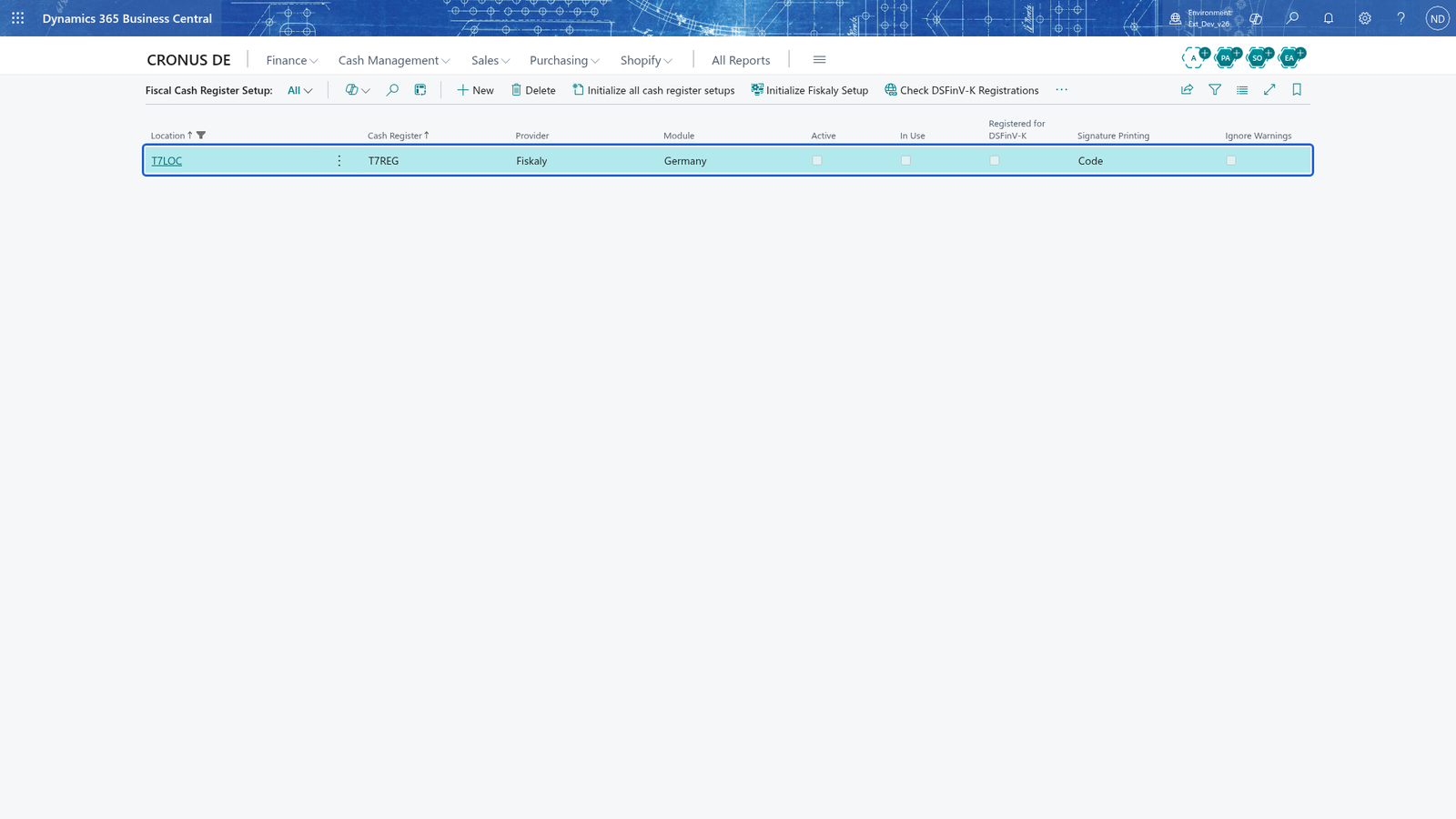
Note: there is exactly one fiscal setup per cash register, and it stores the Provider, Module and Signature Printing you choose. The actual signing of the receipts is done by the external provider.
Enter the connection data and activate the setup
- Open the card of the register's fiscal setup and enter the provider's IDs and request addresses in the group for the chosen provider.
- For a Fiskaly register you can let the app create the client and TSS: choose Initialize Fiskaly Setup.
- Check the register works before you use it: choose Test Document (sends a self-test to the provider) and Zero Document (creates and signs a zero-value document).
- Turn on Active and save.
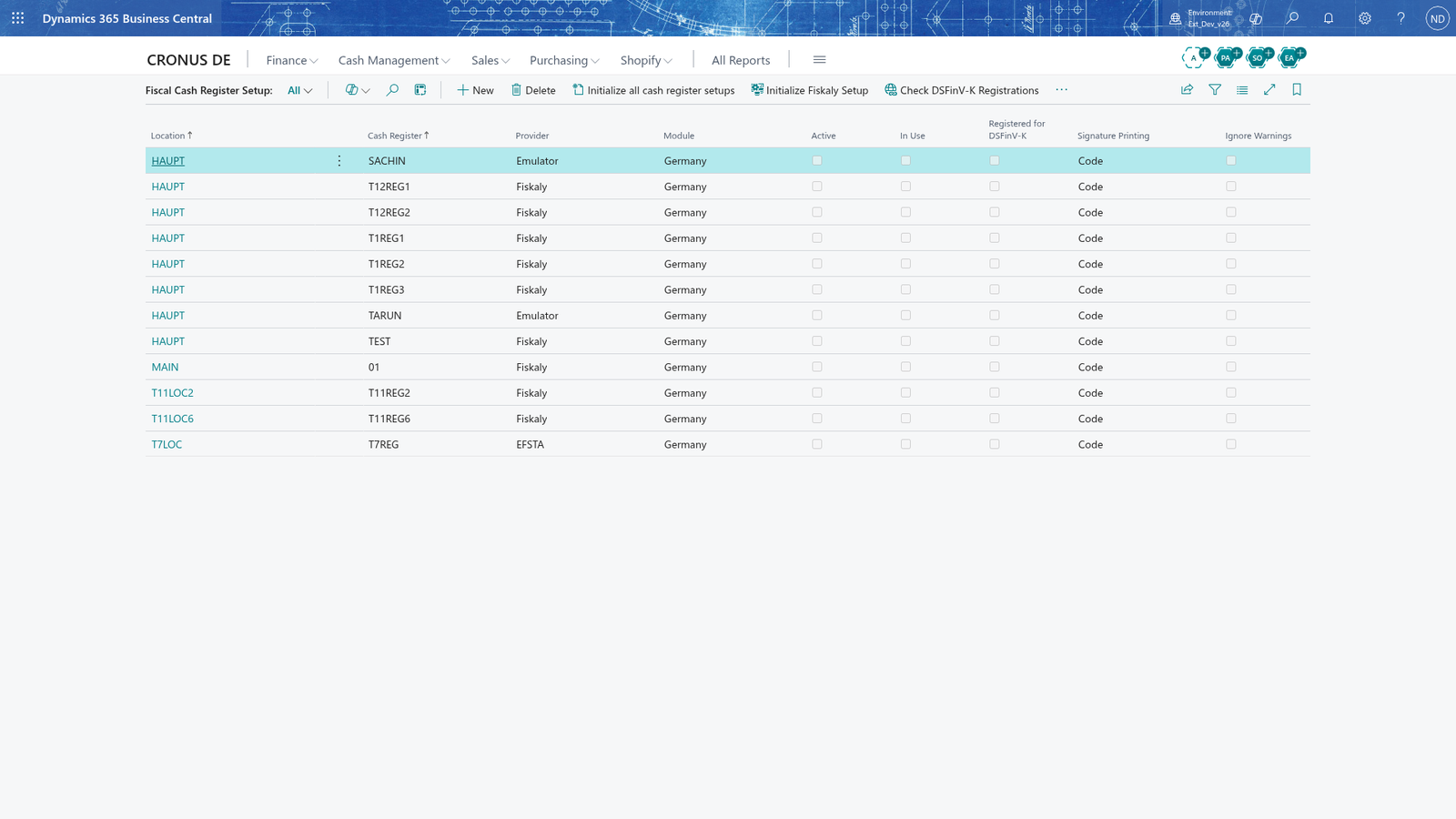
Note: In Use shows once the register has signed its first receipt. From that moment on the setup cannot be changed and the register stays bound to that one provider; a second provider is refused ("The fiscal interface of the register cannot be changed while it is in use"). Activate the setup only right before you go live.
Follow each signed receipt in the fiscal transactions
Every signed receipt is stored as a fiscal transaction. To review them:
- Search for Fiscal Transactions and open it. It shows, for each receipt, the location and cash register, the Provider and Module, the receipt it belongs to, the Transmitted and Processed flags, the Result Code and Error Message, and the request/response times and HTTP status.
- Failed transactions are shown in red and transactions with warnings in orange, so you can pick the problem rows at a glance.
- Open a row's card to see its result, or choose Validate Transaction to check the fiscal data of the receipt. Choose Reprint to reprint the receipt with its stored signature.
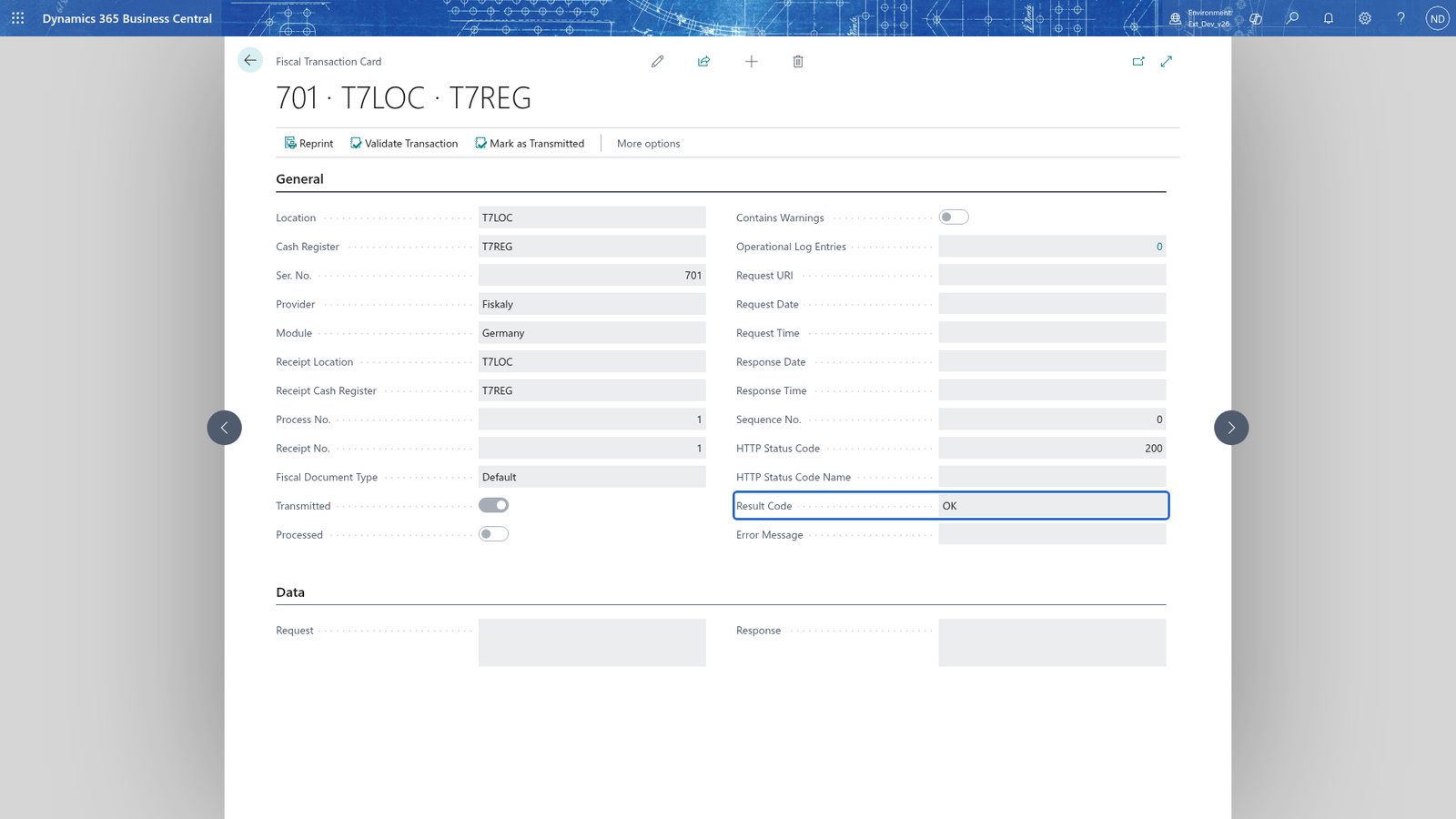
Note: A stored fiscal transaction keeps its receipt (location, cash register, process and receipt number), its signature result (Result Code, Error Message) and its status (Transmitted, Processed). A receipt with no fiscal transaction is reported when you validate it.
Record incidents in the operational log
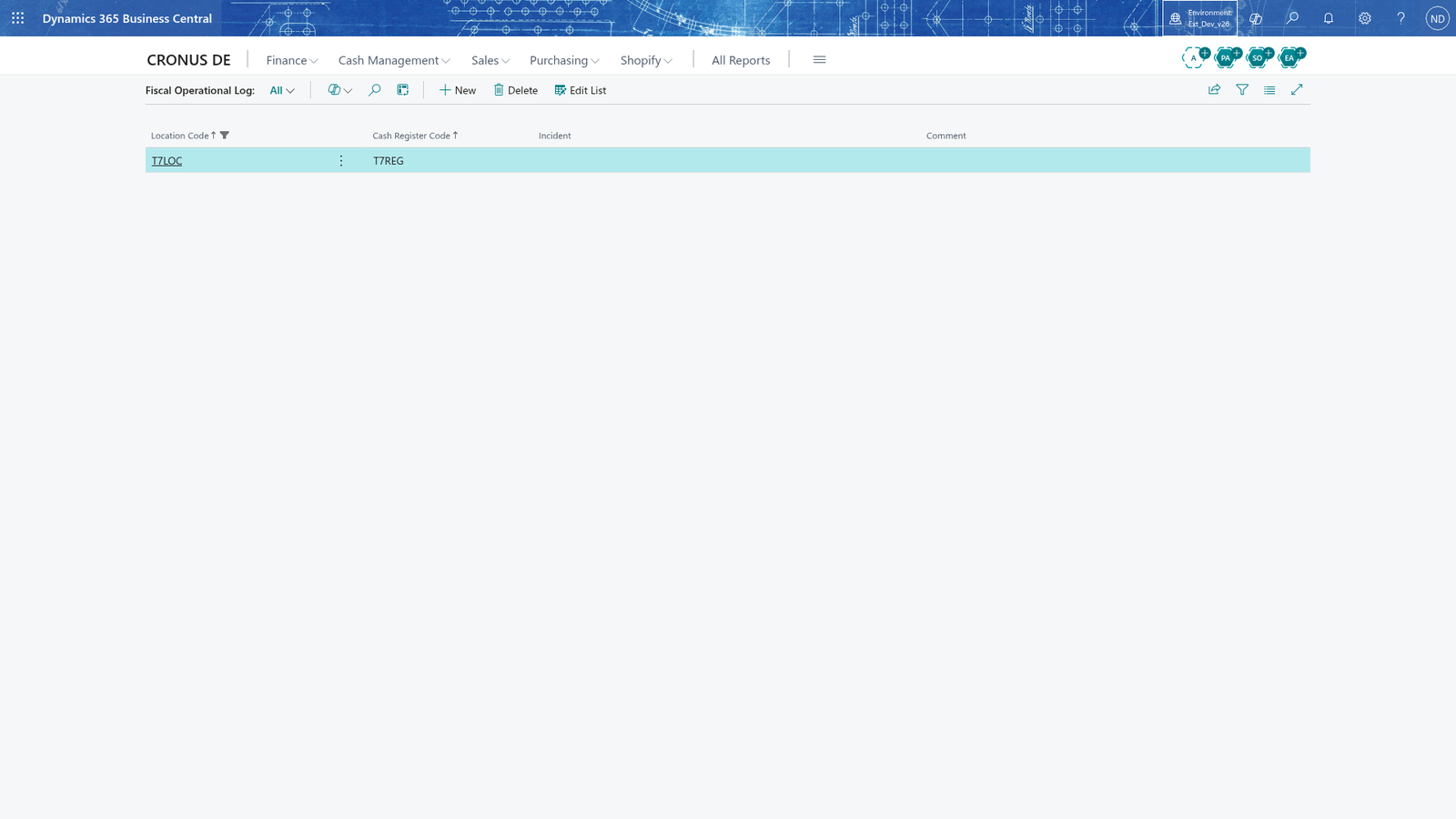
Incidents that are not the provider's fault - a hardware failure, a lost internet connection - must be logged so A fiscal audit can follow what happened and how it was fixed. The app writes the incident automatically; the administrator adds the comment.
- Open the Fiscal Operational Log from the Operational Log Entries count of a fiscal transaction. Each row shows the Location Code, Cash Register Code, the Incident and an empty Comment.
- In the Comment column, type what caused the incident and how it was corrected, then leave the row.
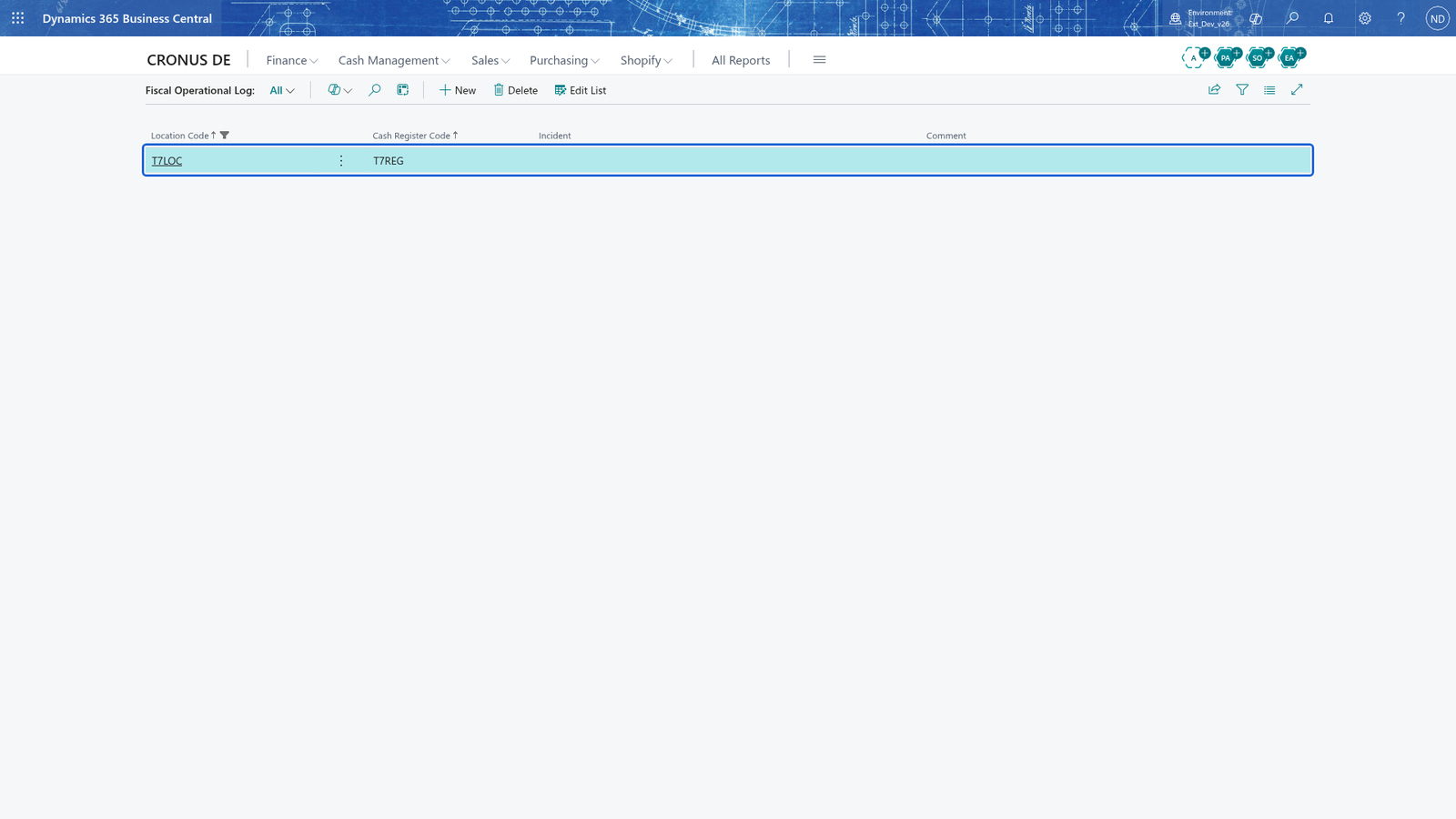
Note: each operational log entry refers to the fiscal transaction whose result code caused the incident.
Create the DSFinV-K export
The DSFinV-K export transfers the register closings of a day, with their receipts and signatures, to the fiscal provider in a standardized format. It is available for registers fiscalized with Fiskaly.
- Search for DSFinV-K Export and open it.
- Choose POS Process. OK. The app creates a pending export for each register closing finished on that day and sends it to Fiskaly.
- The rows show the Status, Request Date / Request Time and, if it failed, the Error Message that Fiskaly returned. Mark the rows and choose Selected to send them again.
- For a day already closed on a Fiskaly register you can start a file export yourself: on the card of the register's fiscal setup choose DSFinV-K File Export, enter Start Date, Start Time, End Date and End Time in the dialog and choose Start DSFinV-K file export. The Export Data list part below shows the export requests the app stored for the register; choose Refresh exports to read their status again.
Note: A DSFinV-K export request keeps its request date, its status and the message the provider returned, so you can trace every request later. The list is read-only; new requests come from the export action and from the automatic transfer at the register closing.
What happens
- Each signed receipt creates a fiscal transaction of its register with a running Ser. No., holding the provider, module, receipt reference, result code, error message, transmitted/processed flags and the request and response times. It is kept whether or not the signing succeeded.
- A failed signing is reported to the cashier - for example "Receipt 12 could not be signed by the fiscal interface Fiskaly. Check the fiscal transactions and the connection to the provider." - unless the setup has Ignore Warnings on.
- The DSFinV-K Export list keeps every export request per register closing with its status, request date and message.
- Open Fiscal Transactions from the archive menu, DSFinV-K Export from the archive/import menu, and the Fiscal Operational Log from a fiscal transaction's log-entry count.
If something goes wrong
Note: in the messages below the app fills in the real values - the receipt number, the fiscal interface (Fiskaly, EFSTA or Fiskaltrust), the cash register and the result code - so each message names the receipt and register it is about.
- "The fiscal register setup of cash register HAUPT-TEST does not exist.": no fiscal setup was created for the register. Run Initialize all cash register setups on the Fiscal Cash Register Setup list and open the card.
- "The fiscal register setup of cash register HAUPT-TEST is not active.": the setup exists but its Active switch is off. Turn it on (the register then binds to the provider).
- "The fiscal register setup (Fiskaly) of cash register HAUPT-TEST is incomplete.": the provider's connection fields (for Fiskaly the organization ID, API key, API secret, TSS ID and client ID) are not all filled. Enter them on the card.
- "This function is only available for the fiscal interface Fiskaly.": you used a Fiskaly action (for example the TSS or DSFinV-K export) on a register that uses EFSTA or Fiskaltrust.
- "Fiscal transaction 1 of cash register HAUPT-TEST does not exist.": the Ser. No. you reprinted or validated was deleted; pick the row again.
- "Fiscal transaction 1 was not successful": the transaction failed at the provider; the message adds the result code and the provider's error. Open its card and read the Error Message, then reprint or re-sign once the cause is fixed.
- "The end date must be the same as or after the start date.": on the DSFinV-K file export dialog, the end date is before the start date. Correct the period.