
Campaigns that give discounts automatically
A campaign is a discount that the till applies automatically to the items, customers and dates it is set up for. This chapter covers creating a campaign, its value and validity, the sales it applies to, coupons, and combining campaigns.
Before you start
- Search for Cash Registers and open the card of location HAUPT, cash register TEST. Turn on Campaign Allowed and save. Campaigns are only used at registers where this is on.
- The campaign filters are set on items, item categories, customers, employees and the other master data, so these records must exist.
- Decide which campaigns may run together. Campaigns are applied in the order of their Priority Level.
- If a campaign should give coupons, create the coupons in advance (the coupon chapter). Coupons are printed on the receipt when the receipt ends and are redeemed with their barcode.
Create the campaign
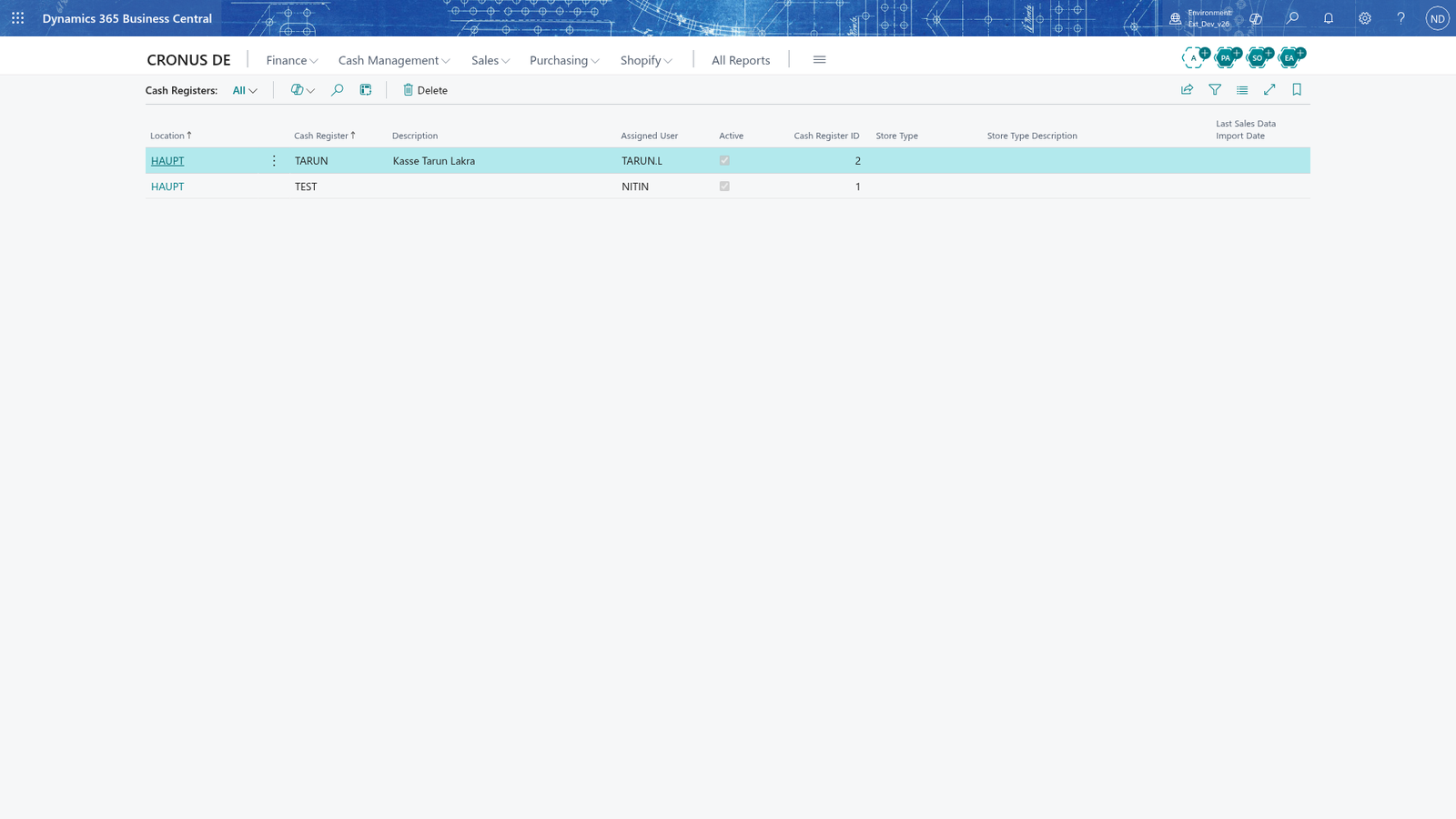
- Search for Campaign List and open it.
- Choose New and enter a Code for the campaign, for example SUMMER-5.
- Choose Type: which kind of discount the campaign gives, for example Line Discount (a percentage on one line); the card shows the settings for this type.
- In Description, enter the text the receipt shows for the campaign, for example Summer offer 5 %.
- In Priority Level, enter the order in which campaigns run, for example 10; campaigns with a lower number are applied first.
- In Print Type, choose how the campaign is shown on the receipt: as the code, the description or not at all.
- In Category, optionally choose a campaign of type Category; the campaign then belongs to that combination group.
- Leave Automatically on if the till should apply the campaign without the cashier registering it. Clear it for a campaign the cashier registers with its code or barcode.
- Enter Note Type only for a campaign that issues coupons (it must have coupons); it prints a note on the receipt.
The campaign is created inactive and appears in the Campaign List with its type, its validity and Has Conditions.
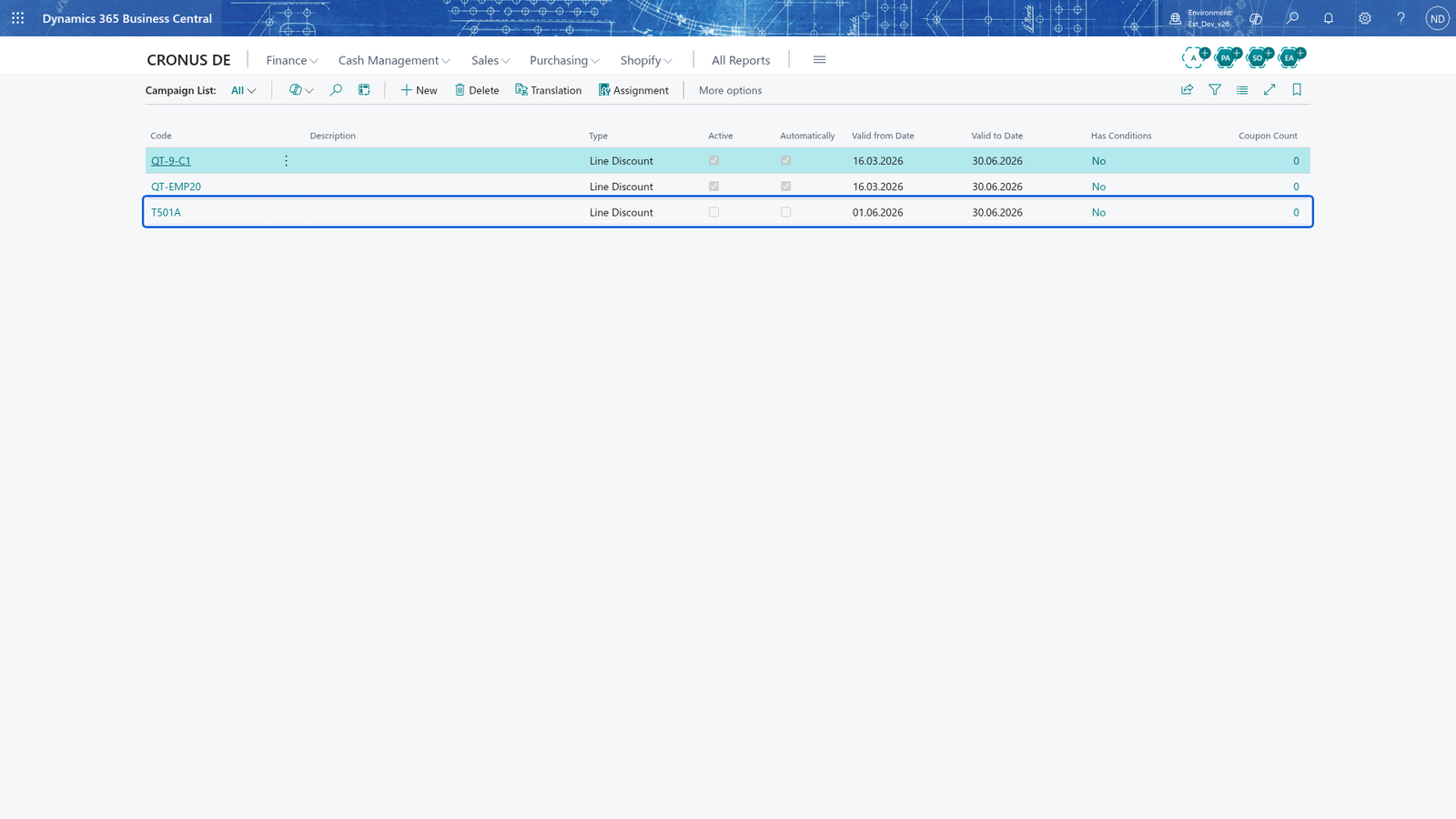
Note: A new campaign is inactive, so nothing is sold with it by mistake while you are still preparing it. Finish the settings first, then activate it.
Give the campaign its value and validity
On the campaign card, work in the Settings group first, then in Validity; while the campaign is active these fields are locked.
- In Value, enter the discount, for example 5 for five percent. For a reduce (allowance) campaign this is the amount you give away.
- Fill in Valid from Date, Valid to Date, Valid from Time and Valid to Time.
- Select the weekdays on which the campaign applies.
- In Valid as of Quantity and Valid as of Amount, enter how much has to be sold before the campaign is given (these fields are not shown for line discount and line reduce campaigns).
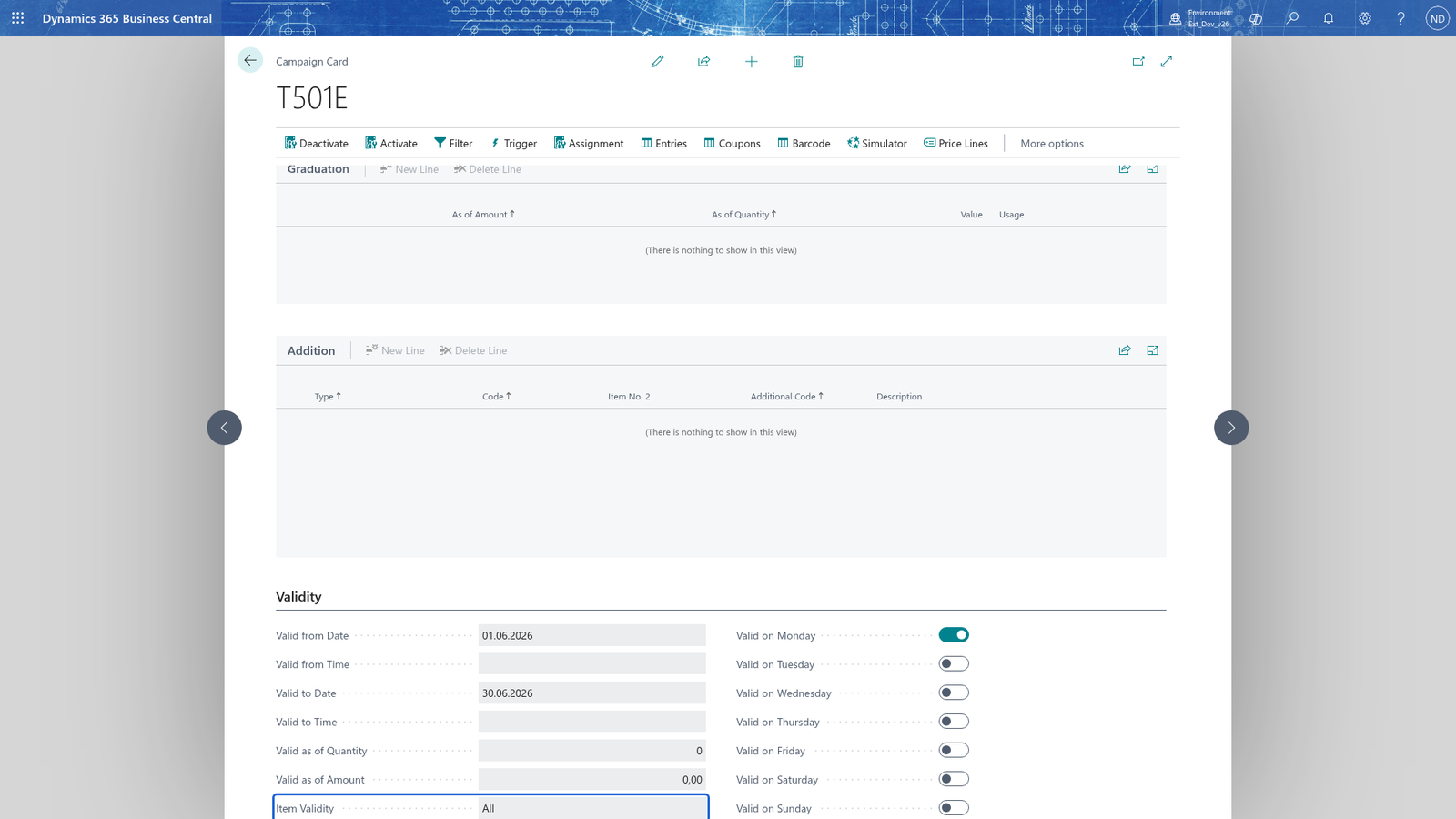
- In Item Validity, choose whether the campaign also touches items that already have a discount: all items, reduced items only or not reduced items.
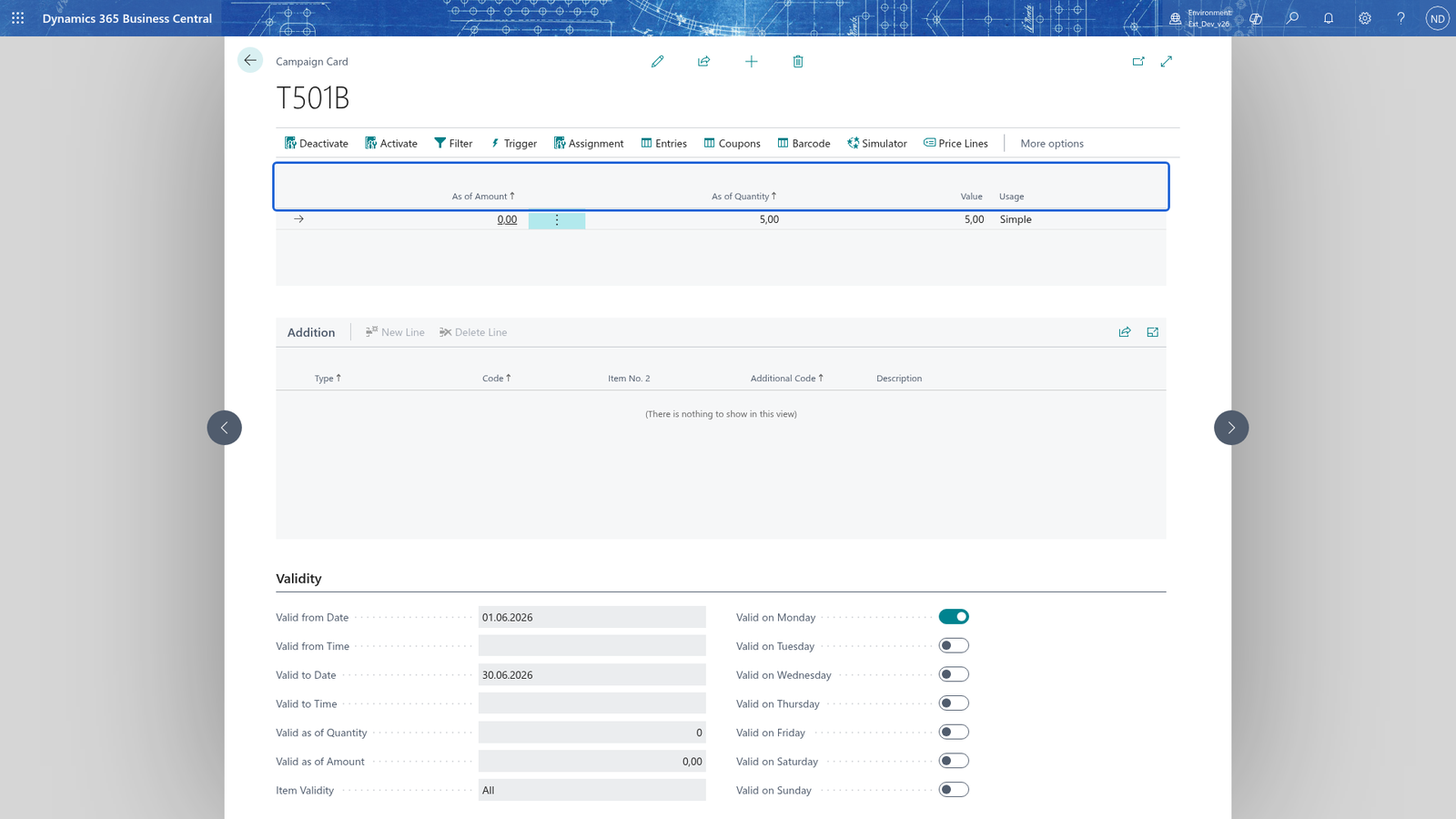
- For a scale (graduation) campaign, add a row in the Graduation part for every step: As of Amount or As of Quantity say from which amount or piece count the step starts, Value gives the discount of the step and Usage how that discount is used.
- For a campaign that adds items (M plus N), fill in the Addition part: which items the campaign can add.
Note: Choose Deactivate, change the card, then activate it again.
Decide which sales the campaign applies to
- Choose Trigger on the campaign card. Add a trigger with a Code, choose its Type and enter the Minimum Quantity of items the customer must buy before the campaign fires.
- Choose Filter on the campaign card. In Filter Type, choose what the campaign checks, for example Item Category.
- In the item part of the filter, enter the items in Code (or Item No. 2 for the item's second number, Additional Code for a variant) and tick Excluded on a row to leave that one out.
An employee campaign is set up the same way, but its filter is on the employee: the campaign only fires when that employee is the customer or the salesperson at the till, and the discount it gives is recorded on the discount line of the receipt.
Note: Filters exclude a value from the campaign's filter group. In the item part, Excluded ticks a single item; on the filter list an empty code leaves the group open, an empty row means the whole group is excluded.
Issue coupons with the campaign
- On the campaign card, open the Coupon Issue group and turn on Active.
- In Image, choose the image that is printed on the coupon.
- In Coupon Text, enter the text the customer reads on the coupon, for example 10 % off your next purchase.
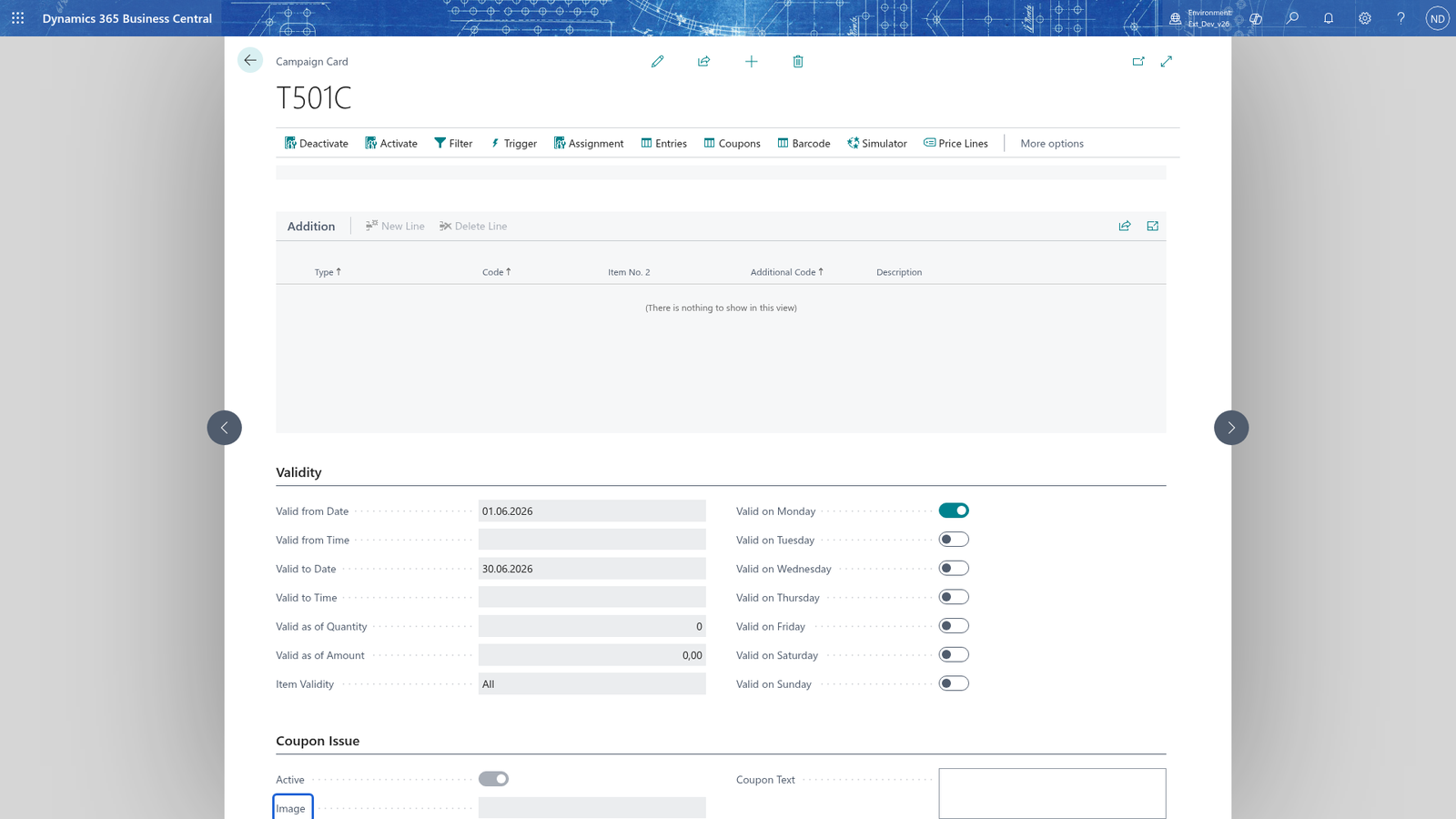
Note: Coupons are created in advance. Choose Coupons on the campaign card to open the coupons list, where Generate adds more and Devaluate takes one out. Coupon Count on the Campaign List counts a campaign's coupons.
Combine campaigns and activate them
- Search for Campaign Assignments and open the list. Choose the Type (Campaign or Category), enter Code and Assigned Code, and turn Combinable on or off.
- To let a campaign and a category run together, add a row of type Category with the campaign's category and Combinable on.
- Check that your campaign is shown on the list with its combination row. On the campaign card, Assignment opens the same combination as a matrix.
- On the campaign card, choose Activate. The campaign is now released for the registers where Campaign Allowed is on.
- Choose Simulator on the campaign card and select a receipt: the line part shows the receipt lines with a filter flag and the fact box tells you whether the campaign would be triggerable, whether it passes its filters and whether it would apply.
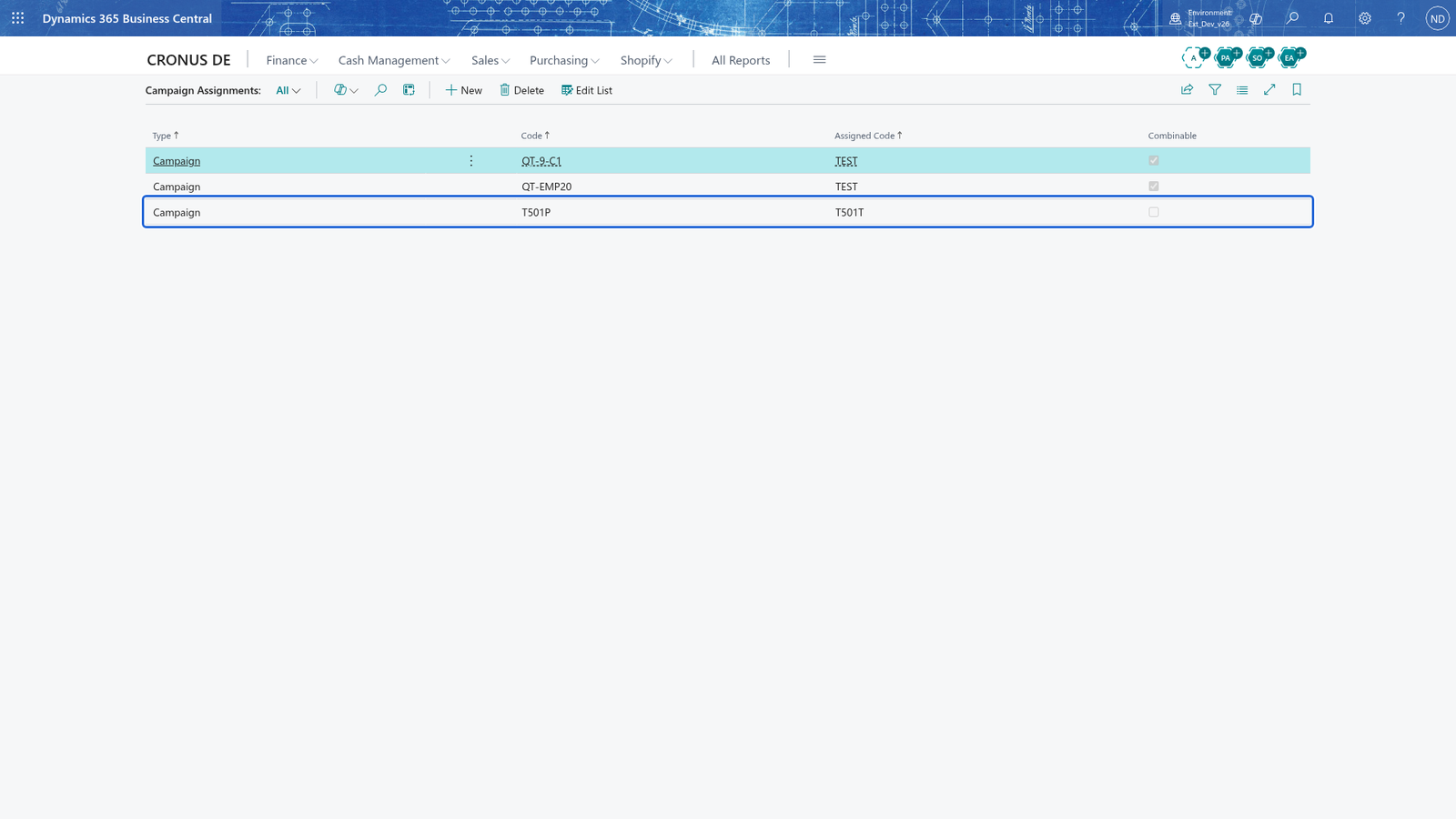
Note: Campaigns that are assigned as not combinable are never applied together on one receipt; the till keeps only the one that fits first. A campaign without assignment rows combines with everything.
What happens
- At the till the discount is given automatically: the customer sees it on the sale line and, depending on Print Type, the campaign's code or description on the receipt.
- Each application writes a campaign entry. Choose Entries on the campaign card to see them: the receipt, the date and time, how the campaign was registered (automatically, manually or with a coupon) and what it gave. Choose Receipt on the entry to open the receipt it belongs to.
- A coupon campaign writes the coupon on the receipt when the customer pays and counts it; the campaign analysis shows the turnover, the discount and, for couponing campaigns, how many coupons were created and redeemed.
- If you set something wrong, choose Deactivate, correct the card and Activate it again. Campaign entries of receipts already sold are kept as they are; the sale itself is corrected as a return at the till.
If something goes wrong
- Campaigns are only allowed at this cash register: turn on Campaign Allowed on the card of HAUPT / TEST. Without it the till ignores campaigns.
- The campaign has no price group. Set one before opening the price lines. A campaign of type Price must name its customer price group in Price Group before Price Lines can show the prices.
- Price group <group> was not found. Set an existing price group before opening the price lines. The price group on the campaign does not exist. Enter an existing customer price group.
- The campaign condition must have a campaign code and a code. A filter row is incomplete. Enter the code you want to filter on, or delete the row.
- Campaign QT-9 Coffee Q1 has no trigger with code TR1, so the trigger condition cannot be used. A filter was given to a trigger that does not exist. Create the trigger first (on the Trigger page) or use a filter without a trigger code.
- The campaign assignment QT-9 Coffee Q1 - X of type Campaign refers to a campaign that no longer exists or no longer has the expected type. Enter valid campaign or category codes, or delete the assignment. The assigned campaign was deleted or its type was changed. Enter the code of a campaign that still exists, or delete the assignment row.
- The campaign QT-9 Coffee Q1 cannot be applied together with QT-9 Coffee Q1b. Two campaigns were assigned as not combinable. The till applies only the first one; change the assignment if both should run.
- The category EM of campaign QT-9 Coffee Q1 cannot be applied together with QT-9 Coffee Q1b. The category of the campaign was assigned as not combinable with the other campaign. Change the assignment for the category.
- The receipt of the selected campaign entry was not found. The entry refers to a receipt that is no longer in the receipts table, often because it was archived. Look in the archive for the receipt.