
User Permission Overview: who can read and change the personal data
When an auditor asks who at QUALIA Technik GmbH may see and change the tenants' data, the app has a report for it: the user permission overview. It puts the users and the tables that hold personal data side by side - one line per user and table, with the rights Read Permission, Insert Permission, Modify Permission, Delete Permission and Execute Permission. Lena Hartmann, the data protection officer, runs it for the audit file; Julia Beyer, the IT administrator, looks at it before he gives a colleague a permission set. You open it from the role center, or scoped to one data structure from its table list.
Before you start
- The GDPR ToolBox is installed and you can open it. Open the Role Center: search for Role Center and choose it.
- At least one data structure with its personal-data tables exists. In the story this is TENANT ("Tenants: Contact, Customer, Invoices"), which holds the tables Contact, Customer, Contact Business Relation and Posted Sales Invoice. The more data structures you maintain, the better the overview covers your personal data.
- The people whose rights you want to document exist as users in Business Central: the overview lists every user against the tables of the structure.
- Nothing has to be set up in standard Business Central for this report: it documents the access rights of the users and tables you already have.
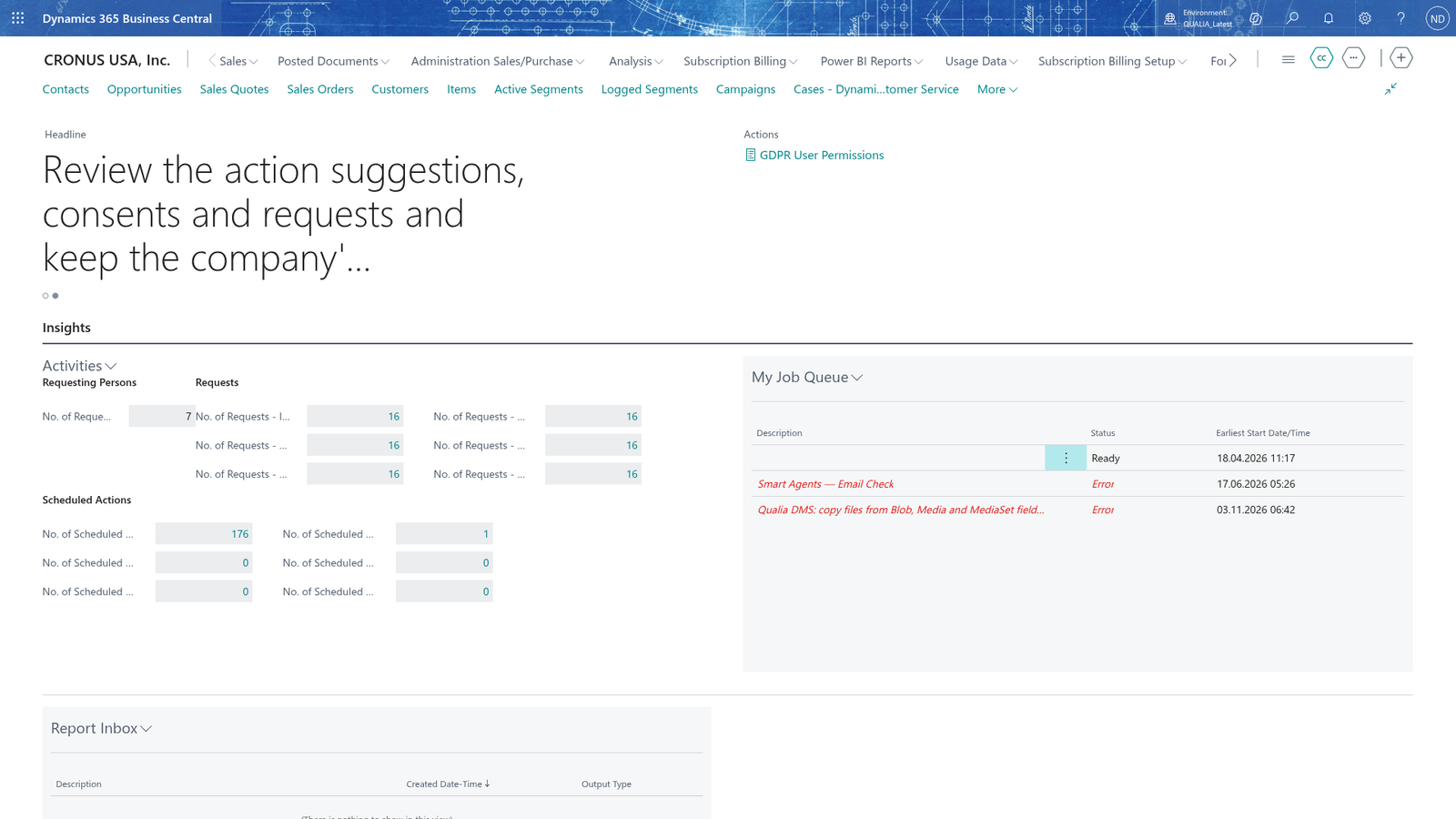
Run the User Permission Overview from the role center
- Open the Role Center.
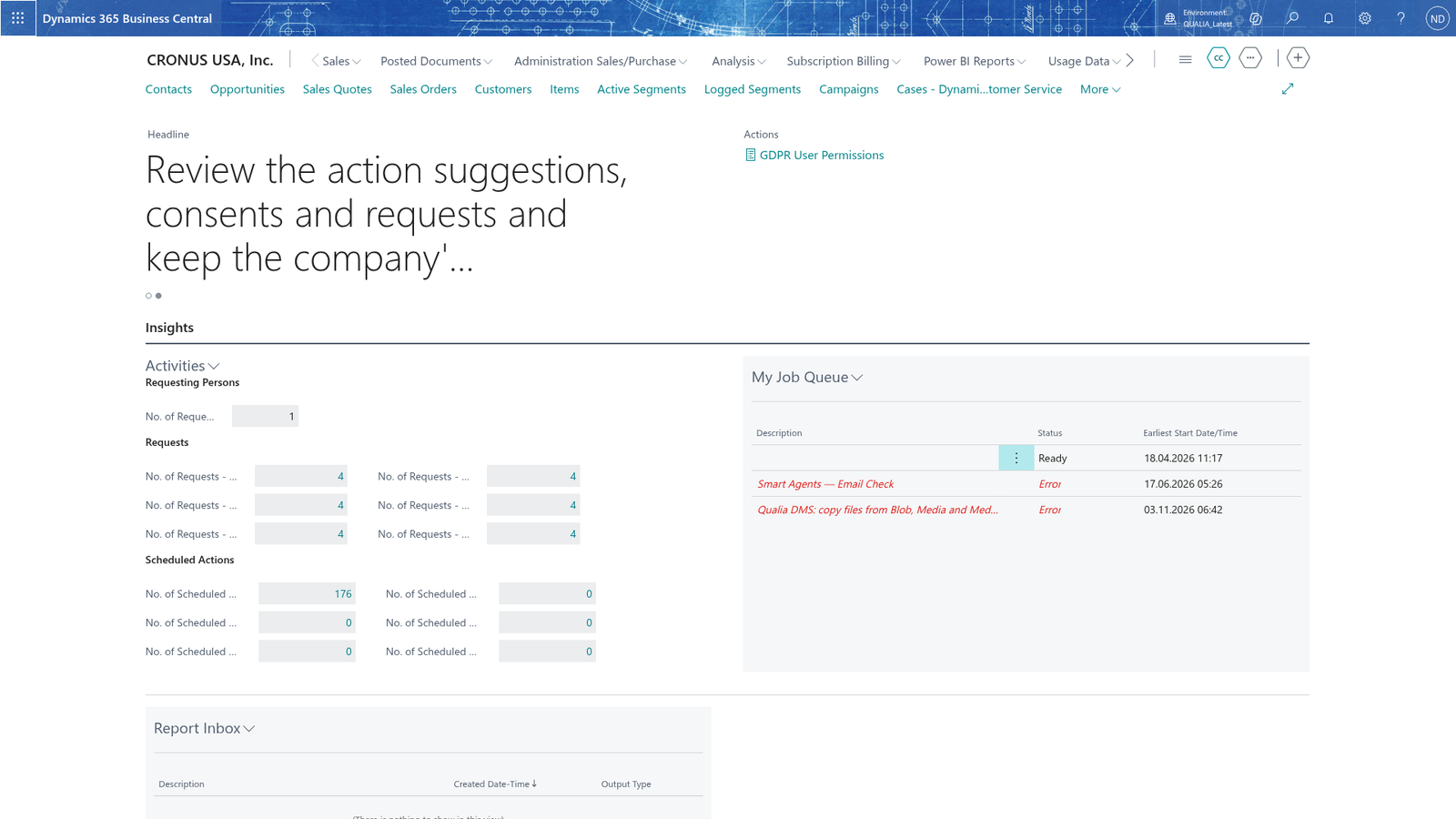
- In the Actions area next to the headline, choose GDPR User Permissions.
The report of the user permission overview opens. It lists the users and the personal-data tables of the data structures, one line per user and table. Choose Print in the report viewer to keep a copy for your documentation file.
Note: Each line carries User Name, the Table Name and the five rights Read Permission, Insert Permission, Modify Permission, Delete Permission and Execute Permission. That answers the auditor's question "who can see and change the tenants' data" on one page, instead of reading the permission sets user by user.
Note: Every user is listed for each personal-data table, so you also see users who were never meant to work with the data. Nothing is missed because someone forgot to look at a user, and that is exactly what the auditor wants to see.
Scope the overview to one data structure
When the auditors ask about the tenant data only, run the overview for the structure that holds it, so the printout names that structure:
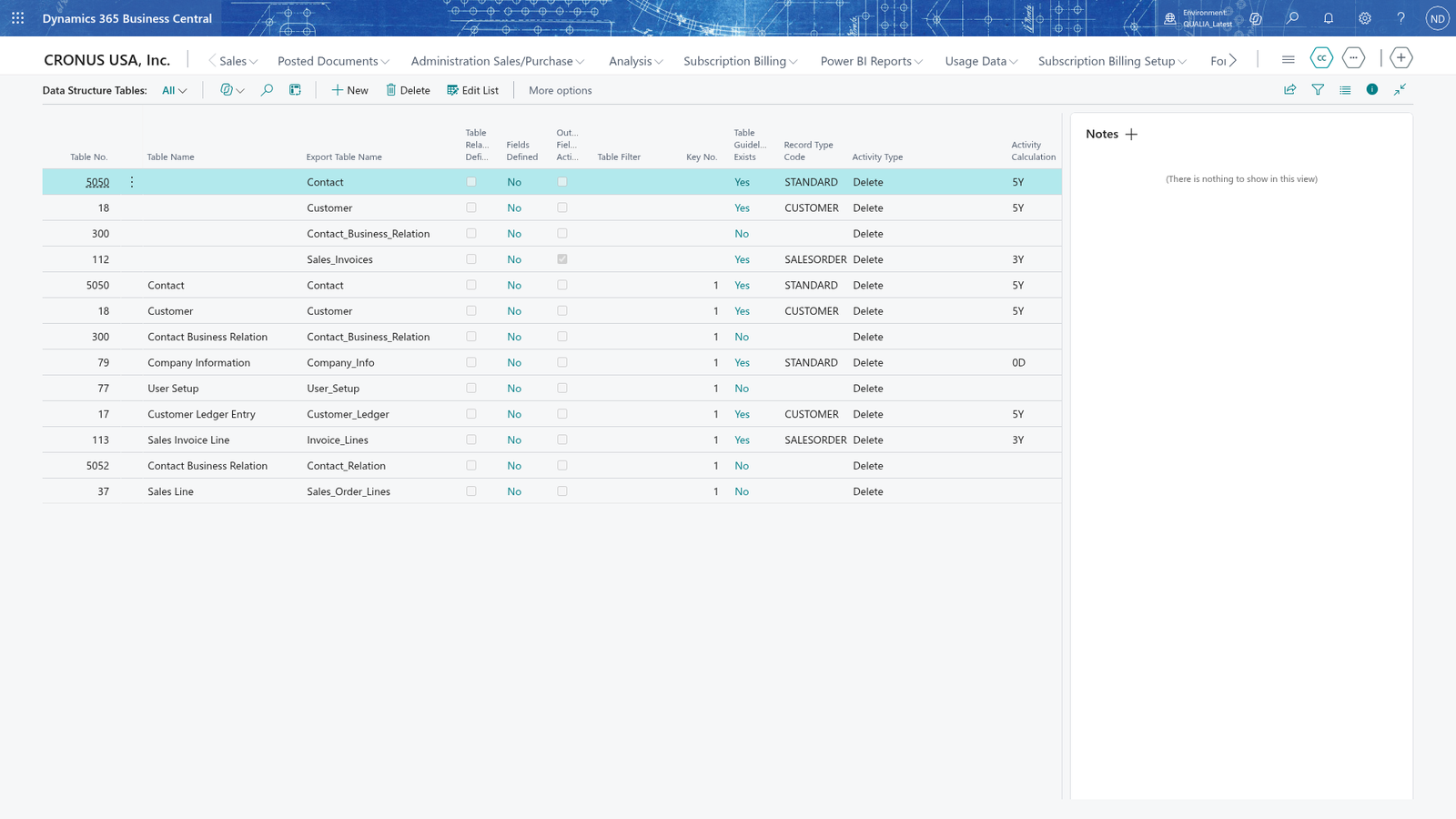
- Search for Data Structures and open the list.
- Select TENANT and choose Tables.
- On the table list, choose GDPR User Permissions.
The report opens with Data Structure Code=TENANT in its header, so the printout says at a glance which data it covers, and it lists the rights only for the tables of this structure.
Note: A right can show Indirect instead of Yes. Indirect means the user got the right the indirect way, for example through a permission set that is assigned through another one. For the GDPR documentation the question is whether the user may touch the table at all, so both Yes and Indirect count; what the right means in detail you look up in the user's permission sets.
Example: Lena documents the access rights for the auditors
At QUALIA Technik GmbH the auditors ask Lena Hartmann who may read and change the personal data of the tenants. She wants one printout that names the data, so she scopes the overview to the structure that holds the tenant data:
- She searches for Data Structures, opens it, selects TENANT and chooses Tables.
- On the table list she chooses GDPR User Permissions.
- The report opens with Data Structure Code=TENANT in the header. She chooses Print and saves the printout to her GDPR documentation folder with the date of the day.
The report lists the users - LENA, JULIA, MAX and JOBQ - once for every table of TENANT: Contact, Customer, Contact Business Relation and Posted Sales Invoice. The lines are read like this:
| User Name | Table Name | Read | Insert | Modify | Delete | Execute |
|---|---|---|---|---|---|---|
| LENA | Contact | Yes | Yes | Yes | Yes | Yes |
| JULIA | Customer | Yes | Yes | Yes | Indirect | Yes |
| MAX | Contact Business Relation | Yes | Yes | Yes | Yes | Yes |
| JOBQ | Posted Sales Invoice | Yes | Yes | Yes | Yes | Yes |
One line per user and table, with the five rights Read, Insert, Modify, Delete and Execute on each line:
For each line Lena reads the five rights as a set: what may this user do with the records of this table? She marks the lines whose rights look too large for the user's job, asks Julia Beyer to look at those users' permission sets in Business Central, and notes the result on the printout before she hands it to the auditors. A right shown as Indirect counts just like Yes, because the user may touch the table either way.
What happens
The report of the user permission overview prints or previews the lines. It posts nothing and changes no data, so you can run it as often as you like, also several times a day. There is no list in the app that stores the lines: they are built when you open the report, and the printout or the exported file is your record. To answer a later question from the auditors, run the report again and put the date of the run on the printout.
If something goes wrong
- The data structure TENANT does not exist. The table list you started from still points to a data structure that has been deleted in the meantime. Choose OK, search for Data Structures and open a structure that exists, then choose GDPR User Permissions again.
- A table you expected is missing from the report. The table is not part of the data structure the overview was run for. Add the table to the structure first (the Data structures chapter), then run the overview again.
- You expected only the users who work with the data. The overview lists every user against the personal-data tables, so it also names people who never work with them. Mark those users on the printout and note why they appear; for the documentation that is better than leaving them out.