
See which personal data Business Central holds about a person
When Tanja Weiss asks QUALIA Technik "what do you know about me?", or asks to have her data deleted, the data protection officer Lena Hartmann first has to know exactly which records Business Central holds about her. The personal data view answers that: it opens a worksheet with one line per table of the person's data structure - here Contact, Customer, Contact Business Relation and Posted Sales Invoice - and shows the scheduled action date and status of each, so Lena sees at once when each record may be deleted or anonymized. Selecting a table line lists the personal fields of that record with their values, types and protection classes, and from there Lena opens the record itself or its scheduled action.
Before you start
The view shows what your data structure defines, so this must exist first:
- A data structure (for example TENANT) with the tables, relations, filters and personal field lists, described in the data structure chapter.
- A table guideline for every table of that structure, because the guideline controls whether a record may be anonymized.
- A requesting person for the data subject (created on Requesting Persons).
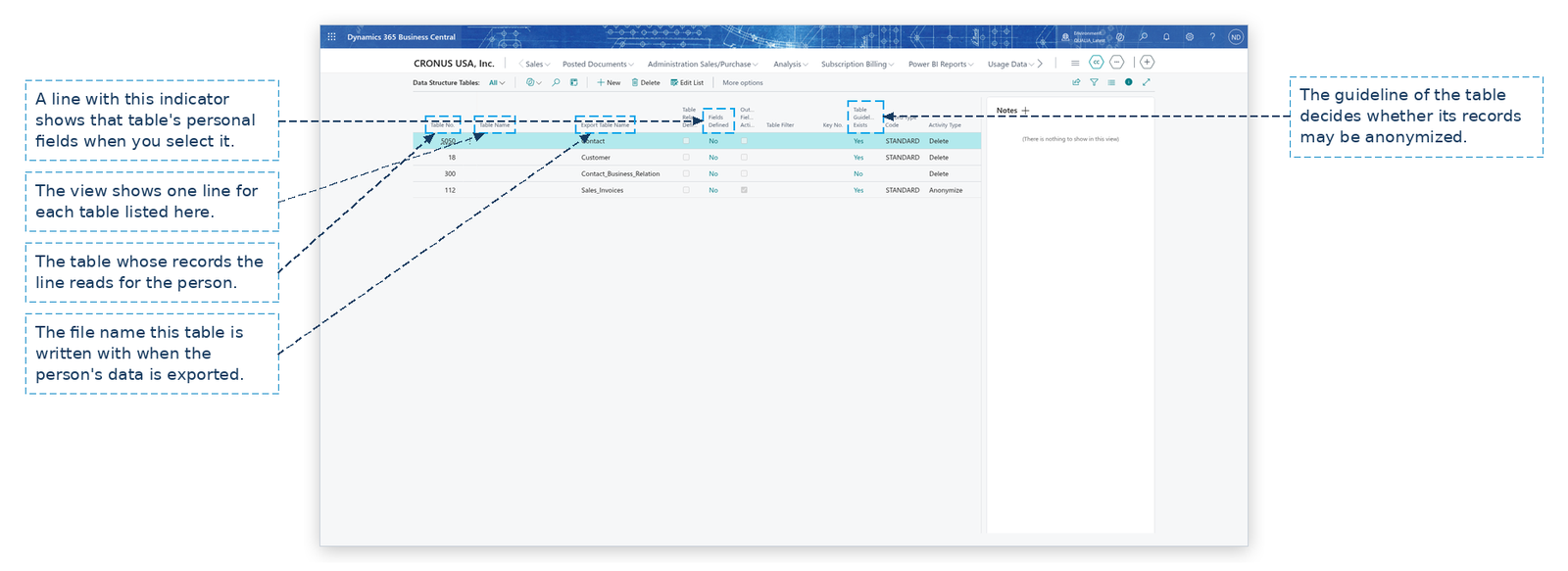
Nothing has to be set up in standard Business Central for the view itself. Check in the table list of the data structure what the view will show: open Data Structures, select the structure, choose Tables, and open the data structure tables list.
Link the requesting person to the master data record
The link tells the view which record to start from.
- Search for Requesting Persons and open it.
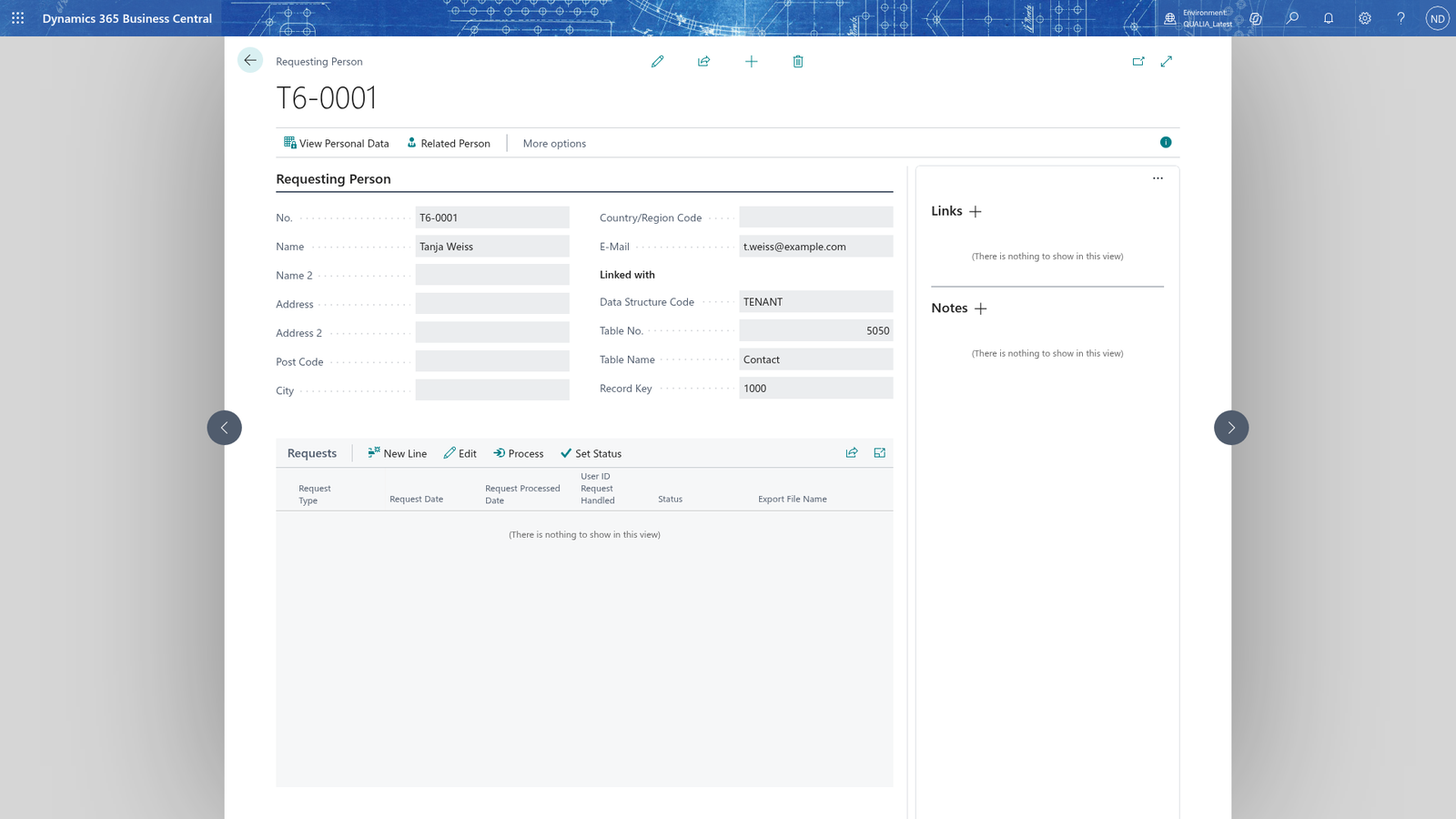
- Create the person for Tanja Weiss and enter Name Tanja Weiss and E-Mail [email protected].
- In Data Structure Code, enter the structure that describes this person, for example TENANT.
- In Table No., enter the table of the person's master data record; only tables whose table guideline allows it may be linked.
- In Record Key, enter the number of the person's record in that table, for example 1000 for contact Tanja Weiss.
- Leave the card; the Table Name fills in itself.
The list also shows the link, so you can check several people at once.
Note: Only the data of the tables underneath the linked table are taken into account. If you want the person's contact data, link the person to the contact, not to the customer: contact data of a customer link would be ignored.
Open the personal data view
- Search for Requesting Persons and open it.
- Select the person, for example RQ-0001 Tanja Weiss.
- Choose View Personal Data.
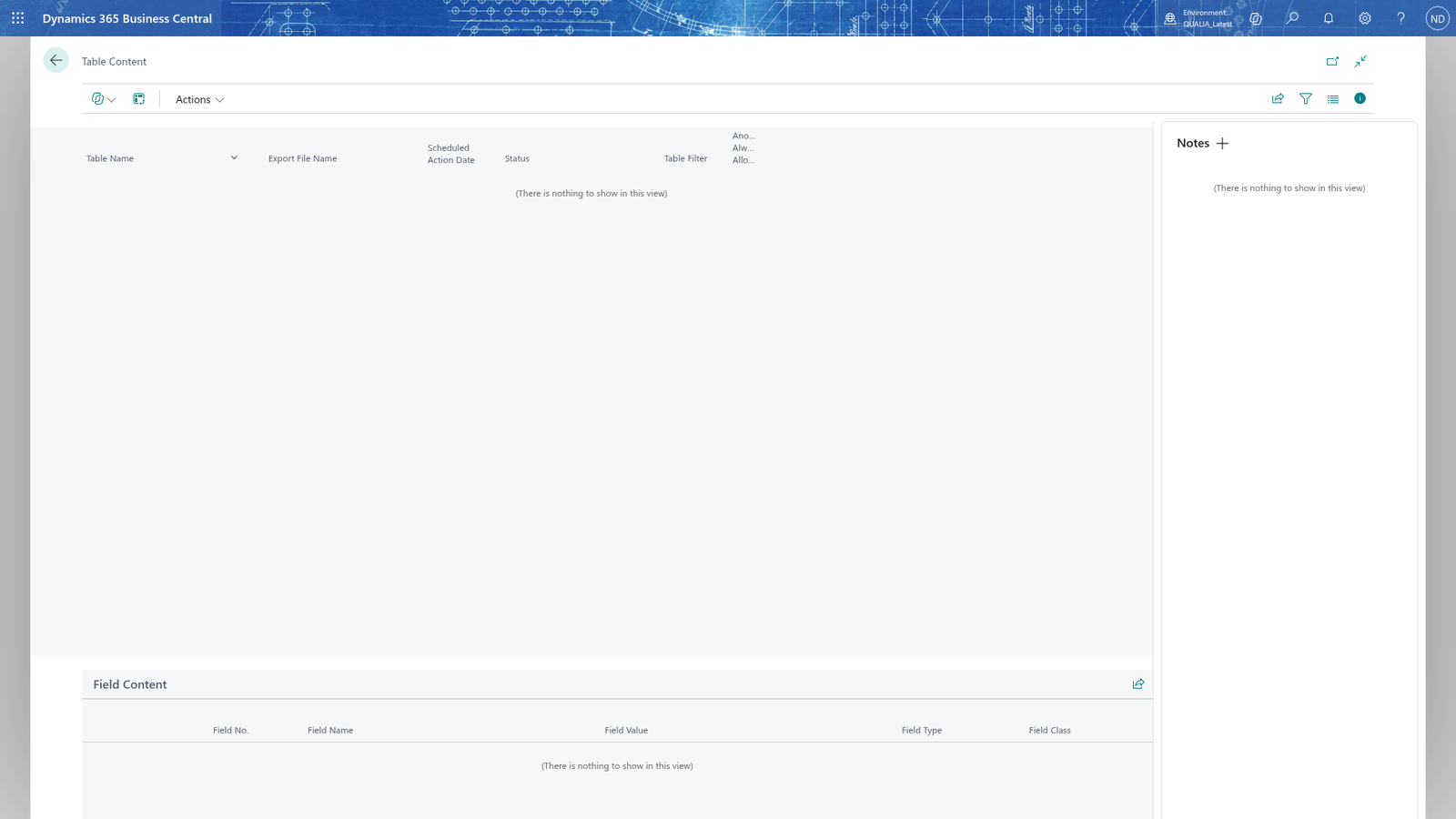
The worksheet titled Table Content opens with one line per table of the data structure. Read the lines like this:
- Table Name - the table the line shows.
- Export File Name - the name of the file this table is exported with.
- Scheduled Action Date - the date from the table guideline at which the record may be deleted or anonymized.
- Status - the status of that record's scheduled action, for example Waiting.
- Table Filter - the filter the structure uses to find the person's records in the table.
- Anonymization Always Allowed - whether the table may be anonymized whatever its guideline says.
Note: The view shows one line per table of the data structure, so a missing table is a sign that the structure is incomplete, not that the person has no data there.
To read the personal values of one table, select its line. The Field Content part below lists Field No., Field Name, Field Value, Field Type and Field Class for each personal field of that record. Only the fields that are marked as personal in the data structure's field list appear, which keeps the answer to the data subject focused and complete.
Open the record, its scheduled action or anonymize it
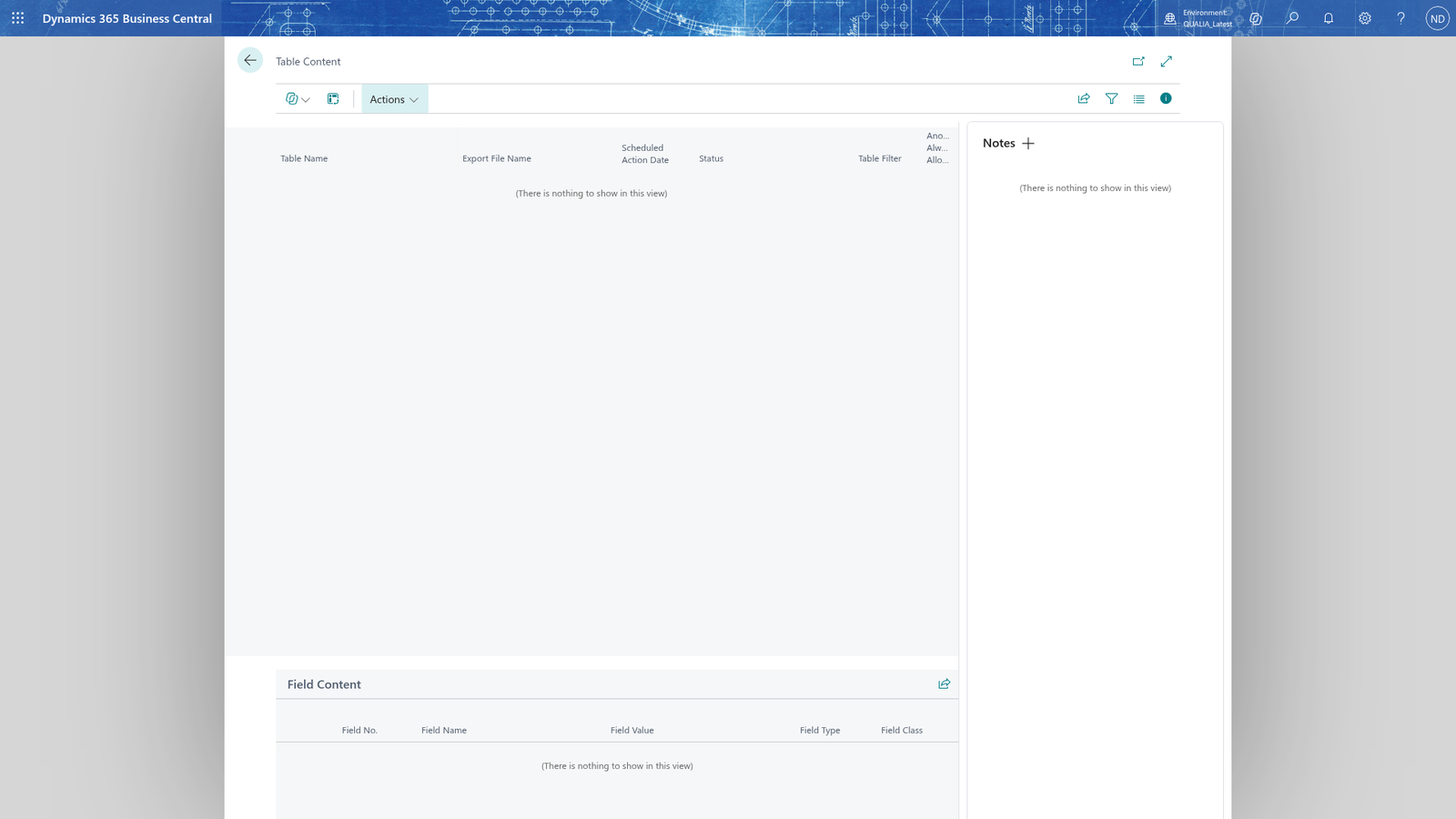
Select a table line, then choose the action you need; all three act on the person's record of that line only.
- To look at or correct the data, choose Open Source Record; the record's own card opens.
- To see why and when the record is planned for deletion or anonymization, choose Open Scheduled Action Entry; the entry in the scheduled action list opens.
- To anonymize this record now, choose Anonymize Record.
Note: Anonymize Record works only for tables whose guideline always allows anonymization, for example Posted Sales Invoice in the data structure TENANT. For other tables the action is ignored, so use the scheduled action of the record instead.
Example: Tanja Weiss asks what data QUALIA Technik holds about her - and to delete it
Lena Hartmann signs in with her own account. Tanja Weiss asks by e-mail: "Please tell me what data you hold about me, and delete my data."
- Lena creates the requesting person in Requesting Persons: Name Tanja Weiss, E-Mail [email protected], Data Structure Code TENANT, Table No. 5050 (Contact) and Record Key 1000.
- Lena chooses View Personal Data. The view shows the four tables of the structure, and Lena reads the scheduled action dates:
| Table Name | Scheduled Action Date | Status | Anonymization Always Allowed |
|---|---|---|---|
| Contact | 12.06.2029 | Waiting | |
| Customer | 12.06.2029 | Waiting | |
| Contact Business Relation | |||
| Posted Sales Invoice | 30.11.2028 | Waiting | Yes |
- Lena selects the Contact line. The Field Content part shows the personal values of contact 1000: the number 1000, the name Tanja Weiss and the e-mail [email protected], then Phone No., Address, City and Job Title with the values stored on the contact. The Customer line shows the name of Mietwerke Berlin GmbH; the Posted Sales Invoice line shows the bill-to name of invoice SINV0001.
The tables and their activities come from the data structure TENANT, so Lena sees here which record is only anonymized and which is deleted later:
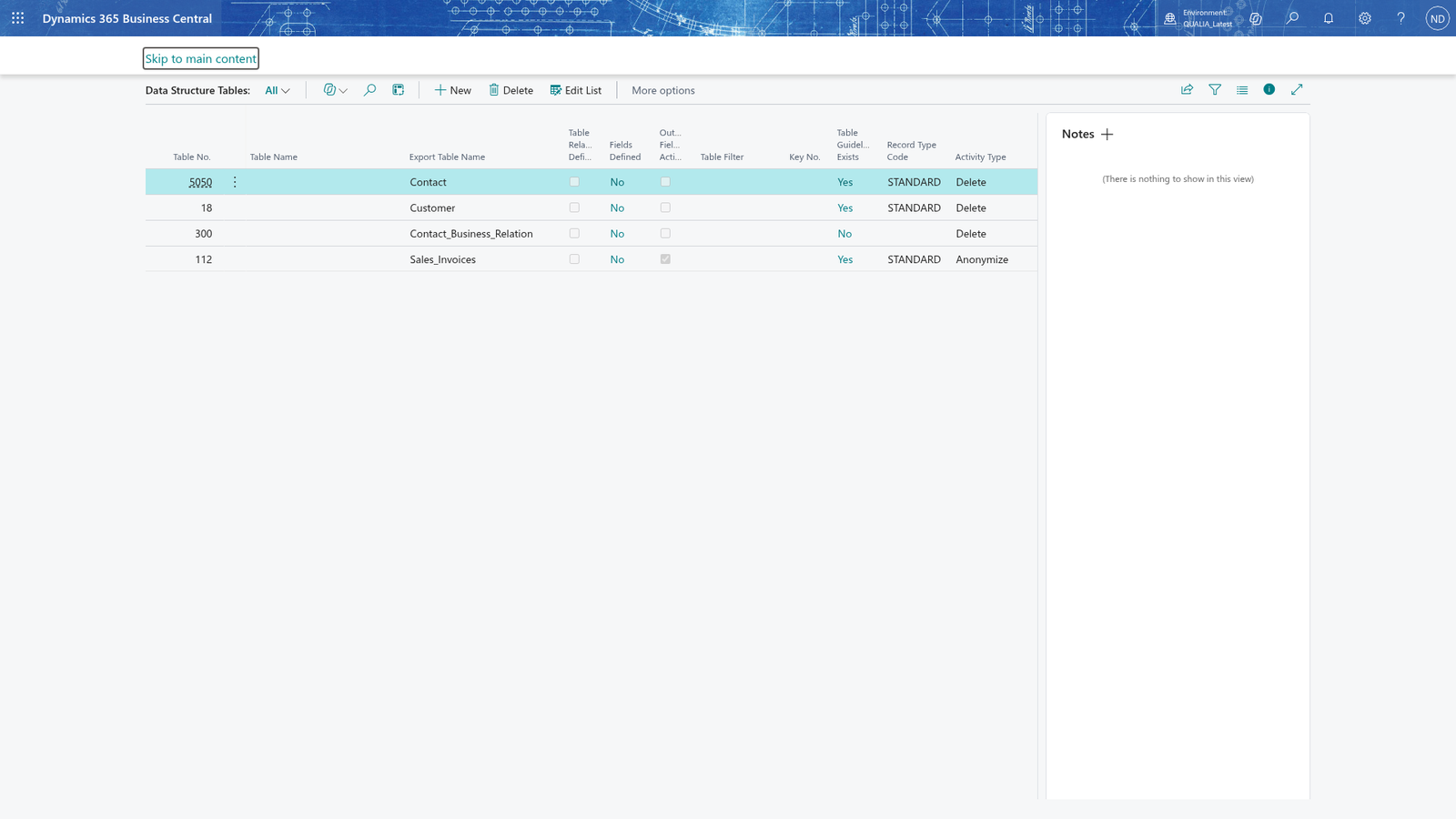
- The deletion is not possible yet: the scheduled action dates are in the future (12.06.2029 for Contact and Customer, 30.11.2028 for the invoice), so every record of the structure must have passed its date first. Lena records this in the notes of the person and tells Tanja that her data is deleted once the retention periods allow it.
- On the Contact line Lena chooses Open Source Record to check that Tanja's e-mail address is correct, and on the Posted Sales Invoice line Open Scheduled Action Entry to see the planned anonymization of the invoice.
What happens
The personal data view reads the data: it lists the person's records along the data structure and shows what is stored in the personal fields. It also gives access to the record and to the scheduled action, and it can anonymize one record when the guideline allows it. Nothing else changes: the scheduled actions, suggestions and archives are written by the other parts of the app.
To check the view's result, open Scheduled Actions from the role center and compare the scheduled action date and status on the line with the entry there. Anonymization cannot be undone in the view: it replaces the personal values, so deletion and anonymization are normally started from the action suggestions, where the processed entries are kept in the suggestion archive.
If something goes wrong
- The view has no lines: the person has no Data Structure Code, or the structure has no tables yet. Set the data structure on the person (for example TENANT) and check the tables of the structure.
- A table you expected is missing from the view: it is not part of the data structure. Add the table to the structure.
- The Field Content part stays empty when you select a table line: that table's line in the data structure has no personal fields defined. Open the data structure tables list and look at Fields Defined; add the fields to that table's field list.
- The Scheduled Action Date or Status is empty on a line: that record has no scheduled action entry. Create scheduled actions for it.
- Anonymize Record does nothing: the table guideline of the table does not always allow anonymization. Work with the scheduled action of the record instead.