
Scheduled Actions
Every record in a personal-data table gets a scheduled action: a planned Delete or Anonymize action with a date the table guideline calculated. Lena Hartmann opens the Scheduled Actions list to see which personal data will be removed and when, and to keep the actions in order. The app creates the entry itself when Max Keller creates the contact Tanja Weiss or the customer Mietwerke Berlin GmbH, updates it when a record changes or is renamed, and removes it when the record is deleted. For tables with many records, such as Posted Sales Invoice, the job queue that JOBQ runs creates the actions instead of the record itself.
Before you start
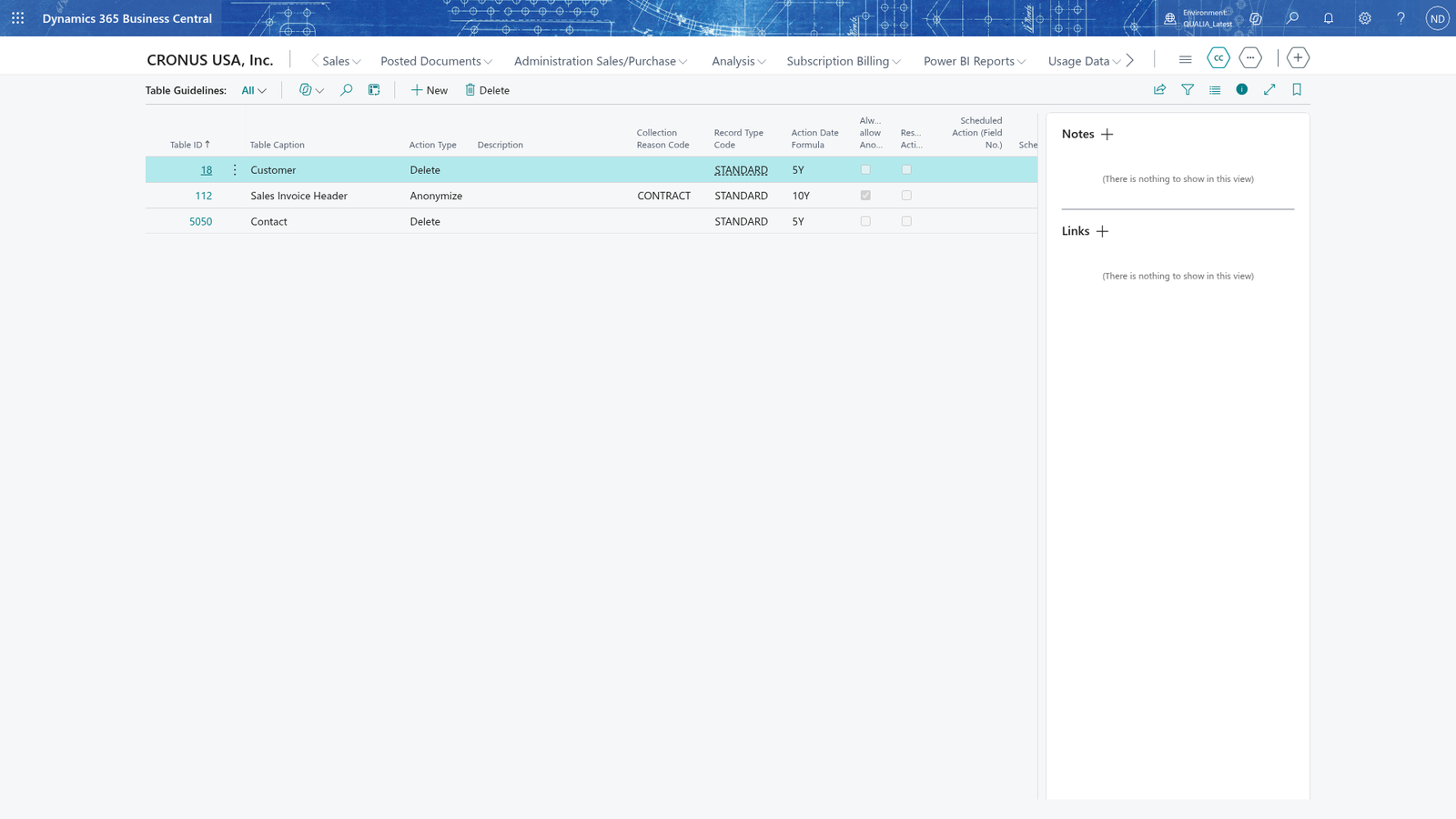
- Set up the Table Guideline of every personal-data table (Contact, Customer, Sales Header, Posted Sales Invoice): Action Type Delete or Anonymize, Record Type Code STANDARD and Action Date Formula (5Y for Contact, Customer and Sales Header, 10Y for Posted Sales Invoice). Where the action date does not come from the record's own date, enter the date field in Scheduled Action (Field No.) (for Posted Sales Invoice: Posting Date).
- Keep the database table triggers of those tables active in standard Business Central, so that every insert, modification, rename or delete of a record reaches the app.
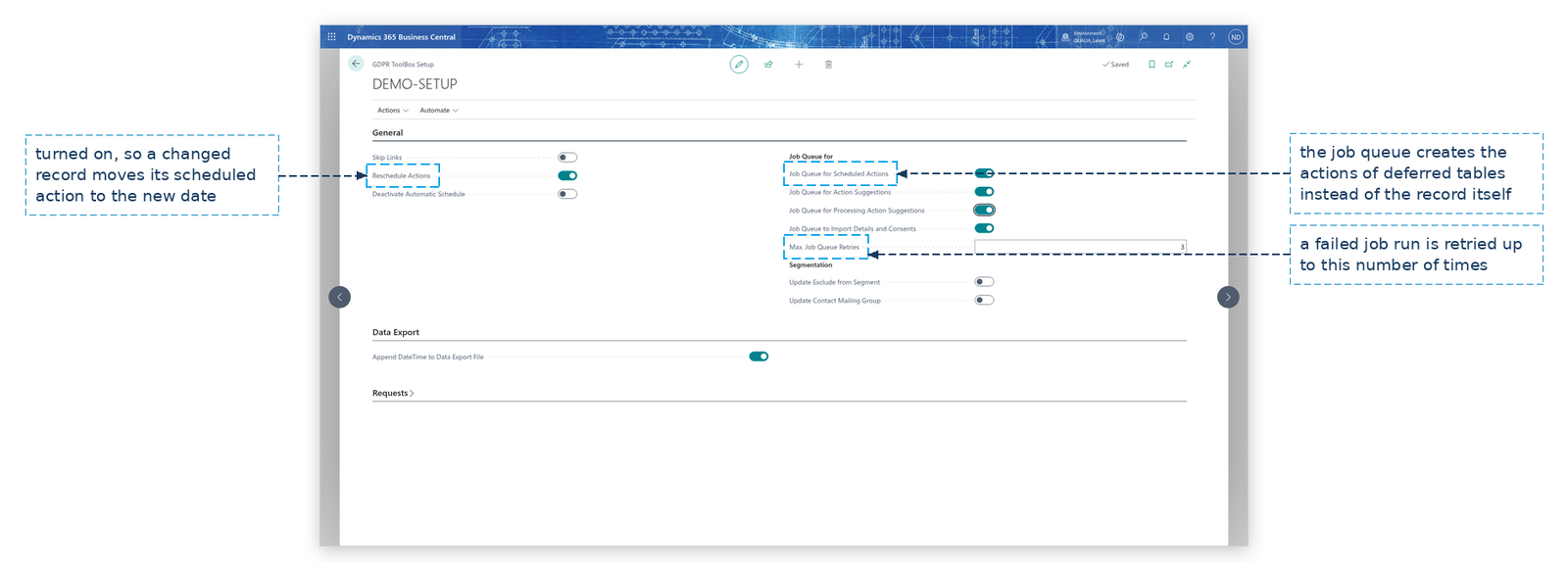
- In GDPR ToolBox Setup, keep Reschedule Actions on: when a personal-data record changes, the existing scheduled action follows the record instead of being recreated. Deactivate Automatic Schedule is only for special situations: it switches off automatic scheduling of records created after the switch, even when the table guideline is active.
- Enter the reschedule reasons in Reschedule Reasons: AUTO with Default on (the standard reason), and DELAY "Customer delay".
- Keep the job queue running for the GDPR jobs. Julia set Max. Job Queue Retries to 3, so a failed job run is retried up to three times.
See which actions are waiting
Max Keller creates the contact Tanja Weiss (No. 1000) and the customer Mietwerke Berlin GmbH (No. 2000).
- Search for Scheduled Actions and open it. The list shows the entries waiting for personal-data records.
- Filter Record Key on 1000 and Table Name on Contact to see the actions of Tanja Weiss: Contact 1000 with Action Delete, Action Date June 12, 2029 and Status Waiting.
- The entry for Mietwerke Berlin GmbH (customer 2000) shows Delete, action date June 12, 2029, waiting as well.
- Choose Open Source Record to open the record the action points to.
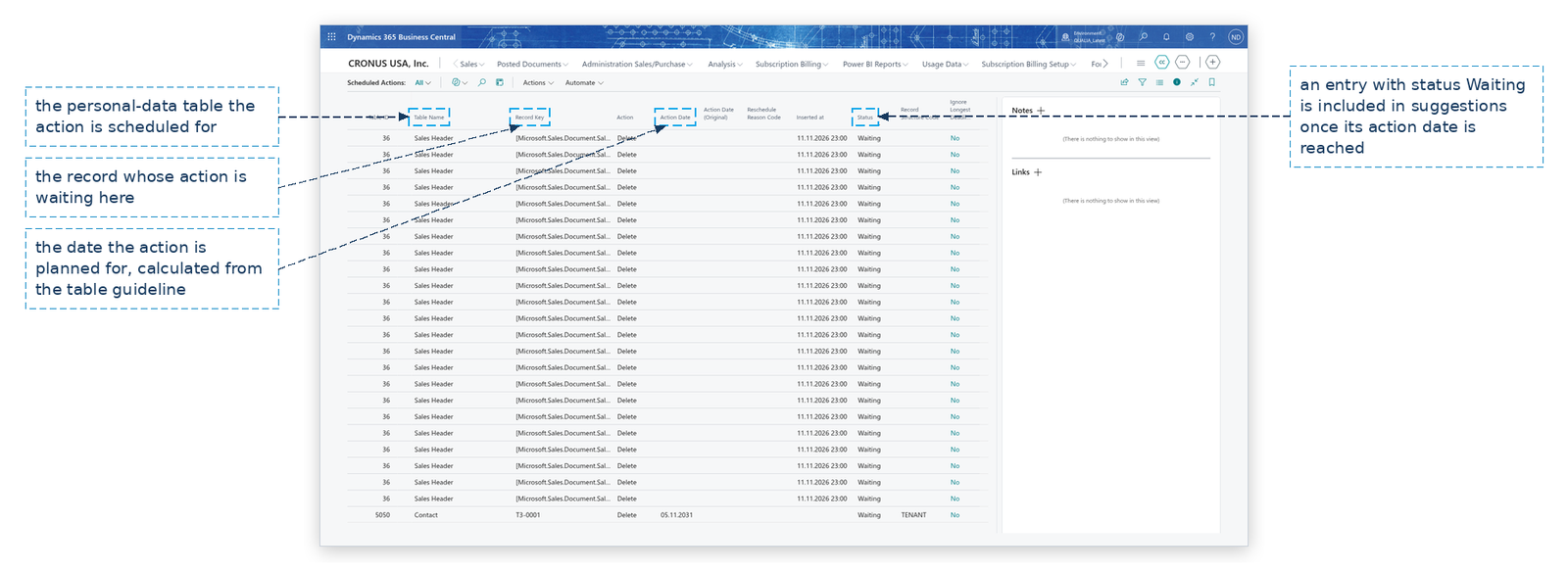
Note: The app creates the entry itself when the record is saved: Delete with the action date from the table guideline (Contact has the Action Date Formula 5Y, so Tanja Weiss's action is planned five years after the contact's date). Renaming a record moves the entry with it, and when the record is deleted the entry is removed.
Move an action to a later date
A customer asks to postpone the removal of their data, or a record is not ready yet. Lena Hartmann moves the action of Sales Header Q2026-07 to a later date instead of deleting the entry: the entry stays and the suggestion is made on the new date.
- Open Scheduled Actions and filter Table Name on Sales Header to find the entry of record Q2026-07.
- Select the entry and choose Reschedule Action Date.
- In the Reschedule dialog, enter the date the action should move to in New Scheduled Date, for example 10/01/2026.
- In New Reschedule Reason Code, enter the reason for the move, for example DELAY ("Customer delay"), and choose OK.
The entry now shows the new Action Date and the Reschedule Reason Code DELAY, and its Status stays Waiting, so it is still part of the suggestions.
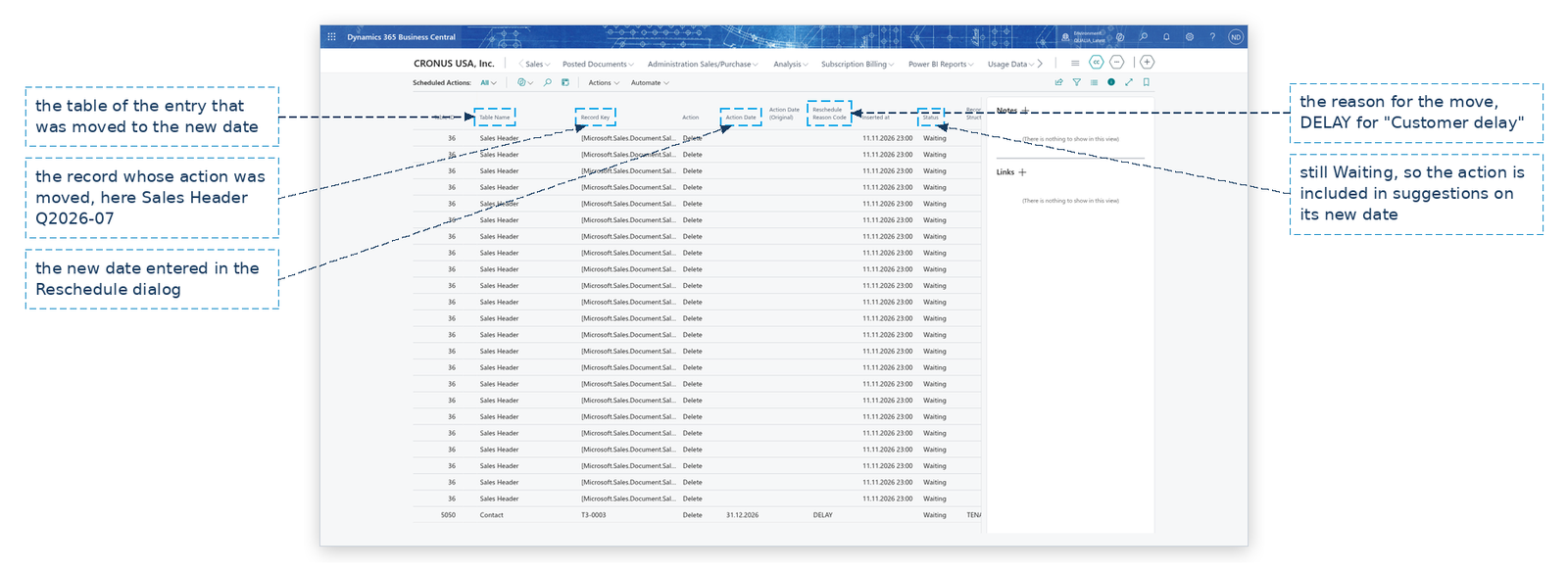
Note: A reschedule needs both the new date and the reschedule reason; the app refuses a reschedule without them. Keep your reasons in Reschedule Reasons (here AUTO and DELAY "Customer delay") so they can be chosen here. The entry keeps its Status, so it is still part of the suggestions on the new date.
Reset a suspended action to Waiting
An action that was put on hold is Suspended and does not come back into suggestions until it is reset.
- Open Scheduled Actions and filter Status on Suspended.
- Select the entry, for example Contact 1001 Peter Kraus with Action Anonymize (action date June 1, 2046).
- Choose Reset Status. The status changes to Waiting, so the action is included in suggestions again.
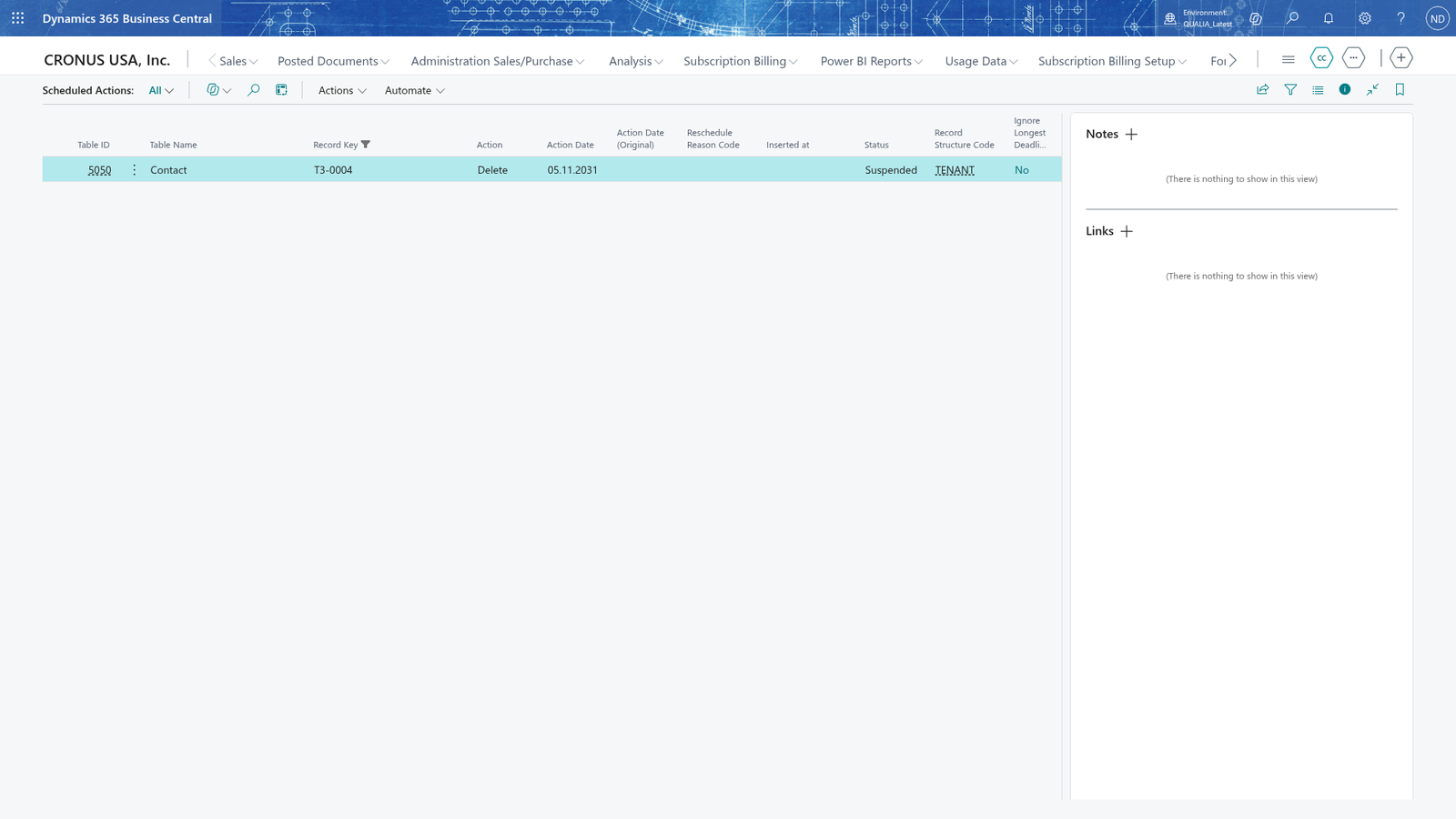
Note: Only a Suspended entry can be reset to Waiting. An entry in any other status keeps its status: the app answers with its status, for example "The status Waiting can not be reset." Choose Reset Status only on an entry whose Status is Suspended.
Let the job queue create the actions of a large table
Posted Sales Invoice has many records. Julia defers the creation of their scheduled actions to the job queue that JOBQ runs, so that creating an invoice is not slowed down.
- Open Table Guidelines and choose the line for Posted Sales Invoice.
- Choose Edit and switch on Manual Scheduled Action and Reschedule Actions.
- In Action Indicator (Field No.), choose the field that marks the records waiting for an action, and in Commit per No. of Records enter 500.
- In GDPR ToolBox Setup, turn on Job Queue for Scheduled Actions.
- On GDPR ToolBox Setup, choose Scheduled Activity to open the job queue entry of the scheduled-actions job, set its run times and start it.
- Old records, created before the guideline existed, get their actions in one step: on GDPR ToolBox Setup, choose Creating Actions from Historical Data. It walks the records of every table whose guideline has Manual Scheduled Action and Reschedule Actions on, creates an entry for each record that has none and shows the progress per table; the message confirms "The scheduled actions from the historical data have been created."
Note: With Manual Scheduled Action, new records of the table get their scheduled action from the job queue, not at once. The action date still comes from the guideline (Posting Date + 10Y for Posted Sales Invoice), and the job commits its work every 500 records.
Example: The old invoices and Tanja's tenant at the January close
Julia Beyer introduces the guidelines for Posted Sales Invoice and Sales Header. The old posted invoices have no scheduled actions, so on GDPR ToolBox Setup she chooses Creating Actions from Historical Data. Each old invoice gets an Anonymize action: Posted Sales Invoice SINV0001 of customer 2000, posted November 30, 2018, gets Anonymize for November 30, 2028 (Posting Date + 10Y). Because the table has so many records, Julia also switches on Manual Scheduled Action with the action indicator field and a commit of 500 records, and the job queue continues the work record by record.
Lena Hartmann checks the tenant of Tanja Weiss. Contact 1000 Tanja Weiss has Delete on June 12, 2029 and customer Mietwerke Berlin GmbH (2000) also Delete on June 12, 2029. Contact 1001 Peter Kraus has Anonymize on June 1, 2046, but its entry is Suspended, so she selects it and chooses Reset Status; the entry runs again. The quote Sales Header Q2026-07 of customer 2000 must not be deleted yet, so Lena selects its Delete entry, chooses Reschedule Action Date, enters 10/01/2026 as New Scheduled Date and DELAY as New Reschedule Reason Code, and chooses OK.
The actions waiting for the tenant of Tanja Weiss:
| Record | Action | Action Date | Status |
|---|---|---|---|
| Contact 1000 Tanja Weiss | Delete | June 12, 2029 | Waiting |
| Customer 2000 Mietwerke Berlin GmbH | Delete | June 12, 2029 | Waiting |
| Posted Sales Invoice SINV0001 | Anonymize | November 30, 2028 | Waiting |
| Contact 1001 Peter Kraus | Anonymize | June 1, 2046 | Waiting |
| Sales Header Q2026-07 (rescheduled with DELAY) | Delete | October 1, 2026 | Waiting |
What happens
- The app keeps one scheduled action entry per personal-data record in Scheduled Actions. The entry is created when the record is created or changed and is removed when the record is deleted.
- Reschedule Action Date moves an entry to the date you enter and stores the reschedule reason you choose; the entry keeps its status, so a Waiting entry stays part of the suggestions on the new date.
- Waiting actions whose date has been reached are read by Create Suggestions: they are the basis of the action suggestions.
- To undo or correct an action, reset a Suspended entry with Reset Status so that it is suggested again.
If something goes wrong
- "The status Waiting can not be reset." (the message names the entry's status): You chose Reset Status on an entry that is not Suspended. Check the Status column, select an entry with Status Suspended, and choose Reset Status again.
- "A reschedule needs a new scheduled date and a reschedule reason.": You confirmed the Reschedule dialog without a New Scheduled Date and a New Reschedule Reason Code. Choose Reschedule Action Date again and fill both fields.
- A new record gets no scheduled action: The table has no table guideline, or Manual Scheduled Action defers it to the job queue and the job queue is not running. Check the guideline in Table Guidelines and the job queue entries in GDPR ToolBox Setup.
- An action was created for a record that is deleted again: The scheduled action entry is removed together with the record, so nothing waits for it.