
Requests from data subjects
Any private individual - a tenant like Tanja Weiss, or anyone else whose personal data Business Central holds - may ask what you store about them, ask you to correct a wrong value, ask for the data in an electronic form, or ask you to delete them. The law gives you a deadline to answer, so Lena Hartmann, QUALIA Technik's data protection officer, documents each such request inside the GDPR ToolBox instead of in an e-mail folder. She records the person as a requesting person linked to the master data record the request is about, adds one request per right (Information, Adjust, Export or Delete), and runs Process, which answers the request: a personal data PDF, a zip of CSV files, or the scheduled deletion. The status and processed date on each request show Lena and Julia Beyer where every request stands.
Before you start
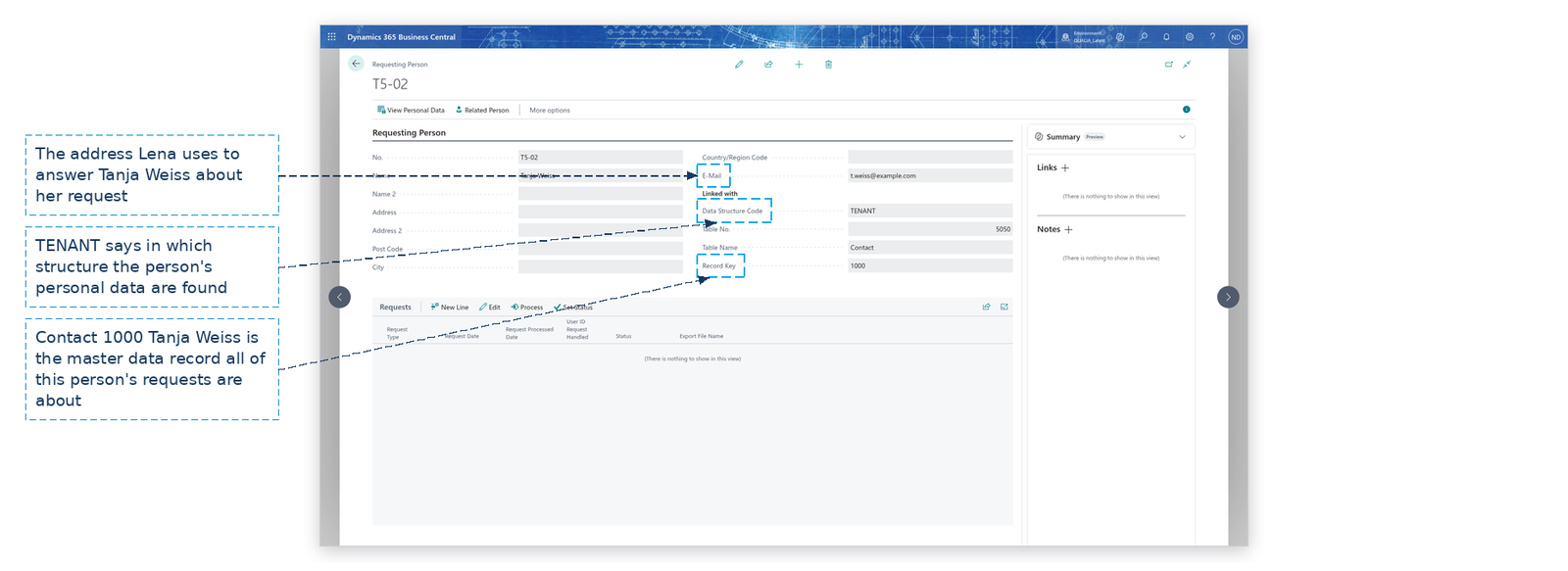
All of this is set up once by Julia Beyer (IT administrator) and is described in the opening chapter of this manual; check it before you record your first request. Each requesting person is linked to a real record of the data structure - here Tanja Weiss is linked to contact 1000:
- The GDPR setup has the request number series (RQ), so every requesting person gets its number automatically, and the status codes (INI, AWAIT, WAIT, PROC, REJ, DONE) that move requests between the role center stacks.
- The request statuses are entered, and the verification codes are entered too (PASSPORT, ID_CARD, VIDEOCALL); the verification code on a request documents how you proved the requester's identity.
- The table guideline of the table you want to link requests to has Requesting Selection Allowed checked - in the story that is true for Contact.
- The GDPR ToolBox has a data export folder (\\quamsrv01\GDPRExport) for the zip files of Export requests, and Append DateTime to Data Export File is on, so each exported zip gets a date-time name and no request overwrites another's file. The GDPR ToolBox Setup page has no Data Export Folder field: the missing field is an app gap the consultant must fix. Until then, do not process Export requests.
- The data structure (TENANT) and its field lists are complete - they decide what the PDF and the CSV files show.
Record the requesting person
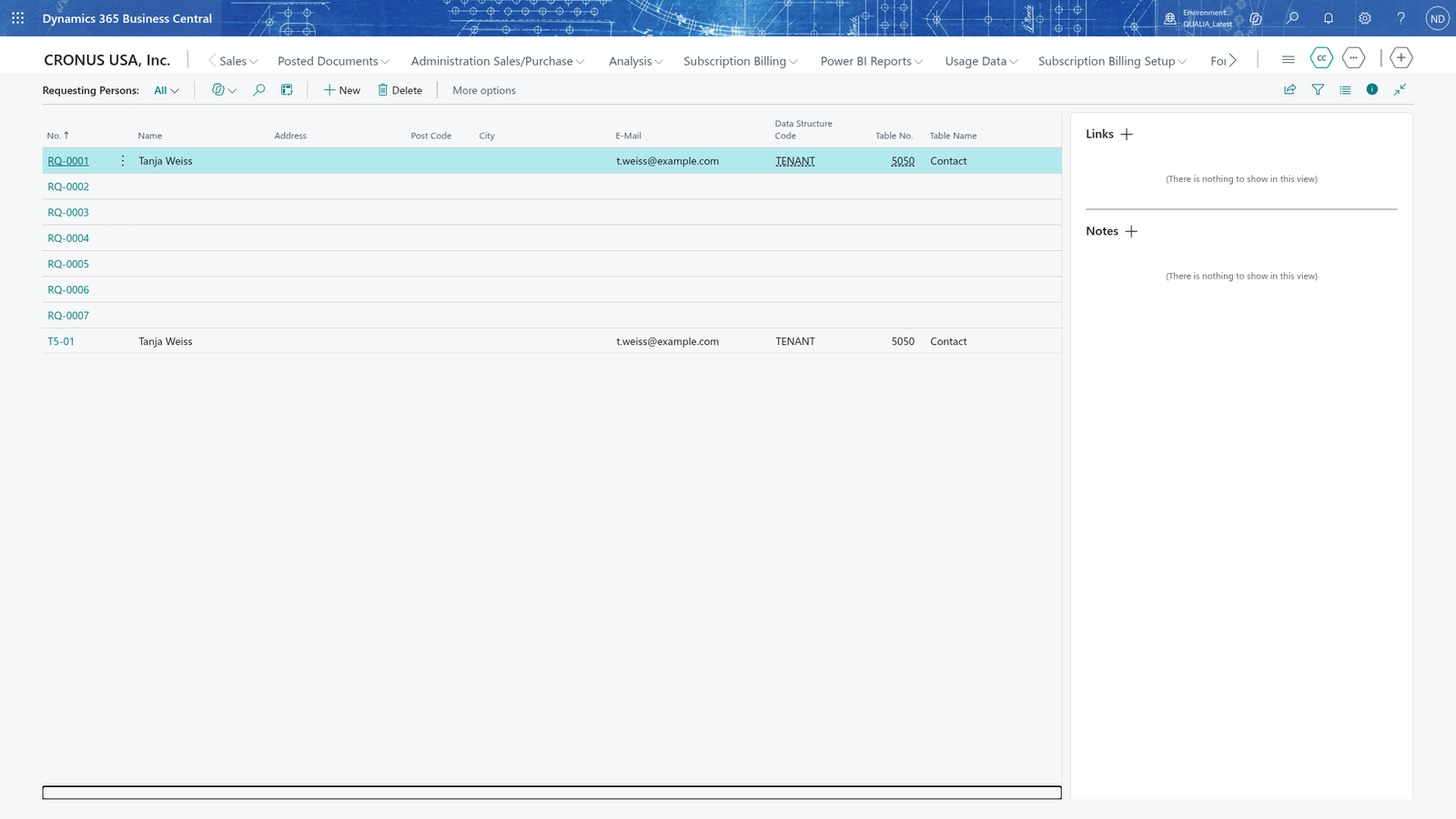
- On the GDPR role center, choose Requesting Persons.
- Choose New; the No. field is filled from the request number series.
- In Name, enter the person's name, for example Tanja Weiss.
- Fill in Address, Post Code, City and Country/Region Code, so the person is identified unambiguously.
- In E-Mail, enter the address Lena answers to, for example [email protected].
- In Data Structure Code, choose the structure the person's personal data is searched in, for example TENANT.
- In Table No., choose the table of the master data record; in the story that is Contact. Only tables whose table guideline has Requesting Selection Allowed can be chosen.
- In Record Key, choose the record, for example contact 1000 Tanja Weiss.
- Choose View Personal Data to see the data the structure finds for this link.
Note: Only tables whose table guideline has Requesting Selection Allowed are offered in Table No. The person's request may only reference master data you are allowed to look at through the data structure.
Note: The link must point to a record that exists. Related Person reports The selected person was not found. when the contact behind Record Key is gone; check that the contact still exists and that Record Key holds its number.
Document the request
- Open the person on the Requesting Person card, for example RQ-0001.
- In the Requests part, choose New Line; the request appears with the initial status from the GDPR setup.
- Select the request and choose Edit. The Request Details card opens.
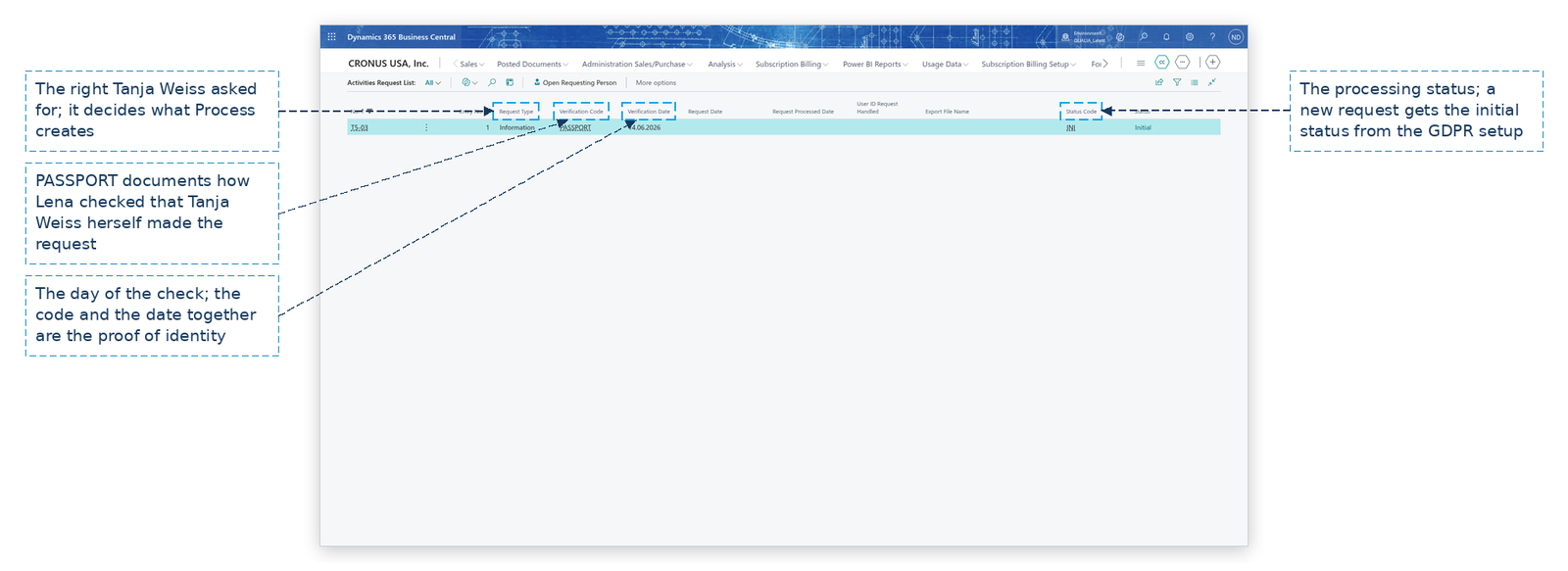
- Read Request Type: it shows which of the four rights - Information, Adjust (to correct data), Export or Delete - the request records.
- In Verification Code, choose how you checked the requester's identity, for example PASSPORT.
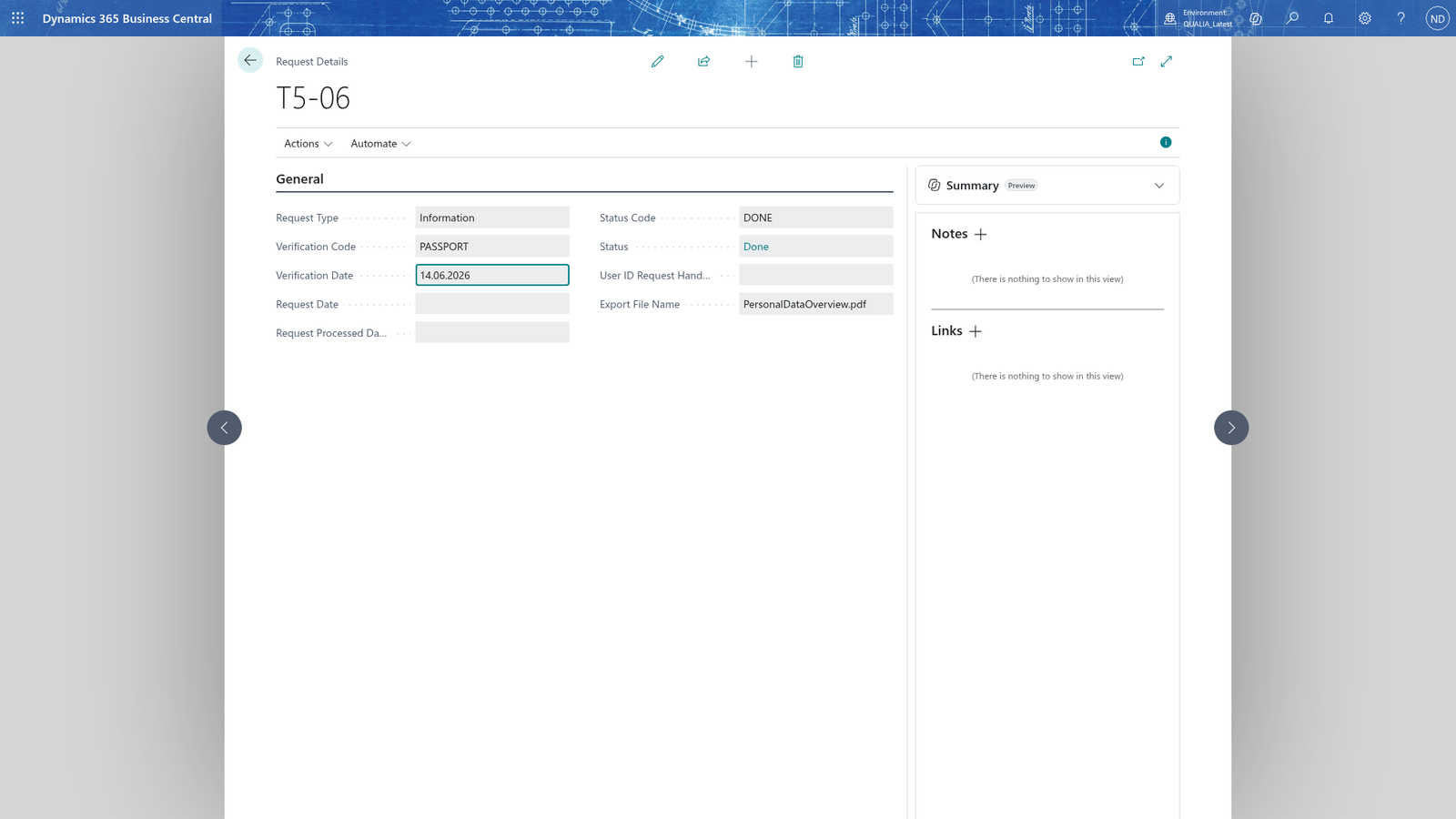
- In Verification Date, enter the date of that check, for example 14.06.2026.
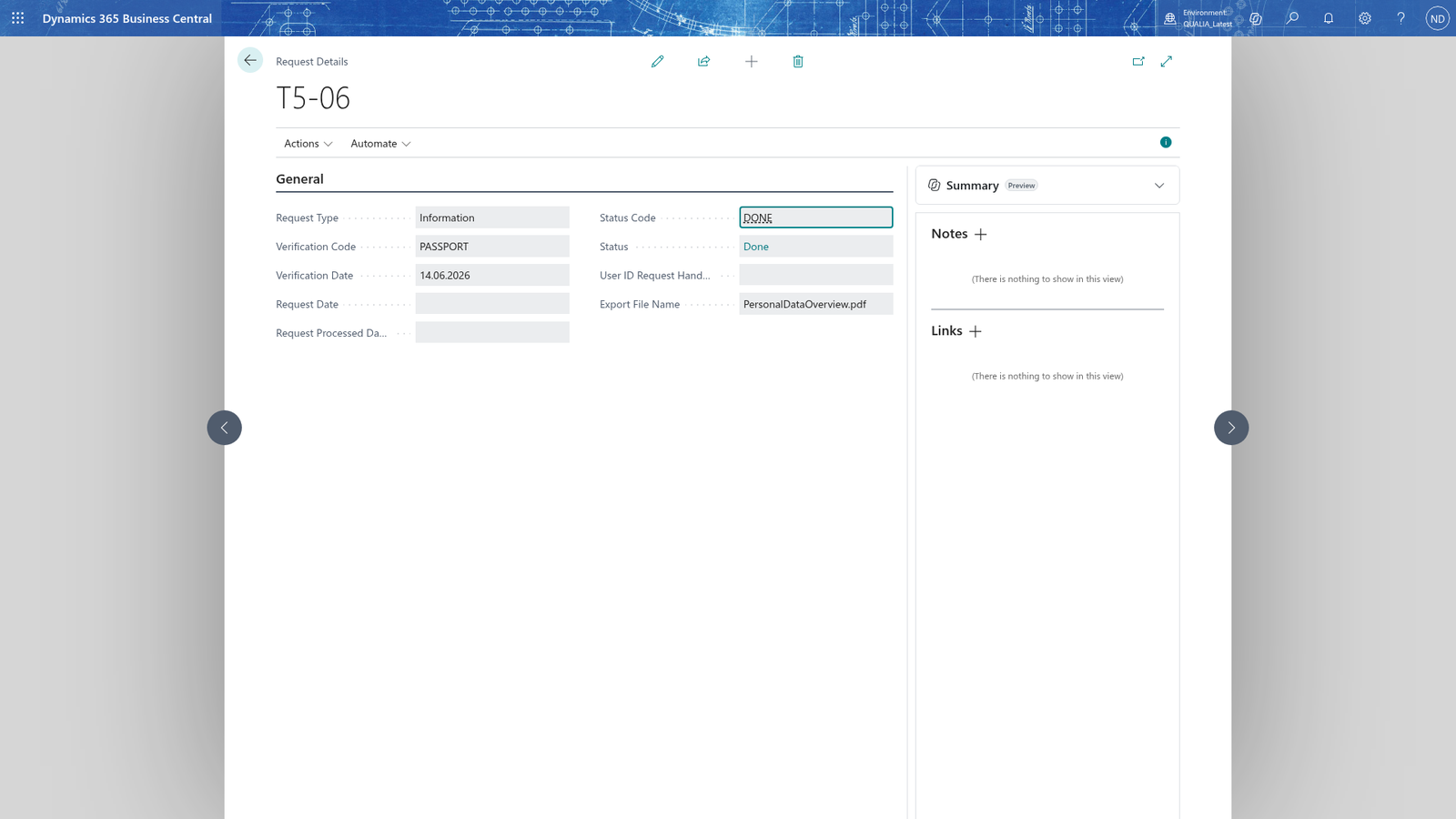
- In Status Code, choose the processing status; while the request waits for you it is INI.
- Close the card; the request shows in the Requests part.
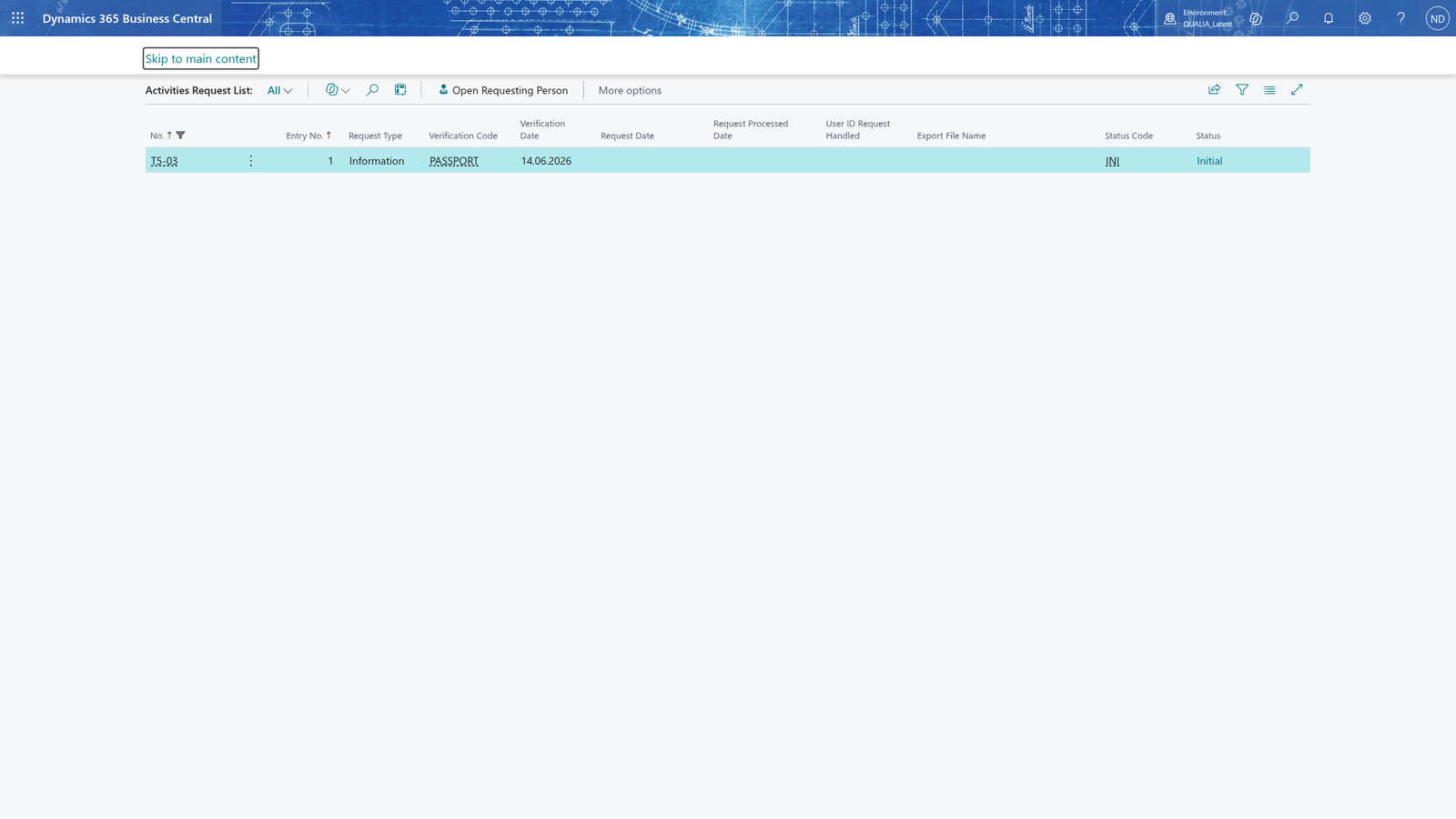
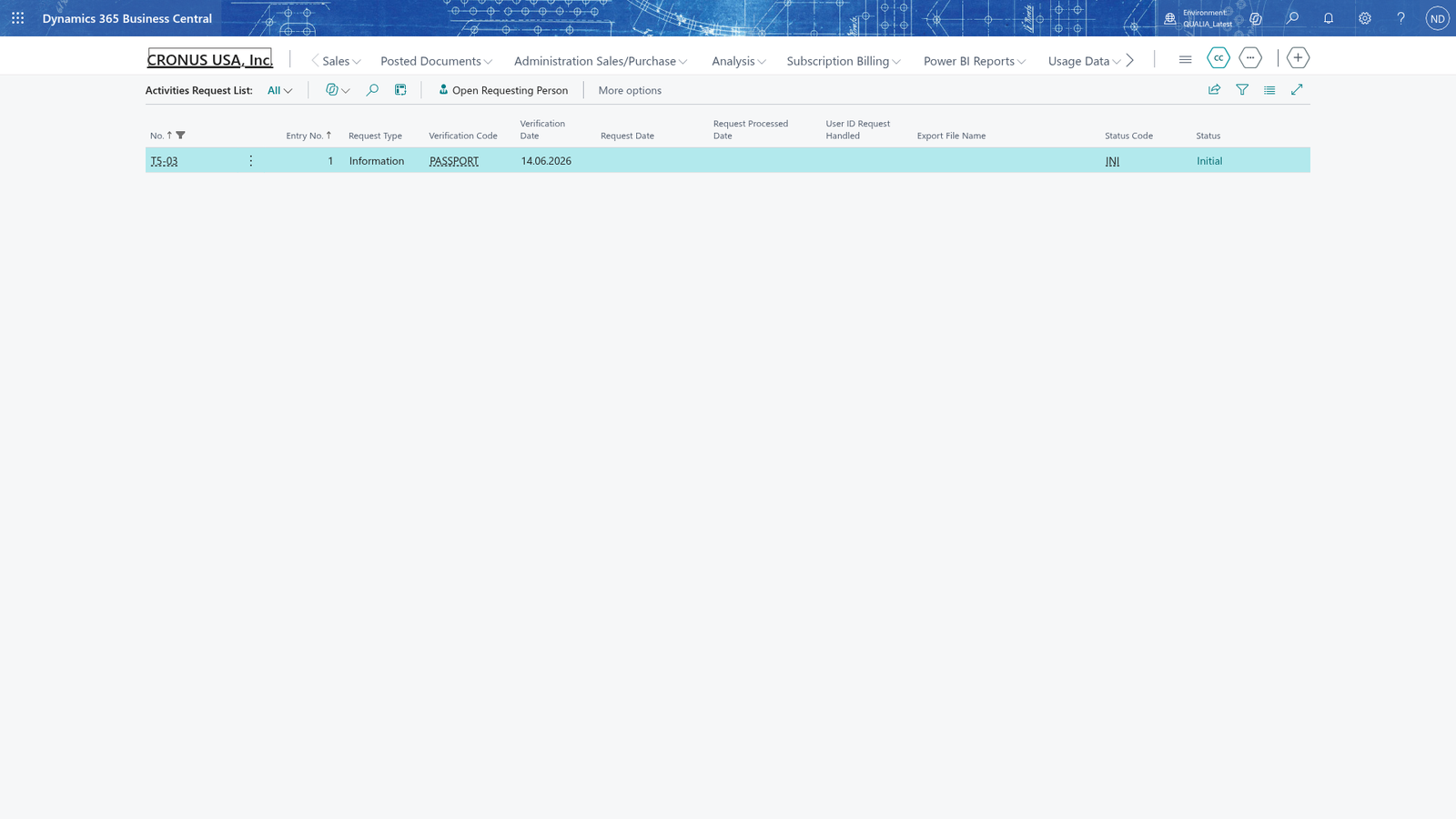
The same request also shows in the app's Activities Request List, the cross-person list of all requests with their verification and status.
Request Type is shown read-only on the card and the app offers no other page to set it - making Request Type editable on the Request Details card is an app gap the consultant must fix. Until then, write down on the Notes factbox of the card (in the web client choose Toggle FactBox if you do not see it) which right the person asked for.
The status of the request is refused while the Status Code you entered does not exist as a request status; choose one of the codes Julia Beyer entered in the request statuses (INI... DONE).
Note: You can record further requests for the same person while another is still open - for example a Delete request while the Adjust request is being answered. Each right gets its own request line.
Process the request
- Give the request its processing status: select it in the Requests part and choose Set Status (or choose Set Status on the Request Details card, which you open with Edit). Choose the status the GDPR setup names for this step: the Process Status Code (in the story PROC), or the Done Status Code (DONE) for a Delete request.
- With the request still selected, choose Process. (You can also do both from Edit on the Request Details card.)
- What the app creates depends on the type of the request:
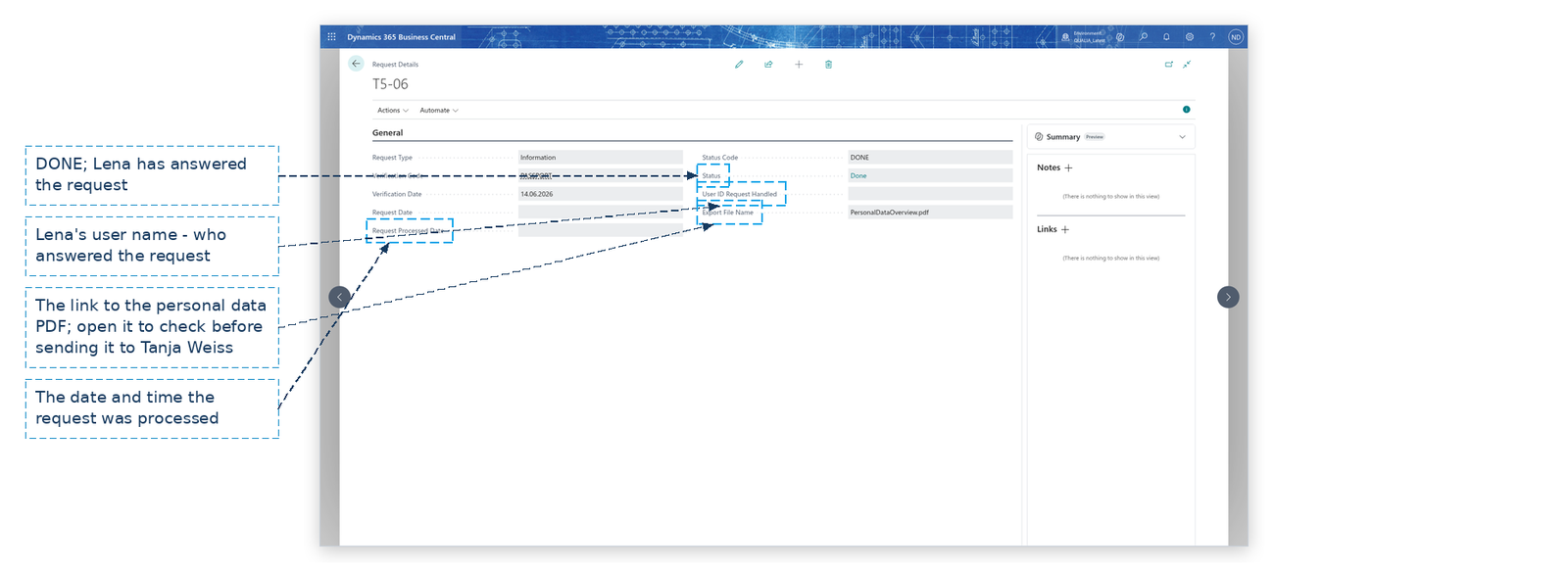
- Information: the personal data of the linked record, according to the data structure and its field lists, are produced as a PDF; its link appears in Export File Name. Open the link and read the PDF before you send it to the requester.
- Export: one CSV per table of the structure (named after the table line's export name, e.g. Sales_Invoices) is packed into a zip file, and the app saves the zip in the data export folder; the link to the zip file appears in Export File Name. The zip is not encrypted.
- Adjust (to correct data): a documentation PDF of the current data is written as evidence; its link appears in Export File Name. Then correct the wrong value on the master data record (open it with Related Person on the person's card) and write on the Notes factbox of the request what you changed.
- Delete: the app creates the scheduled action entries for the person's linked records; the deletion itself runs later with the scheduled actions. Check the scheduled action dates of the structure in View Personal Data.
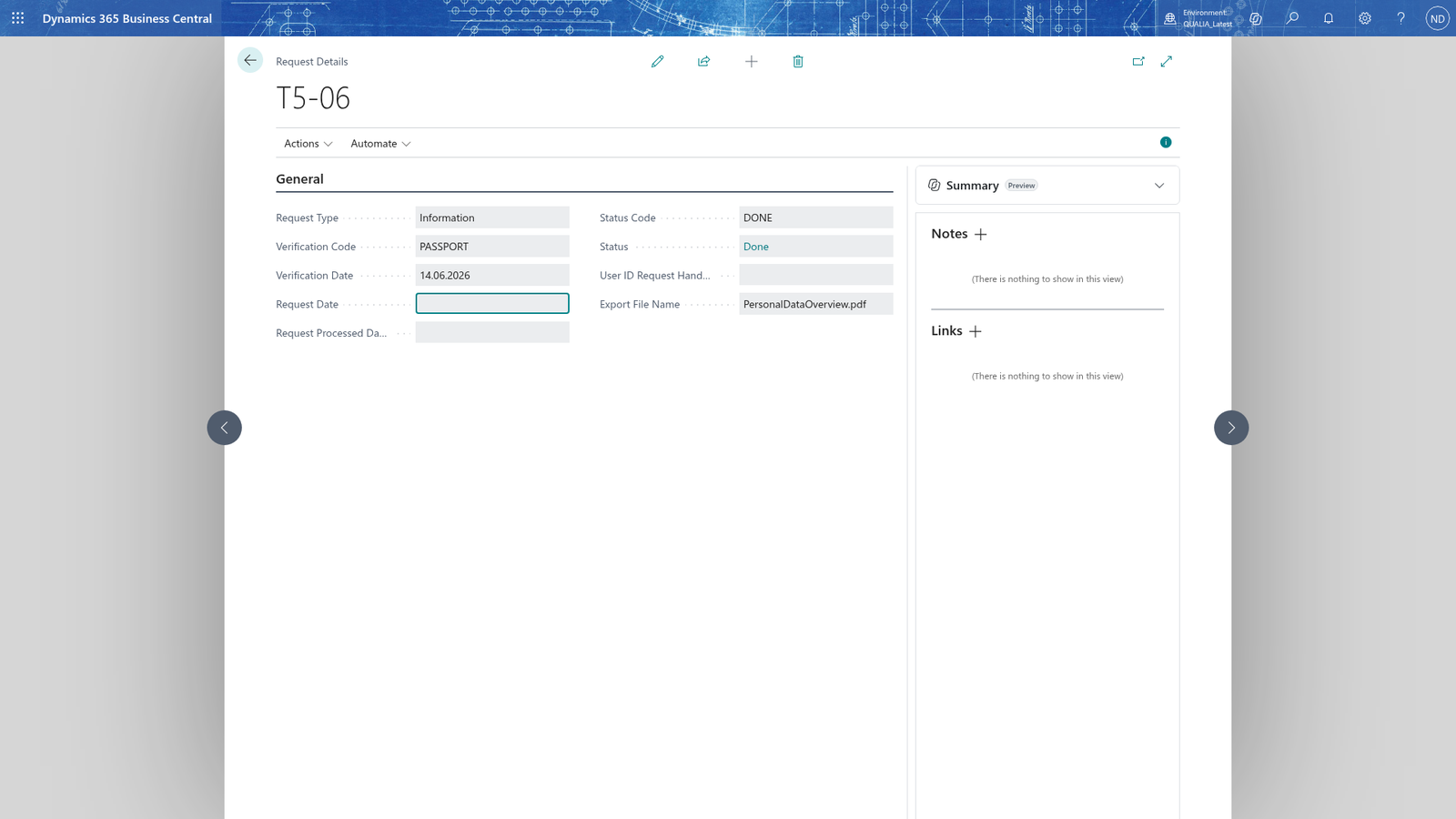
- After processing, Request Processed Date and User ID Request Handled record when and by whom the request was answered. A processed Information request is finished: Status shows DONE, and Lena sends the result to the requester. An Adjust request keeps its processing status (for example PROC) because you correct the data yourself.
Note: Processing first looks at the request's Status Code: a request that is still INI is refused with a message of the form "Status Code must be equal to..." and Lena gets no PDF or zip. Choose Set Status first, then Process.
Note: Process each request only once. The app refuses to process a request that already has a processed date - record a new request instead.
Example: Tanja Weiss exercises her rights
Tanja Weiss, contact person of the customer Mietwerke Berlin GmbH (customer 2000), e-mails Lena Hartmann on 14 June 2026. Lena records and answers the request the same day, within the legal deadline.
- Lena opens Requesting Persons and chooses New: the number series gives RQ-0001. She enters Name Tanja Weiss and E-Mail [email protected].
- On the card she chooses Data Structure Code TENANT, Table No. Contact and Record Key 1000 Tanja Weiss; View Personal Data shows her the contact, the customer Mietwerke Berlin GmbH and the posted sales invoice of this tenant.
- She adds the Information request in the Requests part: Verification Code PASSPORT (she compared the passport she received), Verification Date 14.06.2026.
- She sets the request to PROC with Set Status and chooses Process. The PDF of Tanja Weiss's personal data is produced (No., Name, E-Mail, Phone No., Address, City, Job Title from the contact, and the rest per structure): Export File Name holds its link, Request Processed Date and User ID Request Handled are stamped and Status shows DONE. Lena opens the link, checks it and prints it for Tanja Weiss.
- The same day Lena adds an Export request, sets it to PROC and processes it: the app packs one CSV per structure table into a zip file (Contact.csv, Customer.csv, Sales_Invoices.csv) and saves it in the data export folder; Append DateTime to Data Export File gives it a date-time name. She sends the zip file to Tanja Weiss.
- Tanja notices her e-mail is wrong: [email protected]. Lena records an Adjust request (the right to have wrong data corrected), sets it to PROC and processes it - the documentation PDF shows the wrong address - then corrects the e-mail to [email protected] on contact 1000 and writes the correction on the Notes factbox of the request.
- Tanja also asks for deletion. Lena adds a Delete request. A Delete request is processed only with the status the GDPR setup names as Done code, so Lena gives it Status Code DONE and chooses Process; the scheduled action entries for Tanja Weiss's records are created and Tanja is told when the deletion will happen.
The requests of RQ-0001:
| Entry | Request Type | Verification | Status after processing | Result |
|---|---|---|---|---|
| 1 | Information | PASSPORT, 14.06.2026 | DONE (processed) | Personal data PDF sent |
| 2 | Export | PASSPORT, 14.06.2026 | DONE (processed) | Zip of CSV files sent |
| 3 | Adjust | PASSPORT, 14.06.2026 | PROC (processed) | E-mail corrected on contact 1000 |
| 4 | Delete | PASSPORT, 14.06.2026 | DONE (processed) | Deletion scheduled |
All four requests are recorded for RQ-0001; the Delete request was added while the others were still open.
What happens
- Each request is a line on the Requests part of the person's card; the app's Activities Request List keeps one line per request of every person, with Verification Code, Request Processed Date and Status. New Line adds further requests for the same person.
- Processing answers the request and stamps Request Processed Date and User ID Request Handled. An Information request is then finished (DONE); an Adjust request keeps the processing status you set (for example PROC), because you correct the data yourself.
- Information and Adjust produce a documentation PDF whose link is in Export File Name; Export packs one CSV per structure table into a zip file in the data export folder; Delete creates the scheduled action entries that will delete the person's records later.
- The role center counts the request in the stack of its status, so the finished requests appear in the Done cue and no longer in the open ones.
- A request cannot be un-processed; if something was missed, record a new request.
If something goes wrong
- "The request %1 of requesting person %2 has already been processed on %3. Only unprocessed requests can be processed." (on the Requests part) or "The request %1 of requesting person %2 has already been processed. Process each request only once." (on the Request Details card): Process was used a second time on this request. A processed request keeps its result; add a new request line instead.
- "Status Code must be equal to...": you chose Process while the request's Status Code was not the one the processing expects - typically a request that is still INI. Choose Set Status to give the request its processing status (for example PROC), then choose Process again.
- The status you enter on the request is refused because it does not exist in the request statuses: choose one of the codes Julia Beyer entered in the request statuses (INI... DONE).
- "The request must have a requesting person. Enter a number of a requesting person in the filter first.": the request was created or processed without an existing requesting person. Record the requesting person first, then add the request on the person's card.
- The table is not offered in Table No., or Related Person reports The selected person was not found.: only tables whose guideline has Requesting Selection Allowed may be linked, and the record must exist. Ask Julia Beyer to allow the table or check the contact number.
- "The data export folder is not set. Enter a folder in the Data Export Folder field of the GDPR setup and try again.": An Export request was processed while the GDPR ToolBox has no data export folder. The GDPR ToolBox Setup page has no Data Export Folder field yet (an app gap the consultant must fix): until the consultant has added the field and entered a folder there, do not process Export requests.
- "The requesting person %1 has no data structure. Enter the data structure on the requesting person card and try again.": The Export request needs the person's data structure. Enter Data Structure Code on the person's card and process the Export request again.
- "No personal data was found for the requesting person %1. Check the data structure and its field lists and try again.": The Export request found no records through the person's link. Check that Data Structure Code, Table No. and Record Key on the person's card point to the right record.
- "The file name of the CSV export is empty. Enter a file name or an export table name on the table line %1 of the data structure %2 and try again.": A table line of the structure has no export table name; Julia Beyer enters it on the data structure table line.