
Reports on personal data: the overview and the checks
The GDPR ToolBox turns the data structure into reports you can hand to a data subject or to an auditor. The Personal Data Overview lists, for one person, every value the app finds in the tables of the data structure - with the table name, the field name, the field value and the table record ID - so Lena Hartmann sees at once where a person's data is stored and can hand it to the data subject. Data Structure - Details documents which tables and personal fields a structure uses, and the Performance Results page checks whether the personal data tables have keys that let this data be found quickly. In the story, Lena Hartmann uses the overview to answer Tanja Weiss's right-to-information request, and Julia Beyer prints the details of structure TENANT and runs the performance check.
Before you start
The reports read the configuration of the other chapters; you don't set anything up here:
- A data structure with tables, relations, filters and a field list of personal fields, for example TENANT (Contact, Customer, Contact Business Relation, Posted Sales Invoice). Julia Beyer maintains it on Data Structures.
- A table guideline with a record type and an action date formula for every personal data table of that structure (Contact, Customer, Sales Header, Posted Sales Invoice).
- A requesting person of the person you want to look at, linked to a master data record, for example RQ-0001 Tanja Weiss with Data Structure Code TENANT, Table No. Contact (5050) and Record Key 1000.
- Nothing in standard Business Central.
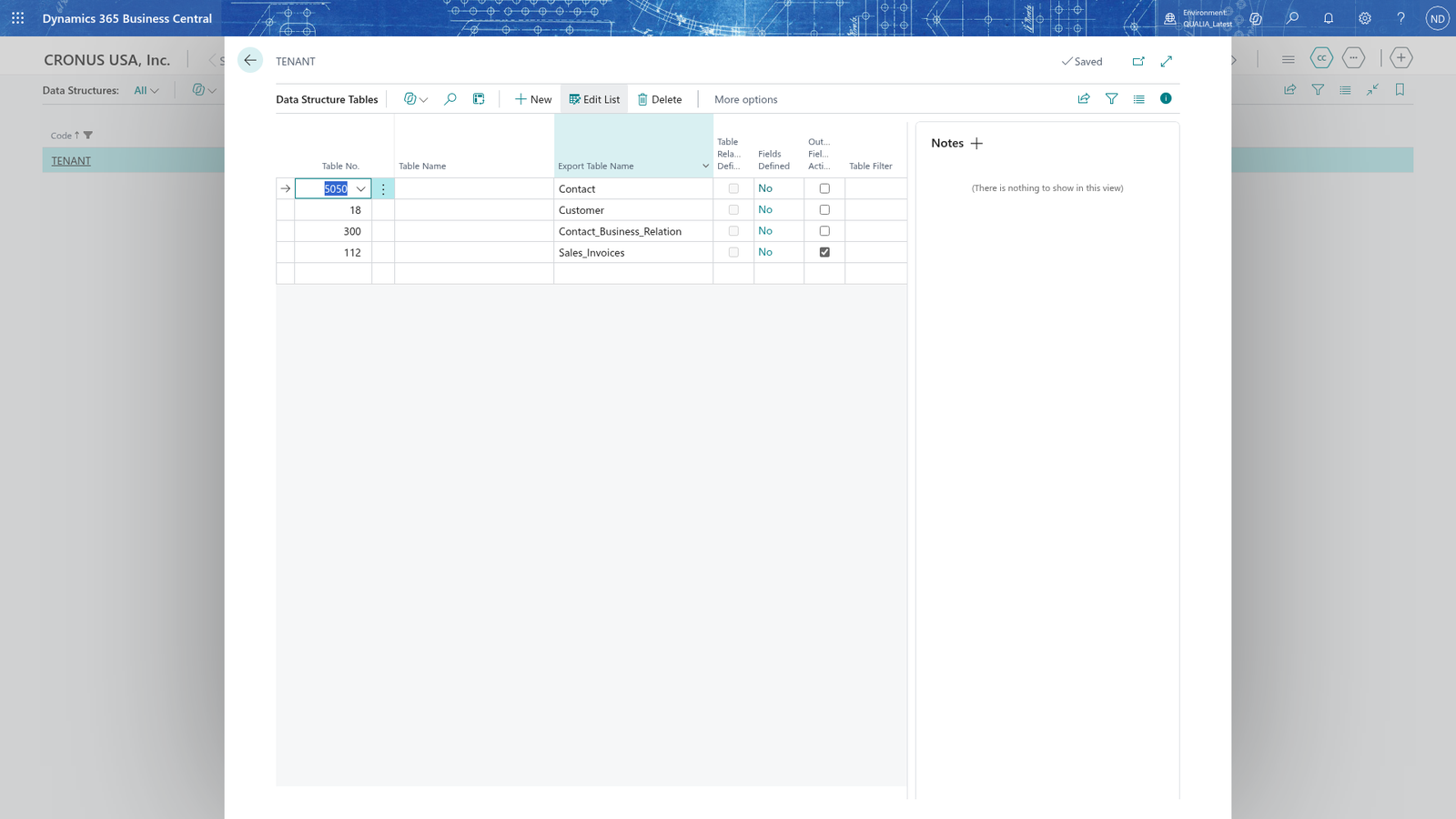
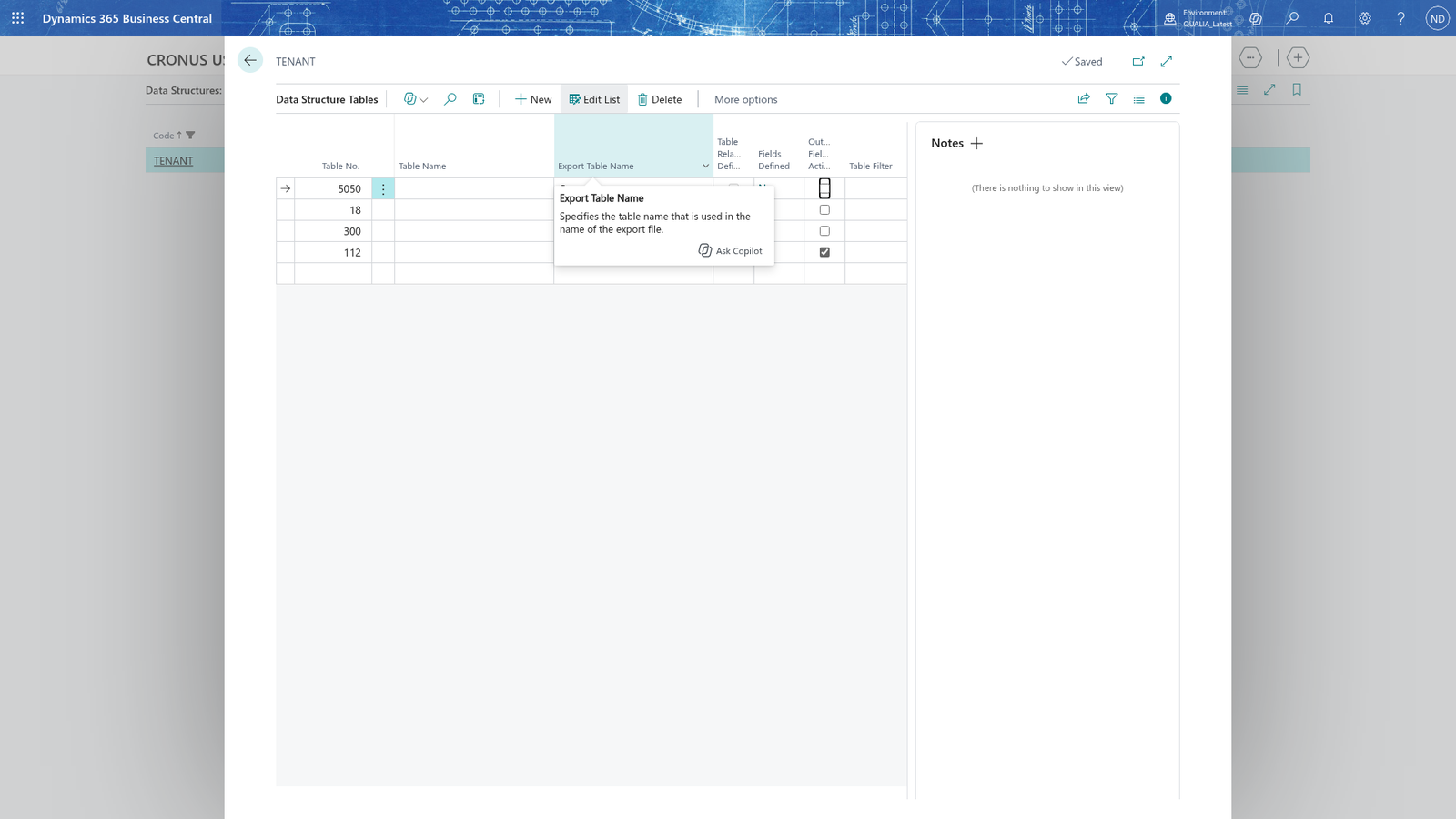
Before you work with the reports, look at the structure: search for Data Structures and open it, select TENANT and choose Tables; the four table lines are listed with their guideline values.
See which personal values the app finds for a person
Tanja Weiss asked which data QUALIA Technik stores about her. Lena Hartmann opens the personal data overview for her, reads the values and prints them.
- On the GDPR role center, choose Requesting Persons.
- Select the person, for example RQ-0001 (Tanja Weiss), and choose View Personal Data.
- Choose Print in the report window and hand the printout to Tanja Weiss.
The report Personal Data Overview lists one line per value the data structure finds for the person: the table name, the field name, the field value and the table record ID, so you can see exactly in which record each value is stored. For Tanja Weiss you see her contact 1000 (No., Name, E-Mail, Phone No., Address, City, Job Title), customer 2000 Mietwerke Berlin GmbH, the contact business relation and posted sales invoice SINV0001 - each value with its table, field and record ID.
When Lena Hartmann processes Tanja Weiss's Information request, the app stores the personal data overview as a PDF on the request; Export File Name on the Request Details card shows the file name it was stored under. How a request is recorded and processed is in the chapter Requests from data subjects.
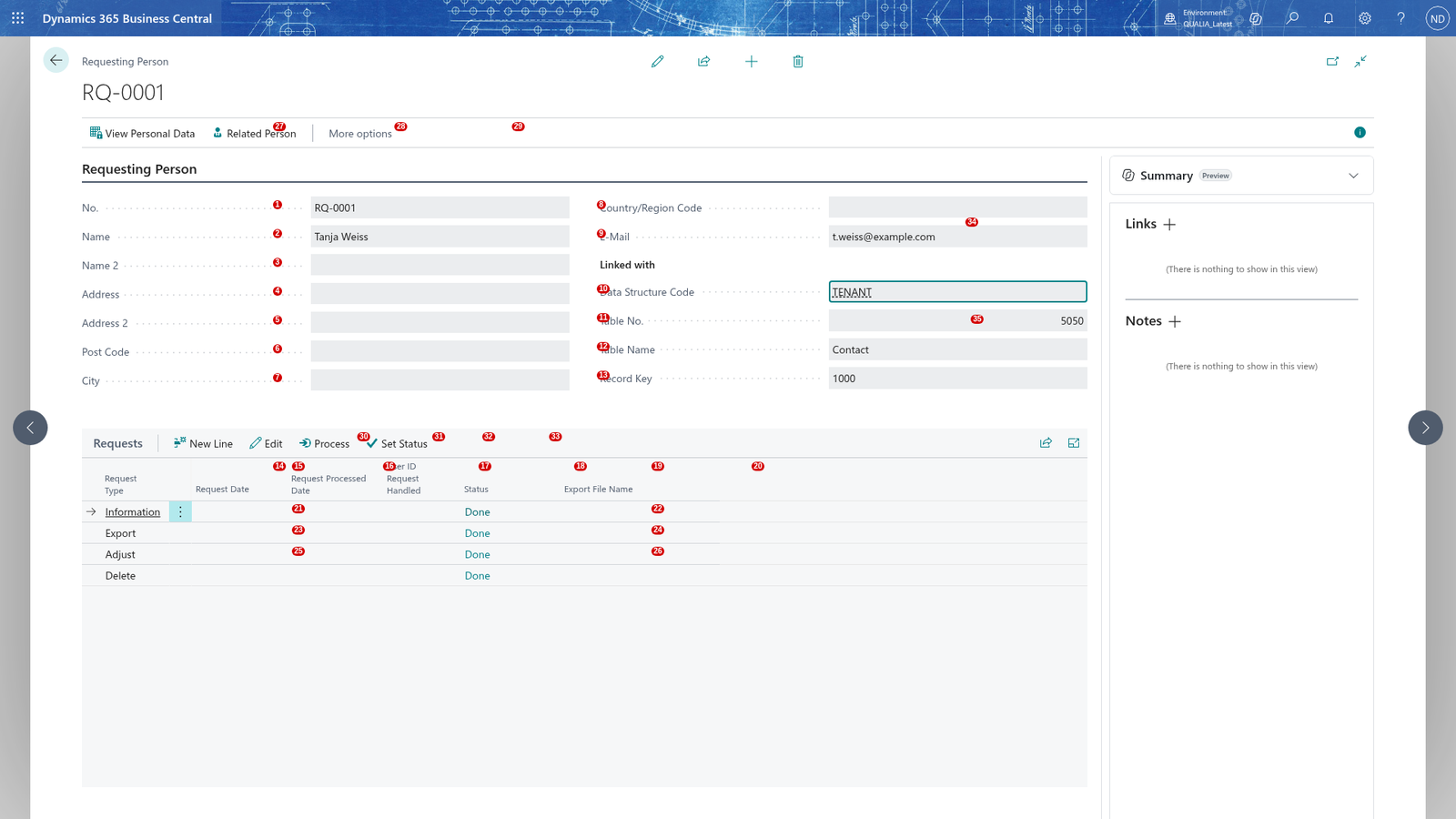
Note: The Linked with group of the person's card decides what the overview reads: the app takes the record of table Table No. whose key is Record Key and then the tables of the structure under it. Related Person on the same page opens that record itself.
Note: The same overview opens from the GDPR details page of a master data record (Customer, Vendor, Contact, Employee, Resource) and from an action suggestion.
Print the details of a data structure
For your records, or for an audit, Julia Beyer can print which tables and personal fields a data structure uses.
- Search for Data Structures and open it.
- Select TENANT and choose Tables.
- Select the table line you want to start from, for example Contact, and choose Data Structure - Details.
The report lists the table lines of the structure with their Table No., Table Name, Indentation, Fields Defined and Table Guideline Exists, and under each table the personal fields with their Field No., Field Name, Line No. and Field Type, together with the values of the table guideline. Save or print it for your audit file.
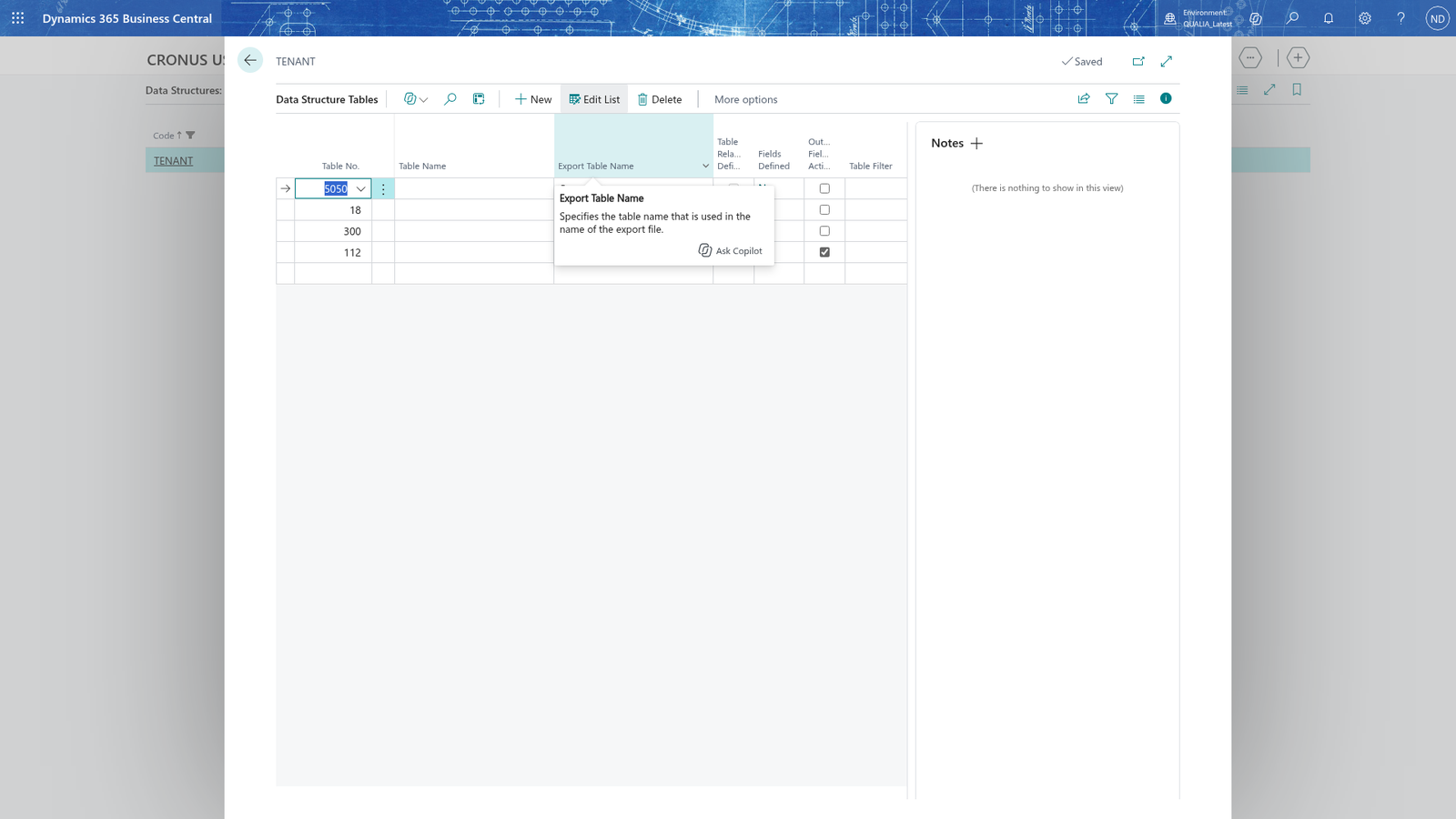
Note: The Output Fieldlist Active flag on a table line tells you that an output field list replaces the standard field list for the information report and the CSV export. The flag is set as soon as the output field list holds fields; you maintain it with Output Field List on the same page.
Check how fast the personal data tables are found
Answering a person's request reads the tables of the structure record by record, so those tables need the right keys. The performance check looks at them.
- Search for GDPR ToolBox Setup and open it.
- Choose Performance Check. The message confirms it: "The performance check has been completed. The results are shown in the performance results."
- Search for Performance Results and open it. The page lists one line per table and key that the check examined, with the Result of the key.
- Select a line and choose Show Keys to see the table's keys in table information.
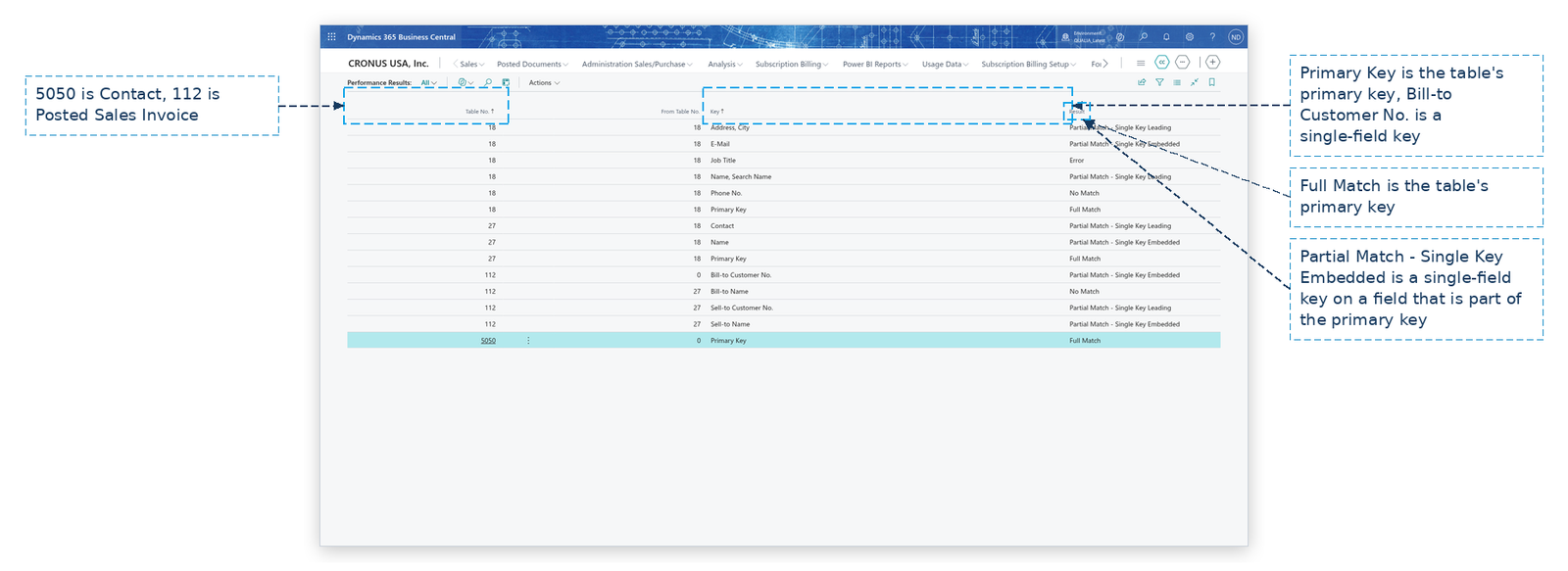
Note: The check looks at every table that has a table guideline: one line for the primary key and one line for every single-field key. Running the check again replaces the lines of those tables.
Example: documenting the structure and checking the keys at QUALIA Technik
Julia Beyer documents the GDPR configuration of QUALIA Technik and checks the personal data tables of structure TENANT.
- She searches for Data Structures, selects TENANT and chooses Tables. The structure shows its four lines - Contact, Customer, Contact Business Relation and Posted Sales Invoice - with the guideline values Record Type Code STANDARD, Activity Calculation 5Y and Activity Type Delete.
- On the Contact line she chooses Data Structure - Details and saves the report. It lists the four table lines and their personal fields (for Contact: No., Name, E-Mail, Phone No., Address, City, Job Title) with the guideline values.
- She searches for GDPR ToolBox Setup and chooses Performance Check. After the message she searches for Performance Results and opens it. The results of this run are:
| Table No. | Key | Result |
|---|---|---|
| 5050 (Contact) | Primary Key | Full Match |
| 112 (Posted Sales Invoice) | Bill-to Customer No. | Partial Match - Single Key Embedded |
- Lena Hartmann searches for Requesting Persons on the role center, selects RQ-0001 Tanja Weiss and chooses View Personal Data to check the values before she answers Tanja Weiss's right-to-information request.
What happens
- Personal Data Overview (report): one line per value of the tables of the data structure for one person, with the table name, field name, field value and table record ID. It opens from View Personal Data on a requesting person, from the GDPR details of a master data record and from an action suggestion, and it is the document an Information request stores.
- Data Structure - Details (report): the table lines and personal fields configured for a data structure, started from the Tables page of Data Structures.
- Performance Results: one line per table and key of every table that has a table guideline, with the result of the last Performance Check; Show Keys opens the table's keys in table information.
- Nothing is posted or changed: the three are read-only views of the configuration and of the personal data.
If something goes wrong
- "The performance check has been completed. The results are shown in the performance results.": this is a message, not an error - the check ran and wrote its results; open Performance Results to see them.
- The selected person was not found. (on the person's card): the person has no link to a master data record yet, or that record is gone. Enter Data Structure Code, Table No. and Record Key on the person's card, and check the link with Related Person.
- The overview shows no lines for a person: the person has no Data Structure Code, or the record behind Table No. and Record Key is not in the structure. Open the requesting person and fill in those three fields first.
- A table of the structure is missing from the overview: the table has no record for the person, so there are no values to show. Check the table lines, their relations to the table above and the field lists of the structure.
- The details report is missing a table or its fields: the table line has no field list, or its relation to the table above is not set. Add the fields with Table Fieldsetup and look at the relation with Relationships.
- A table has no lines in Performance Results: the table has no table guideline - the check only looks at tables that have one. Add the guideline in Table Guidelines and run Performance Check again.