
Monitor the GDPR work with the role center
The GDPR ToolBox role center is where Lena Hartmann, the data protection officer at QUALIA Technik GmbH, starts every working day: cue counters show how many requesting persons are recorded, how many requests are waiting in each processing status (from the initial status up to Done or Rejected), and how many scheduled actions are waiting, failed, canceled, suspended, suggested or done. From the same page she reaches the Scheduled Actions, the Suggested Actions and the Requesting Persons lists, and Julia Beyer, the IT administrator, reaches every setup list of the app - GDPR Setup, Data Structures, Record Types, Protection Classes, Verifications, Reschedule Reasons, Data Collection Reasons, Data Source Codes, Data Processing Purposes and Data Processing Consents - with one click. Besides the role center, the app offers the Activities Request List page: a cross-person list of all requests with their verification and processing data.
Before you start
- Assign the app's permission sets to the users (on the standard Permission Sets page): Basic User for employees who work with personal data (Max Keller), Officer for the data protection officer (Lena Hartmann), Setup for the administrator (Julia Beyer).
- Set up GDPR Setup once: the Request No. Series (RQ) and the status codes the counters count by - Initial Status Code (INI), Await Response Status Code (AWAIT), Wait Status Code (WAIT), Process Status Code (PROC), Rejected Status Code (REJ) and Done Status Code (DONE). See the setup chapter.
- Open the app: you land on the GDPR role center. If you see your usual role center instead, choose My Settings and select the role center of the GDPR ToolBox there.
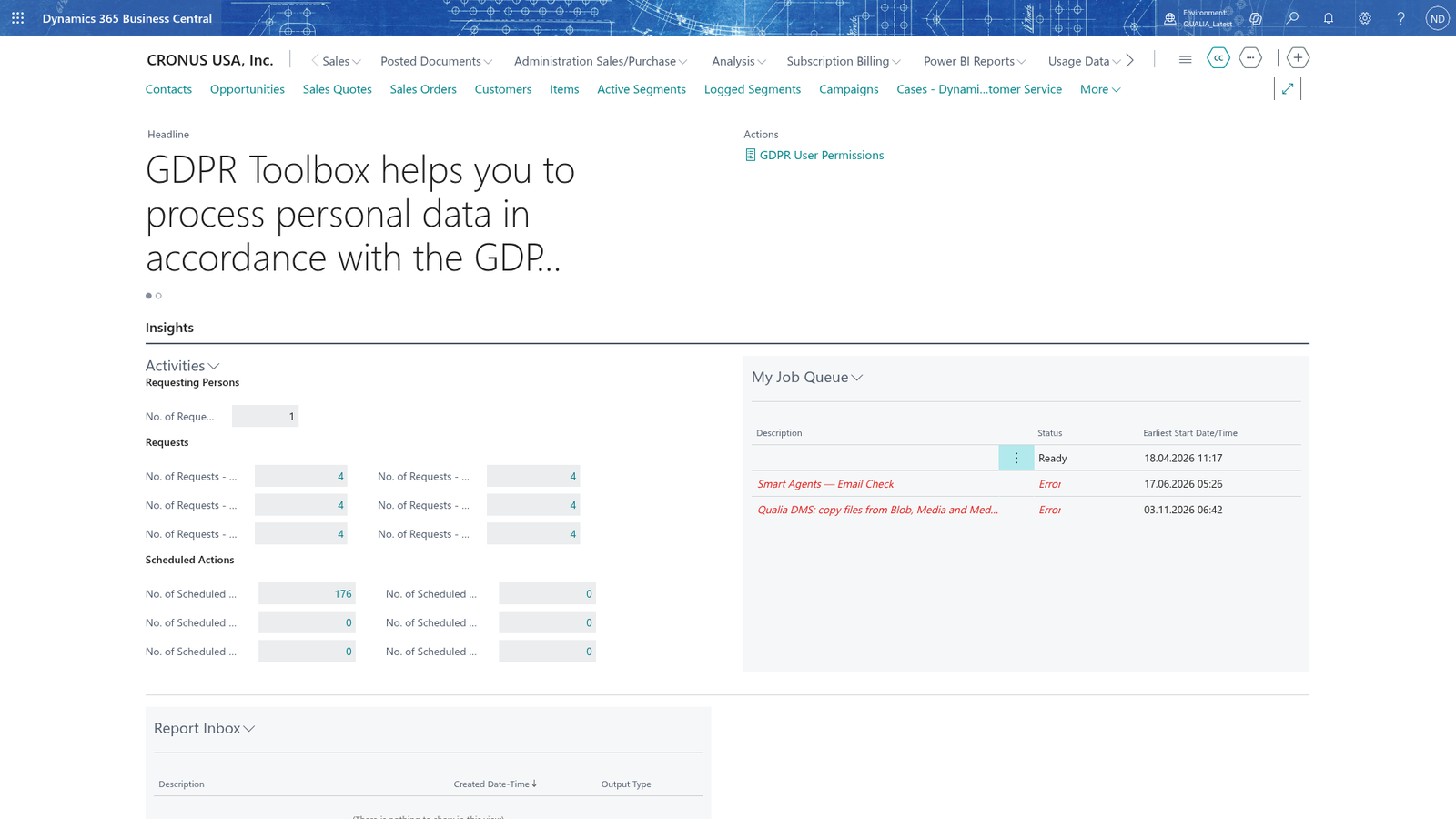
When the app is set up this way, the cue parts count the people and the requests of the app, as here for the recorded requesting persons.
See at a glance how far the requests and actions are
- Open the GDPR role center.
- Look at the group Requesting Persons: the cue No. of Requesting Persons shows how many persons who asked for their rights are recorded.
- Look at the group Requests: one cue per processing status - No. of Requests - Initial State, No. of Requests - Awaiting Response, No. of Requests - Wait, No. of Requests - Process, No. of Requests - Rejected and No. of Requests - Done. Lena works through the requests from left to right; each request sits in exactly the stack of its status.
- Look at the group Scheduled Actions: one cue per status - No. of Scheduled Actions - Waiting, No. of Scheduled Actions - Failed, No. of Scheduled Actions - Canceled, No. of Scheduled Actions - Suspended, No. of Scheduled Actions - Suggested and No. of Scheduled Actions - Done. Lena reacts first to the failed ones and checks the waiting ones when their action date passes.
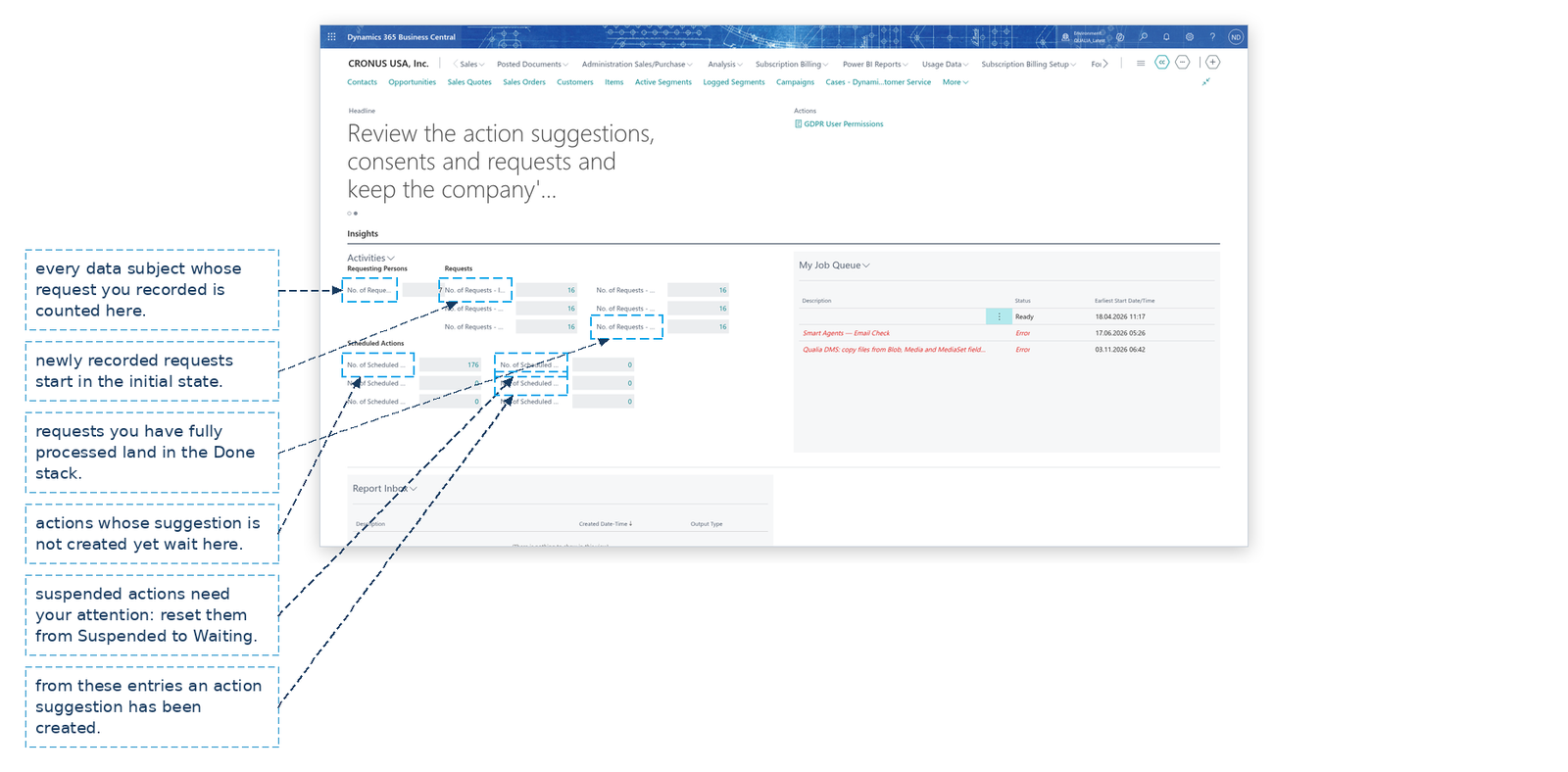
Note: The request cues count by the status codes entered in GDPR Setup (INI, AWAIT, WAIT, PROC, REJ, DONE). That is why the request of the data subject really sits in the stack of its processing status, and why Lena can work through the statuses in order and meet the legal deadline.
Open the work from the links on the role center
- To work with the planned deletion and anonymization, choose Scheduled Actions in the role center. The Scheduled Actions list opens.
- In the list, filter on the person you are checking (for example Record Key 1000 for Tanja Weiss). The list's own actions Open Source Record, Reset Status and Reschedule Action Date open the record behind an entry, move a Suspended entry back to Waiting and give an entry a later date with a reschedule reason such as DELAY; they are explained in the scheduled actions chapter.
- Choose Suggested Actions to review, delete or anonymize the action suggestions, and Requesting Persons to open or add a requesting person (their requests are recorded on the person's card).
- Choose GDPR User Permissions to print, for the data structures, which users may read, insert, modify, delete or execute the tables with personal content.
- Julia Beyer reaches the configuration in the Setup group: GDPR Setup, Data Structures, Data Processing Consents, Record Types, Protection Classes, Verifications, Reschedule Reasons, Data Collection Reasons, Data Source Codes and Data Processing Purposes.
- The links Contacts, Customers, Vendors, Resources and People open the usual Business Central lists.
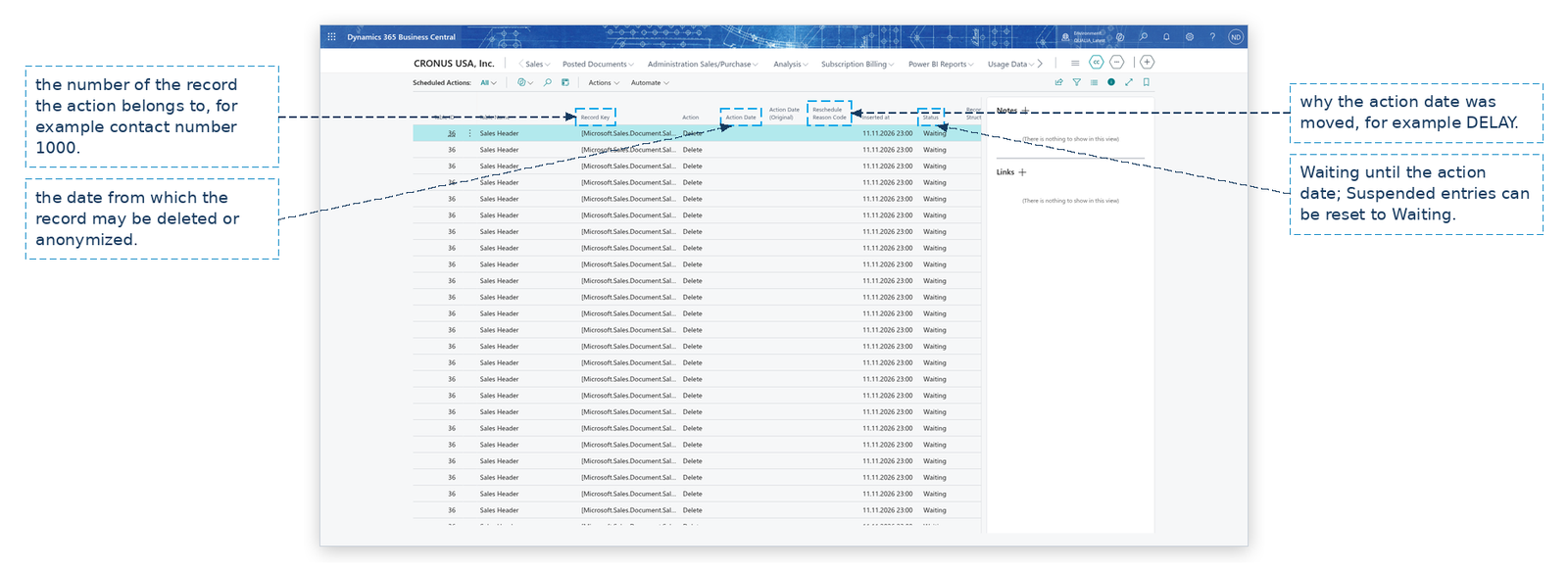
Note: The setup lists and the work lists of the GDPR ToolBox are one click away on the role center. The links for Contacts, Customers, Vendors and Resources open the standard Business Central lists, where the salespeople enter the personal data.
Follow every request in the request list
- Search for Activities Request List and open it. If the search does not find the page (it has no link on the role center), Julia Beyer opens it for you.
- The list shows one line for every request of every requesting person: Requesting Person No., Entry No., Request Type, Verification Code, Verification Date, Request Date, Request Processed Date, User ID Request Handled, Export File Name, Status Code and the processing Status.
- Select the line of a request and choose Open Requesting Person: the card of that person opens with the name, e-mail and the linked master data record: Data Structure Code, Table No. and Record Key.
- From the person's card Lena continues with the personal data view or the requests of the person (see the requests chapter).
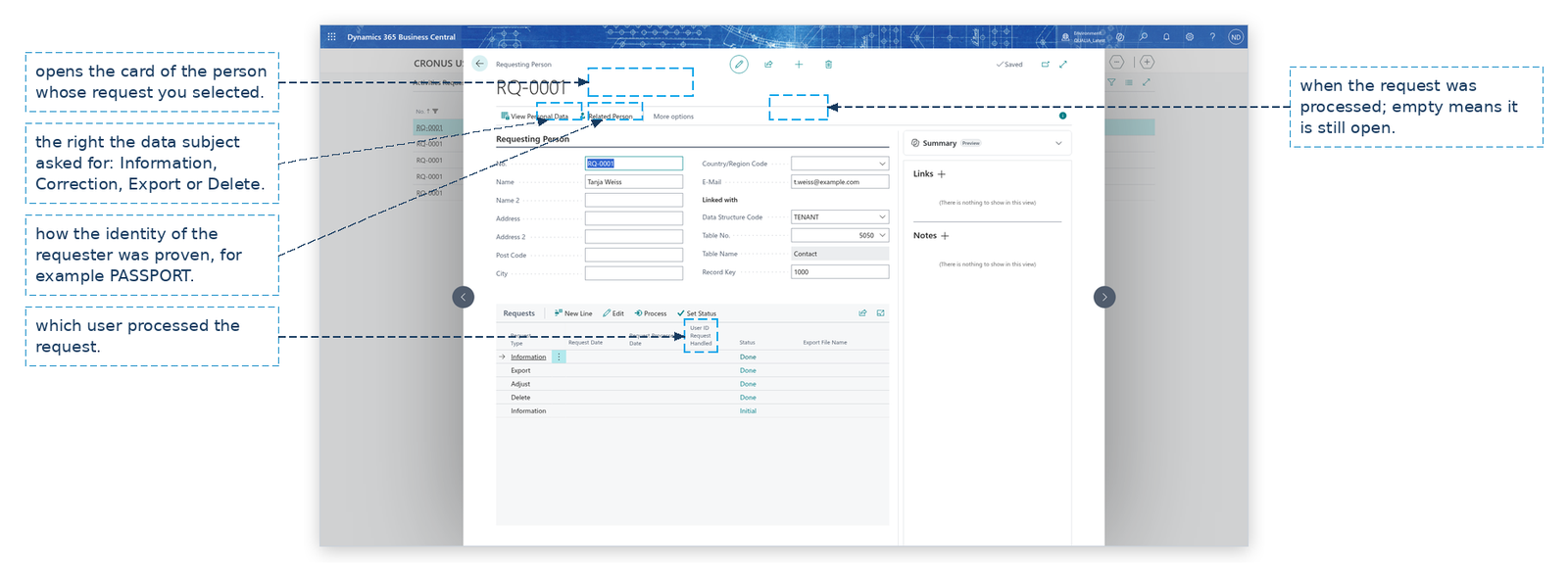
Note: The list is read-only: requests are recorded and processed on the card of the requesting person, never in the list.
Example: Lena's Monday at QUALIA Technik
It is 2026-06-15. Lena Hartmann opens the GDPR role center. Tanja Weiss had asked for information about the data QUALIA Technik stores about her. Lena had already recorded her the day before as requesting person RQ-0001 (data structure TENANT, linked to contact 1000) and had processed her Information request: verification code PASSPORT, verification date 2026-06-14, the personal data overview PDF stored in Export File Name and the status set to DONE. Lena now checks the picture of her work:
- No. of Requesting Persons shows 1 - Tanja Weiss.
- No. of Requests - Done shows 1 - the processed Information request. The other request cues (Initial State, Awaiting Response, Wait, Process, Rejected) show 0, because there is nothing open any more.
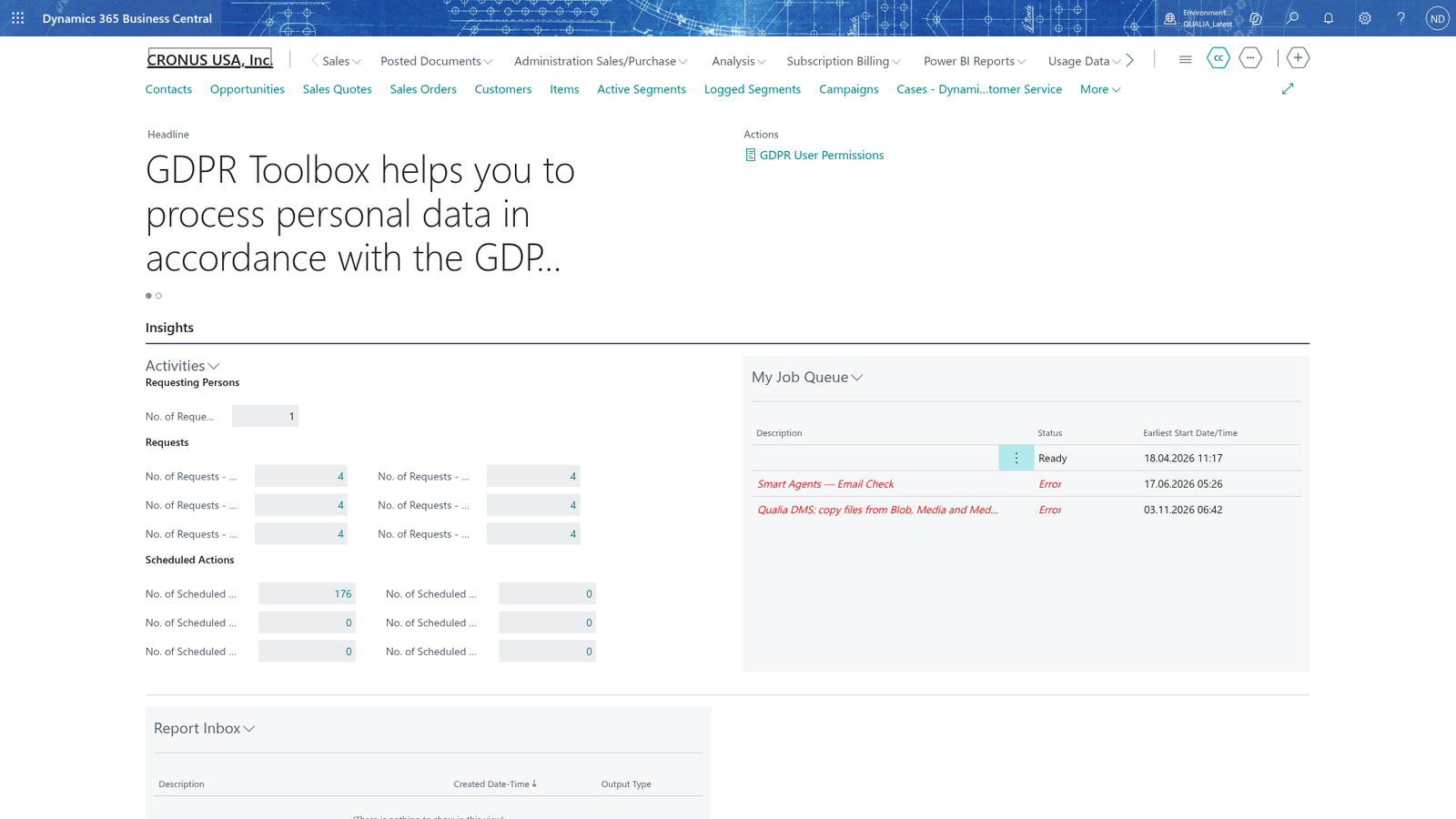
- The Scheduled Actions cues show the entries the app created for Tanja Weiss's contact and customer under the table guidelines (Delete after 5Y) and for the old posted invoices; none of them is suggested or done yet.
To double-check the finished request, Lena opens the Activities Request List with Julia Beyer (the list has no link on the role center): it shows request 1 of RQ-0001 with Request Type Information, Verification Code PASSPORT, Verification Date 2026-06-14, Request Processed Date filled in, User ID Request Handled set to her user and Status Done. She selects the line, chooses Open Requesting Person and sees on the card of RQ-0001 Tanja Weiss that Data Structure Code is TENANT and Record Key is 1000 - the contact of Tanja Weiss. Everything is in order, and Lena can send Tanja Weiss the personal data overview PDF from the request.
What happens
The role center creates nothing: it reads the counters and points to the pages where the work happens.
- The counters come from the request, requesting-person and scheduled-action data of the app, so they show the current state after each processing.
- The links open the Scheduled Actions, Suggested Actions and Requesting Persons lists, the GDPR setup pages, and GDPR User Permissions, the report that shows who may read, insert, modify, delete or execute the tables with personal content.
- Set Up Cues (on the Activities part) reads the six status codes from GDPR Setup and applies them to the request counters again; it is the tool to refresh the counters after the status codes were changed.
- Nothing needs to be undone: the role center only shows counts. To change a number, process a request, reset or reschedule a scheduled action, or create and process suggestions in the pages it links to.
If something goes wrong
- The request counters do not follow a status code you changed in GDPR Setup: the counters were set up with the status codes that were entered before. Open the Activities part and choose Set Up Cues; the counters then count by the codes in GDPR Setup.
- The cues stay at 0 although you recorded a request: the request is counted in the stack of its status code; check in the Requests part of the person that the request has a status, and use Set Status if it is still the initial status only.
- A scheduled action you expected is missing from the waiting cues: look in the Failed cue first; if the entry is not there at all, the table guideline of the table may defer creation to the job queue - see the scheduled actions chapter.
- You do not see the GDPR role center or the links: ask Julia Beyer to assign the permission set Officer (or Setup for the setup pages) to your user on the Permission Sets page.