
GDPR details and consents
Every person Business Central knows - a contact, a customer, a vendor, an employee, a resource - is personal data. GDPR details answer three questions for each of them: where did the data come from (for example the web site or a trade fair), which collection reason applies (a contract, a legal obligation, a marketing consent), and which campaigns was the person part of. Consents record which kinds of data processing the person agreed to, with the date, time and user who recorded it. Lena Hartmann, the data protection officer at QUALIA Technik GmbH, fills these details in on the contact of Tanja Weiss (1000), the contact person of the tenant Mietwerke Berlin GmbH, and imports the details and consents she collects at trade fairs.
Before you start
-
Set up the lists the details use in the GDPR setup (see "Setting up"): data source codes such as WEB, EXPO (both with the Campaign flag, so a campaign can be entered) and REFERRAL, data collection reasons such as CONTRACT, LEGAL and MARKETING, and data processing consents such as EMAIL "E-mail marketing" and POST "Post and phone marketing".
-
Give each consent its processing purposes, e.g. NEWSLETTER and MARKETING for EMAIL. A consent can only get processing purposes of the setup lists, so fill the Data Processing Purposes list first.
-
Open the card of the person whose details you want to keep, e.g. the contact card of Tanja Weiss, and choose GDPR Details. The GDPR details of the record are created the first time you open them this way.
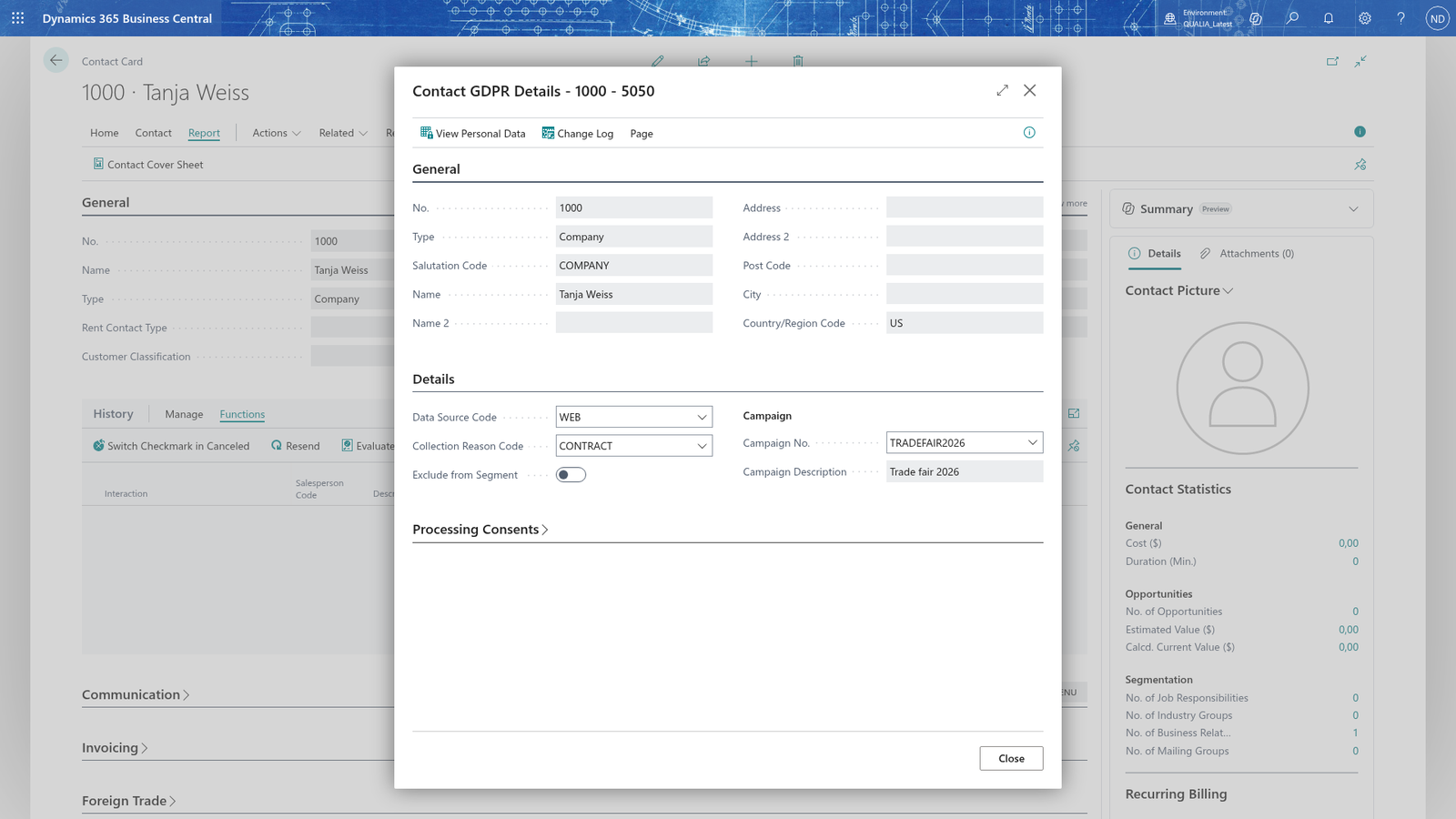
Fill in the GDPR details of a contact
-
Search for Contacts, open the contact card of Tanja Weiss (No. 1000) and choose GDPR Details.
-
In Data Source Code, choose WEB.
-
In Collection Reason Code, choose CONTRACT.
-
In Campaign No., enter Q3-2026. The Campaign Description fills in from the campaign.
-
Leave Exclude from Segment empty for now.
-
Close the page. The details are saved on the GDPR detail of the contact.
Note: Choose View Personal Data on this page to open the personal data overview of the contact: all records Business Central holds about the person through the data structure.
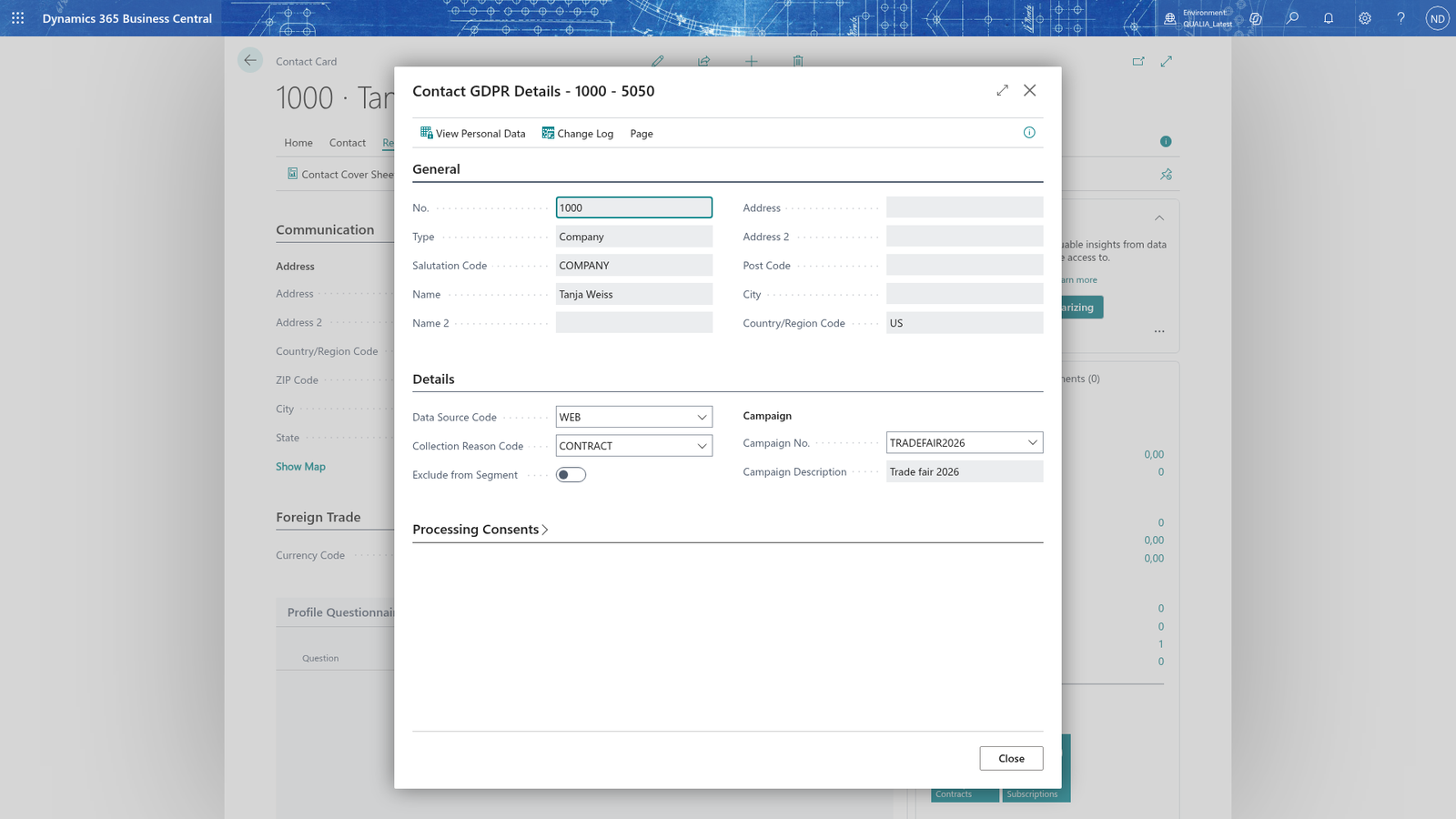
Record and revoke a consent
-
Open the GDPR Details page of the contact, as above. The Processing Consents part lists the consents that have been recorded for the contact, with their date, time and user.
-
Consents are recorded through the consent flow on the Import Consents page: the consent arrives in the import buffer as a row with Master Data Type Contact, No. 1000, Consent Code EMAIL, Consented ticked, Consented Date/Time 2026-06-01 09:00 and Consented By LENA.
-
Choose Search, enter Import Consents and open it, select the row and choose Import. The row gets its processing status and the consent is written.
-
To revoke a consent, add the same row again to the import buffer with Revoked ticked and Revoked Date/Time and Revoked By, and import it again.
-
Reopen the GDPR Details page: the consent, with its date and user, now appears in the Processing Consents part.
Note: Don't tick Consented on the Processing Consents part to record a consent yourself: if the line has no date and user yet, the app refuses with You cannot set the Consented flag directly on consent <code>. Record the consent through the consent flow, which also records the date-time and user. Record the consent through the Import Consents flow in steps 2 and 3 instead, which writes the date, time and user together with the consent.
Note: A consent grants its processing purposes to the contact: giving EMAIL makes Newsletter and Marketing the contact's processing purposes, which you see on the GDPR details page next to the consents. Revoking a consent removes the purposes it granted; a purpose granted by two consents is removed only when the last consent that granted it is revoked.
Note: Exclude from Segment is set automatically when no consent covers marketing; you can also tick it yourself. It is never removed automatically when you set it manually.
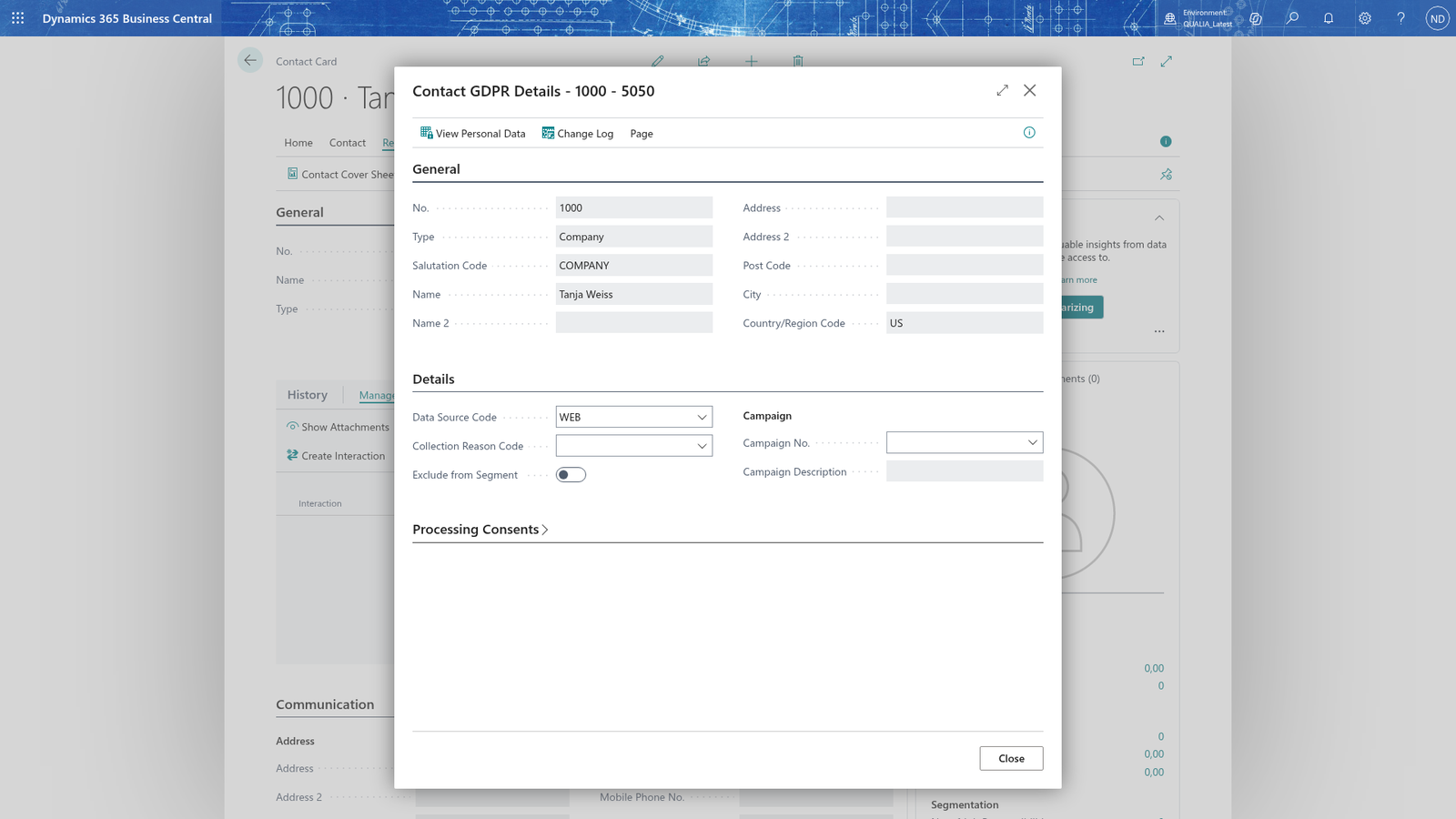
Import details collected at a trade fair
-
The details arrive with the bulk import in the Import GDPR Details buffer, one row per person: Master Data Type Contact, No. 1000, Data Source Code EXPO, Campaign No. TRADEFAIR2026, Collection Reason Code CONTRACT.
-
Choose Search, enter Import GDPR Details and open it. The page only shows the buffer - you don't type in it. Here you review the Error Message and Processing Status of every row and remove rows you no longer want (mark them and choose Delete).
-
Run the import: the job queue entry for the Details Import processes the rows (see "Job Queue"), or the consultant starts it now with Process Import Details and Consents on the GDPR ToolBox Setup page.
-
Reload the page and check the status of every row; a failed row keeps the reason in Error Message.
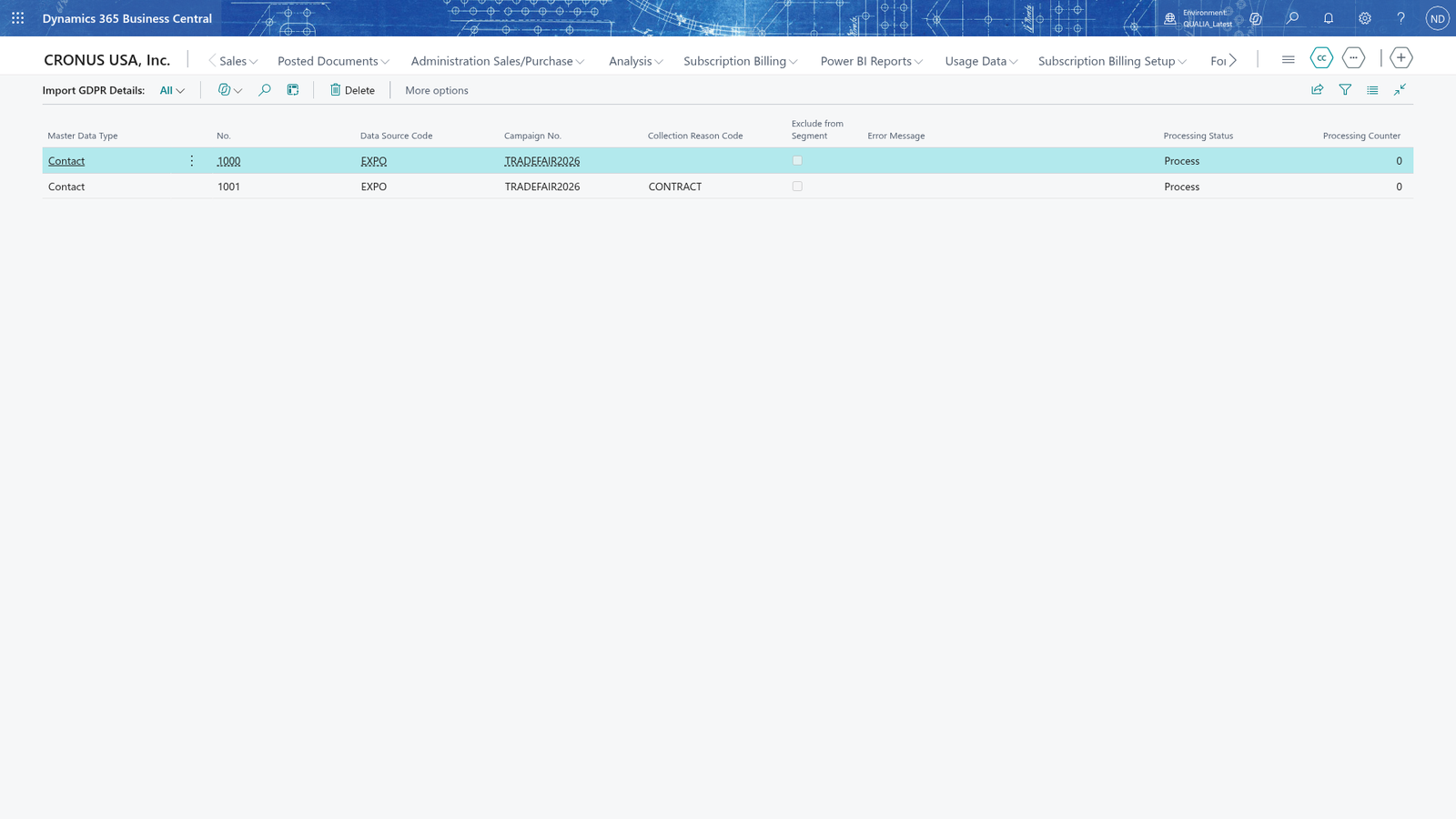
Import consents collected at a trade fair
-
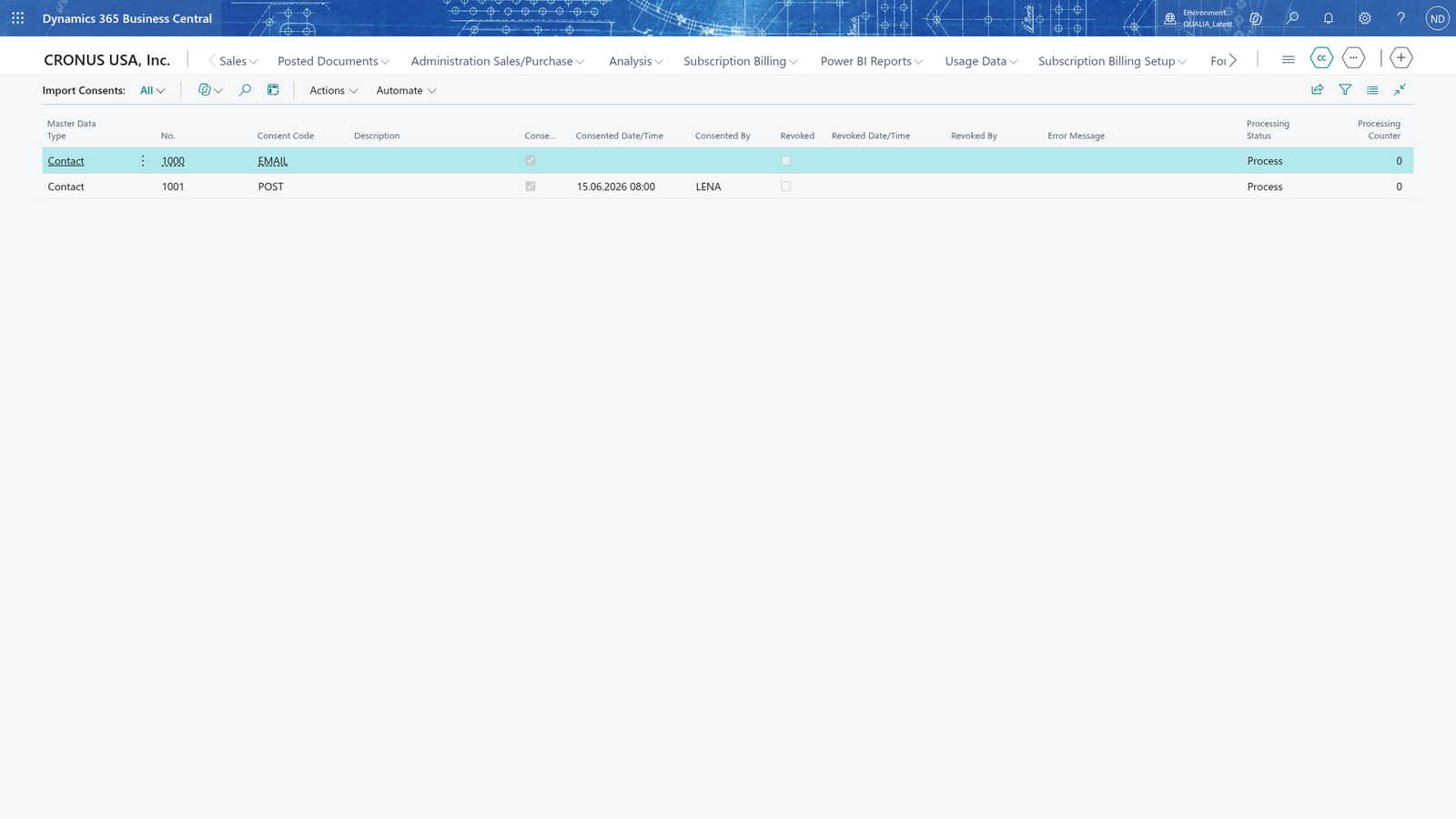
The consents arrive with the bulk import in the Import Consents buffer, one row per consent: Master Data Type Contact, No. 1000, Consent Code EMAIL, Consented ticked, Consented Date/Time 2026-06-04 10:15, Consented By LENA.
-
Choose Search, enter Import Consents and open it. The page is read-only; here you check the Error Message and Processing Status of every row.
-
Mark the rows and choose Import (or let the job queue process them); failed rows keep the reason in Error Message.
-
Check the status; the written consents then appear in the Processing Consents part of the GDPR Details page.
Example: the trade fair EXPO 2026 at QUALIA Technik
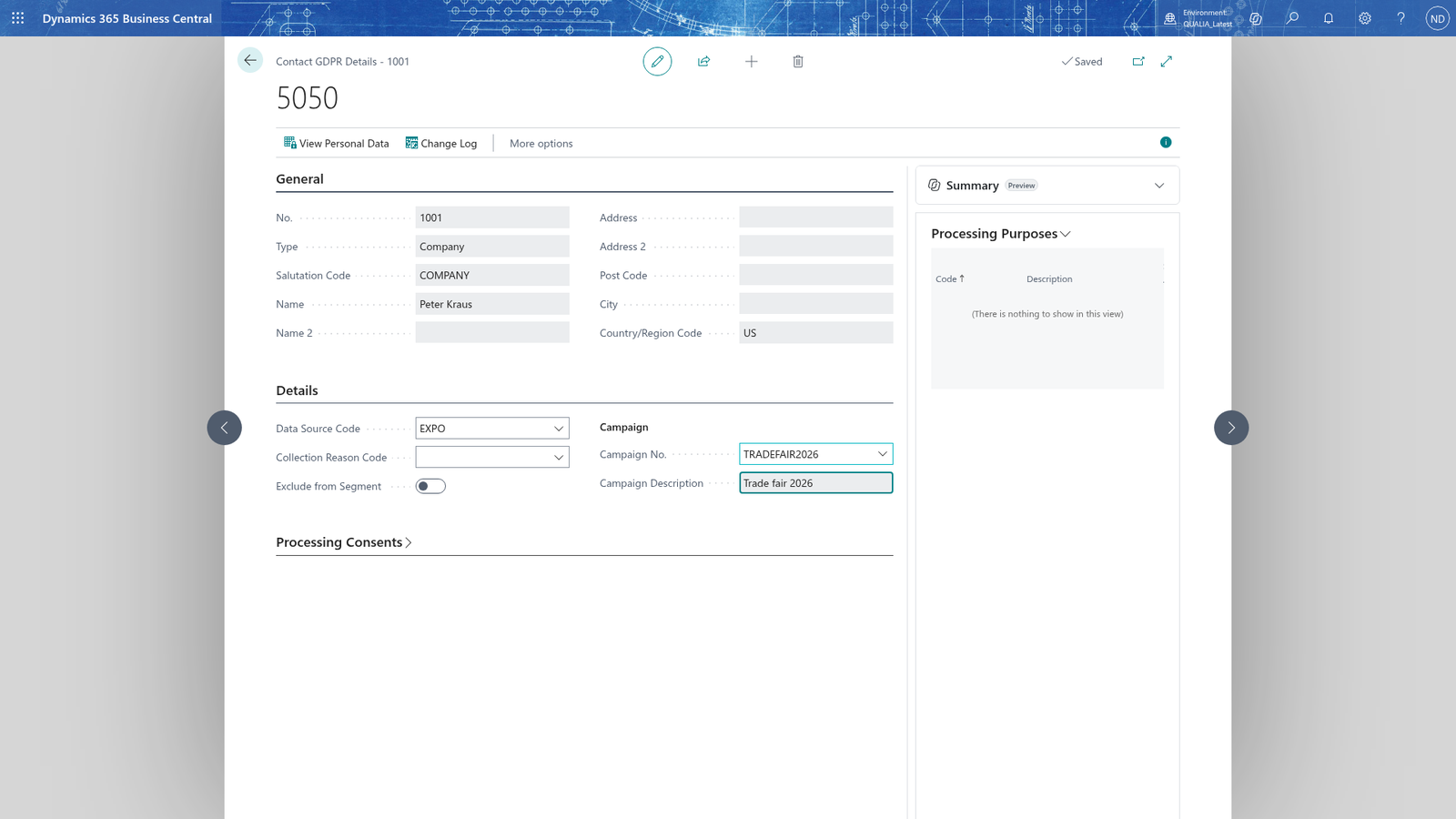
Lena Hartmann collects business cards at trade fair EXPO 2026 on 2026-06-04, where Tanja Weiss (contact 1000) and Peter Kraus (contact 1001) talked to the sales team. The rows arrive with the bulk import in the Import GDPR Details buffer: two rows for contacts 1000 and 1001, both Data Source Code EXPO, Campaign No. TRADEFAIR2026, Collection Reason Code CONTRACT. Tanja Weiss also agreed to e-mail marketing at the stand, so a consent row for her arrives in the Import Consents buffer: Contact 1000, Consent Code EMAIL, Consented ticked, Consented Date/Time 2026-06-04 10:15 and Consented By LENA. The job queue writes the two detail rows; Lena marks the consent row on Import Consents and chooses Import. The two details show Data Source Code EXPO with the description of TRADEFAIR2026 filled into Campaign Description, and Tanja Weiss now has the EMAIL consent with its processing purposes Newsletter and Marketing. Every row shows its processing status on the import pages; Lena marks the processed rows and chooses Delete.
What happens
- The details are written into the GDPR detail of the contact, customer, vendor, employee or resource and are shown on its GDPR Details page. The campaign description is filled from the campaign.
- Imported consents are recorded as consent entries with date/time and user; the contact's processing purposes follow the consents.
- Every import row gets a Processing Status, and a failed row an Error Message; you correct the row or add the missing code to the setup list, let the row arrive again and import it.
- To clear the buffer, mark the processed rows and choose Delete.
If something goes wrong
- "The selected record is not a contact." The Contact GDPR Details page was opened for a record that is not a contact. Open the GDPR details from the right card (e.g. Customer GDPR Details from the Customer card).
- Error Message on an import row (e.g. an unknown consent code or data source code): the row's values are not in the GDPR setup lists. Correct the row's values or add the code to the setup list, let the row arrive again in the buffer and import it.
- "You cannot set the Consented flag directly on consent <code>. Record the consent through the consent flow, which also records the date-time and user." Consented was ticked on the Processing Consents part while the line has no Consented Date/Time and no Consented By. Record the consent on Import Consents instead, with Consented, Consented Date/Time and Consented By.
- "You cannot set the Revoked flag directly on consent <code>. Revoke the consent through the consent flow, which also records the date-time and user." The same happens with Revoked when Revoked Date/Time and Revoked By are empty. Record the revocation on Import Consents with both fields.
- "There are no change log entries for the <table>. Activate change logging for it on the Change Log Setup pages first to see its history." You chose Change Log on a GDPR Details page, but the change log isn't switched on for the table yet. Activate change logging for it on the Change Log Setup pages (see "Change log").
- "Select the rows you want to delete." On the import pages, mark the rows first, then choose Delete.