
Data structures: where personal data lives
A data structure records where Business Central keeps the personal data of one person: a tree of tables such as the contact Tanja Weiss, the customer Mietwerke Berlin GmbH behind it and the posted sales invoices. Each table in the tree carries a list of its personal fields; the information report and the CSV export for data subject requests are built from these lists. In the story, Julia Beyer (IT administrator at QUALIA Technik GmbH) builds the data structure TENANT once; from then on the data protection officer Lena Hartmann answers Tanja Weiss's requests using it.
Before you start
- Search for Table Guidelines and open it. For every table you want to add to a structure (e.g. Contact, Customer, Contact Business Relation, Posted Sales Invoice), create a line with Table ID, Action Type (Delete or Anonymize), Action Date Formula (e.g. 5Y for five years) and Record Type Code, and close the page. How to do it is described in the Table Guidelines section of this manual.
- Plan the code and description of the structure, e.g. TENANT with description Personal data of a tenant: the code of a data structure must not be changed after it has been created.
No standard Business Central setup is needed for data structures.
The table lines of a structure show the guideline you set up in step 1: the columns Table Guideline Exists, Record Type Code, Activity Type and Activity Calculation come from it.
Create a data structure
- Search for Data Structures and open it.
- Choose New, enter Code, for example TENANT, and Description, for example Personal data of a tenant.
- Choose Tables.
The Data Structure Tables page opens with the lines of the new (still empty) structure.
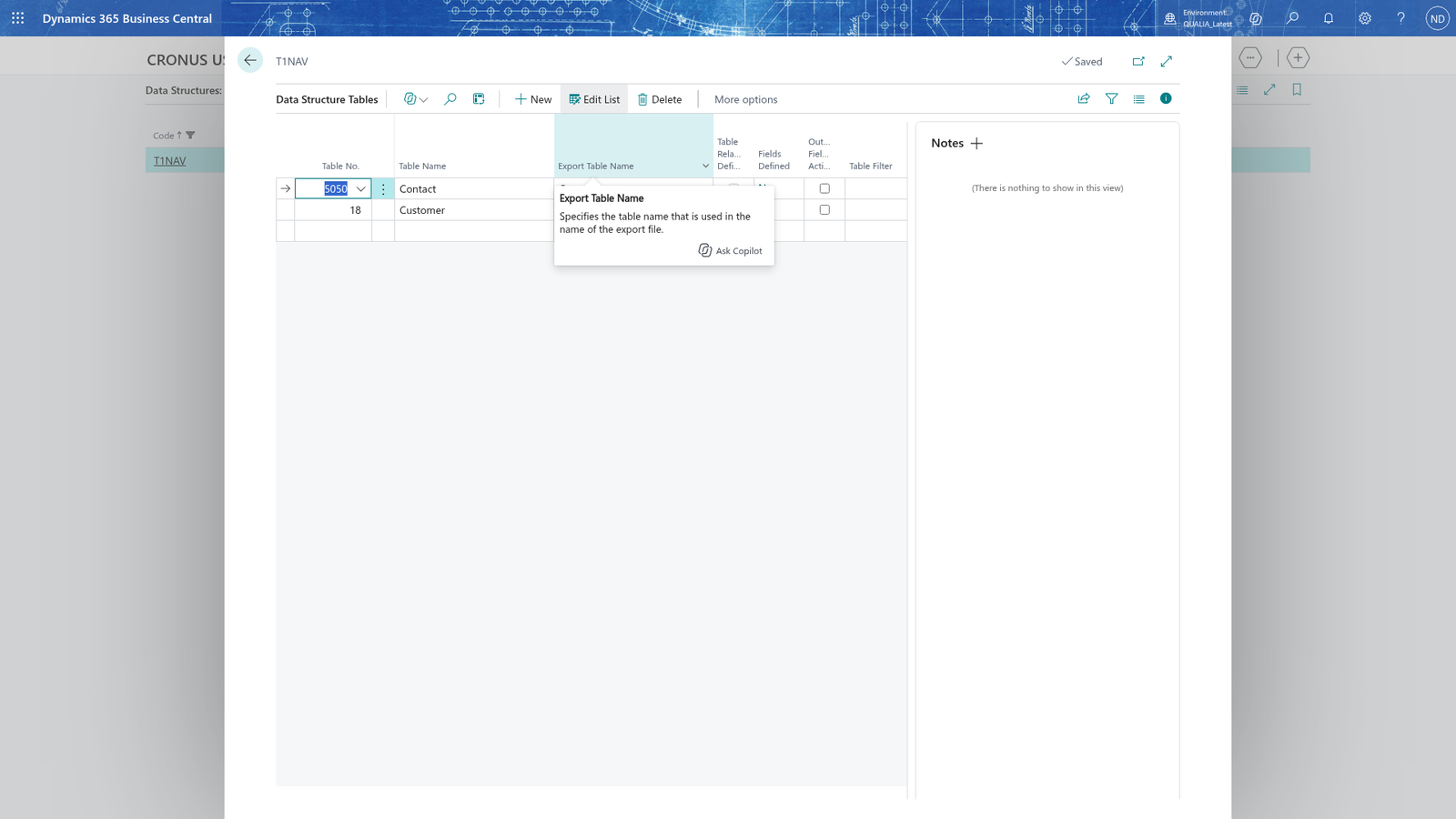
Note: The code of a data structure must not be changed after it has been created. Plan it before you add tables; a structure with the wrong code must be created again under a new name.
Add tables to the structure
- On the Data Structure Tables page, enter the number of the table in Table No. and leave the line; Table Name shows the table. For TENANT add Contact, Customer, Contact Business Relation and Posted Sales Invoice.
- Enter an Export Table Name, for example Sales_Invoices for Posted Sales Invoice. This is the file name the table gets in the CSV export of a data subject request.
- Select the line and choose Indent so the table appears under its parent table in the tree; use Unindent to move it back a level.
The Table Relation Defined, Fields Defined and Table Guideline Exists columns tell you at a glance which configuration each line still needs.
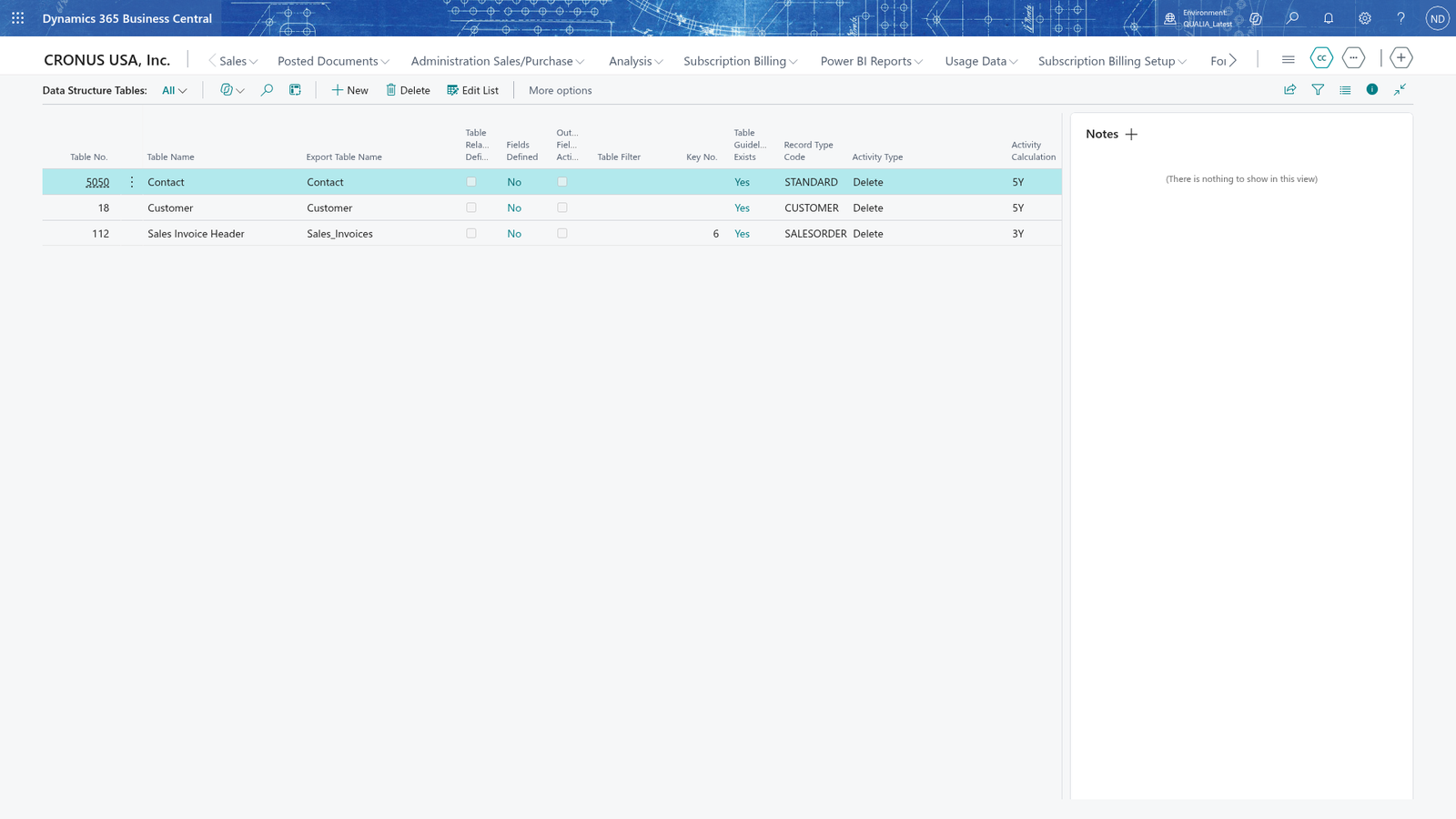
Note: The same table can appear several times in one structure with its own relations, filters and field lists - for example a sales invoice once under the sell-to customer and once under the bill-to customer.
Note: The relation of a line to its parent table, its key and its table filter come with the structure configuration: the list shows them read-only (Table Relation Defined, Key No., Table Filter), and Relationships shows how the two tables are linked. You don't set the table filter here; it is shown again as Table Filter in the personal data view. Indent and Unindent place the line in the tree.
Mark the personal fields of a table (the field list)
For each table line you mark which fields can contain personal data. These fields are the basis of the personal data export, the information report and anonymization.
- On the Data Structure Tables page, select the table line, for example Contact.
- Choose Table Fieldsetup. The Field List card opens with the table's Fields.
- Choose Add. Data Structure Field Selection opens with the fields of the table, listed with their Field No., Field Name, Type and Class.
- Select the personal fields - for Contact the No. field and Name, E-Mail, Phone No., Address, City and Job Title - and choose OK.
- Choose Renumber Line No. to give the fields consecutive Field No. values. Move Up and Move Down change the order of a field; Delete removes the selected field again.
- Repeat for every table line of the structure.
The Fields part of the card lists the fields with their Field No., Field Name, Field Type and Field Class.
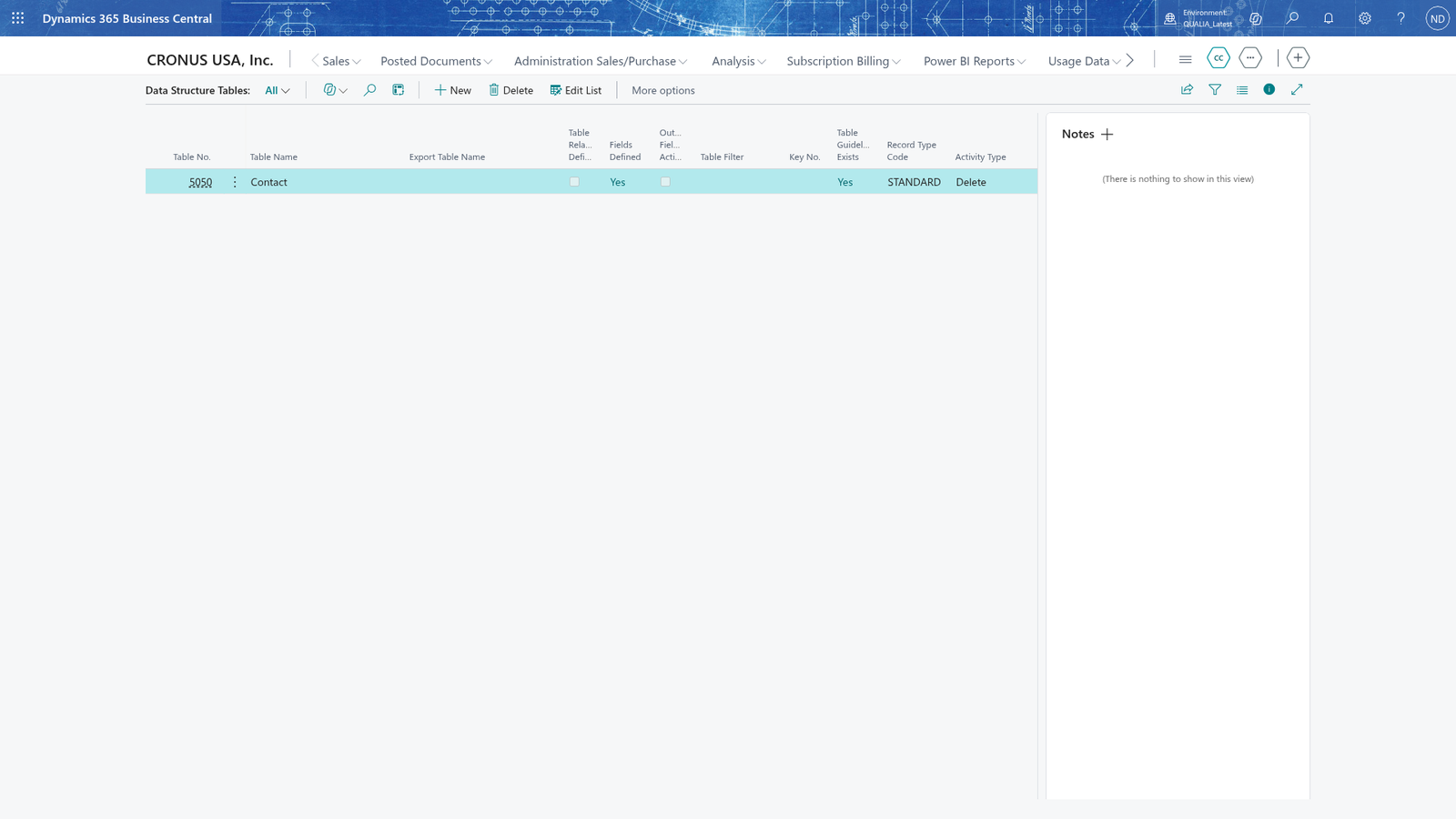
Note: The field list belongs to one table line only: fields you add for Contact are not on Customer. Add the field list again on each line that needs it.
Give a table its own output field list
The output field list lets you show or export different fields than the personal field list for one table, e.g. only the documents of an invoice table without all personal details.
- On the Data Structure Tables page, select the table line, for example Posted Sales Invoice, and choose Output Field List.
- The Output Field List card shows Data Structure Code, Table No., Table Name and the Output Fieldlist Active indicator.
- Under Fields, choose Add, select the fields in Data Structure Field Selection - for example Document No., Posting Date and Bill-to Name - and choose OK.
- Use Delete, Move Up or Renumber Line No. to correct the list.
As soon as the output field list holds data, it overrides the standard field list for the information report and the CSV export, and the table line shows Output Fieldlist Active.
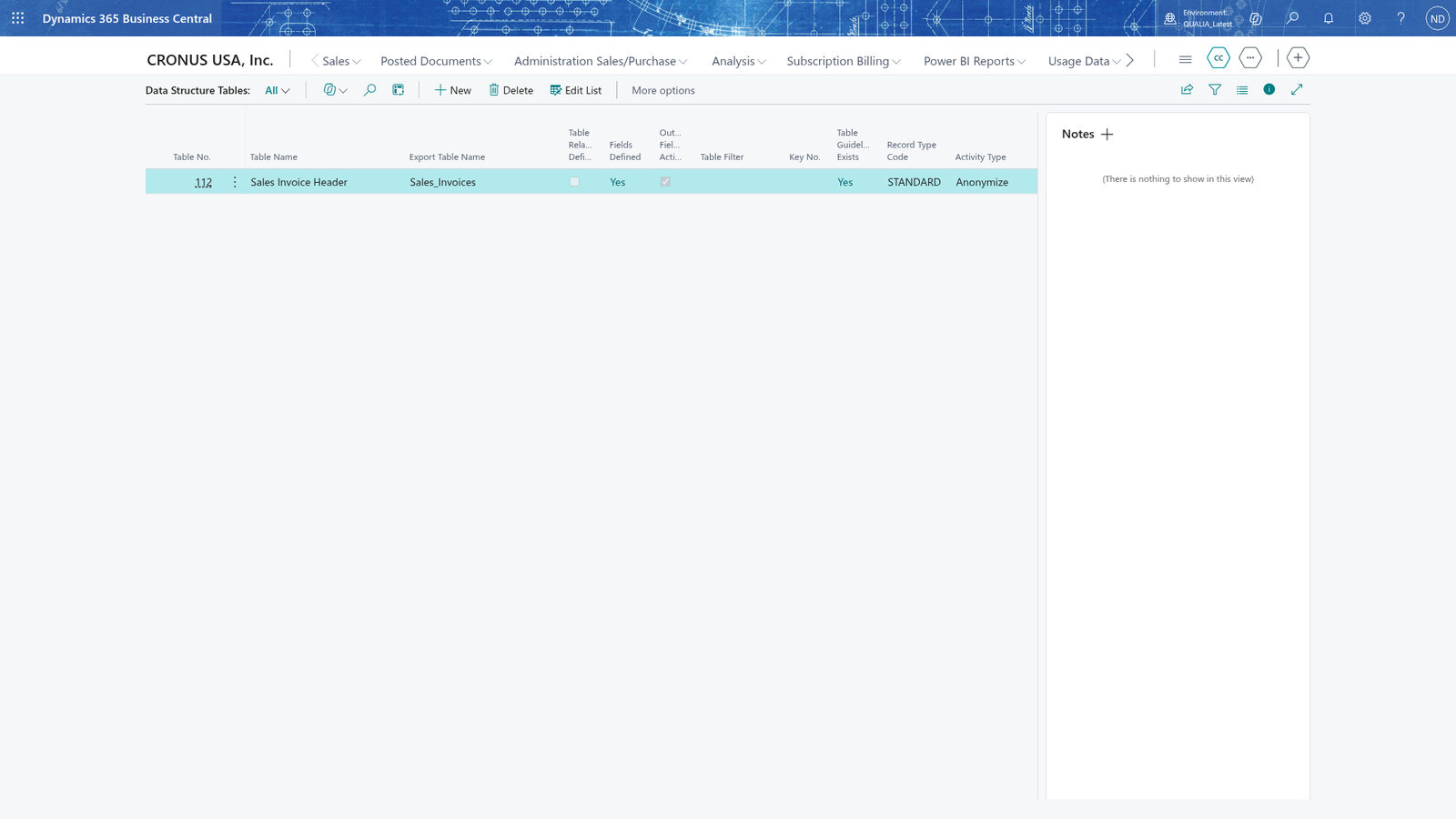
Note: The output list only takes effect once it holds fields: while it is empty, the standard field list stays in force. To go back to the standard list, delete all fields of the output list.
Example: Julia Beyer builds the data structure TENANT
Julia Beyer creates the structure TENANT (Description Personal data of a tenant) and adds four table lines: Contact, Customer, Contact Business Relation and Posted Sales Invoice. Customer hangs under Contact, Contact Business Relation under Contact and Posted Sales Invoice under Customer; Posted Sales Invoice has the table filter "Bill-to Customer No." = Customer No. from the structure configuration. Then she maintains the field list of each line and renumbers the fields with Renumber Line No. The table lines of TENANT end up like this in the tree:
| Tree position | Table Name | Relation to (parent table) | Export Table Name |
|---|---|---|---|
| top level | Contact | - | Contact |
| under Contact | Customer | Contact | Customer |
| under Contact | Contact Business Relation | Contact | - |
| under Customer | Posted Sales Invoice | Customer | Sales_Invoices |
And the field lists:
| Table line | Personal fields (field list) | Output field list |
|---|---|---|
| Contact | No., Name, E-Mail, Phone No., Address, City, Job Title | - |
| Customer | No., Name, Address, Contact, E-Mail | - |
| Contact Business Relation | Contact No., Business Relation Code | - |
| Posted Sales Invoice | Sell-to Name, Bill-to Name, Ship-to Address, Phone No. | Document No., Posting Date, Bill-to Name |
For Posted Sales Invoice she maintains the output field list, so the line shows Output Fieldlist Active and the information report and CSV export use Document No., Posting Date and Bill-to Name instead of the standard list. When Lena Hartmann answers Tanja Weiss's Information request with this structure, the PDF and the CSV files come from exactly these fields. When Julia later wanted to rename TENANT to QUALIA, the app refused: the code of a data structure must not be changed once it exists.
What happens
- The app saves the data structure with its code and description, its table lines, their personal field lists and any output field lists. From the table lines, Data Structure - Details prints the tables and fields of the structure, and GDPR User Permissions shows which users have rights to the structure's tables (User permissions chapter).
- You open the structure again from Data Structures; choose Tables to see its lines. The keys of a table in the structure are listed read-only with No., Key, SumIndexFields, SQLIndex, Enabled, MaintainSQLIndex, MaintainSIFTIndex and Clustered.
- The columns that show the table guideline (Record Type Code, Activity Type, Activity Calculation and others) are displayed on the table lines for reference; change the guideline on the table itself, not here.
- To correct the structure, delete table lines, remove fields from a list (Delete on the fields part) or delete the fields of an output list to fall back to the standard list.
If something goes wrong
- The app refuses to rename the code of a data structure: the code must not be changed once the structure exists. Create the structure with the right code and delete the old one.
- Table Guideline Exists stays false on a line: the table has no guideline yet. Create it in Table Guidelines and open the table line again.
- The information report or CSV export shows the wrong fields: the table line probably has an output field list - while it holds fields it overrides the standard field list. Remove the fields from the output list, or add them to the field list and delete the output list again.
- A field you expect is missing in the field list: the field is on the table but you did not add it to the field list. Open Table Fieldsetup for the line and add it there.