
Correct a wrong personal value: Custom Data Correction
Wrong personal data is rarely in one place: Tanja Weiss's e-mail was typed into the contact, and it was still wrong on the sales quotes. The custom data correction finds one wrong value in one table and one field of Business Central and replaces it with the right one in a single run, and it is documented under its own data removal code. Lena Hartmann uses it after a request to correct data when the value must be corrected in Business Central rather than on one master data card. Julia Beyer uses the change log of the GDPR details to see who changed what on those details.
Before you start
- The data structure that holds the wrong value is configured with its tables and field lists: for QUALIA Technik that is TENANT (Contact, Customer, Contact Business Relation, Posted Sales Invoice). See "Data structures". One correction corrects one table and one field; when the same wrong value sits in several places, create one correction per table and field.
- You know the wrong value, the value that should replace it, and the table and field that hold it. The correction searches a real field of that table; a field number that does not belong to the table is refused.
- The card of Custom Data Correction does not show Table No. and Field No., the two numbers Find Relations looks at. Ask the consultant to show them on the card before you start.
- You know the request or the data removal the correction belongs to: the code of the correction records it.
- If you also want to see who changed the GDPR details of a contact, customer or employee, switch the change log on in standard Business Central: open Change Log Setup, choose Tables, select the table Master Data GDPR Detail, set the changes to log (insert/modify/delete) and activate the log. See "Set up the change log" in Business Central's help (across-log-changes).
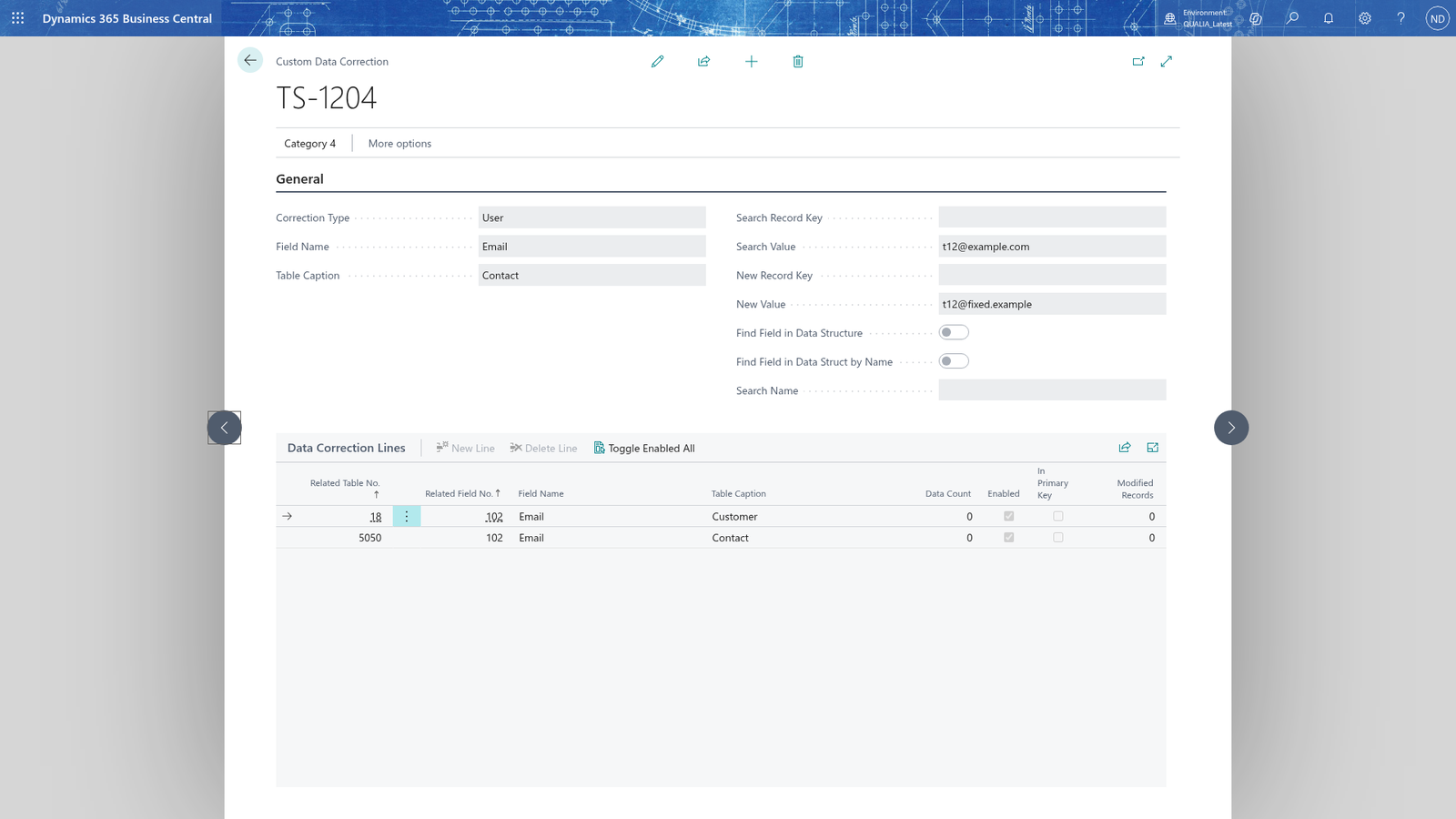
Create the correction
- Search for GDPR ToolBox Setup and choose Custom Data Correction.
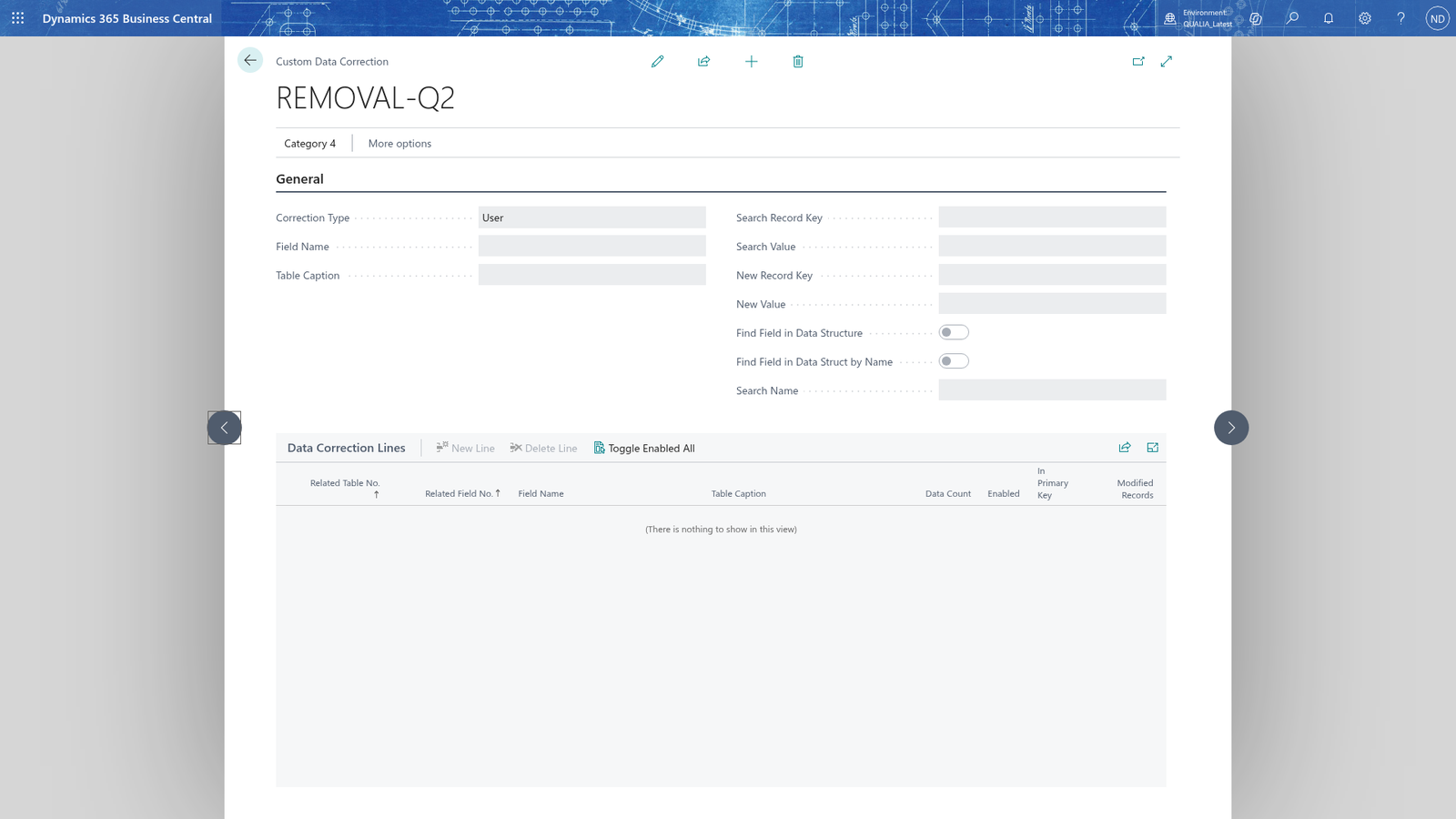
- Choose New and enter the code of the correction, for example REMOVAL-Q2. This code names the correction and all its lines. Fill in the code before the other fields; a record you leave without one is refused with Data Removal Code must be filled in before the header is saved.
- In Correction Type, choose User.
- In Table No. and Field No., enter the numbers of the table and the field that hold the wrong value. Table Caption and Field Name then show what the two numbers point to, so you can check them.
- In Search Value, enter the wrong value exactly as it is stored, for example [email protected].
- In New Value, enter the value that should replace it, for example [email protected].
- If you know the field by its name, turn on Find Field in Data Structure and Find Field in Data Struct by Name and enter the name in Search Name, for example E-Mail. These settings record how the field was found; the search still uses the table and the field you entered in step 4.
- Choose Find Relations.
The app searches the Search Value in that one field of that one table and writes a line into the Data Correction Lines part of the card for the table and field of the correction. The line is created with Enabled off, so nothing is changed until you switch it on.
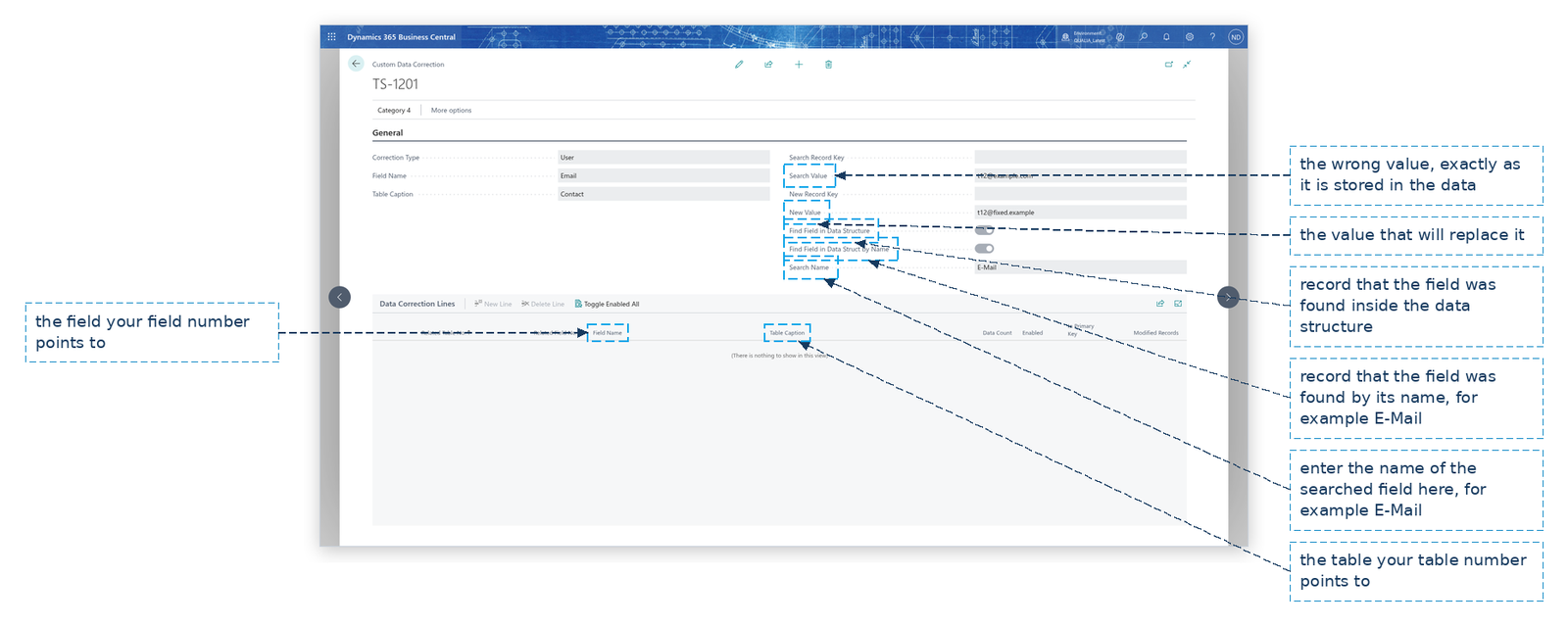
Note: Only the lines with Enabled are gathered and changed. If you want to leave a found field alone, switch its line off before you replace the values.
Check the line and replace the value
- Check the line in the Data Correction Lines part: Data Count shows how often the wrong value was found in the field, In Primary Key shows whether the value is part of the record's key, and Modified Records shows how many records the last run changed.
- Switch the line off if you do not want to touch this field. To switch all lines of this correction at once, choose Toggle Enabled All: if at least one line is disabled it enables all lines, otherwise it disables all lines. It affects only the lines of the correction you are on.
- Choose Alter Fields.
- Confirm with Yes that you want to alter the fields of the data removal code and replace the values found.
The values are replaced and Modified Records counts the changed records; a message reports how many records were modified.
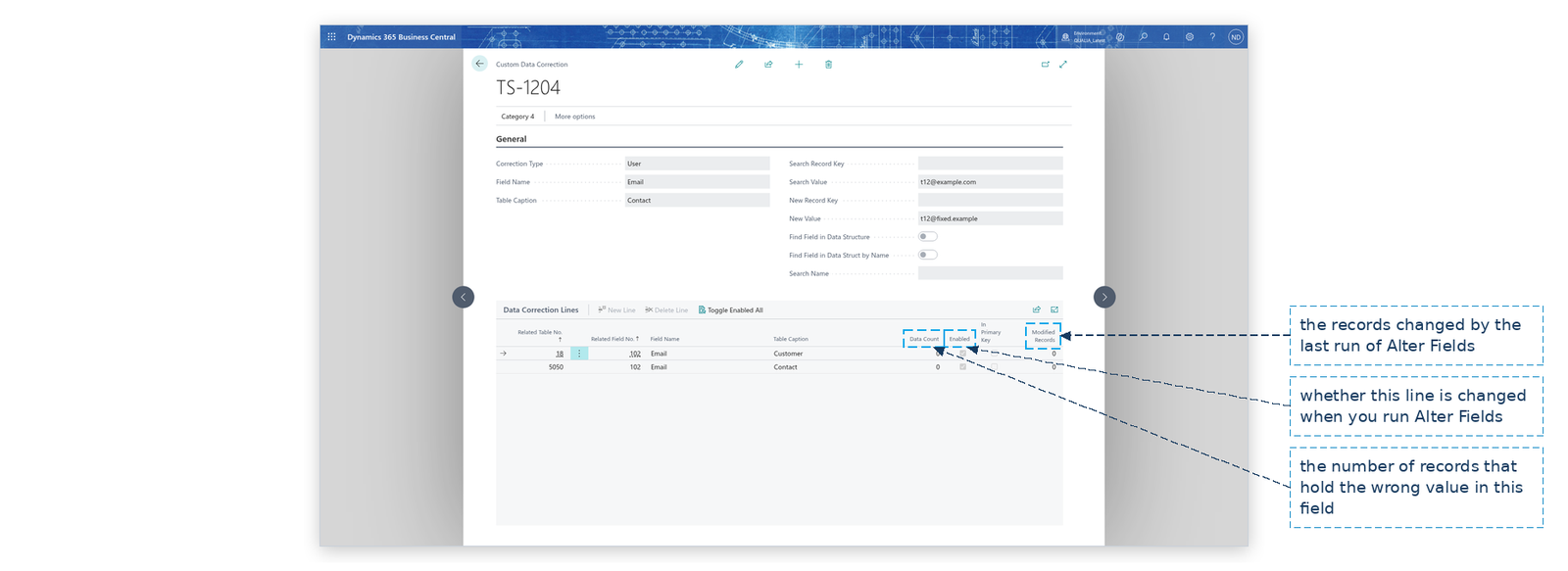
Note: Replacing the values cannot be undone, so the app asks first. Alter Fields changes only the line whose table and field are those of the correction; Enabled lines of other tables and fields are skipped, as are fields that are part of the primary key.
See what changed on the GDPR details
- Open the contact, customer, vendor, employee or resource and choose GDPR Details.
- Choose Change Log to open Change Log Entries.
Business Central shows the logged changes of the GDPR details of this master data record.
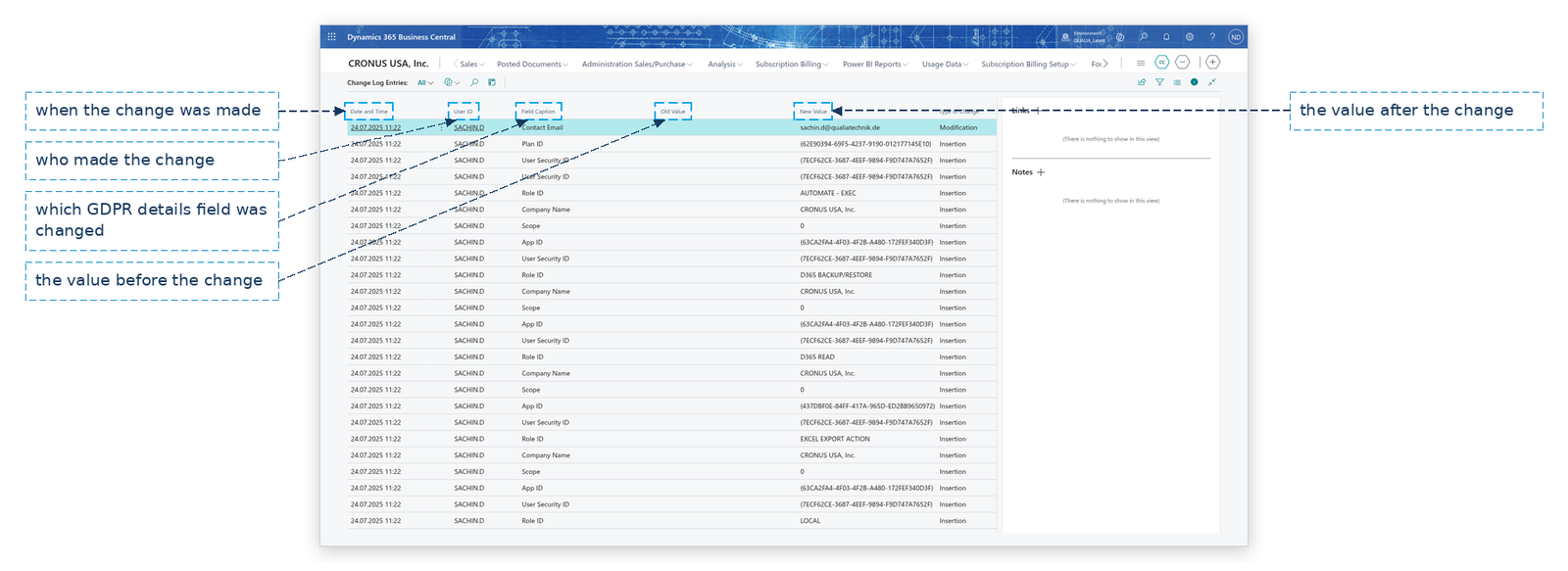
Note: The list is only filled when the change log is active for the GDPR details in standard Business Central's Change Log Setup. Choose Change Log without the change log active and you get There are no change log entries for the <table>. Activate change logging for it on the Change Log Setup pages first to see its history.
Example: Tanja's wrong e-mail is corrected in one run
Tanja Weiss still has her misspelled e-mail [email protected] on the sales quotes. Lena Hartmann records the correction request as usual and then fixes the value with a custom data correction:
- On GDPR ToolBox Setup, she chooses Custom Data Correction and creates a new correction with the code REMOVAL-Q2. In the two fields the consultant added to the card she enters the table number 5050 and the number of the E-Mail field. She chooses User as Correction Type, enters [email protected] in Search Value and [email protected] in New Value.
- She turns on Find Field in Data Structure and Find Field in Data Struct by Name and enters E-Mail in Search Name.
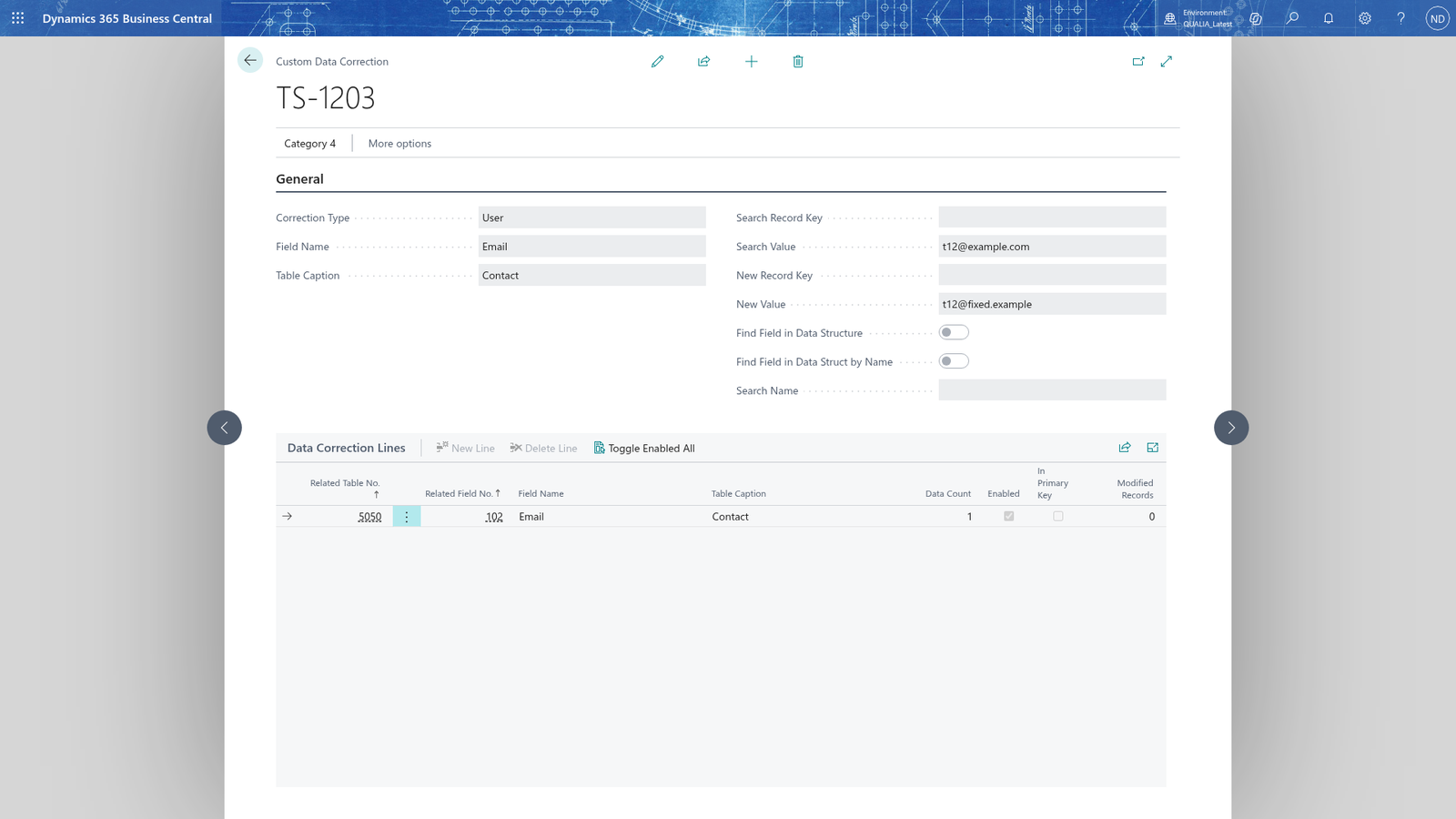
- She chooses Find Relations. The app writes one line into the Data Correction Lines part, with Enabled off:
| Related Table No. | Field Name | Data Count | In Primary Key | Enabled | Modified Records |
|---|---|---|---|---|---|
| 5050 | 1 | no | no |
The value was found once, on contact Tanja Weiss (No. 1000); the E-Mail field is not part of the contact's key, so it can be replaced. 4. She chooses Toggle Enabled All to switch the line on. 5. She chooses Alter Fields and confirms. The app replaces the value and reports 1 modified record; Modified Records shows 1 on the line. 6. She checks the result: contact 1000 Tanja Weiss now shows [email protected]. She notes the data removal code REMOVAL-Q2 in the notes of the correction request, so the correction is documented.
The gathered lines of the example, as the Data Correction Lines part of the card shows them:
What happens
- The correction header holds the code, the correction type, the searched table and field, the search value and the value that replaces it.
- Find Relations creates or updates the correction line for the table and field of the correction: Related Table No., Related Field No., Field Name, Table Caption, Data Count, In Primary Key and Enabled. A new line starts with Enabled off.
- Alter Fields changes the value in the enabled line whose table and field are those of the correction, skips the other lines, and fills Modified Records with the number of records it changed.
- The changed values are the normal values in the records: they are what users see on the cards, in the personal data view of the person and in the exports that follow.
- The change log of the GDPR details (standard Business Central) shows who changed which GDPR detail field, with the old and the new value.
- To correct a value again, create another correction under a new data removal code, so every run keeps its own lines and its own documentation.
If something goes wrong
- cannot be found in the related table: the field number you chose does not exist in the table. Enter the number of a field that exists in that table.
- The line of data removal code... does not specify a table. Enter the table that the value is searched in.: Find Relations needs a Table No. and a Field No. on the correction, but the card of Custom Data Correction does not show Table No. and Field No. so you cannot see or enter them. Ask the consultant to show the two fields on the card.
- Enter a search name when the field is found in the data structure by name.: Find Field in Data Struct by Name is on but Search Name is empty. Enter the name of the field you are looking for.
- Data Removal Code must be filled in before the header is saved.: the correction has no code. Enter it before you leave the record.
- Change log is not active: this page's own message when the change log is switched off; Change Log on a GDPR details page says There are no change log entries for the <table>. Activate change logging for it on the Change Log Setup pages first to see its history.. Activate the log in Business Central's Change Log Setup; changes made before that are not shown.
- No lines are found: the value is not in the table and field of the correction. Check the spelling and the case of Search Value, the Table No. and Field No., and run Find Relations again.
- A line of another table or field was skipped: Alter Fields only alters the line that matches the table and field of the correction. Create another correction for the other table and field.
- A value was not replaced: the line was not Enabled, or the value is part of the record's key (In Primary Key). Key values are listed but not replaced; correct those records in their own card.