
Vehicle master data
This chapter is about vehicle master data: the data you keep about each vehicle. Record every vehicle of your fleet on the Vehicles list and its Vehicle Card. Each vehicle has its own registration number, and you enter its make, model, type, fuel, where it is kept, whether you own or lease it, its payload and the odometer reading it starts with. Vehicles get their number from the Vehicle Nos. series you chose on the Fleet Setup, and the app updates the odometer and fuel consumption from the vehicle's trips and refuellings.

Create a vehicle
- Choose the search icon, enter Vehicles, and open the list.
- Choose New to open a blank Vehicle Card.
- In Registration No., enter the vehicle's licence plate number.
- In Make, enter the make of the vehicle, for example Mercedes.
- In Model, enter the model, for example 316.
- In Vehicle Type, choose Car, Van, Truck or Motorbike.
- In VIN, enter the vehicle identification number.
- In Year, enter the year of manufacture.
- In Fuel Type, choose Petrol, Diesel, Electric or Hybrid.
- In Location Code, choose the location where the vehicle is kept.
- In Ownership, choose Owned or Leased.
- In Lease End Date, enter the date the lease ends, for leased vehicles.
- In Received Date, enter the date when the vehicle was received into the fleet.
- In Current Odometer, enter the vehicle's current odometer reading in km.
- In Payload (kg), enter the maximum weight in kg that the vehicle can carry.
- Close the card.
The vehicle now appears on the Vehicles list. Its No. is taken from the Vehicle Nos. series chosen on the Fleet Setup and is read-only once assigned. Status is In Service, so you can use the vehicle on trips, refuellings, maintenance orders and routes.
Note: Current Odometer and Average Consumption are kept up to date for you: posting trips and refuellings updates the odometer from the value you enter here, and Average Consumption is the average consumption of the vehicle's refuellings in litres per 100 km. You don't maintain them yourself afterwards.
Note: Next Service Date and Next Service Odometer are set when you create the vehicle from its Received Date and Current Odometer and the service interval of its vehicle type on the Fleet Setup.
Note: Choose a Vehicle Type for which you have entered a service interval on the Fleet Setup (the Service Intervals action). Otherwise Next Service Date and Next Service Odometer stay empty and the vehicle never appears on the Vehicles Due Service list.
Refuse a registration number that is already used
- Choose the search icon, enter Vehicles, and open the list.
- Choose New.
- In Registration No., enter a registration number that another vehicle already uses.
- Leave the Registration No. field.
The app refuses the vehicle and shows a message that names the vehicle that already holds the registration number. Choose OK on the message, enter another registration number for the new vehicle, and close the card again.
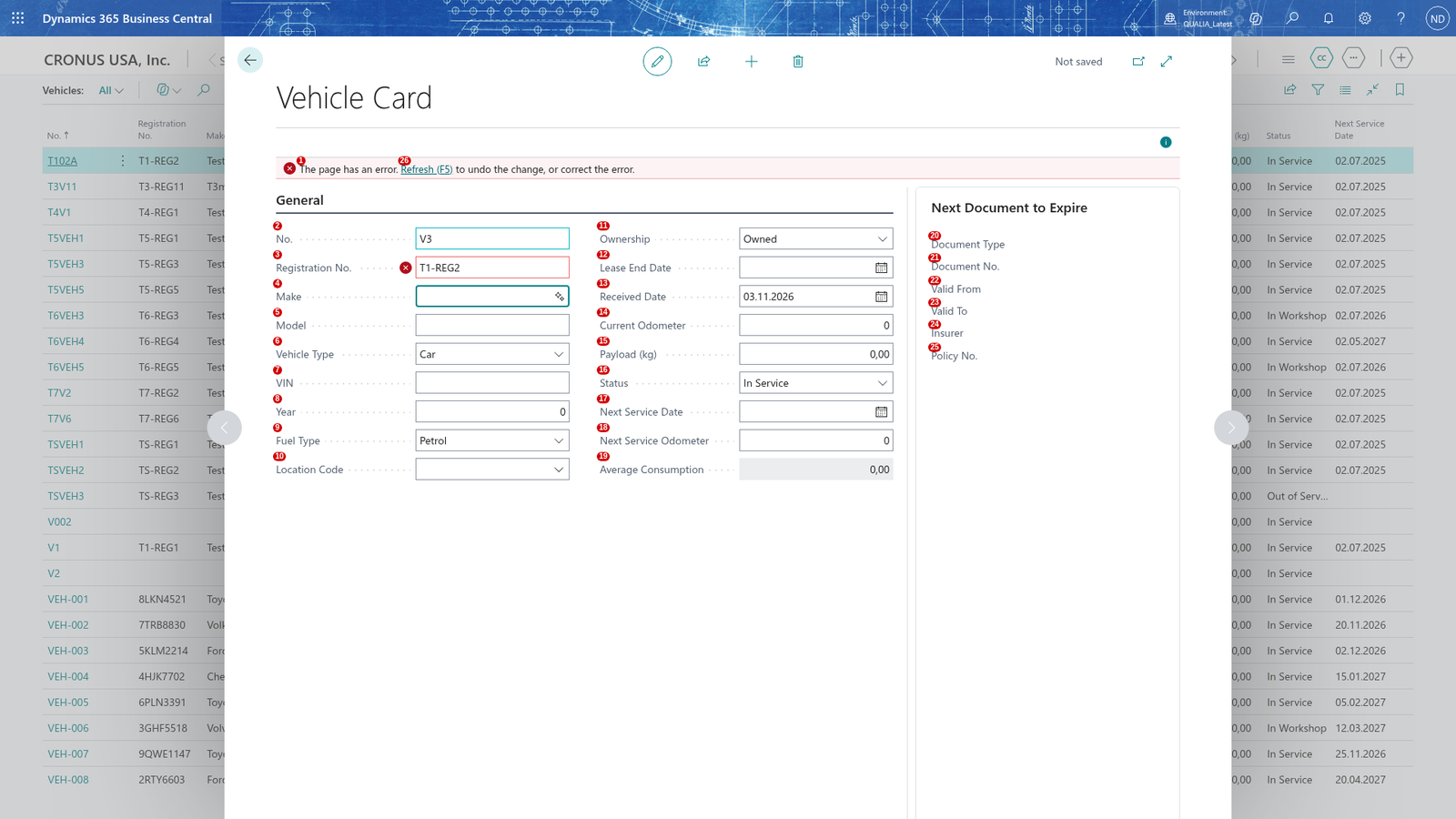
Note: The registration number is required and is used by only one vehicle, so you always know which vehicle a number belongs to.