
Vehicle disposal
Retiring a vehicle from your active fleet is vehicle disposal: you keep the vehicle and its history, and it can no longer be used.
Dispose of a vehicle
- Choose the search icon, enter Vehicles, and open the list.
- Open the vehicle's Vehicle Card.
- In Status, choose Disposed.
The vehicle's Status is now Disposed on the Vehicle Card and on the Vehicles list. The app keeps the vehicle Disposed: setting Status back to In Service does not bring the vehicle back into your fleet, so your fleet works with a new vehicle.
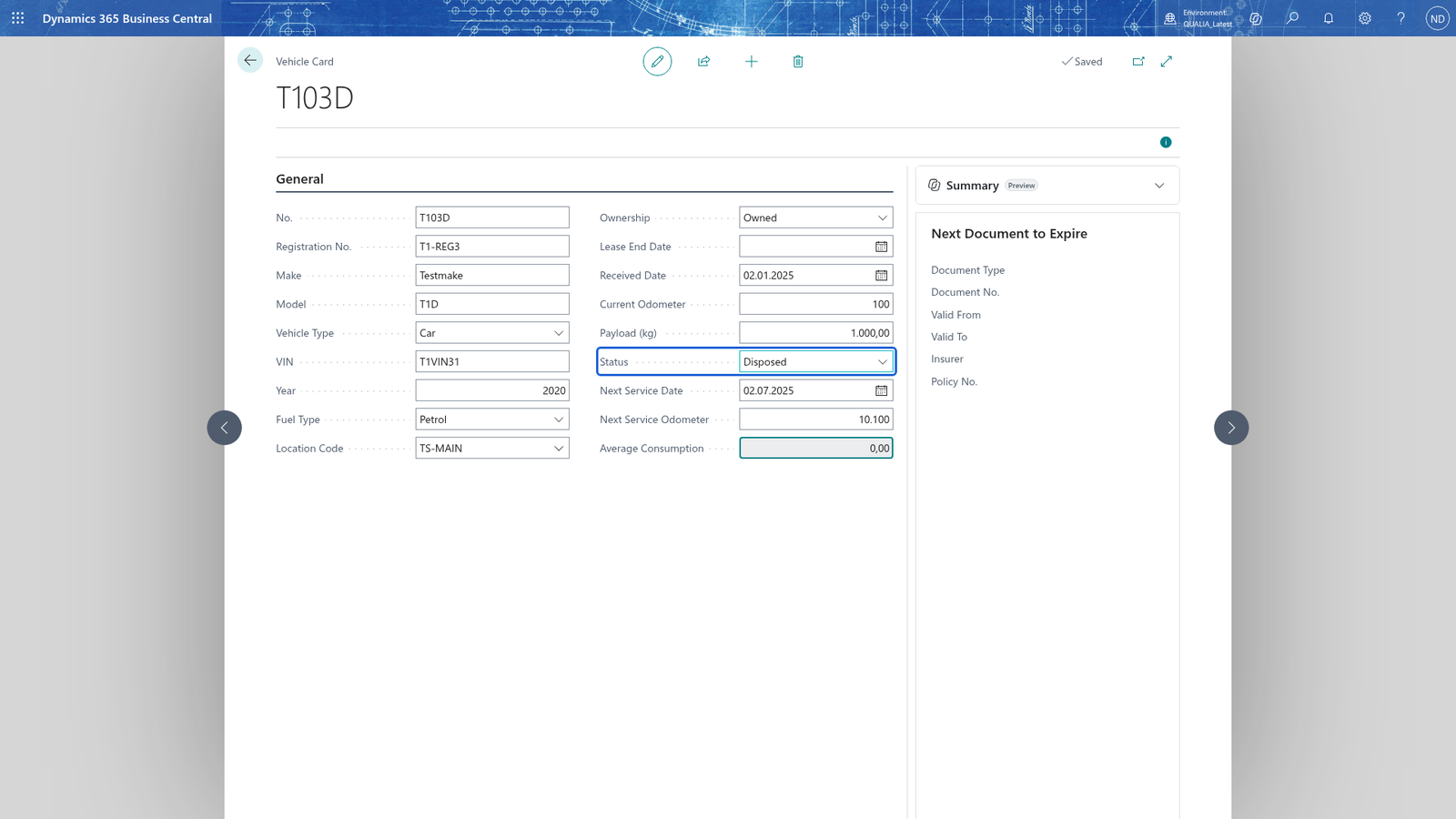
A disposed vehicle is refused on trips, refuellings, maintenance orders and routes. To see the refusal, record a trip with the vehicle:
- Choose the search icon, enter Vehicle Logbook, and open the list.
- Choose New to open the Trip Card.
- In Vehicle No., choose the disposed vehicle.
- In Driver No., choose the driver.
- In Date, enter today's date.
- In Purpose, enter a short description of what the trip was for.
- In Start Odometer, enter the vehicle's odometer at the start of the trip.
- In End Odometer, enter the vehicle's odometer at the end of the trip.
- Close the card. The trip is saved when you leave the card.
- In the Vehicle Logbook, select the line of the trip and choose Post.
The message names the vehicle: 'Vehicle <no> is disposed and cannot be used. Choose another vehicle.' The trip is not posted and stays Open.
Note: If the vehicle is still referred to by trips, refuellings, documents, maintenance orders or routes, it can't be deleted; disposing it (or setting it to Out of Service) retires it instead.