
Release the route and print the route sheet
Release checks the route against its rules and releases it for the driver. Route sheet printing gives the dispatcher a route sheet to hand to the driver. The app shows a message for the first rule that fails, and the route stays Planned until it passes all of them. Release, Get Stops, Complete and Print Route Sheet are promoted actions on the Route Card, and Release, Complete and Print Route Sheet are also on the Routes list. The route sheet is meant to be printed after the route is released.
- Open the route card and choose Release.
- If the route passes the checks, its Status changes to Released.
- Choose Print Route Sheet; the report opens its request page. Choose Preview to see the route sheet on screen, or Print to send it to a printer. The route sheet shows the route's date, vehicle and driver and lists the stops in sequence with their delivery name, address and gross weight.
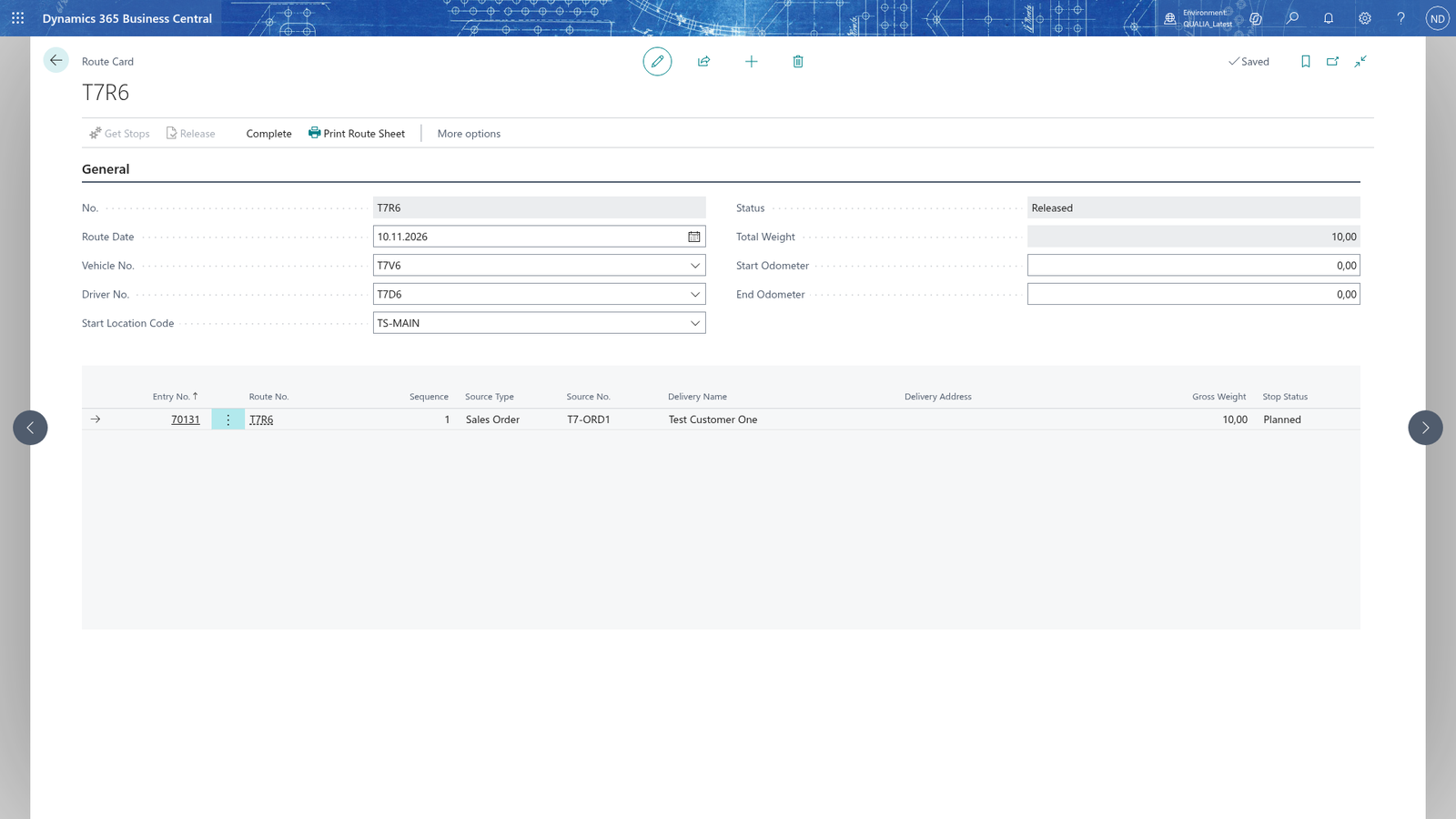
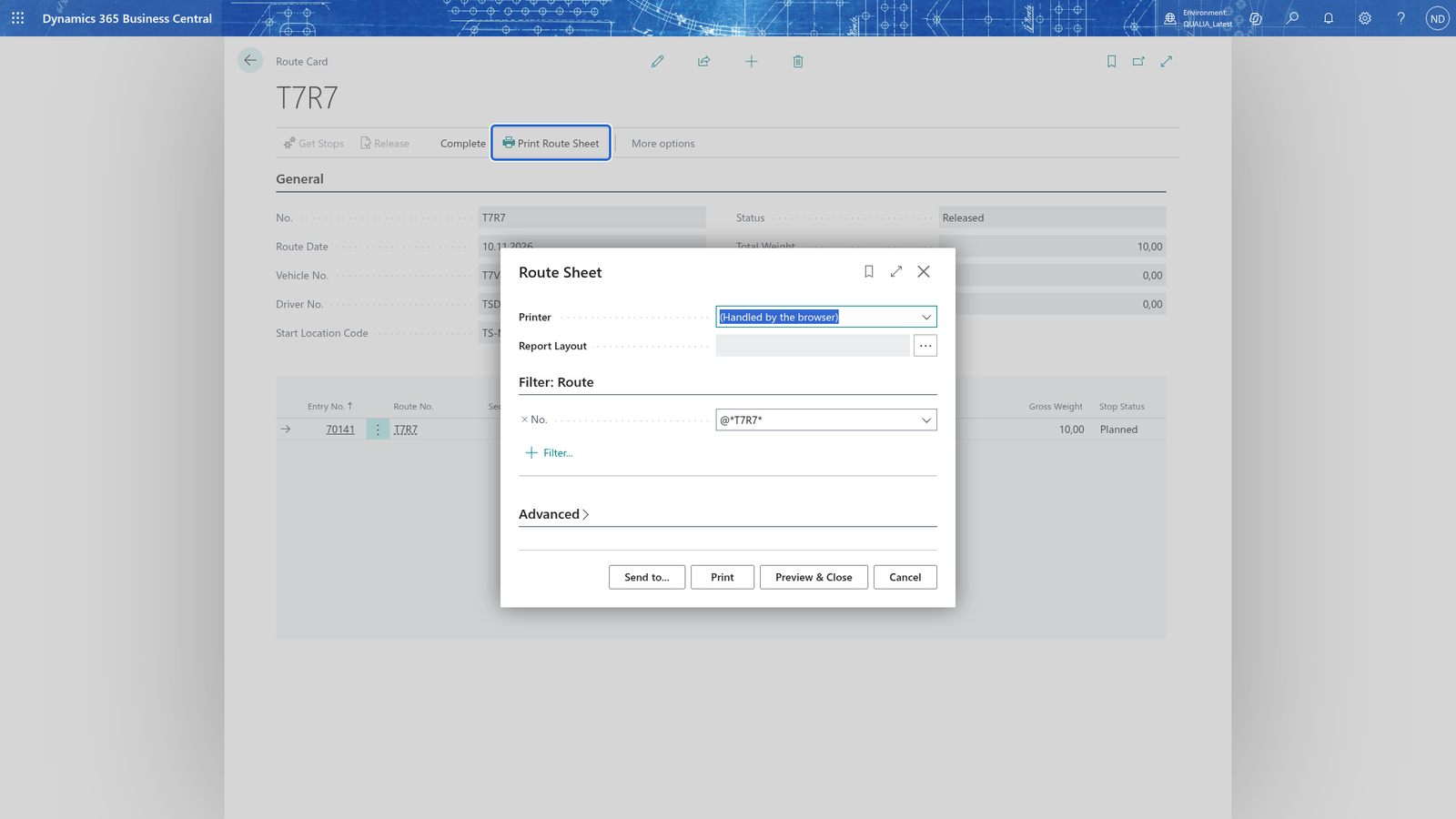
Note: Release checks that the route has at least one stop, that Total Weight is within the vehicle's payload, that the vehicle is In Service, that it has an insurance document valid on the route date, and the driver's rules (licence categories cover the vehicle type, licence valid on the route date, driver not blocked). It shows a message for the first rule that fails. A route without stops is refused with 'Route <no> has no stops. Use Get Stops to add the documents to deliver on the route date.'; bring the documents in with Get Stops and choose Release again.
Release is refused: no valid insurance
- Choose Release on a route whose vehicle has no insurance document covering the route date.
- The app shows a message that the vehicle has no insurance document valid on the route date, and the route stays Planned.
- Choose the search icon, enter Vehicle Documents, and choose the matching link. Add an insurance document of the vehicle that covers the route date, then choose Release again.
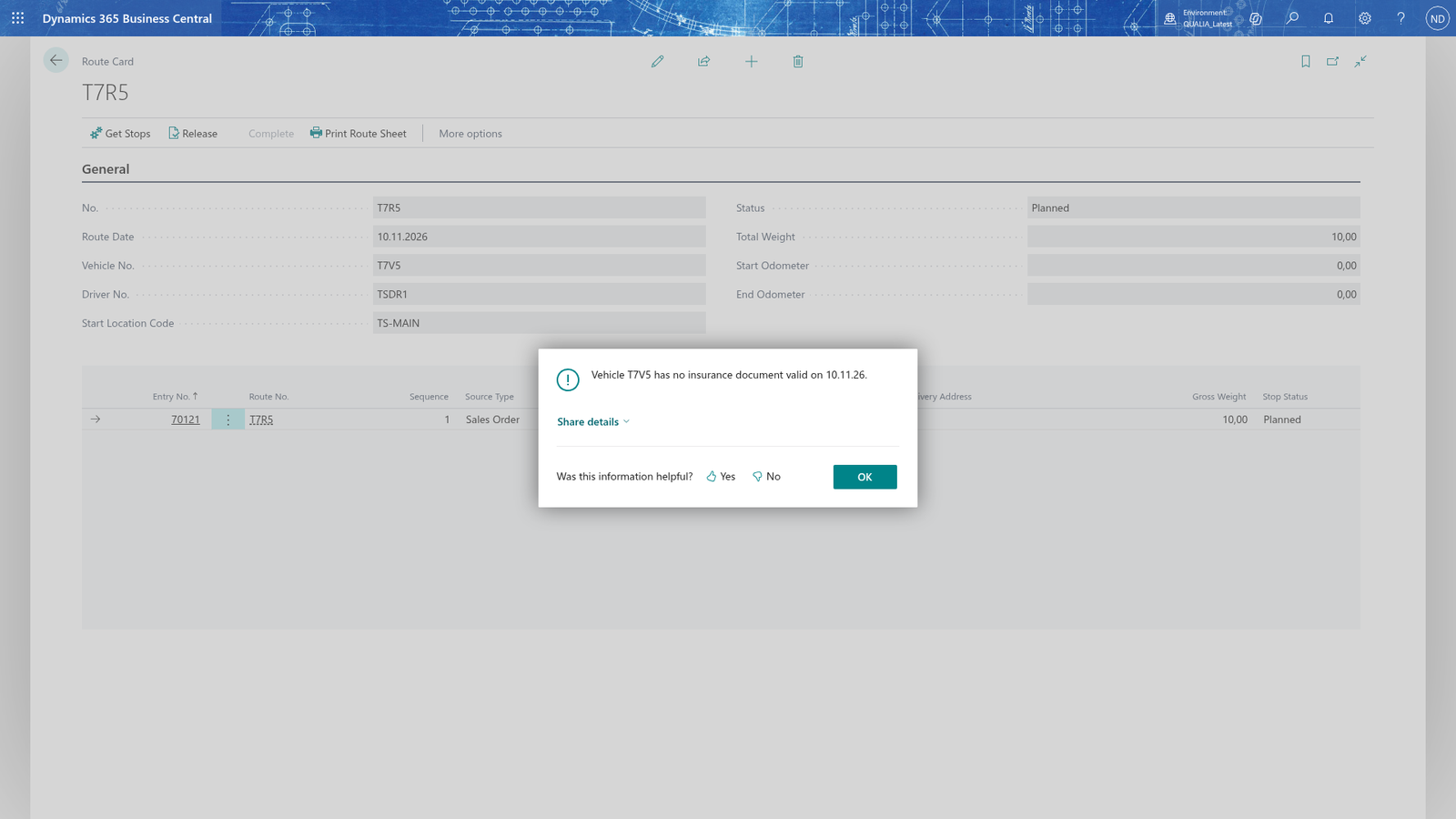
Note: An insurance document only counts when it covers the route date: its Valid From is on or before the route date and its Valid To is on or after it.
Note: The other rules also show a message that names what to fix. A route that is heavier than the vehicle allows is refused with 'Route <no> weighs <x> kg, more than vehicle's Payload <y> kg. Remove a stop or use another vehicle.' The driver messages name the driver: a blocked driver may not drive, a missing licence category says to add the category on the driver's card, and an expired licence says to renew the licence expiry date on the driver's card. Fix the cause, then choose Release again.