
Record and post trips in the vehicle logbook
The Vehicle Logbook holds one line for every trip a vehicle has driven: the vehicle, the driver, the date, the purpose and the odometer readings before and after the trip. The Distance is calculated from the two odometer readings and can't be entered. A new trip is saved with status Open and can be changed until you post it; posting moves the vehicle's Current Odometer to the trip's End Odometer, so the next trip or refuelling is checked against the right reading.
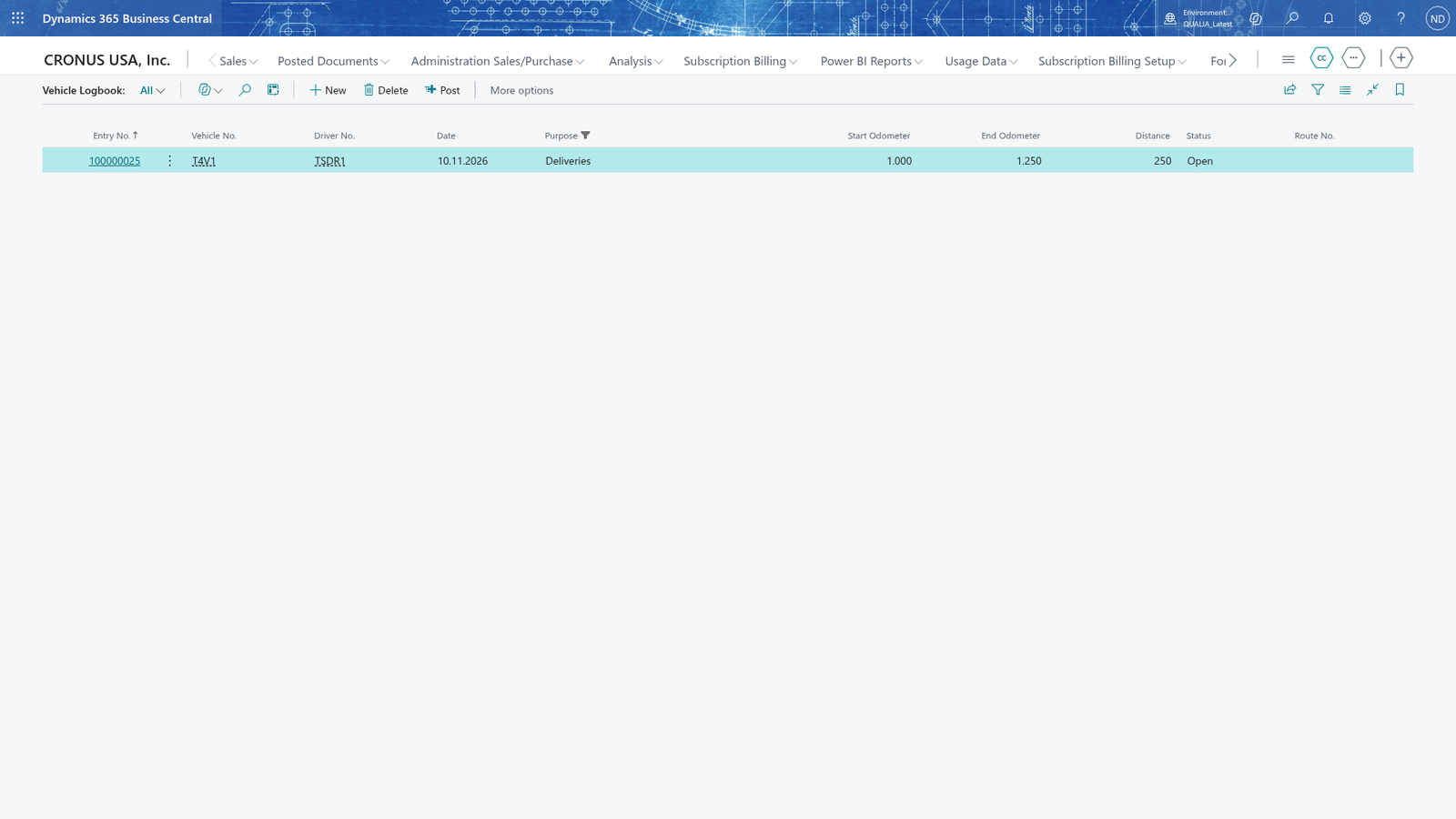
Note: You can enter a trip for any date up to today; there is no current-and-previous-month limit.
Record a trip
- Choose the search icon, enter Vehicle Logbook, and open the list.
- Choose New to open the Trip Card.
- In Vehicle No., choose the vehicle that drove the trip.
- In Driver No., choose the driver.
- In Date, enter the date of the trip.
- In Purpose, enter a short description of what the trip was for.
- In Start Odometer, enter the vehicle's odometer reading at the start of the trip.
- In End Odometer, enter the vehicle's odometer reading at the end of the trip.
- Check that Distance shows the difference between the two readings.
- Close the card. The trip is saved when you leave the card and appears in the Vehicle Logbook with status Open.
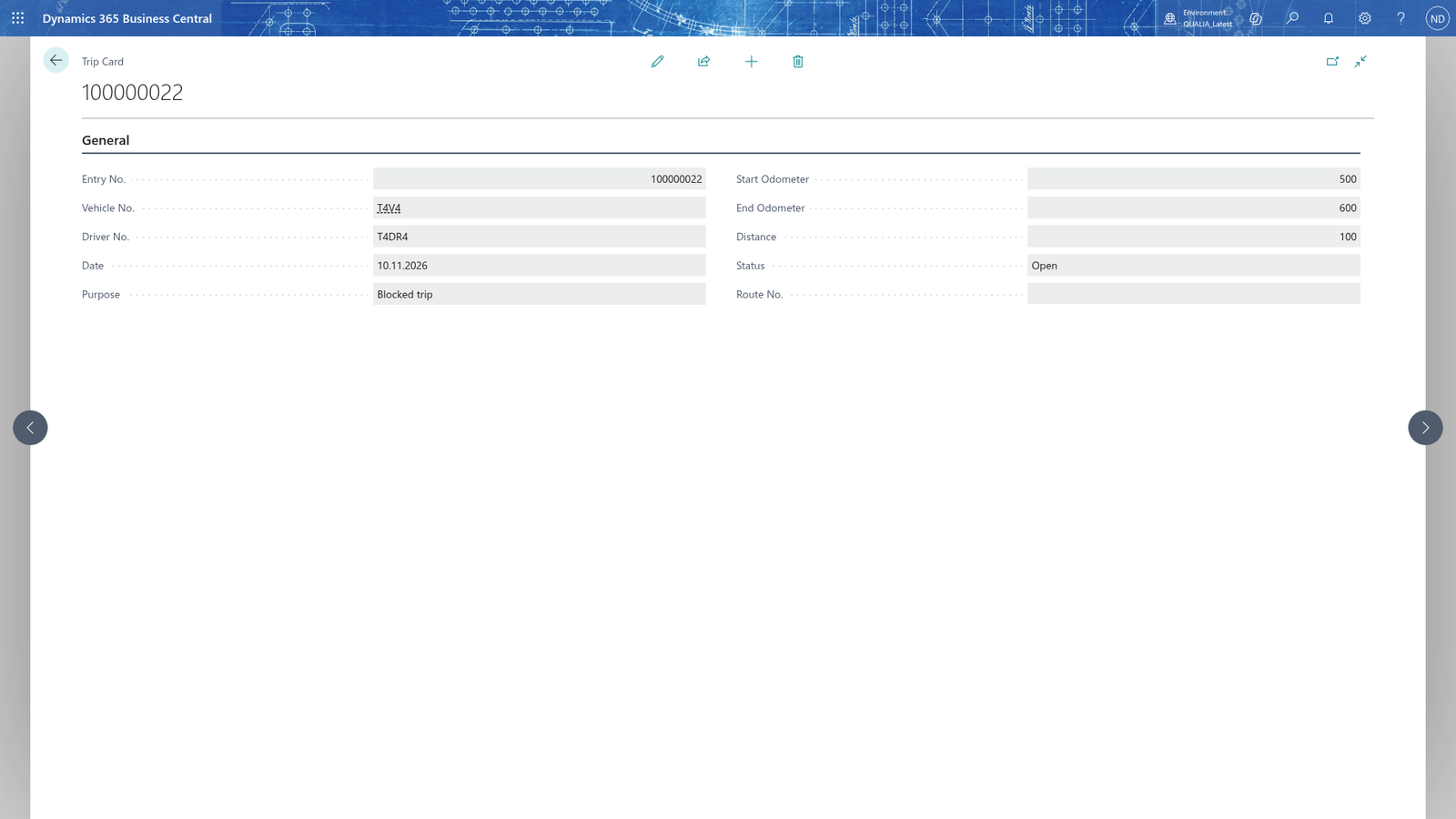
Note: Distance is calculated as End Odometer minus Start Odometer and can't be entered.
Note: The Trip Card has no Post button. Posting is done from the Vehicle Logbook list, so close the card first.
Post the trip
- Choose the search icon, enter Vehicle Logbook, and open the list.
- Select the line of the trip.
- Choose Post.
The trip's Status changes to Posted, and the vehicle's Current Odometer on the Vehicle Card becomes the trip's End Odometer, so the next trip or refuelling is checked against the right reading. The trip stays in the logbook as history with its calculated Distance.
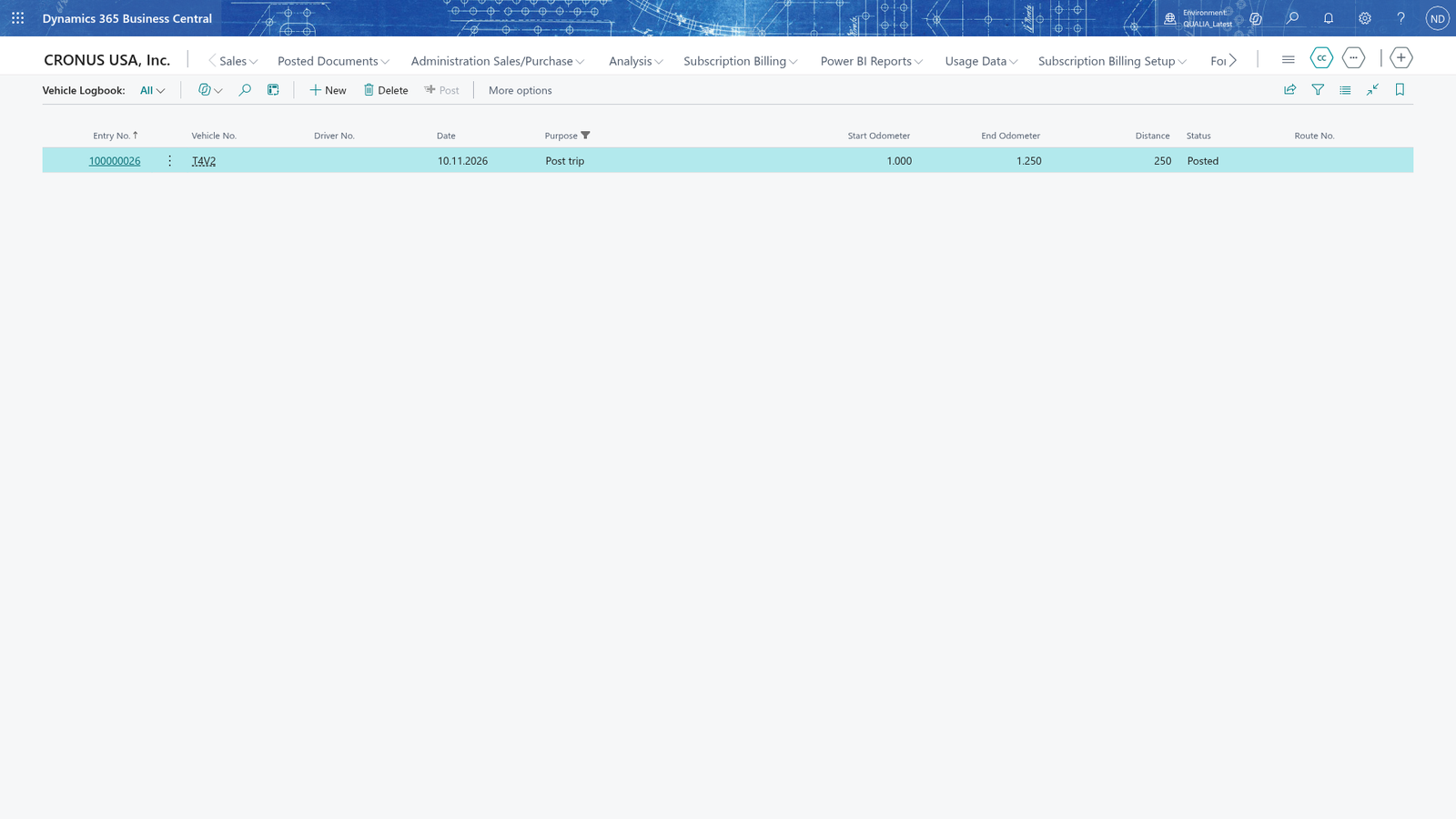
Note: Post is offered only for a trip whose status is Open. Once the trip is posted, Post is no longer offered and the trip stays in the logbook as history.
When posting is refused: no valid insurance
- Choose the search icon, enter Vehicle Logbook, and open the list.
- Select the trip you want to post.
- Choose Post. When the vehicle has no insurance document valid on the trip's Date, a message names the vehicle and the trip date and says the vehicle has no insurance document valid on that date. The trip stays Open.
- Choose the search icon, enter Vehicle Documents, and choose the matching link.
- Add an insurance document of the vehicle that covers the trip date.
- Open the Vehicle Logbook again, select the trip, and choose Post.
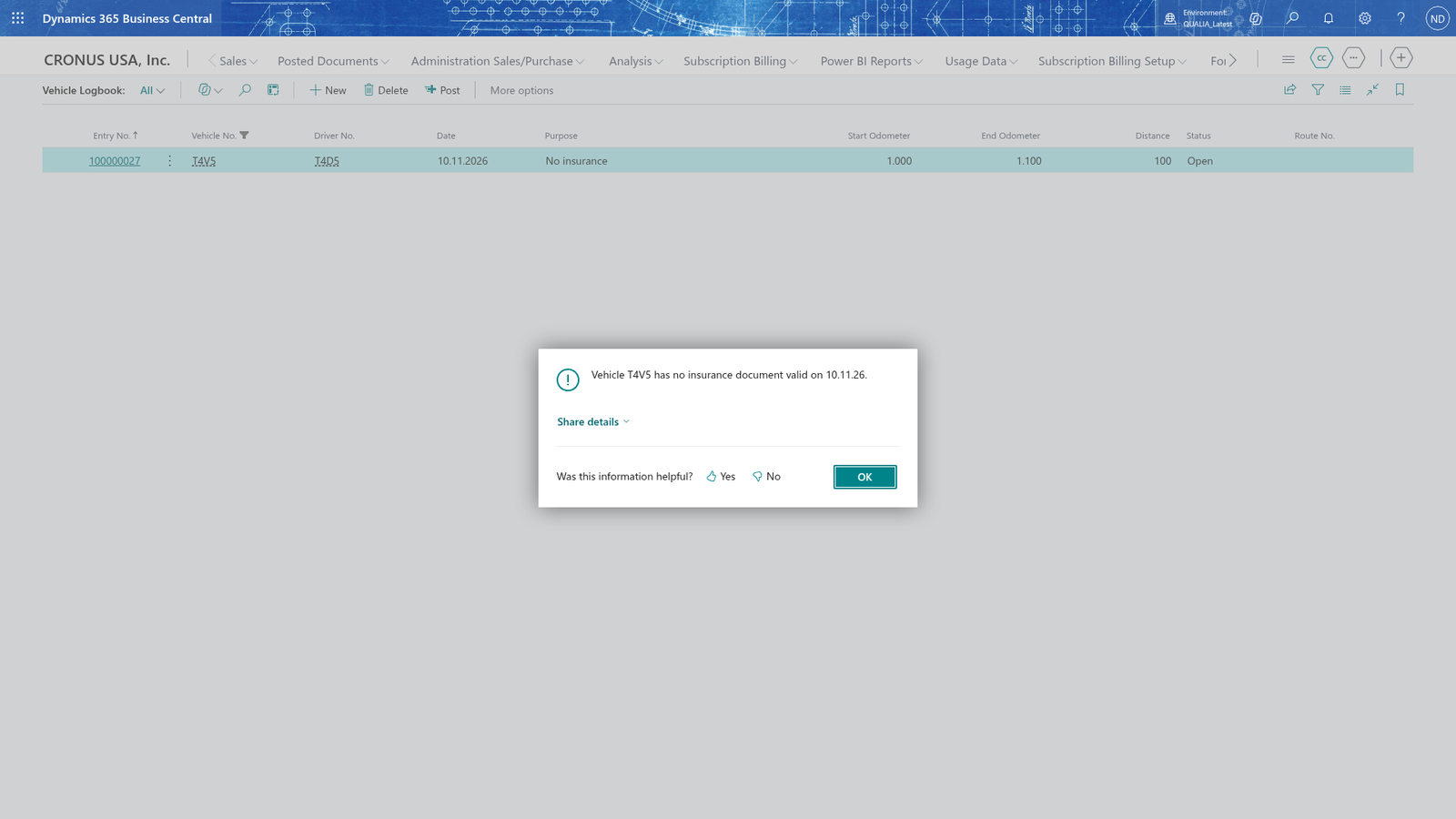
Note: An insurance document only makes posting possible when it is valid on the trip's date: its Valid From is on or before the trip date and its Valid To is on or after it.
When the odometer reading is refused
- Choose the search icon, enter Vehicle Logbook, and open the list.
- Choose New to open the Trip Card.
- In Vehicle No., choose the vehicle.
- In Start Odometer, enter a reading.
- In End Odometer, enter the same reading or a lower one, and leave the field. A message names both readings: "The End Odometer <end> must be greater than the Start Odometer <start>."
- Choose OK.
- In End Odometer, enter a reading greater than the Start Odometer, and leave the field.
- Close the card.
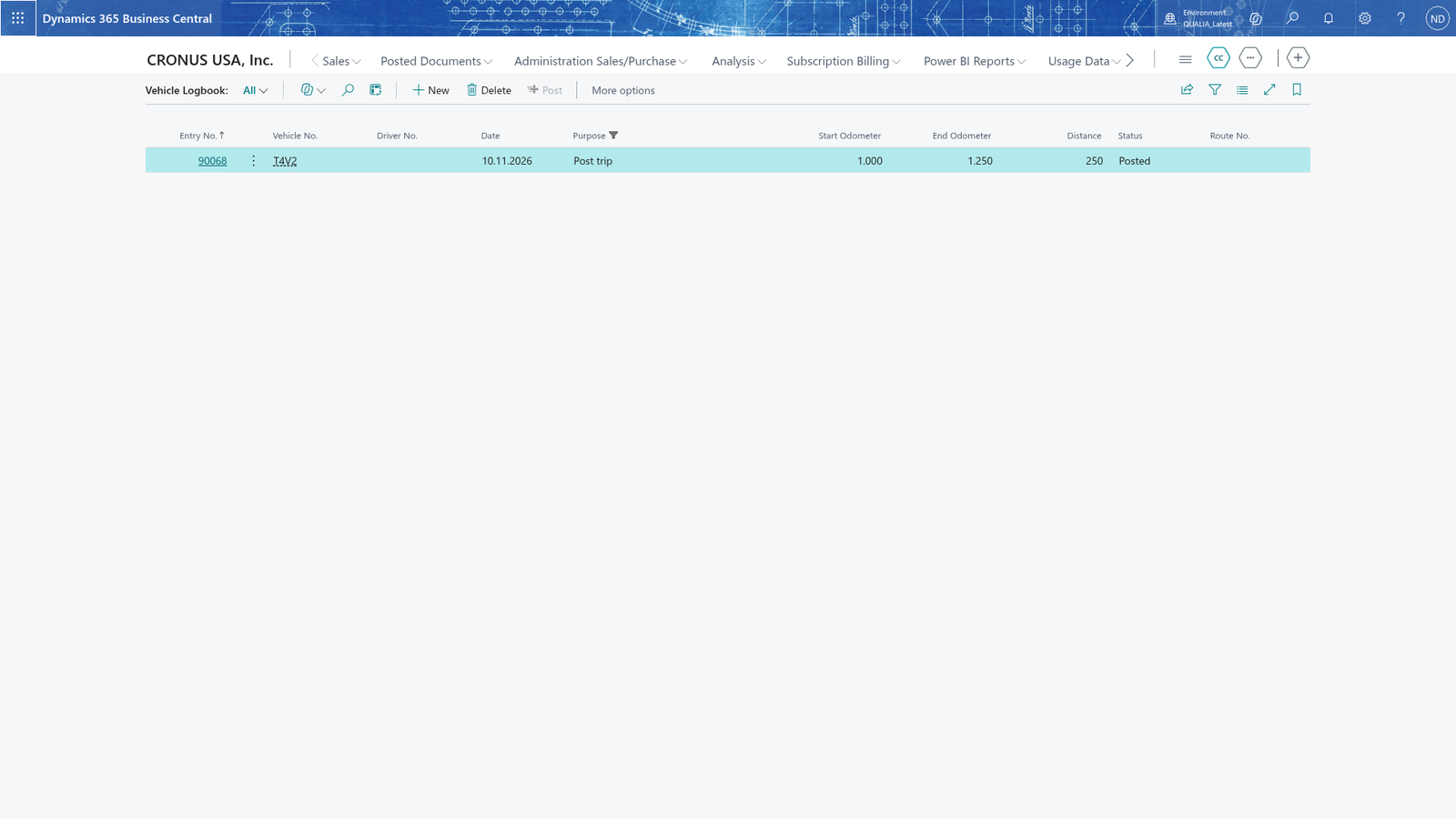
Note: The End Odometer must be greater than the Start Odometer. The app checks this when you leave the field and again when you post, so a wrong reading can't reach the logbook.
Note: The Start Odometer can't be lower than the vehicle's Current Odometer. The message names the vehicle and its current reading: "The Start Odometer <start> cannot be lower than the Current Odometer <reading> of vehicle <vehicle>." Enter a reading that is at least the one on the vehicle's card.
A posted trip keeps its readings
- Choose the search icon, enter Vehicle Logbook, and open the list.
- Select the trip whose Status is Posted. Its Start Odometer, End Odometer and calculated Distance are the values it had when it was posted.
- Post is no longer offered for the trip, because it is already posted.
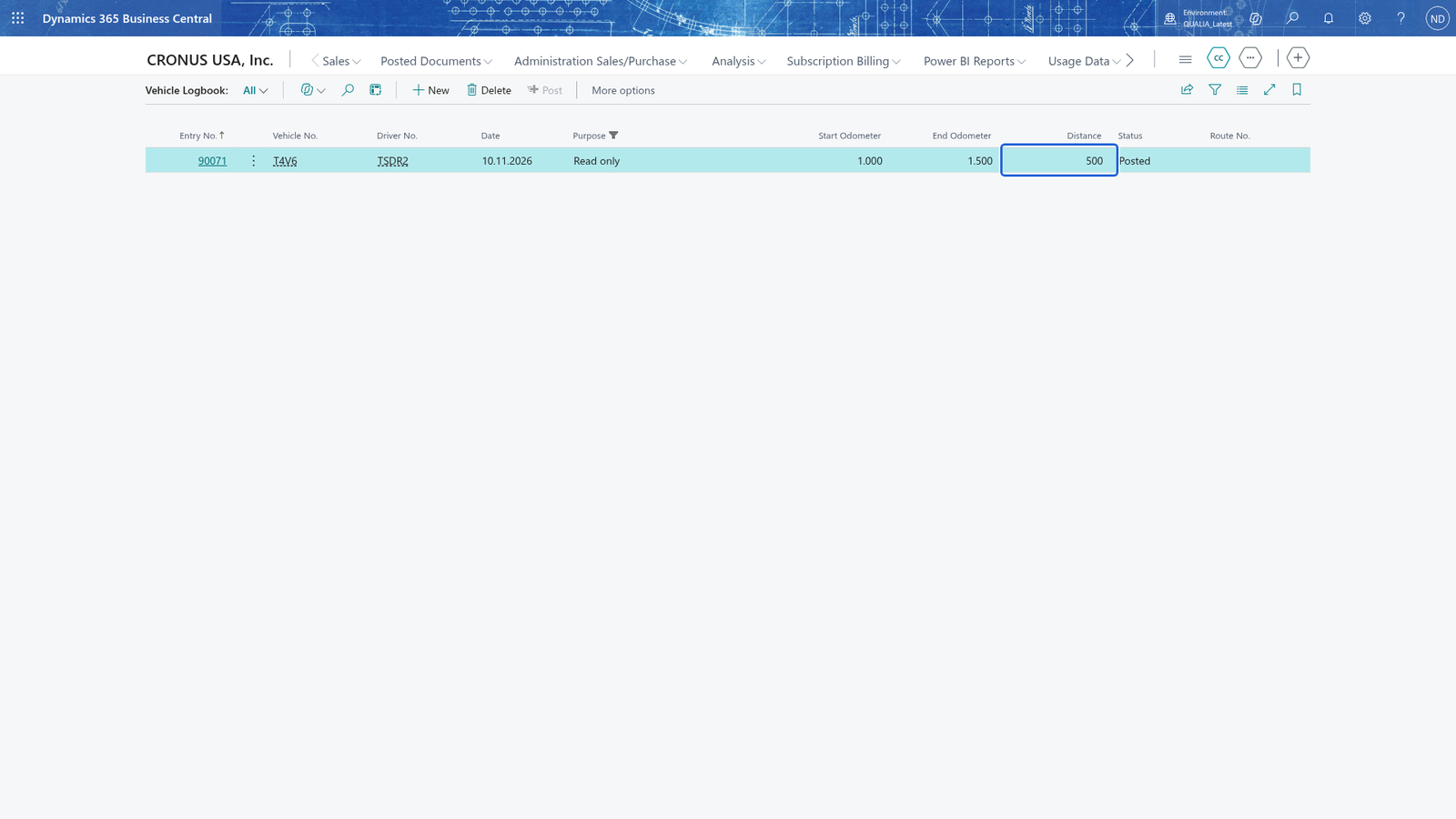
Note: A posted trip stays in the logbook as history: its readings and Distance stay as they were when you posted it. Because posting sets the vehicle's Current Odometer to the End Odometer, check the readings before you post.