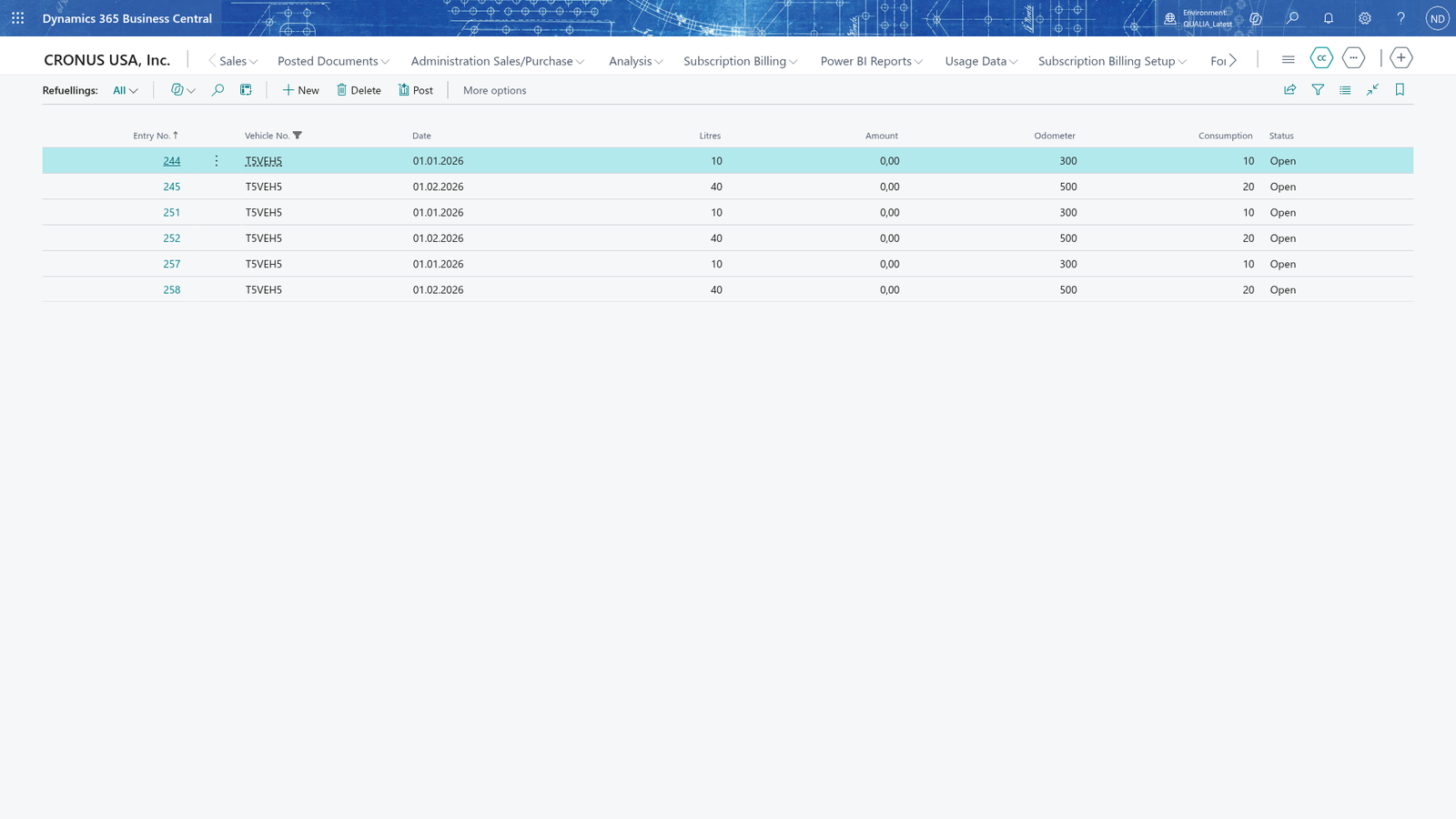
Record and post refuellings
A refuelling records how many litres a vehicle got, what it cost and the vehicle's odometer reading at that moment. When you post the refuelling, the vehicle's Current Odometer becomes the refuelling's Odometer and the refuelling becomes read-only history. The Consumption is calculated for you: litres per 100 km driven since the vehicle's previous refuelling. The Vehicle Card shows the vehicle's Current Odometer and its Average Consumption.
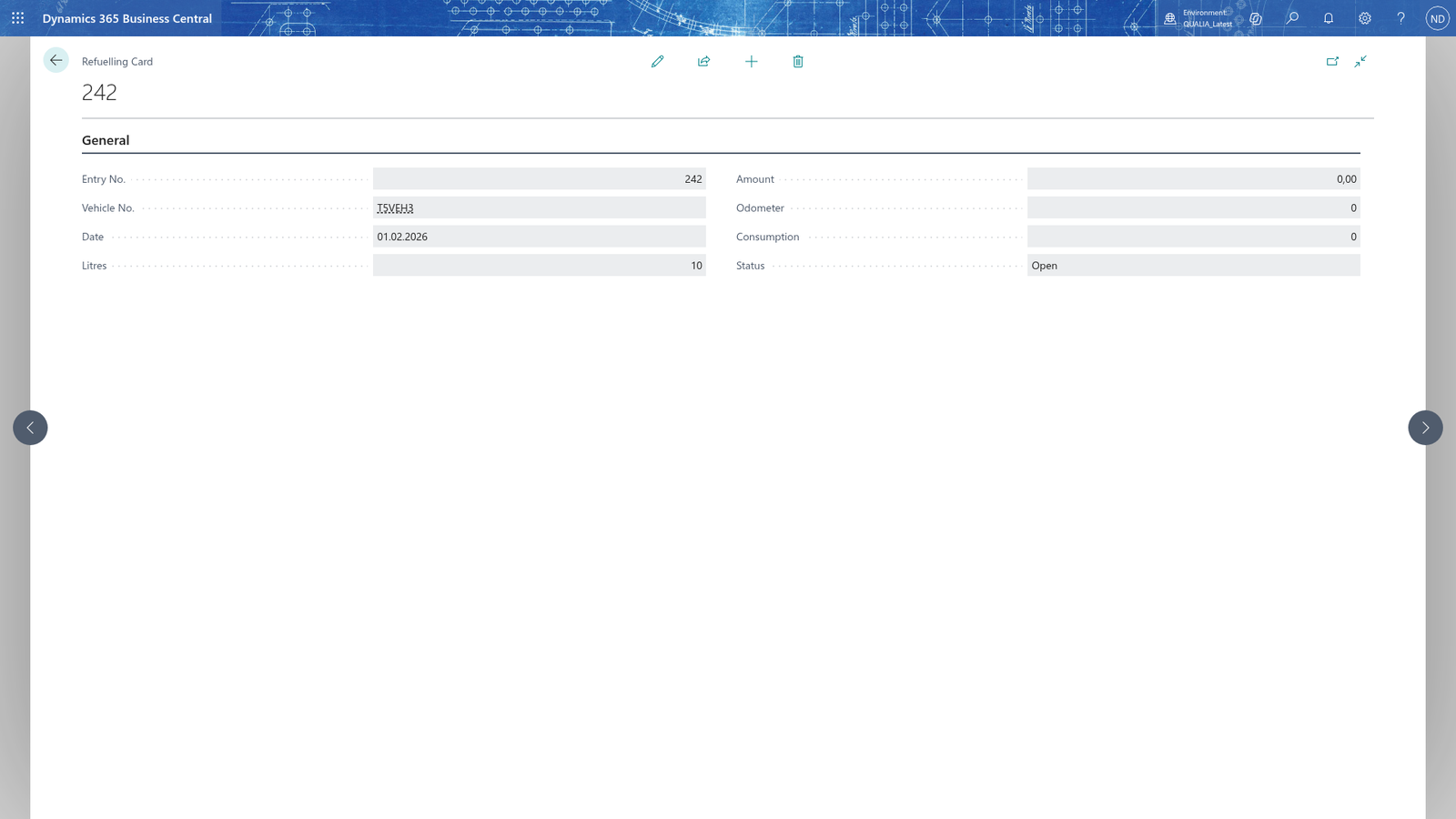
Record a refuelling
- Search for Refuellings and open it.
- Choose New to open the Refuelling Card.
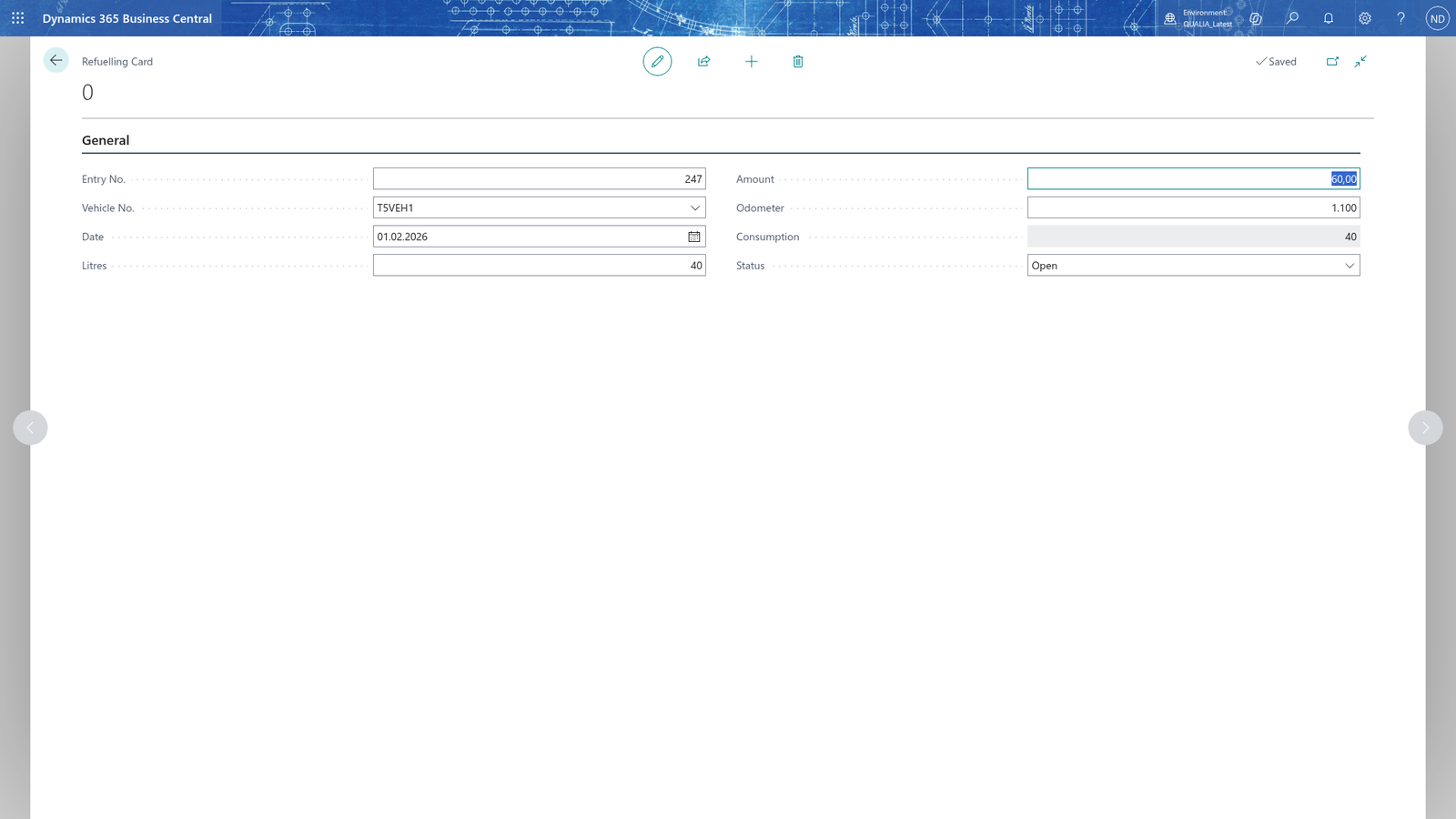
- In Vehicle No., choose the vehicle that was refuelled.
- In Date, enter the date of the refuelling.
- In Litres, enter the litres the vehicle was filled with.
- In Amount, enter the amount paid for the refuelling.
- In Odometer, enter the vehicle's odometer reading at the refuelling.
- Close the card; the refuelling is saved when you leave it.
The Consumption is calculated automatically in litres per 100 km driven since the vehicle's previous refuelling; you don't enter it.
Note: You can enter refuellings for any date up to today; the odometer rules still apply when you post the refuelling.
Refuelling below the Current Odometer is refused
- Search for Refuellings and choose New to open the Refuelling Card.
- Enter Vehicle No., Date, Litres and Amount.
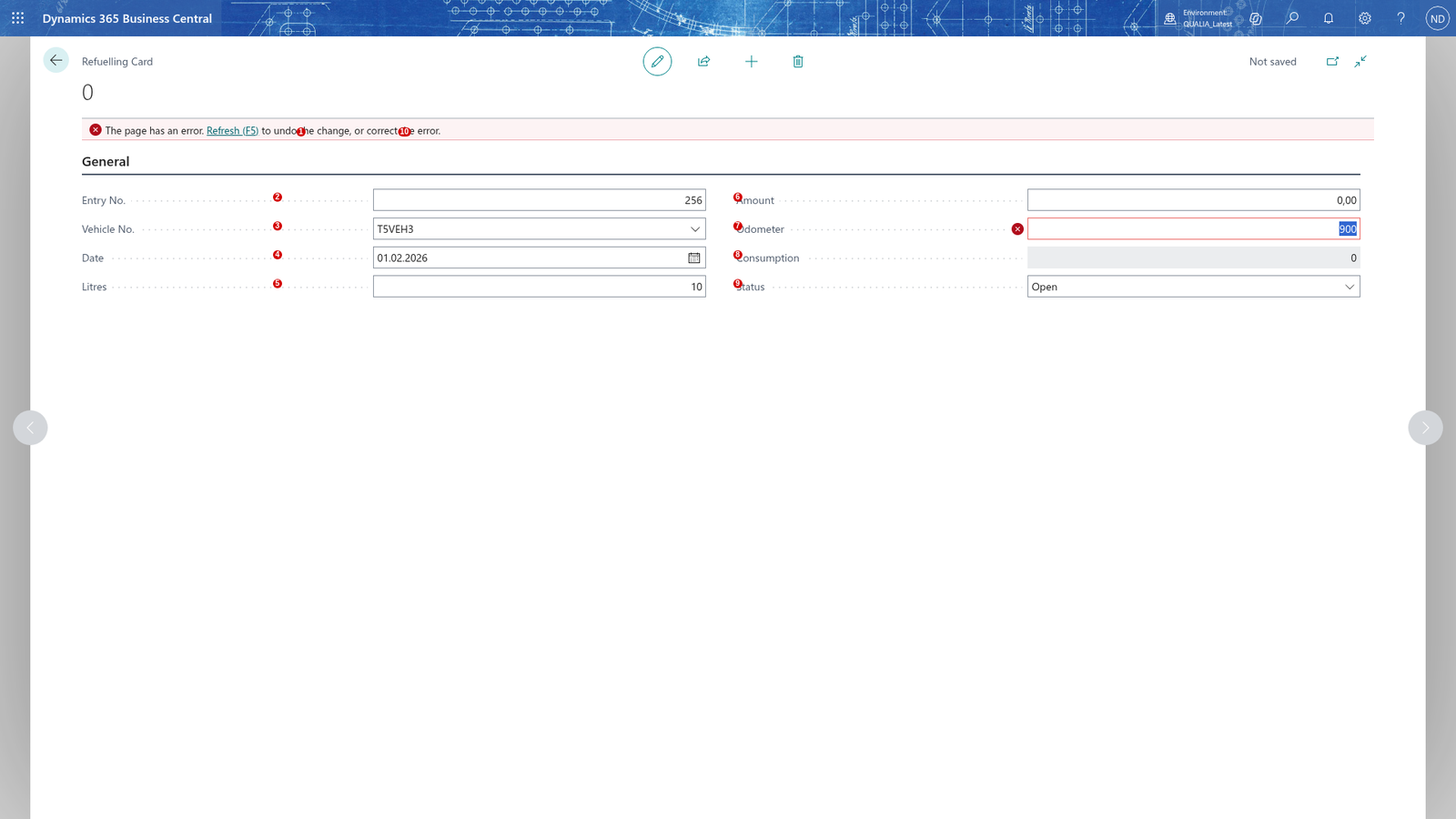
- On the Refuelling Card, enter Odometer with a reading lower than the vehicle's Current Odometer.
The entry is refused with a message that the Odometer must be at least the vehicle's Current Odometer. Enter the reading shown on the vehicle's odometer, which is at least its Current Odometer.
Post a refuelling
- Search for Refuellings and open it.
- Filter the list on the vehicle number.
- Select the refuelling you want to post.
- Choose Post.
The vehicle's Current Odometer is set to the refuelling's Odometer, the Status changes to Posted, and the refuelling can no longer be changed. The Consumption keeps the value calculated from the litres and the distance since the vehicle's previous refuelling.
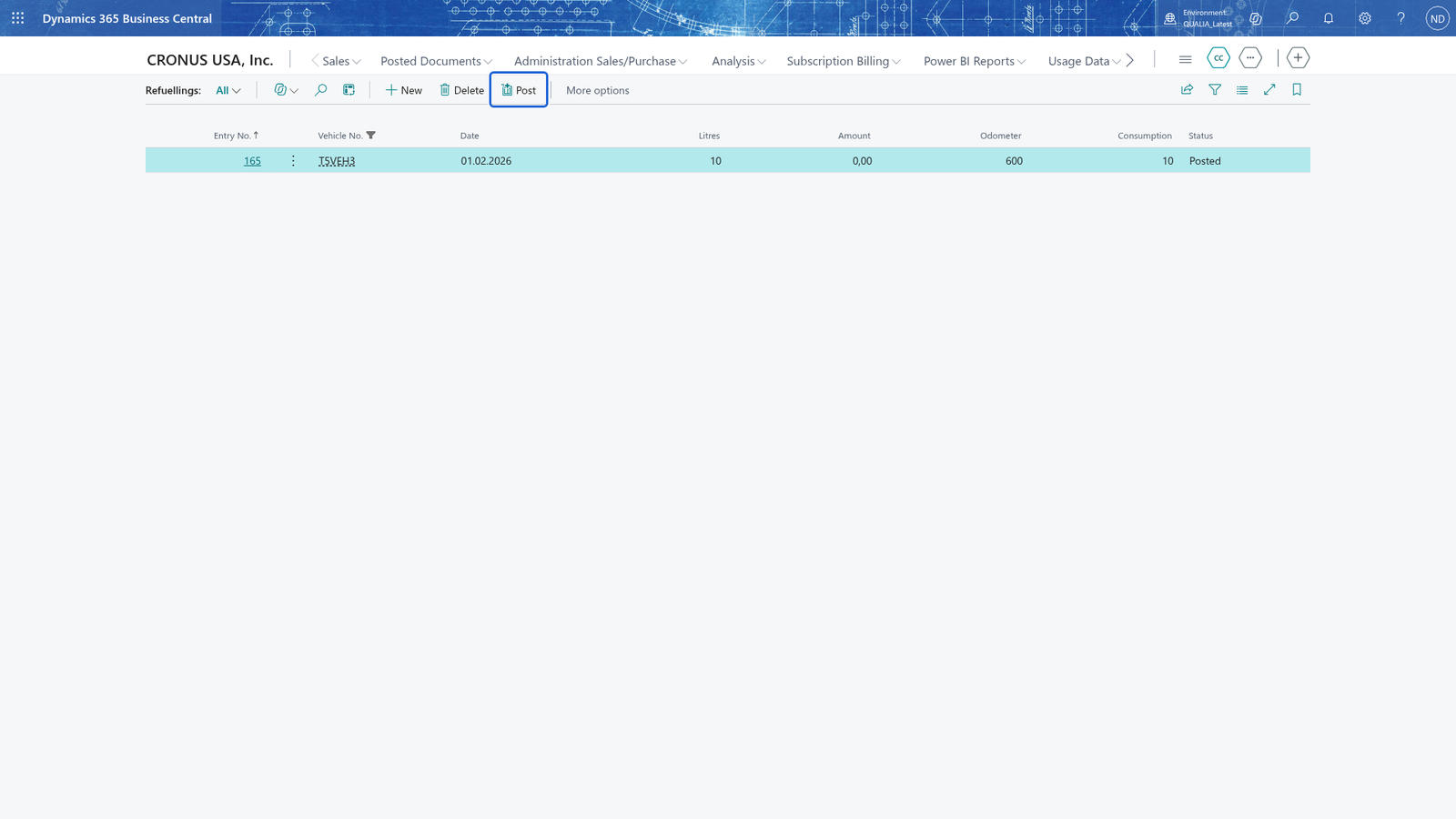
Note: A posted refuelling is read-only history: it can't be changed. The app also refuses to post a refuelling of a vehicle whose Status is Disposed, with a message that says the vehicle is disposed.
Change the litres or odometer of an Open refuelling
- Search for Refuellings and open it.
- Choose the chevron on the line of the refuelling whose Status is Open (or double-click the line) to open the Refuelling Card.
- Change Litres or Odometer and close the card.
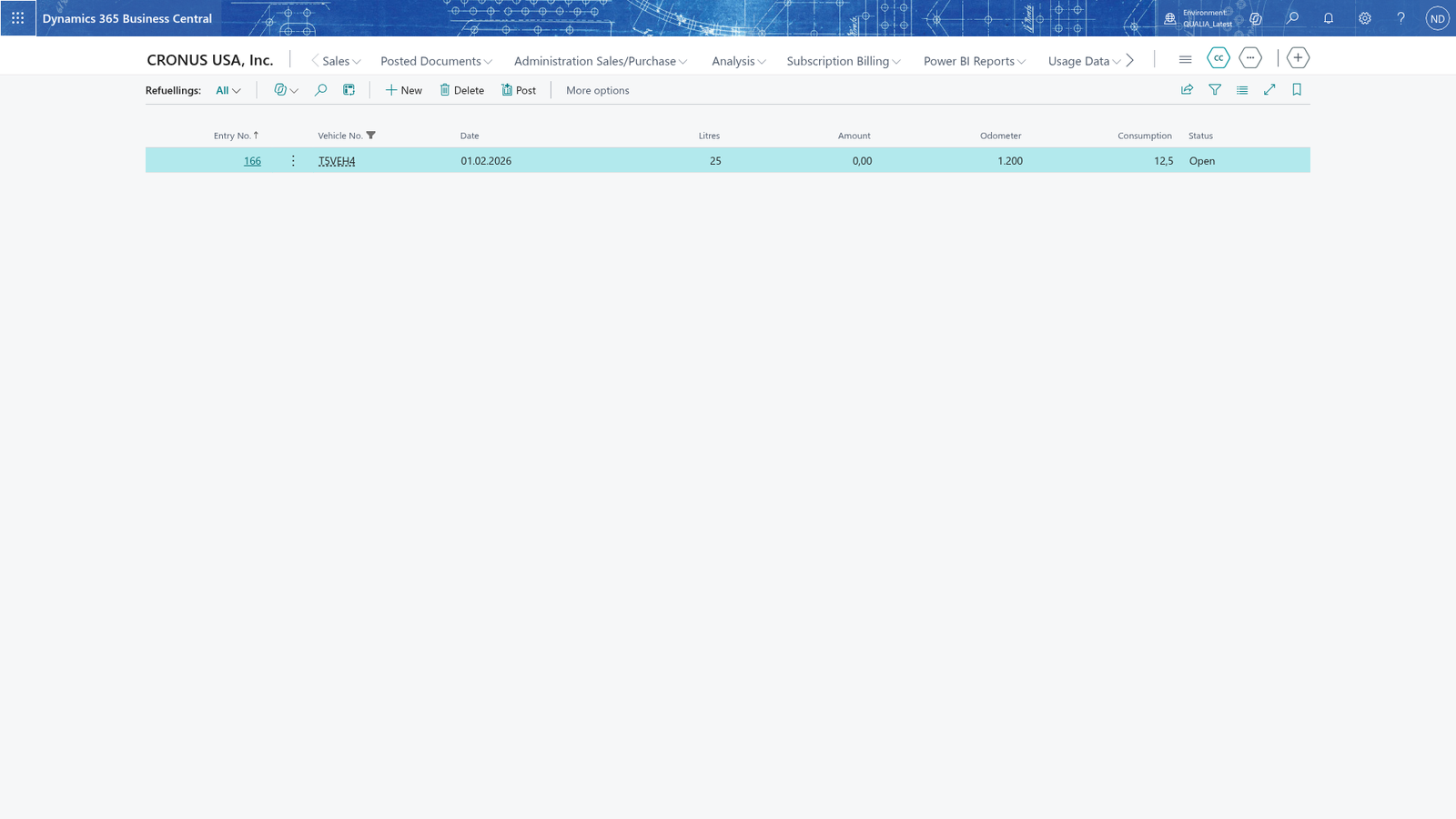
The Consumption is recalculated from the new litres and odometer.
See each vehicle's own consumption
The Consumption of a refuelling is calculated per vehicle: the distance is measured from that vehicle's previous refuelling, so refuellings of other vehicles don't affect it.
- Record a refuelling for one vehicle.
- Record refuellings for another vehicle.
- Search for Refuellings and open the list to look at the Consumption of each line.
Each line shows the consumption of its own vehicle. The vehicle's Average Consumption is the average of that vehicle's refuelling Consumption values and is shown on the Vehicle Card.