
Plan routes for vehicle deliveries
Route planning and stops means planning one vehicle's deliveries for one day. On the Routes list and the Route Card you set the vehicle, the driver and the start location, bring in the open sales orders and transfer orders to deliver on the route date, and let the app check the route before it is released. When every stop is done, completing the route creates and posts the vehicle's trip, so you don't enter it by hand.
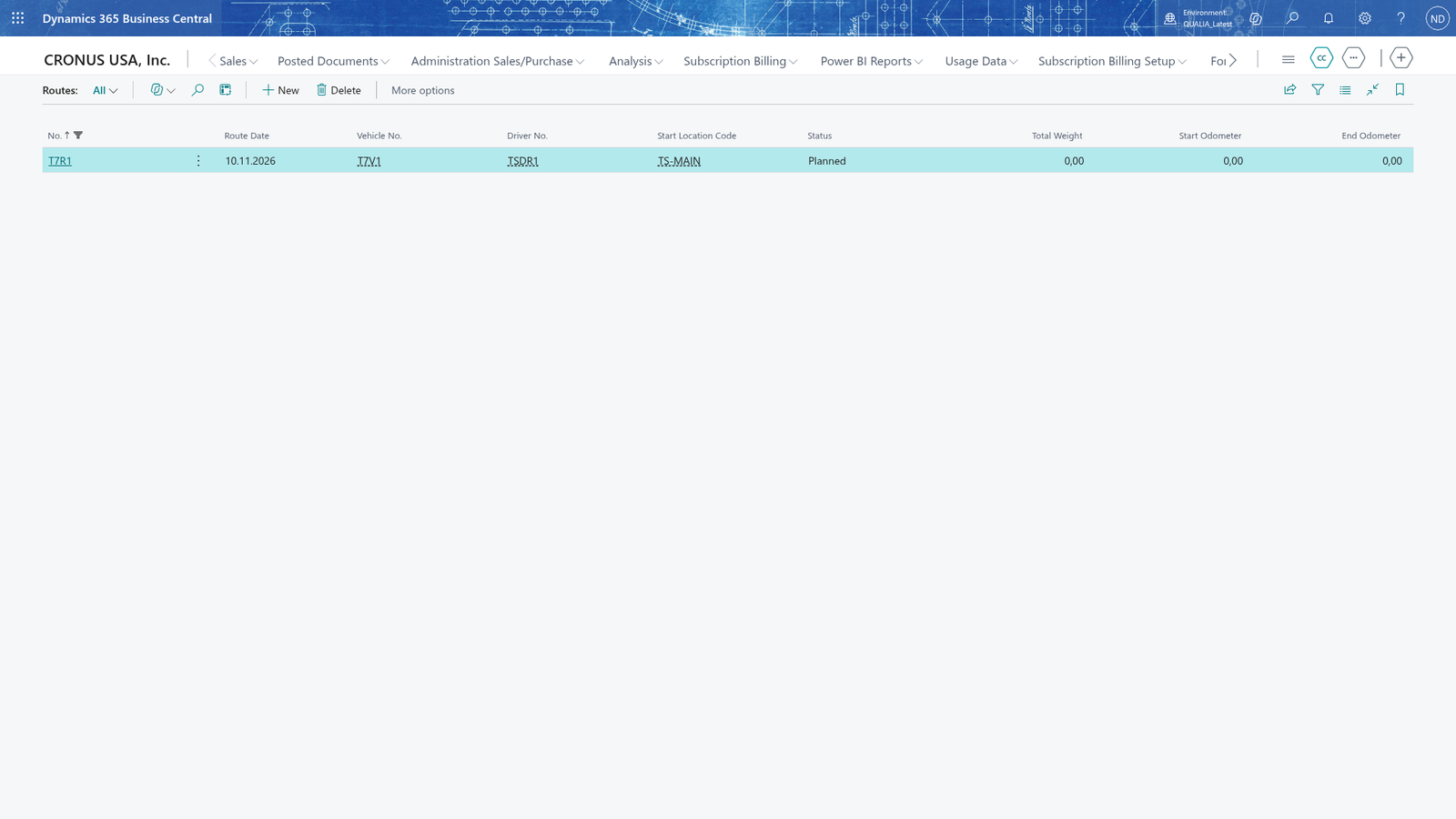
- Search for Routes and open it.
- Choose New.
- In Route Date, enter the day the deliveries take place.
- In Vehicle No., choose the vehicle that carries the route.
- In Driver No., choose the driver who drives it.
- In Start Location Code, choose the location the route starts from. Its documents ship from there.
- Close the card; the route is saved when you leave it.
The route appears on the Routes list and its Status is Planned.
Note: The No. is taken from the Route Nos. series of the Fleet Setup, and Status starts at Planned. Neither No. nor Status is editable on the card: the app changes the status with Release and Complete.
Get the documents to deliver
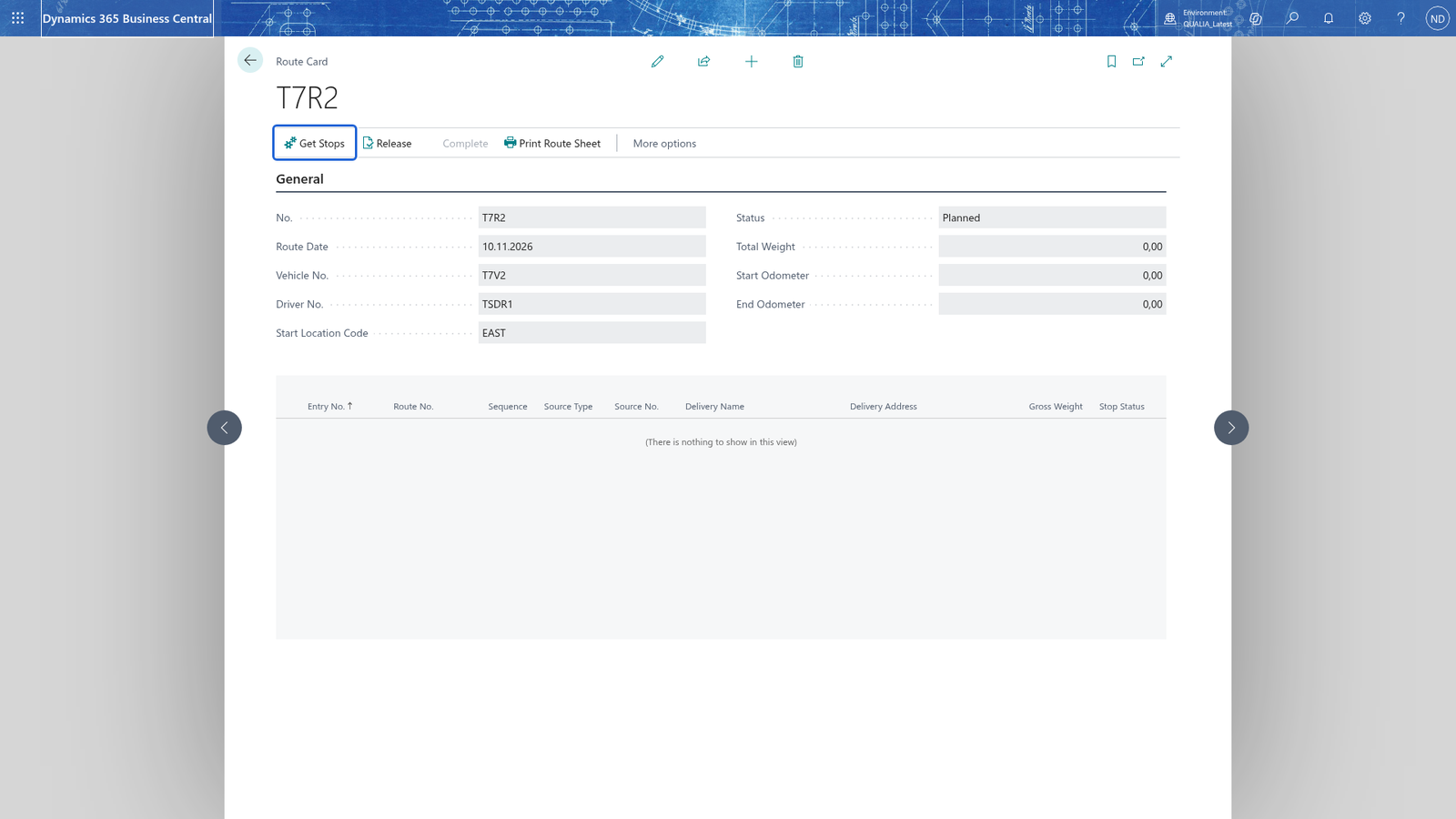
Get Stops needs the Route Date and the Start Location Code filled in on the route; you entered both when you created the route, and if the route card shows them empty, enter them there before you choose Get Stops.
- On the Routes list, open the route you created.
- Choose Get Stops.
- The Route Doc Selections list opens with one line per open sales order with Shipment Date on the route date at the start location and per open transfer order shipped from the start location on the route date.
- Select Selected on the line of each document to deliver on this route.
- Choose OK. Each selected document becomes a stop with delivery name, Sequence, gross weight and Stop Status Planned, and the stops appear in the Stops part of the route card.
Note: Each selected document becomes one stop. Documents you don't select stay open and are offered again, so you can put them on a route for a later day.
Note: A document can be on only one route that is not completed. If it is already on another route, the app names that route; open that route instead of adding the document again.
Check the stops
- On the route card, look at the Stops part.
- Each stop shows its Source Type and Source No., the Delivery Name and Delivery Address, its Sequence, its Gross Weight and its Stop Status.
- On the route card, Total Weight shows the sum of the stops' gross weights.
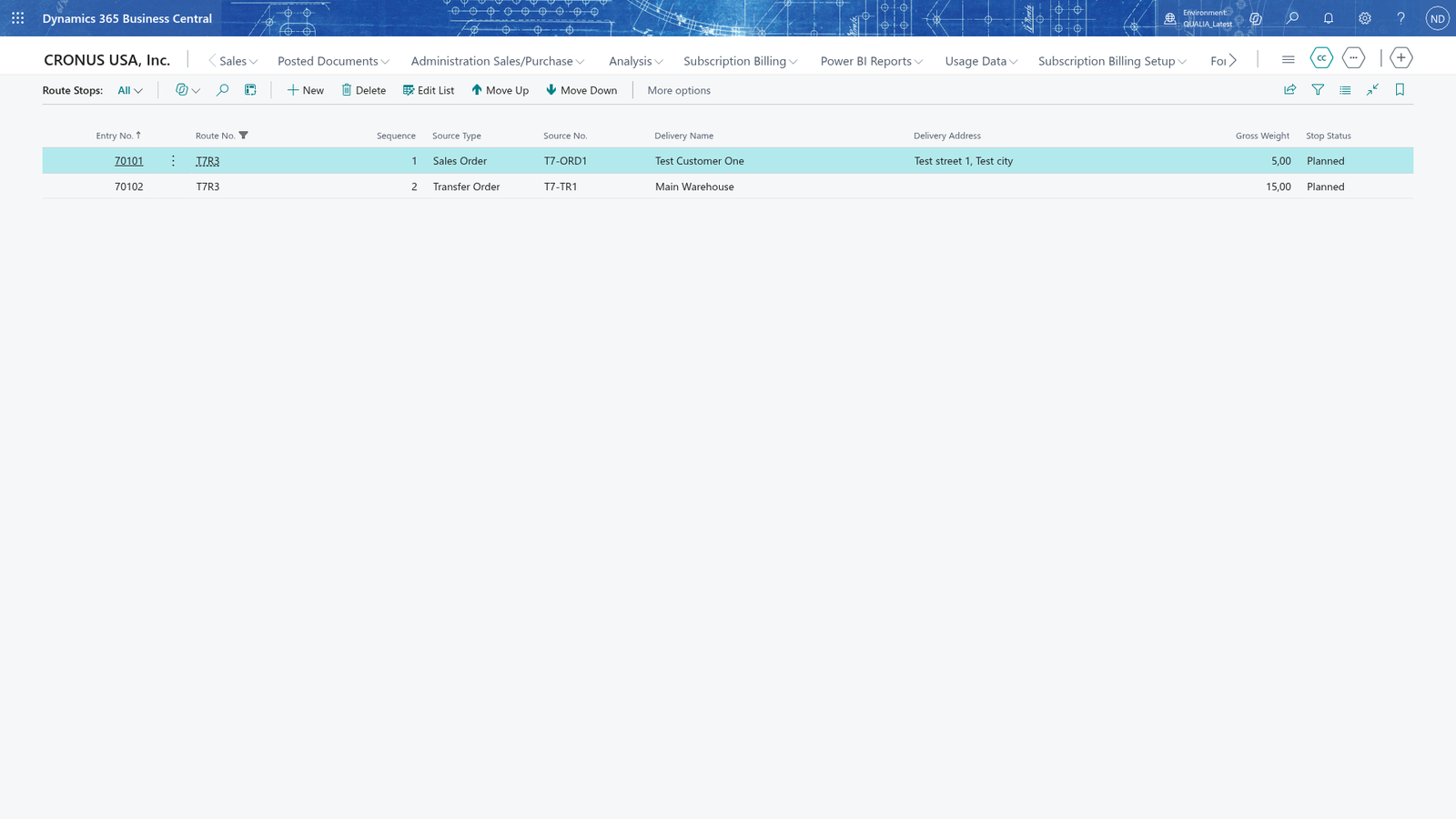
Note: The delivery name and address come from the source document: the ship-to address of the sales order, or the address of the transfer-to location of the transfer order. The gross weight is the document lines' quantity times the items' gross weight.