
Plan and complete vehicle maintenance
Maintenance in the fleet app is driven by the service intervals you set per vehicle type. Every vehicle gets a Next Service Date and a Next Service Odometer from those intervals, and the Vehicles Due Service list shows the vehicles that need service soon. When a workshop services a vehicle you record it in a maintenance order; completing the order moves the vehicle back into service and calculates when the next service is due.
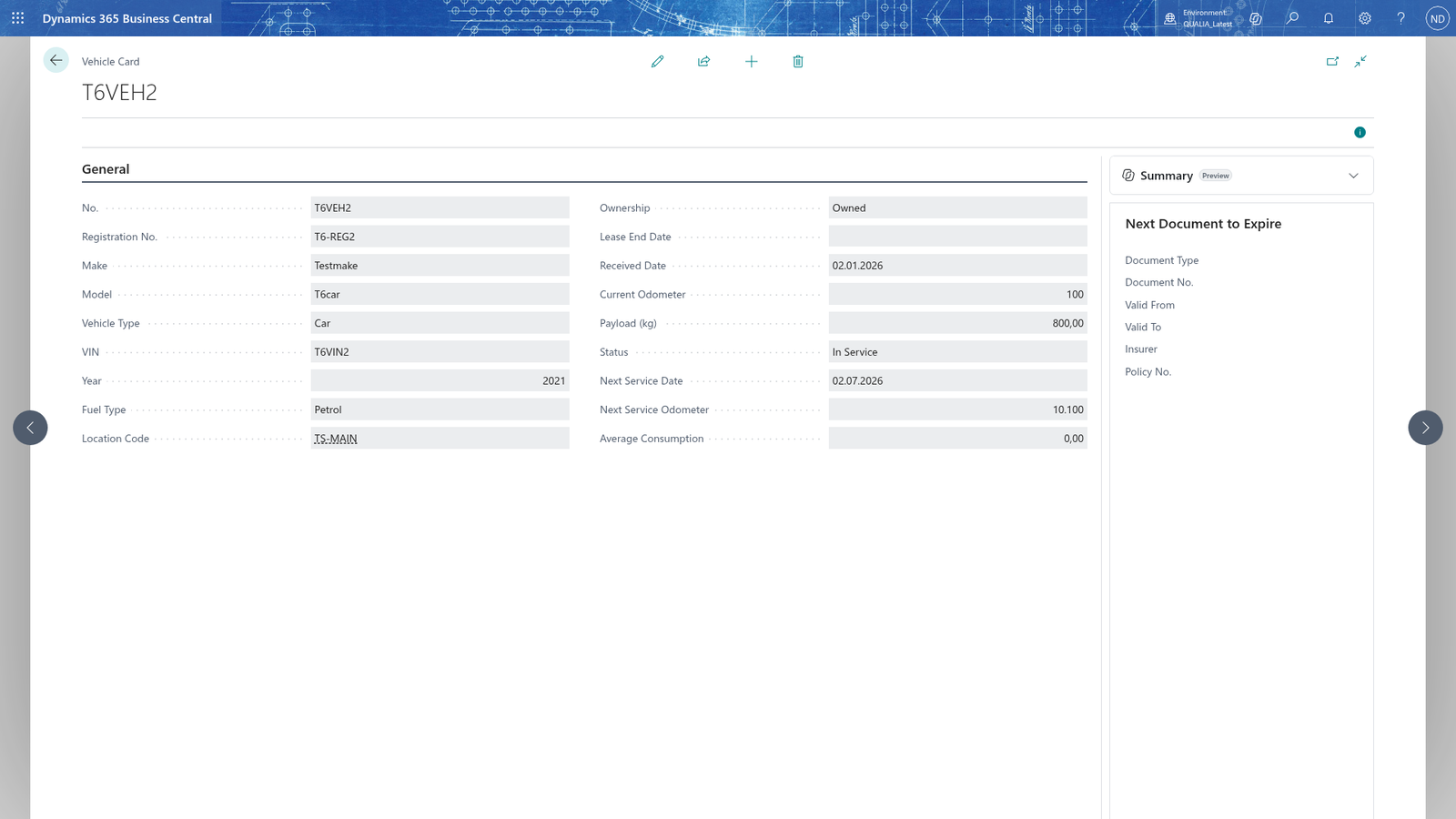
Note: A new vehicle gets its next service from the service intervals of its Vehicle Type: the interval in km counted from the vehicle's Current Odometer and the interval in months counted from its Received Date, whichever comes first. After a completed service, the next service is calculated the same way from Date Out and Odometer Out of the maintenance order.
Note: You set the service intervals per vehicle type once, on the Vehicle Type Service list that you open with Service Intervals on the Fleet Setup (see the setup chapter 'Company-agnostic install, standard data and access').
Create the maintenance order
- Search for Maintenance Orders and open it.
- Choose New to open a blank Maintenance Order.
- In Type, choose Service for planned maintenance or Repair.
- In Vehicle No., choose the vehicle.
- In Workshop Code, choose the vendor that does the work.
- In Date In, enter the date the vehicle went to the workshop.
- In Work Done, enter a short description of the work.
- In Cost, enter the cost of the work; Complete needs it.
- Close the card.
The order gets its number from the Maintenance Order Nos. series you chose in the Fleet Setup and its Status is Open. The vehicle's Status is In Workshop on the Vehicles list and on the Vehicle Card, so the vehicle can't be used while it is with the workshop.
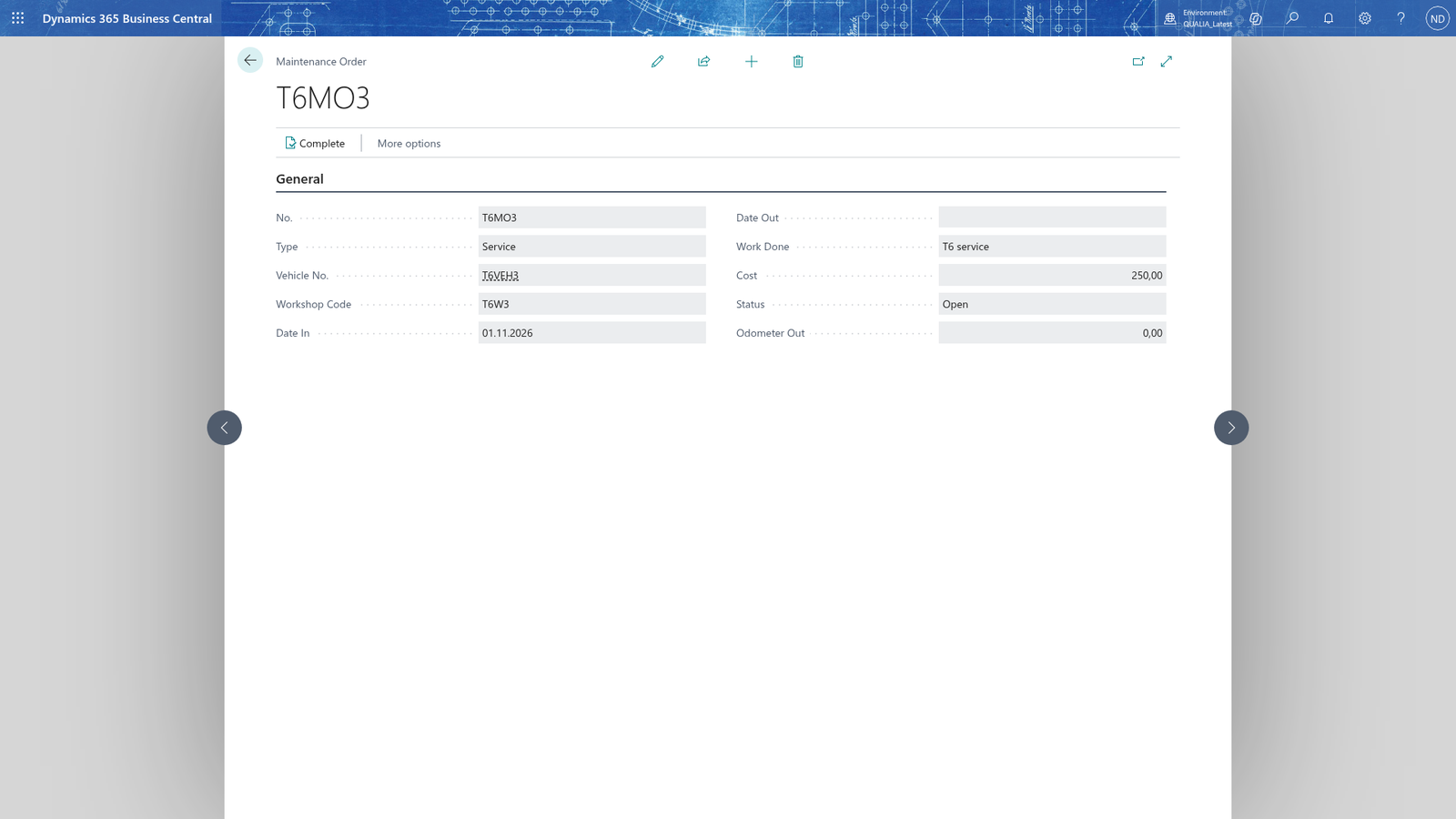
Note: Choosing the vehicle sets it to In Workshop straight away. While the vehicle is in workshop the app refuses it on trips and routes with the message "Vehicle <no> is in the workshop and cannot be used until its maintenance order is completed. Choose another vehicle."
Complete the maintenance order
- Search for Maintenance Orders, choose the order and open its card.
- In Date Out, enter the date the vehicle came back from the workshop.
- In Cost, enter the cost of the work.
- In Odometer Out, enter the vehicle's odometer when it came back. For a Service order, the vehicle's Next Service Odometer is taken from Odometer Out, so enter the reading the workshop reported.
- Choose Complete and confirm.
- Open the Vehicle Card of the vehicle: its Status is back to In Service, and for a Service order Next Service Date and Next Service Odometer show when the next service is due.
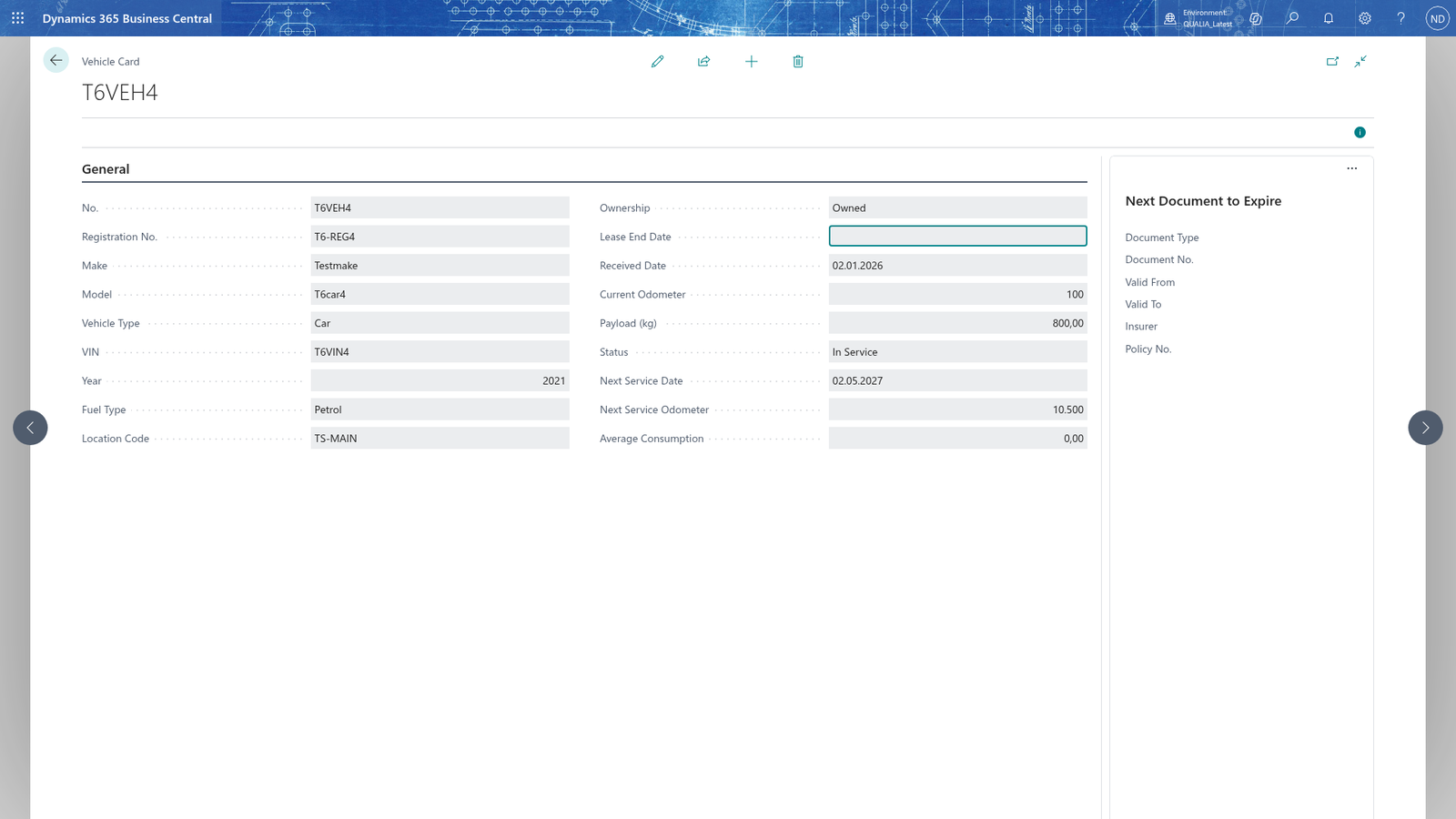
A completed order shows Status Completed on the Maintenance Orders list and on the card, and you can no longer change it.
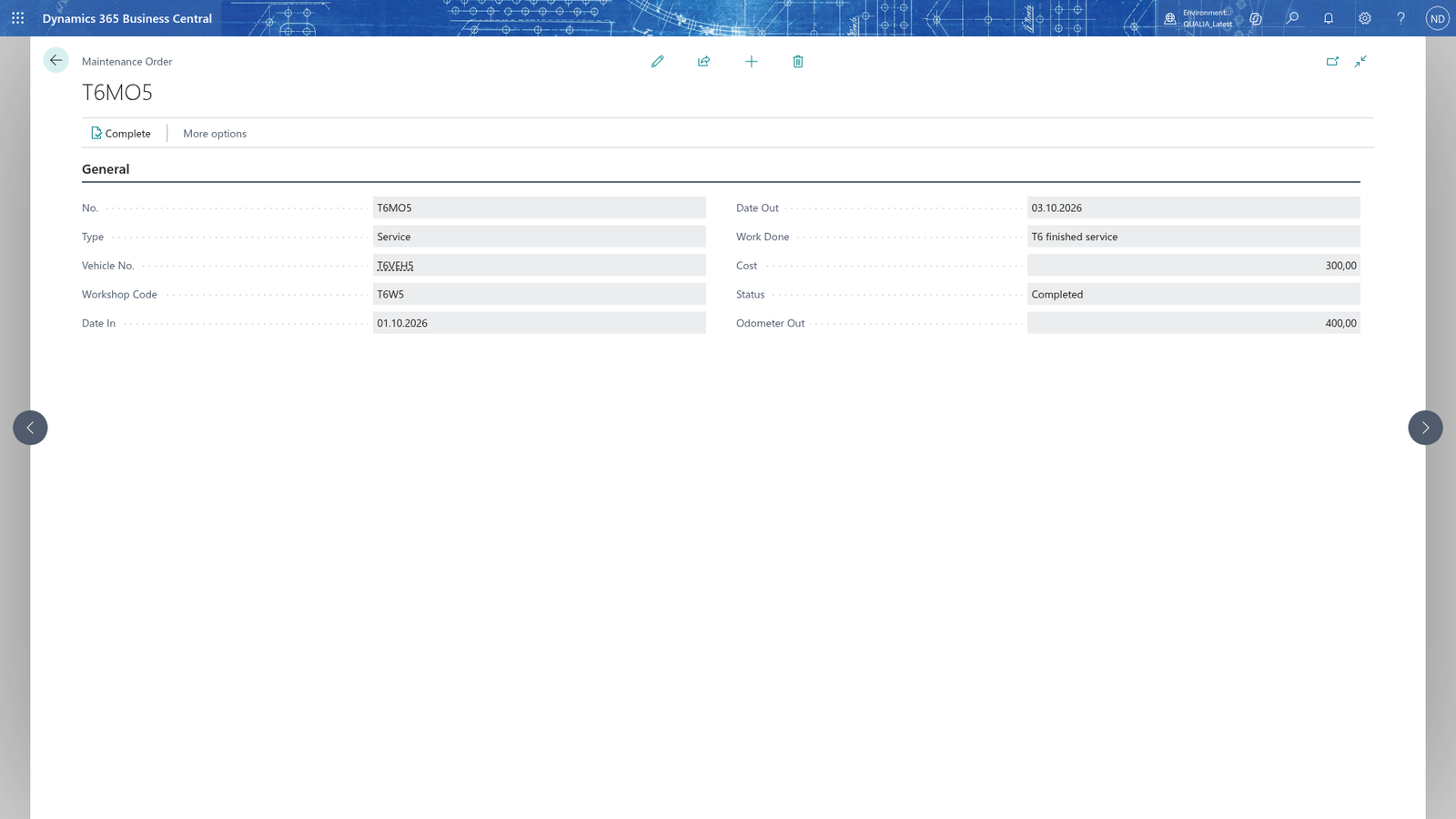
Note: Complete needs the vehicle, Date In, Date Out and Cost. If one of them is missing the app stops you with a message such as "Date Out must be filled in before maintenance order <number> can be completed." Enter what is missing and choose Complete again.
Note: A completed order is final: the app refuses to change it, cancel it, reopen it or delete it and says "Maintenance order <number> is completed and can no longer be changed. Create a new maintenance order for corrections." Correct a mistake with a new maintenance order.
See which vehicles need service
- Choose the search icon, enter Vehicles Due Service, and open the list.
- The list shows the vehicles whose Next Service Date is within the next 30 days or has already passed (the overdue vehicles).
- Choose the chevron on the line (or double-click the line) to open the vehicle's Vehicle Card, where Next Service Date and Next Service Odometer show when the service is due.
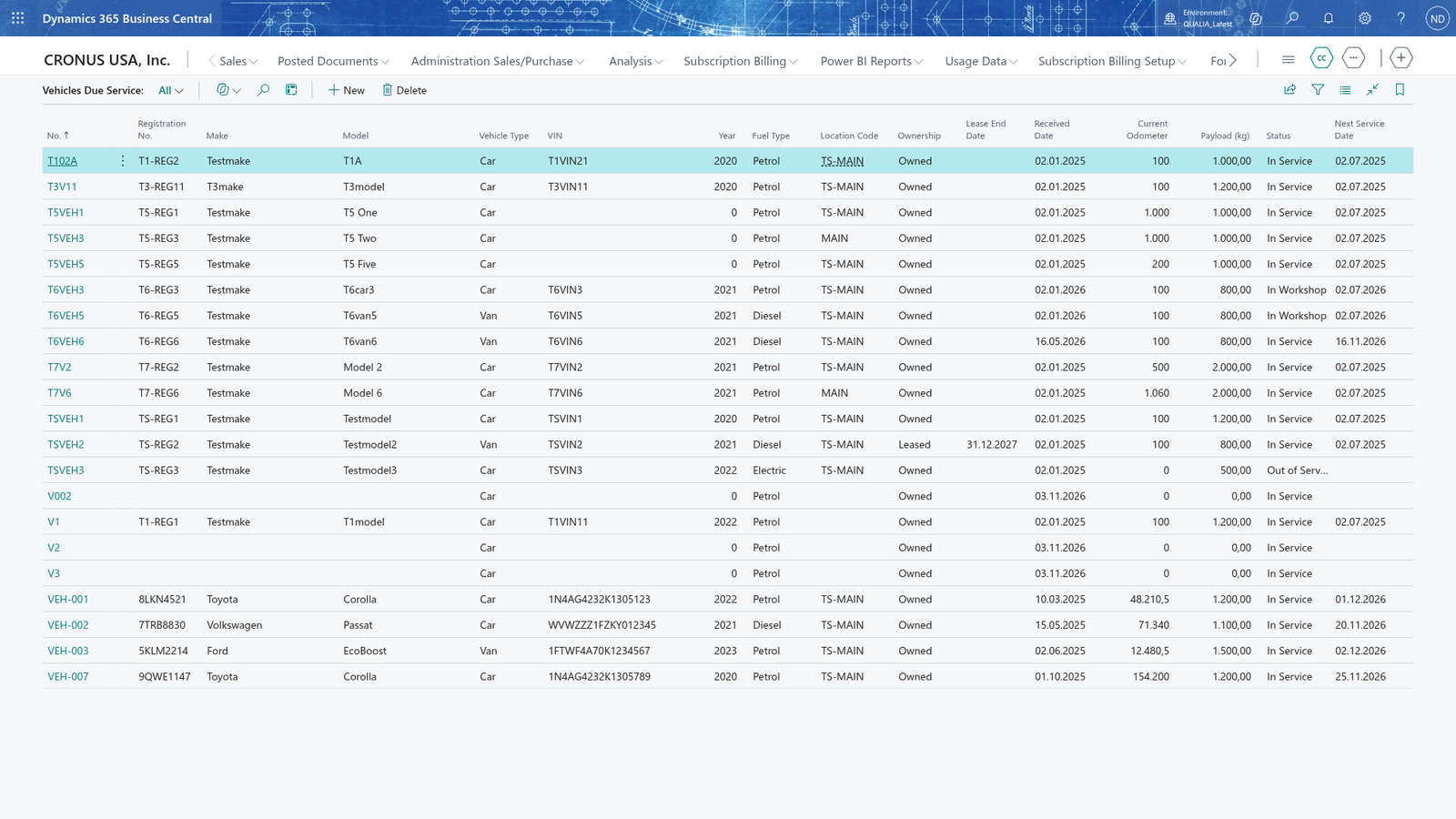
Note: The list watches the date: it shows the vehicles whose Next Service Date is within 30 days or already passed. The kilometre half of the rule is on the vehicle: Next Service Odometer on the Vehicle Card shows the odometer at which the next service is due, so use the vehicle's Next Service Odometer to see whether a service is due by distance. Create a maintenance order to start the service.