
Complete the route and post the trip
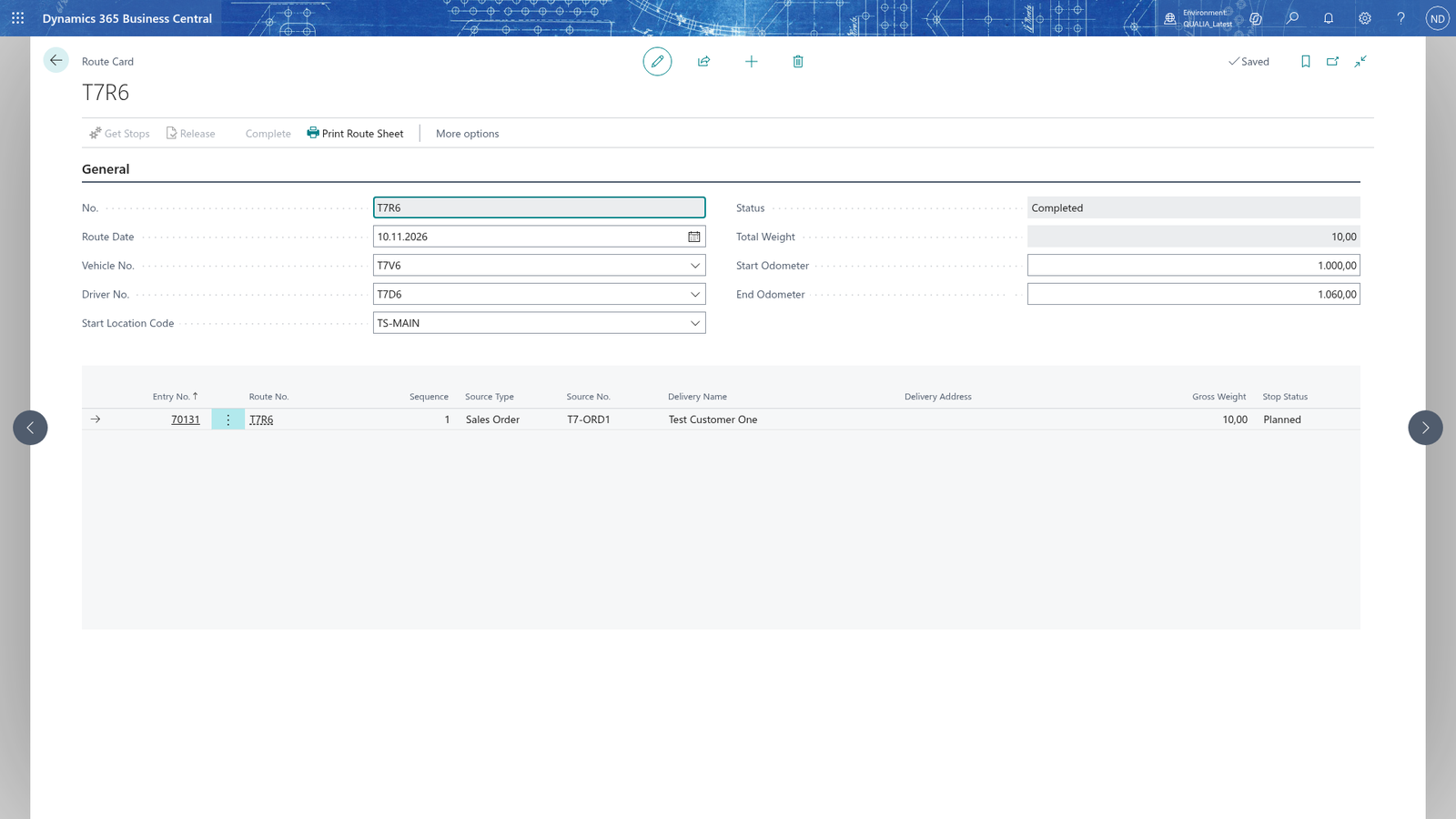
Once every stop is Delivered or Not Delivered, enter the vehicle's odometer readings and complete the route. Route completion and trip creation sets the route Completed and creates and posts the vehicle's trip, so you don't record the trip in the Vehicle Logbook by hand.
- Choose the search icon, enter Route Stops, and open the list.
- Filter it on the route number in Route No.
- Set every stop's Stop Status to Delivered or Not Delivered.
- Open the route card. In Start Odometer, enter the vehicle's odometer at the start of the route.
- In End Odometer, enter the vehicle's odometer at the end of the route.
- Choose Complete.
- Open the Vehicle Card: its Current Odometer now shows the End Odometer. Open the Vehicle Logbook: the vehicle's trip for the route is created and posted there.
Note: Complete is available only when the route is Released; release the route first.
Note: Complete needs every stop Delivered or Not Delivered and both odometers. The odometers follow the same rules as a trip: Start Odometer must be at least the vehicle's Current Odometer, and End Odometer must be greater than Start Odometer; each check shows a message.
Note: Once the route is Completed, it can't be changed or deleted. The documents the route delivered can go on a new route after that.