
Decide when it goes out: by hand, or automatically
An e-mail template is a rule set with the same code. It goes out when its rule runs: by hand with Send Email, or automatically when a record changes. Either way, the rule set must be switched on and listed in a rule group.
Send by hand: the order confirmation
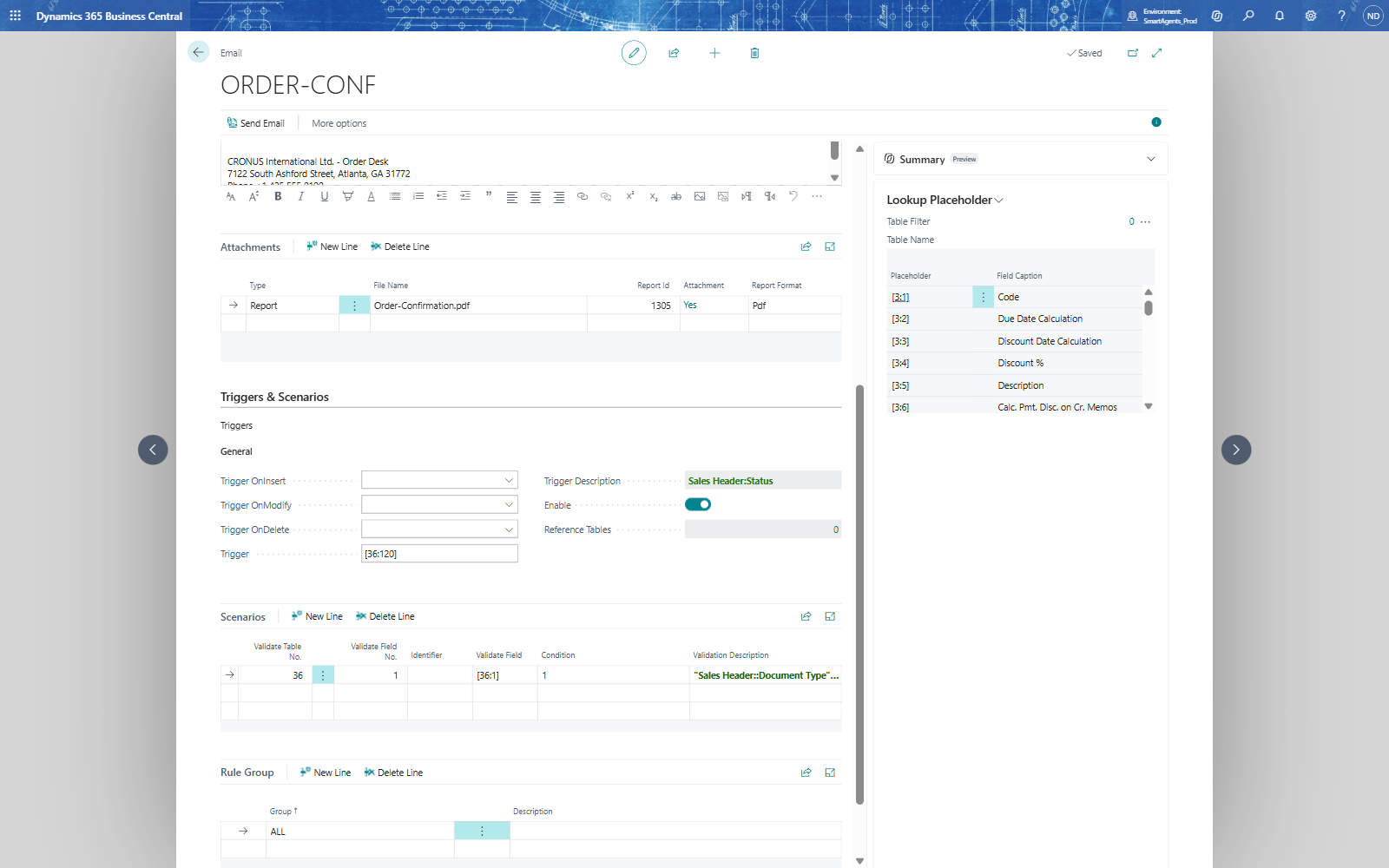
- On the template ORDER-CONF, in Triggers & Scenarios, fill in the Trigger field [36:120] and leave Trigger OnInsert, Trigger OnModify and Trigger OnDelete blank. The template then knows its table (Sales Header) but never fires by itself. Without a trigger table Send Email says "The rule has no Trigger Table configured".
- In Scenarios, on the first line: Condition 1 and Validate Field [36:1] - Document Type = Order (option values are entered as numbers: Order = 1).
- In Rule Group, enter Group ALL, and turn on Enable in Triggers & Scenarios - the template's own rule line; without it Send Email sends nothing.
- Search for Business Rules, open the rule set ORDER-CONF and turn on Enable - the app creates the template's rule set switched off.
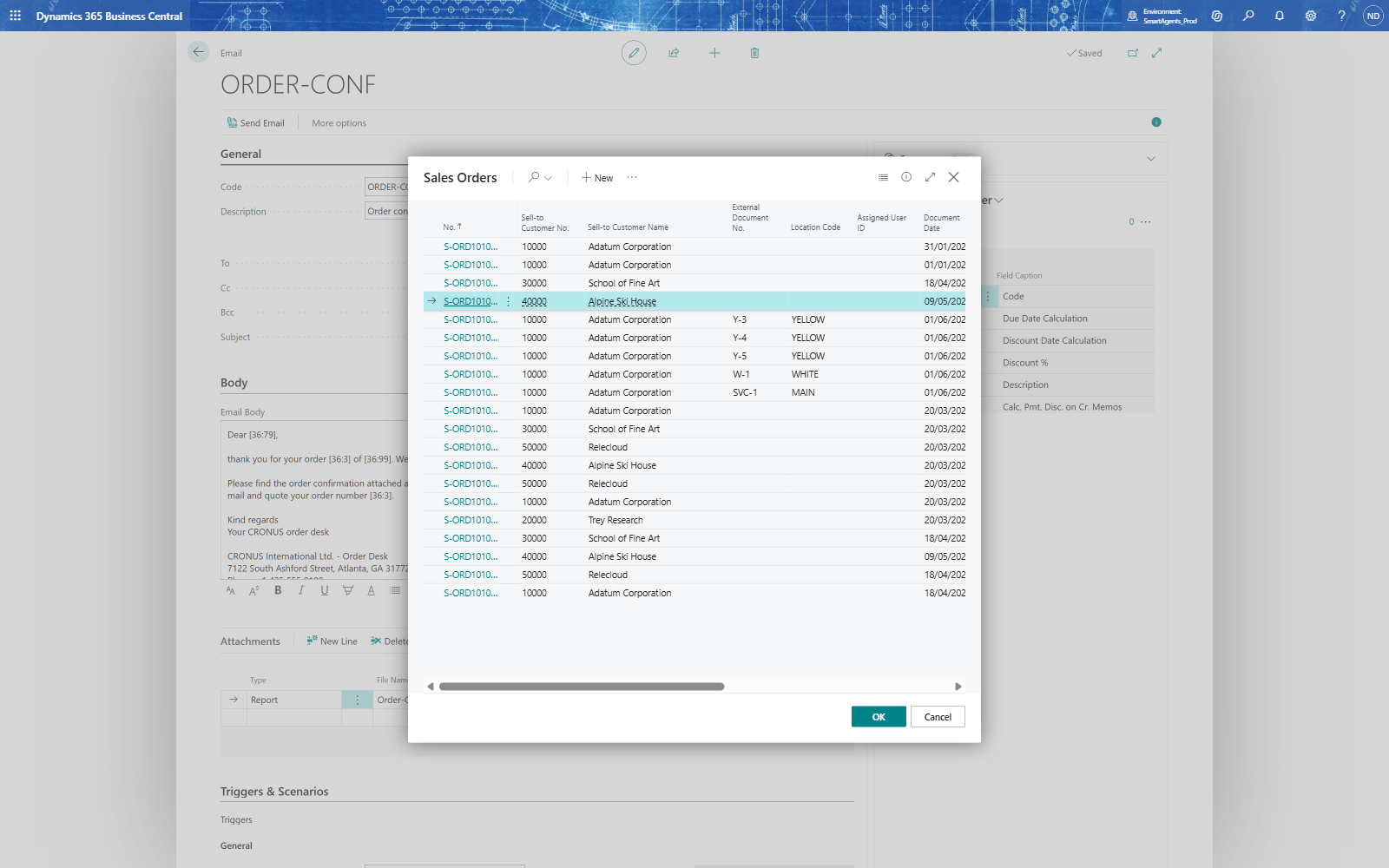
- On the template, choose Send Email. The Sales Orders list opens (the Trigger Page Id): select order S-ORD101004 and choose OK. The e-mail with the PDF goes out.
Note: Send Email runs the template's scenarios: an order that doesn't meet them (for example a scenario Status = Released on an open order) gets no e-mail.
Send automatically: the warehouse notice on release
- Create a second template, ORDER-REL: To warehouse@..., Subject Order [36:3] for [36:79] is released - please pick, a body with the ship-to address
[36:13], [36:17]and the requested delivery date[36:5790]. - In Triggers & Scenarios: Trigger OnModify After, Trigger [36:120] (Status) - Trigger Description shows Sales Header:Status - and Enable on.
- In Scenarios: first line Condition 1, Validate Field [36:1] (Order); the next new line Condition 1, Validate Field [36:120] (Released).
- Rule Group ALL, and Enable on the rule set ORDER-REL in Business Rules.
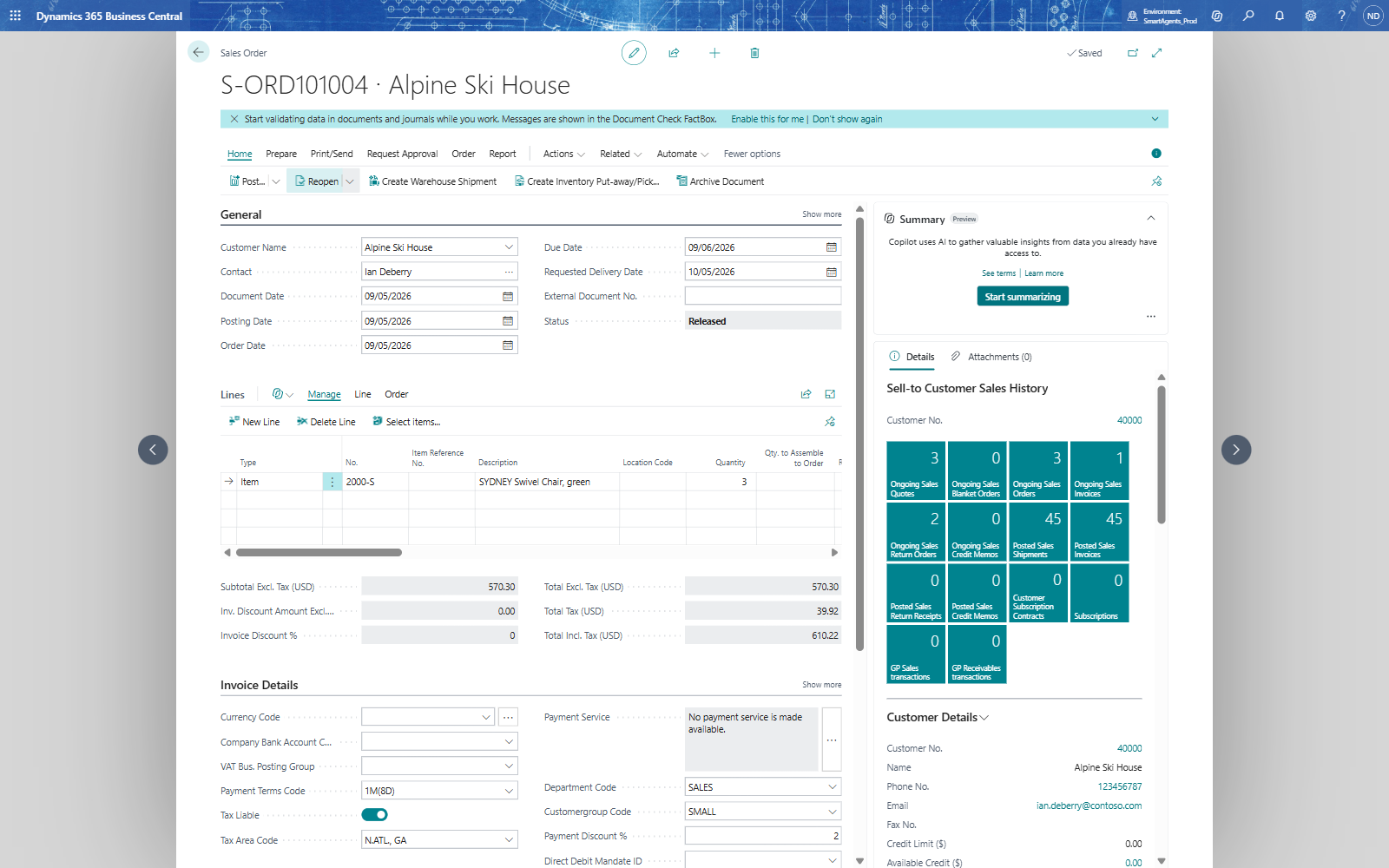
- Tom releases S-ORD101004: the status becomes Released, and the warehouse gets the e-mail.
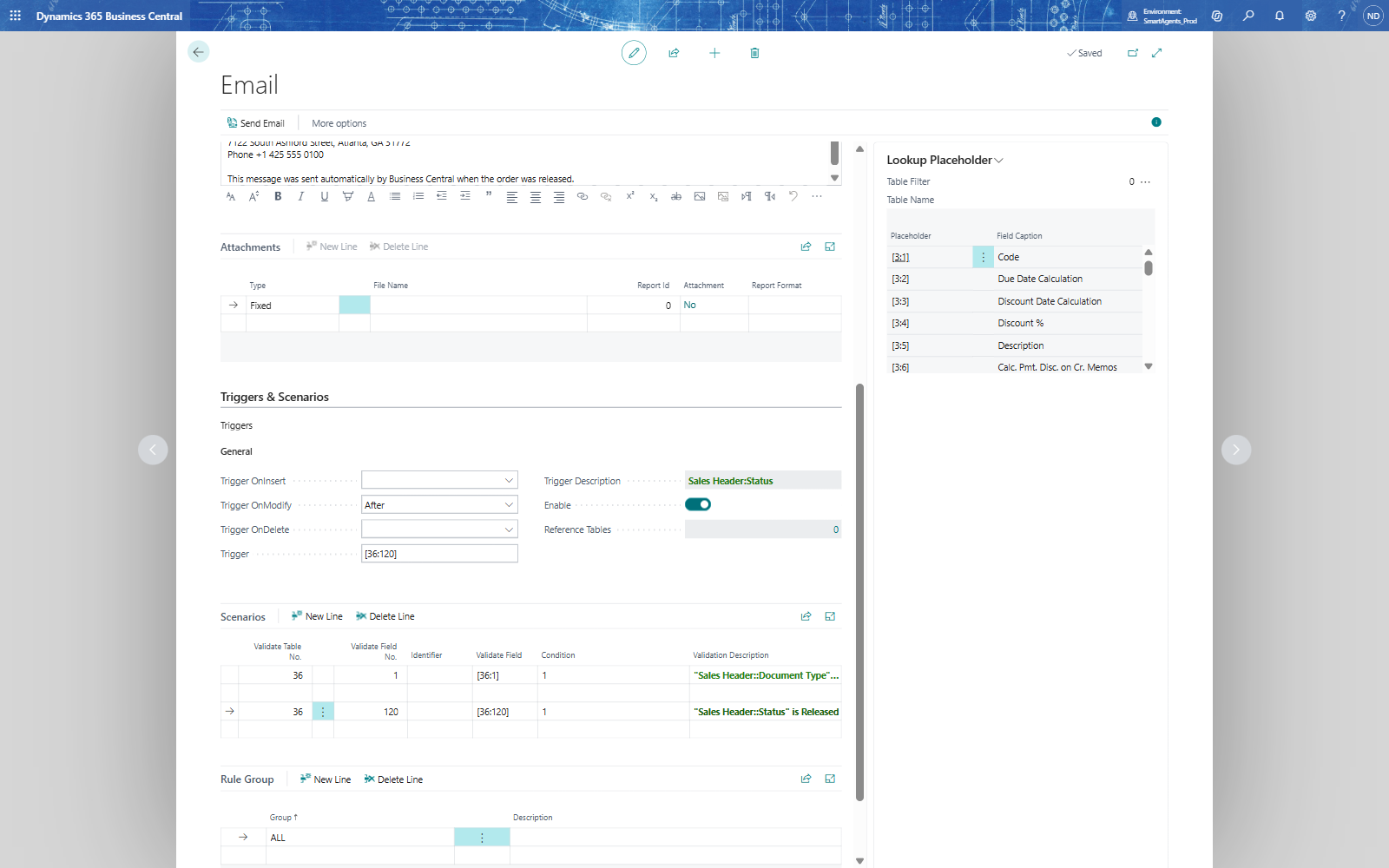
Note: In the Scenarios part of a template the line below the first scenario can be blank - it is the template's own condition line. Leave it as it is and enter the next scenario on the new line after it.
Note: Don't attach a report of the same document to an automatic e-mail that runs on its release: the report updates the order ("No. Printed") inside the release, and Business Central then refuses the release ("The changes to the Sales Header record cannot be saved because some information on the page is not up-to-date"). Send such e-mails by hand, as above.
If something goes wrong
- Nothing is sent: check Enable on the template's trigger, Enable on its rule set (Business Rules), the rule group, and the scenarios (option values as numbers).
- Send Email says "The rule has no Trigger Table configured": fill in the Trigger field.