
Overdue: complaints open longer than the response time
When the company's work date is later than the Received Date of a complaint plus the Response Time (Days) of its category, the Overdue field is set on the complaint. Business Central then shows the complaint as overdue on its card and in the Complaints list until it is resolved or rejected.
A blue rectangle marks the element to focus on in the pictures below.
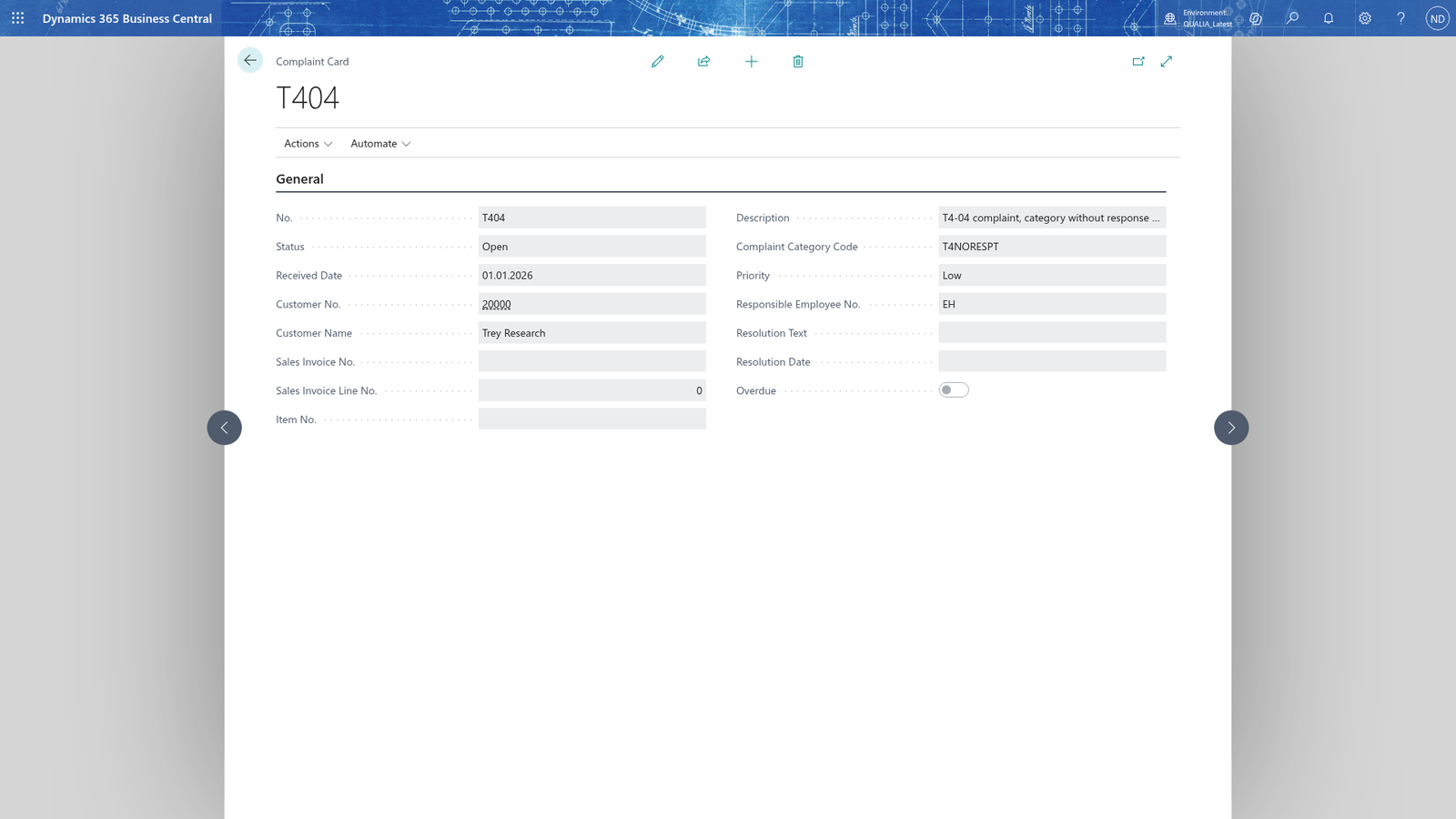
See an overdue complaint on the card
- Choose Search, enter Complaints, and open the Complaints list.
- Choose the number of the complaint to open its card.
- Check the Overdue field at the bottom of the card.
Focus on the Overdue field: it is marked for a complaint that has been open longer than the response time of its category.
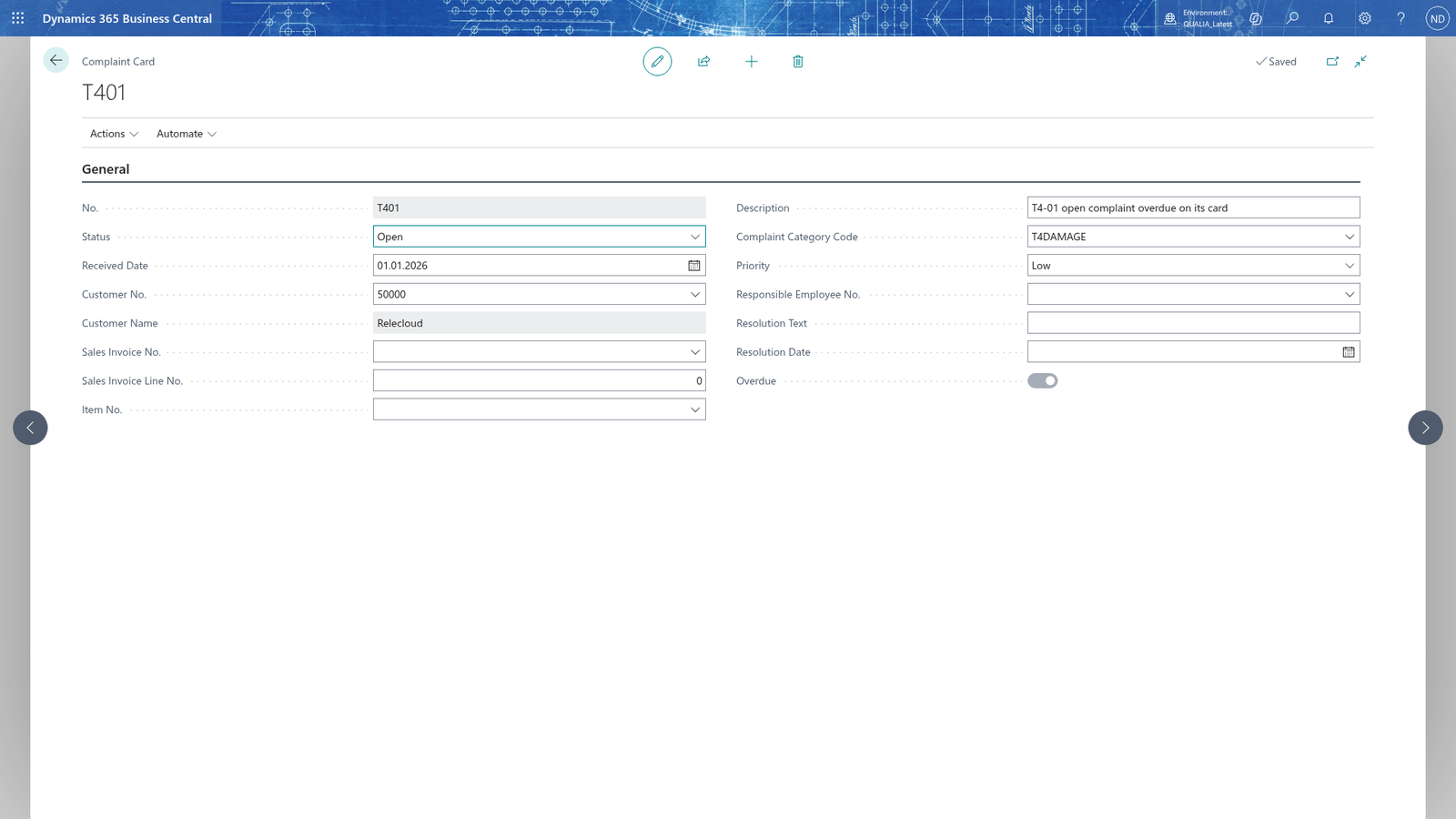
See the overdue flag in the Complaints list
- Choose Search, enter Complaints, and open the Complaints list.
- The Overdue column shows the overdue flag for every complaint: open, in progress or closed.
Focus on the Overdue column: it shows the current overdue flag of all complaints.
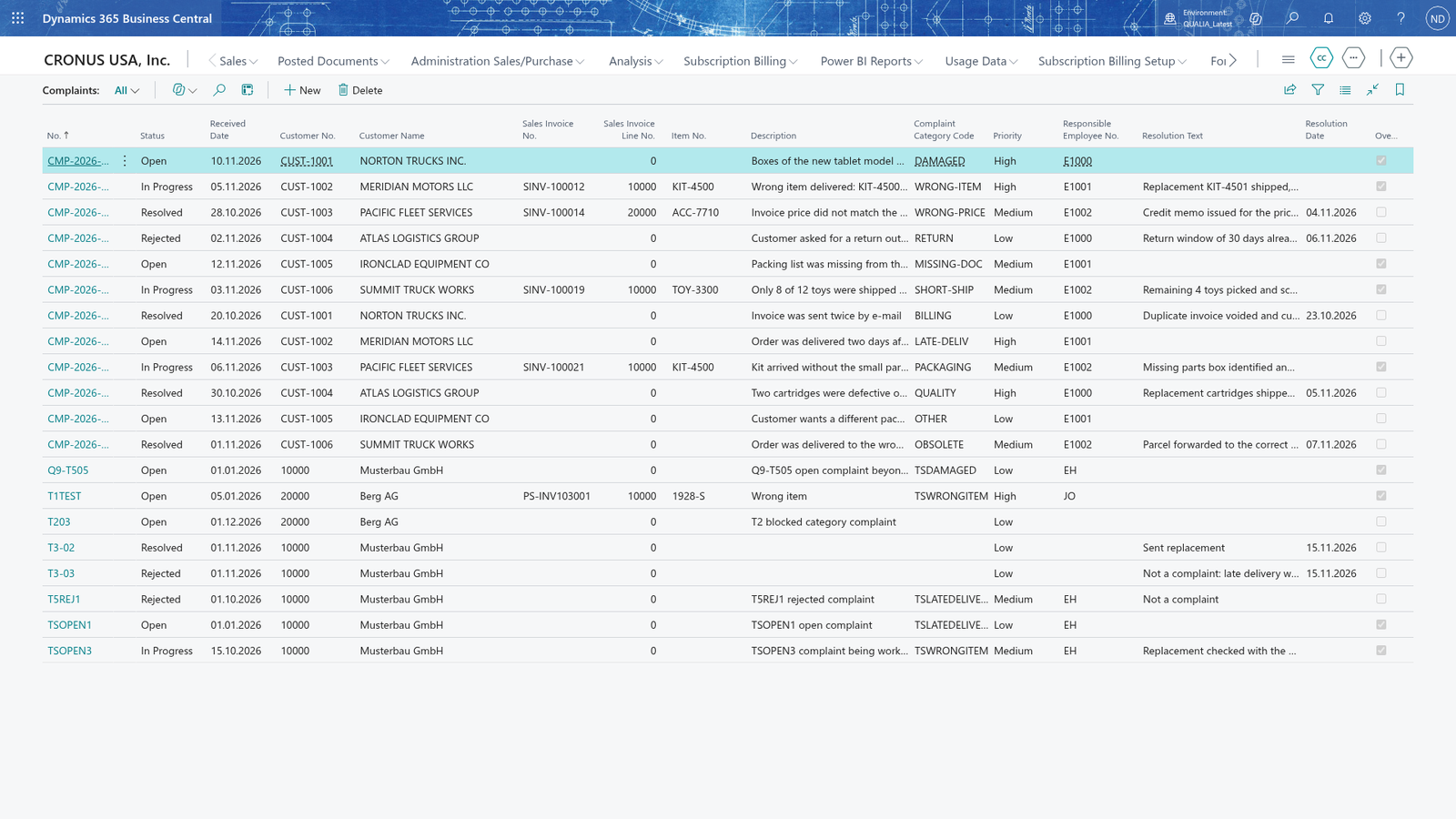
Note: The Overdue field is shown on both the complaint card and the Complaints list.
Resolving clears the overdue flag
- Choose Search, enter Complaints, and open the Complaints list.
- Choose the number of the overdue complaint to open its card.
- Enter a Resolution Text that says how the complaint was solved, for example 'Customer received a replacement'.
- Choose Resolve on the card.
- The Status is now Resolved. Close the card.
- Choose Search, enter Complaints, open the Complaints list and look at the row of the complaint.
Focus on the Overdue column in the Complaints list: the complaint is no longer overdue.
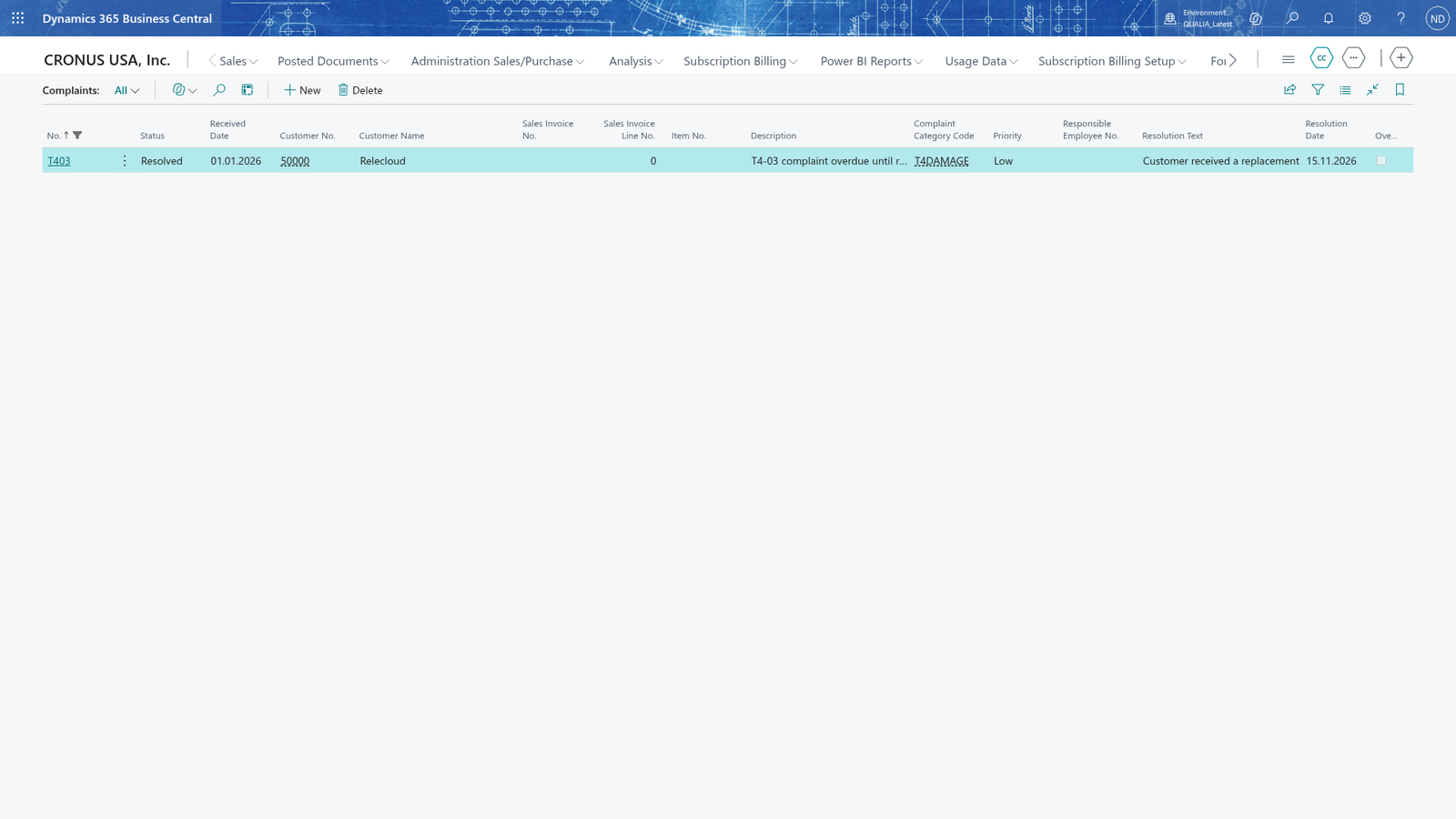
Note: Resolving clears the overdue flag: the overdue indication only applies until a complaint is resolved or rejected.
A complaint of a category without a response time is never overdue
- Choose Search, enter Complaint Categories, and open the list.
- Check that the category of the complaint has no Response Time (Days). If you do want it to become overdue, enter a number of days there.
- Open the card of the complaint and check the Overdue field.
Focus on the Overdue field: a complaint whose category has no response time can never be overdue.
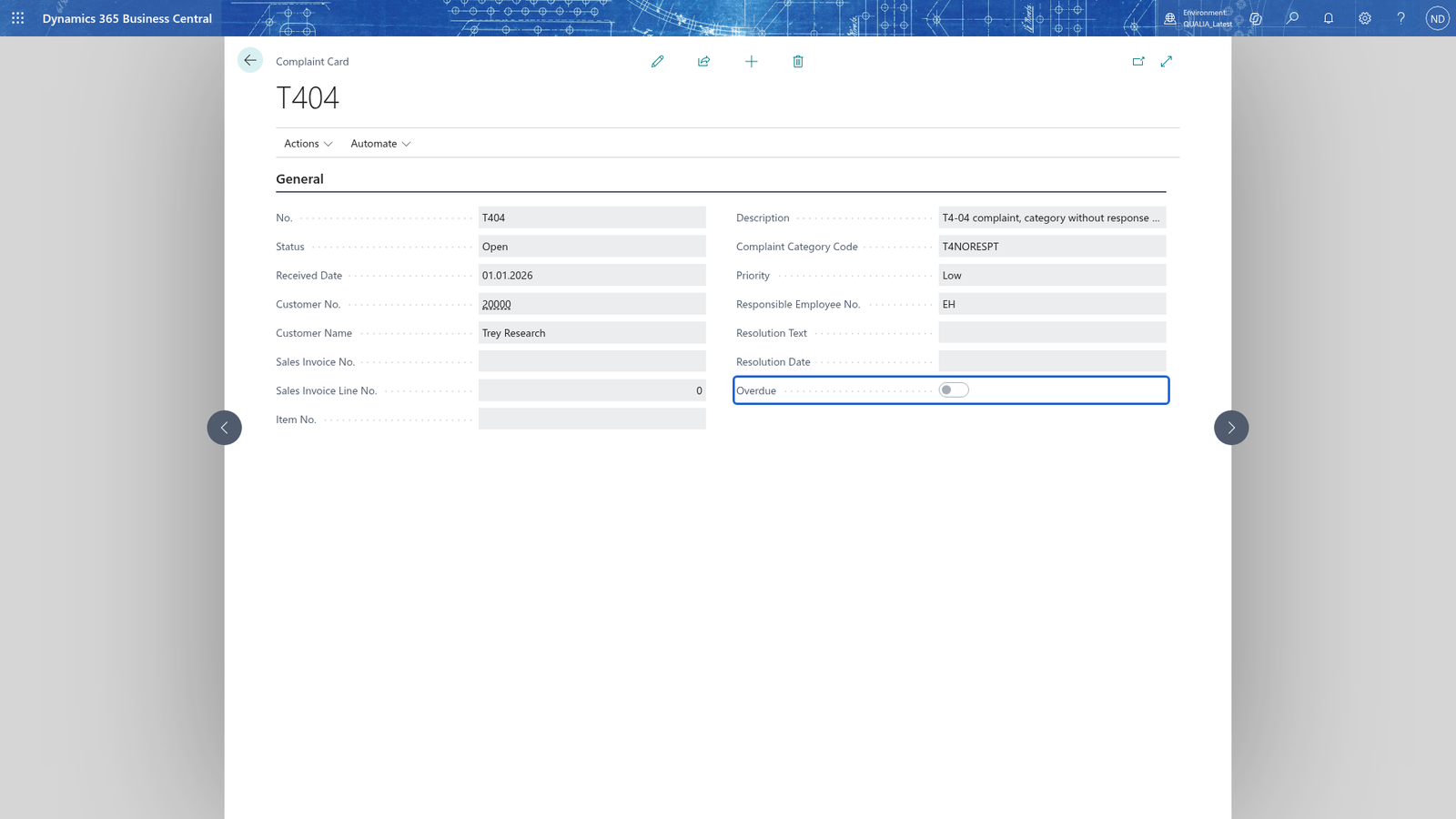
Note: Overdue is only set when the complaint has a category with a Response Time (Days) greater than zero. A complaint of a category without a response time, or without a category at all, is never shown as overdue: the Overdue field stays empty on such a complaint.