
Moving complaints through their status flow
A complaint starts as Open and moves to In Progress, Resolved or Rejected; no other move is allowed. A move to In Progress, Resolved or Rejected needs a Resolution Text, and once the complaint is Resolved or Rejected you can no longer change it. All moves are done with the actions in the Actions area of the complaint's card; open the card from the Complaints list.
Move a complaint from Open to In Progress
- Search for Complaints and open it.
- On the Complaints list, choose the complaint's number to open its card.
- Enter a Resolution Text, for example "Investigating with supplier".
- Choose Start.
The complaint is now In Progress and the Resolution Text is saved with it.
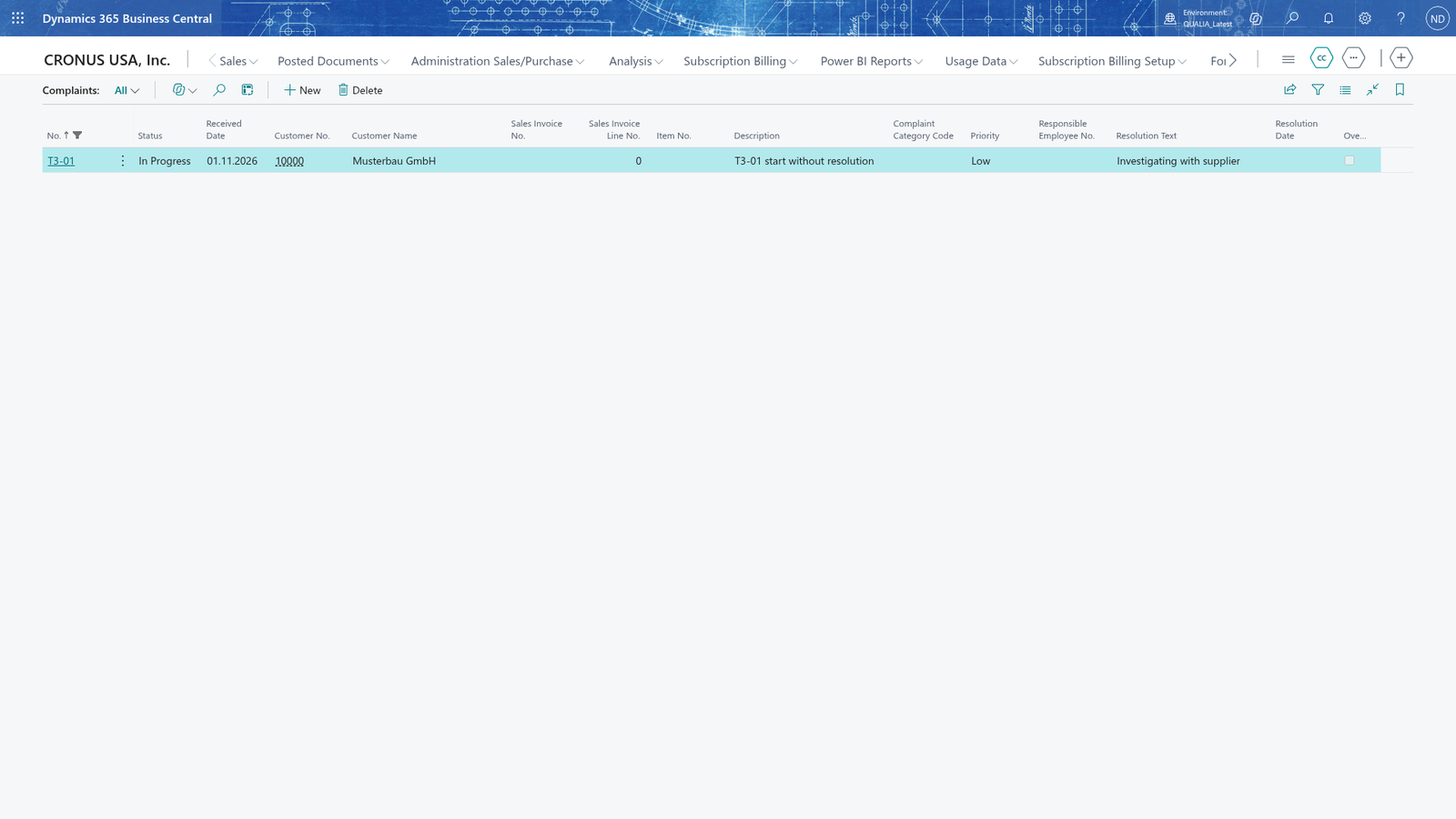
Look for the Start button and the entered Resolution Text.
Note: The blue rectangle in the screenshot marks the important part.
Resolve a complaint
- Open the card of the In Progress complaint.
- Enter the Resolution Text.
- Choose Resolve.
The complaint is now Resolved; its Resolution Date is filled in. A complaint that needs no work can also be resolved straight from Open: enter the Resolution Text on the Open complaint and choose Resolve; the same resolution-text rule applies.
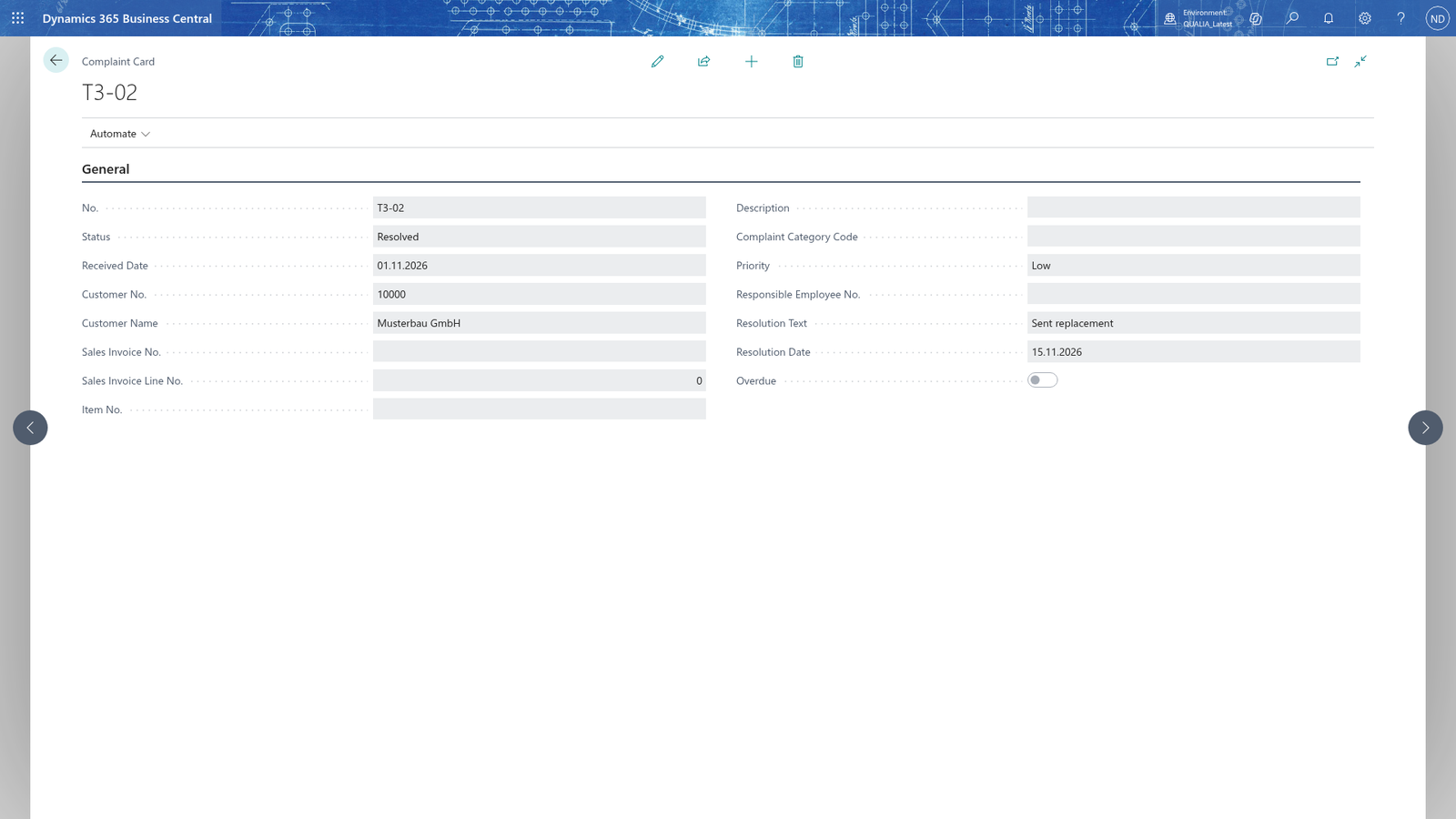
Look for the Status Resolved and the Resolution Date on the card.
Reject a complaint
- Open the card of the In Progress complaint.
- Enter the Resolution Text, for example "Not a complaint: late delivery was agreed".
- Choose Reject.
The complaint is now Rejected and the resolution text is stored. Without a resolution text the rejection is refused, so the complaint stays In Progress.
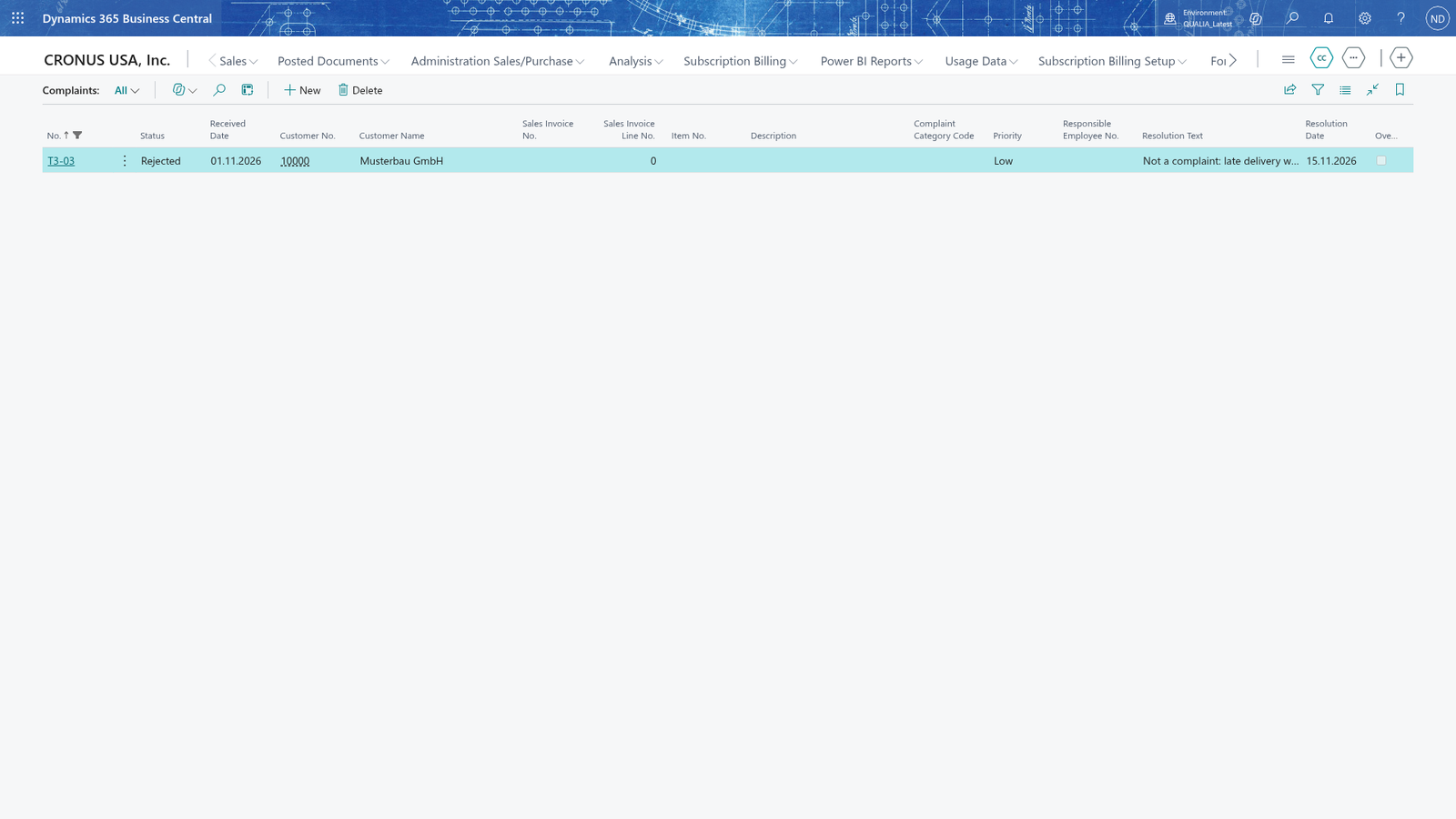
Look for the Reject button and the entered Resolution Text.
Resolution text is required before a complaint leaves Open
To move a complaint away from Open you must enter a Resolution Text first; without it the move is refused. Business Central shows the message 'Specify a resolution text before you set the status to In Progress.' Enter the resolution text and choose Start again.
Look for the error text that names the missing resolution text.
A Resolved or Rejected complaint can no longer be changed
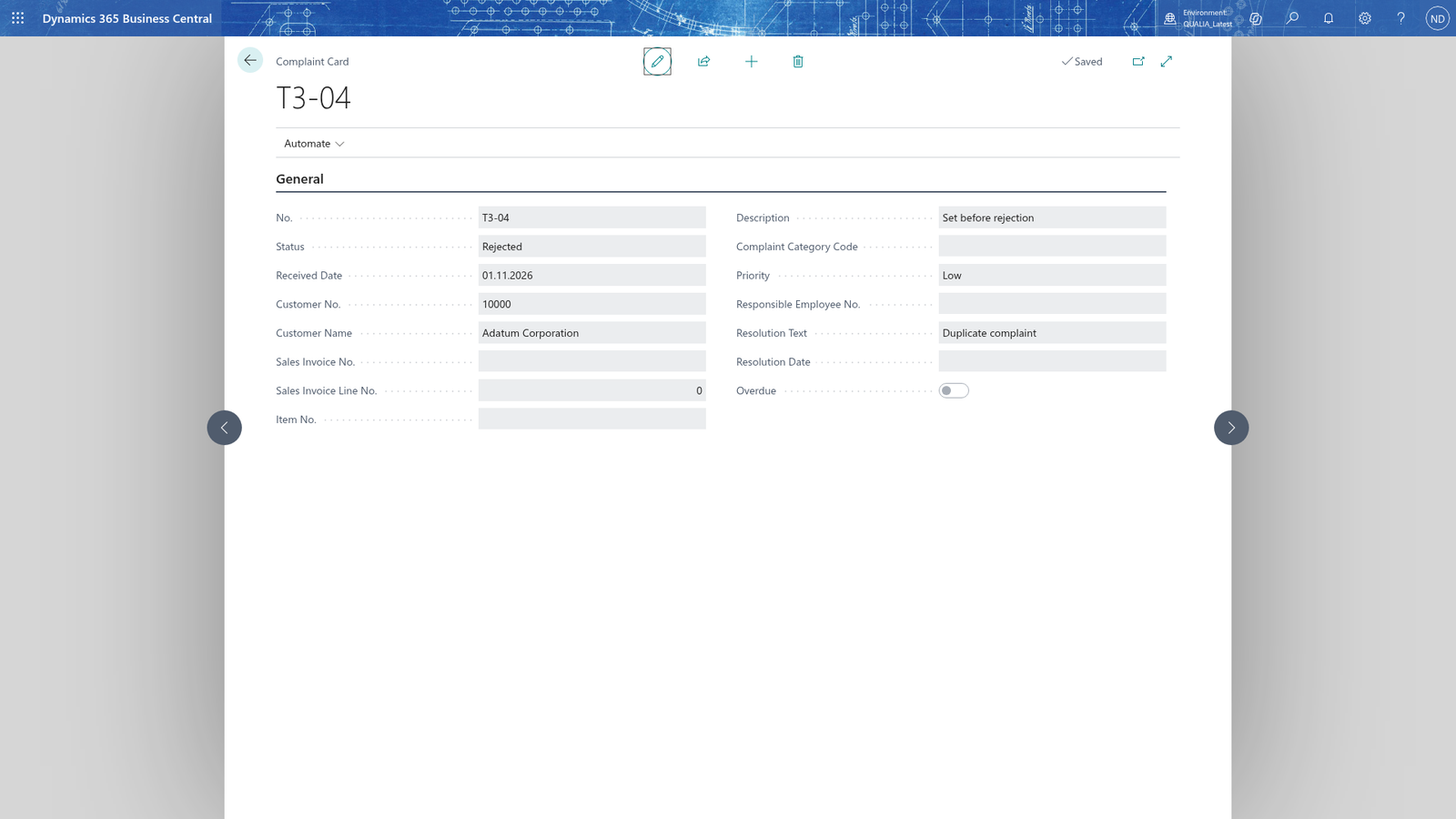
Open the card of the Rejected complaint. It is locked, and Delete is refused too.
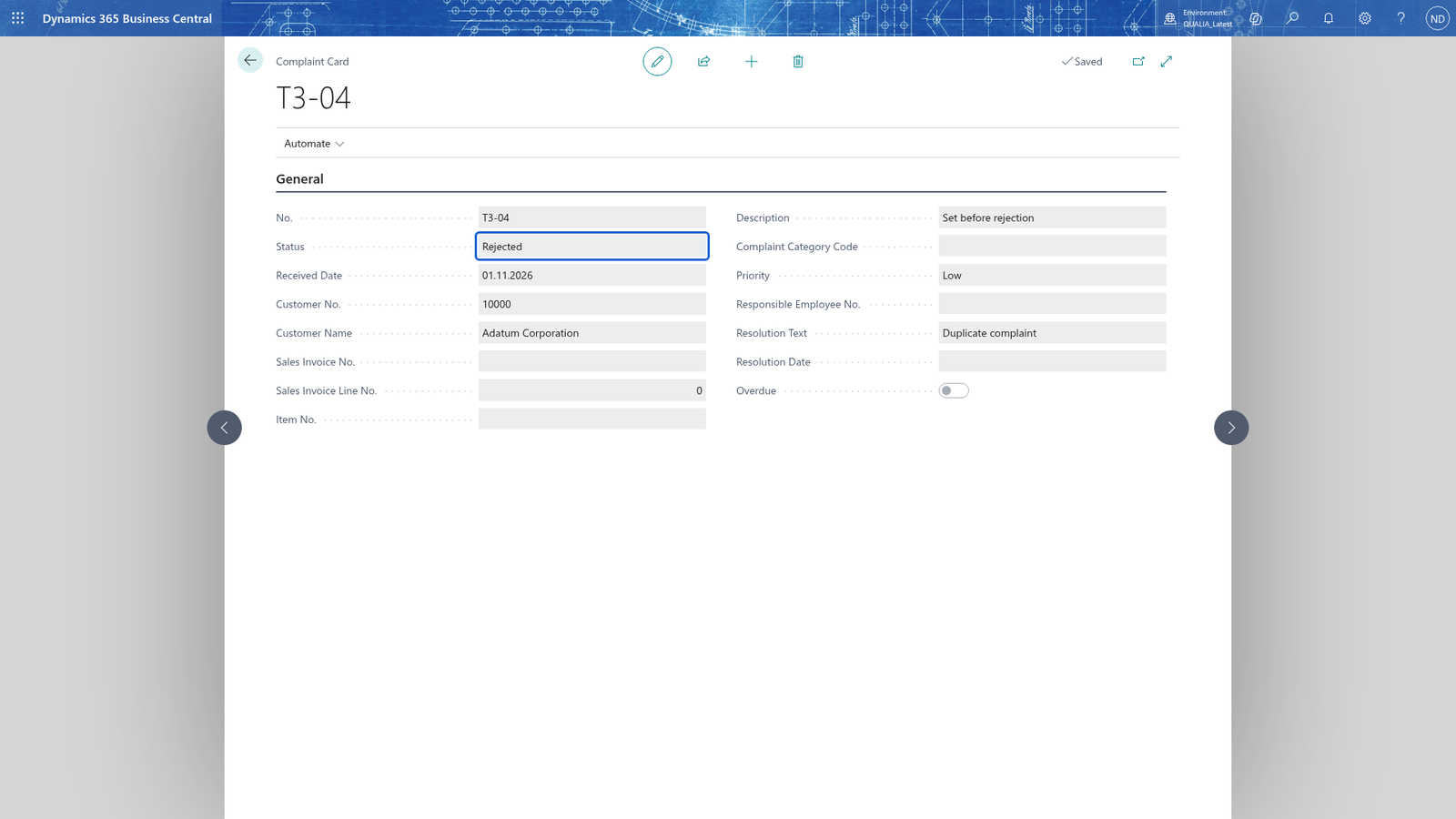
Look for the greyed-out fields on the card.
Note: Only complaints that are Open or In Progress can be edited; Resolved and Rejected complaints can no longer be changed or deleted. When you try to delete such a complaint, Business Central shows 'Complaint... is... and can no longer be deleted.'