
Maintain complaint categories with response times
Complaint categories such as damaged, wrong item and late delivery are maintained on a setup list, Complaint Categories. Each category can carry a Response Time (Days): the number of days a complaint of that category may stay open before it is shown as overdue. A category without a response time never makes its complaints overdue, so only complaints of a category with a response time become overdue.
Note: Typical categories are damaged, wrong item and late delivery. Because the response time is set up on the category, every complaint of that category becomes overdue after the same number of days.
Create and change a complaint category with a response time
- Search for Complaint Categories and open it.
- In Code, enter a short code for the category.
- In Description, enter what the category means.
- In Response Time (Days), enter the number of days a complaint of this category may stay open before it is shown as overdue.
- In Blocked, set the check box if the category may no longer be used on new complaints.
- Leave the row to save the category. To change it later, update the same fields and leave the row again.
The category is listed on Complaint Categories with its response time. Focus on the Response Time (Days) column.
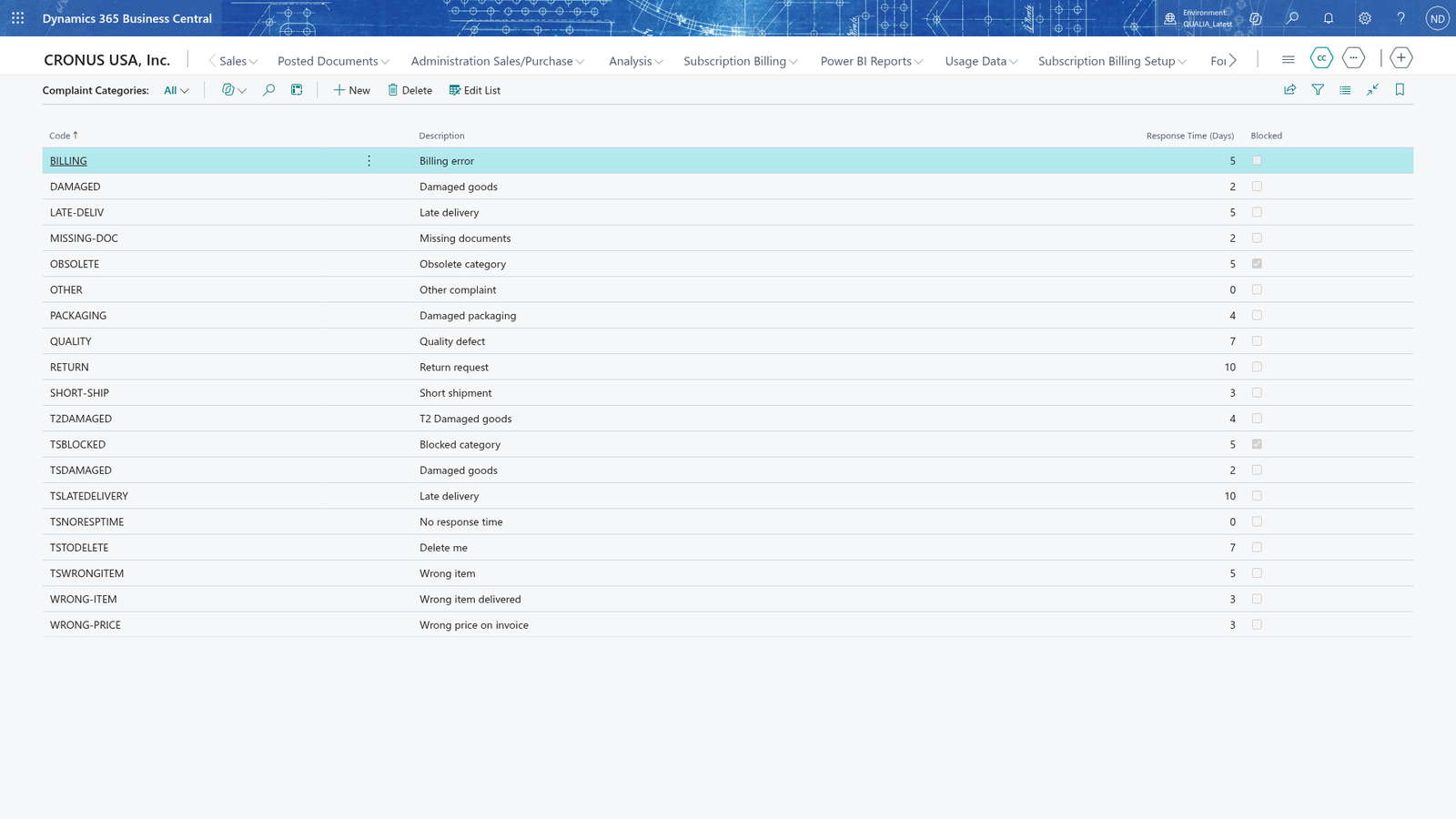
Note: To keep the complaints of a category from becoming overdue, leave Response Time (Days) empty.
See a complaint of a category without a response time
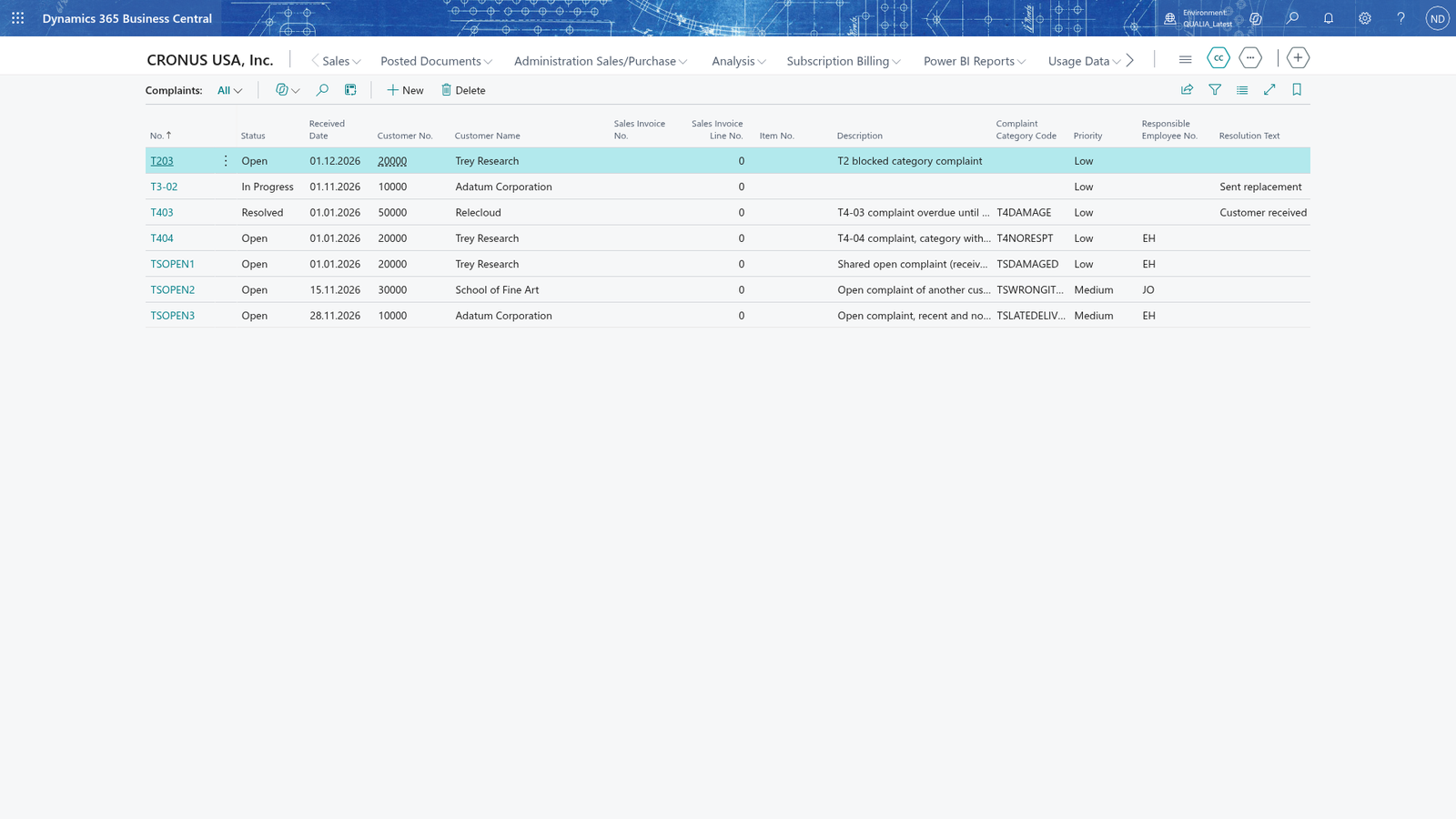
- Open Complaints and choose the number of the complaint to open its card.
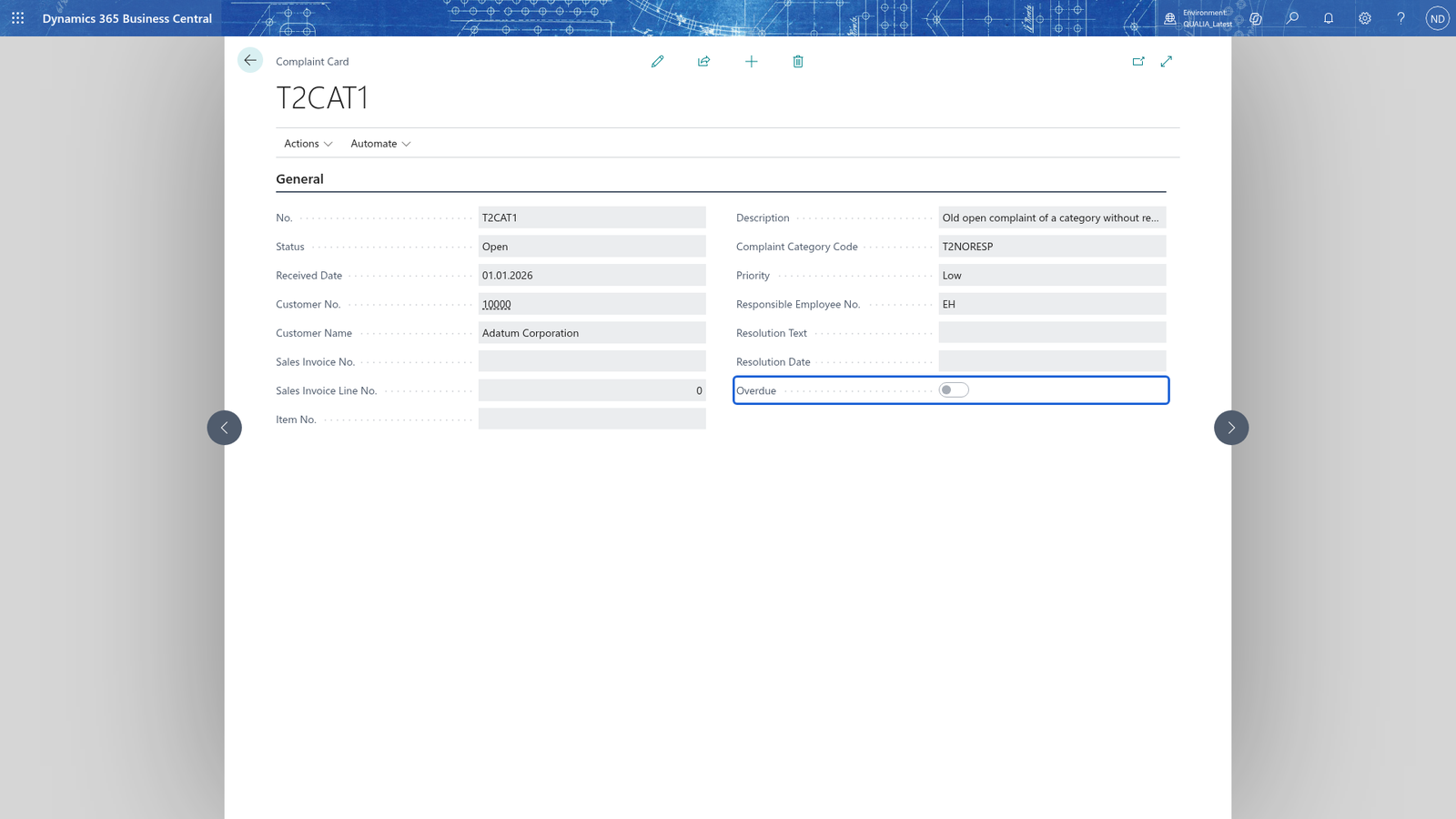
- On the card, set Complaint Category Code to a category whose Response Time (Days) is empty.
The complaint is never shown as Overdue, because a category without a response time never makes its complaints overdue. A complaint with no category at all behaves the same way: its Overdue field also stays empty, so a complaint without a category and without Overdue is correct. Focus on the Overdue field of the complaint, which stays empty.
Use a category that is blocked
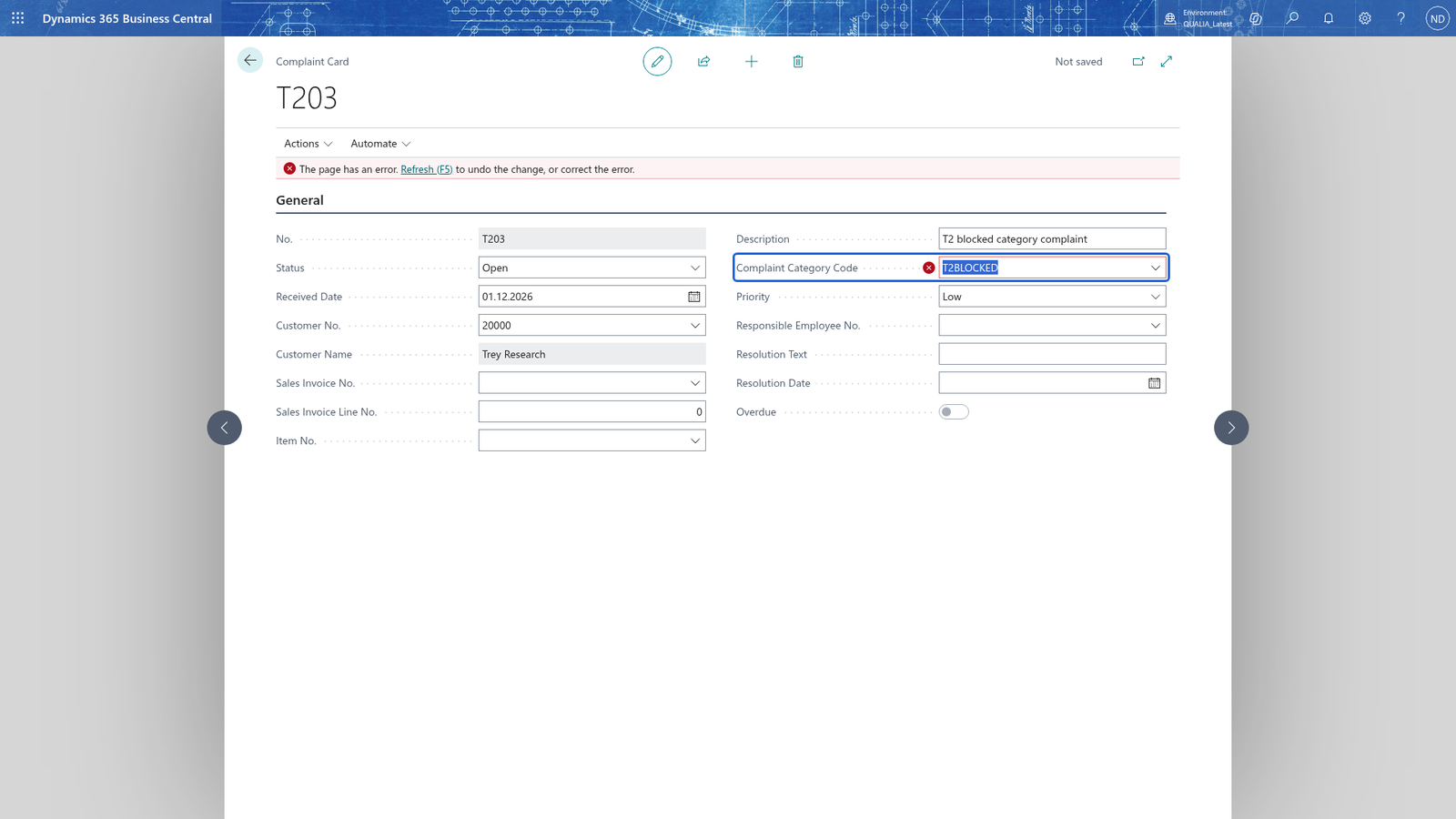
Blocked categories can no longer be selected on new complaints, but a complaint that is already set up with the category shows the category in Complaint Category Code. When you set a blocked category on a complaint, Business Central refuses it with the message that the category is blocked and can no longer be selected on new complaints.
Focus on the message that the category is blocked.
Note: Clear Blocked on the category to make it selectable again, or choose another category for the complaint.
Delete an unused complaint category
- Search for Complaint Categories and open it.
- Select the row of the category you want to remove.
- Choose Delete, and confirm the delete.
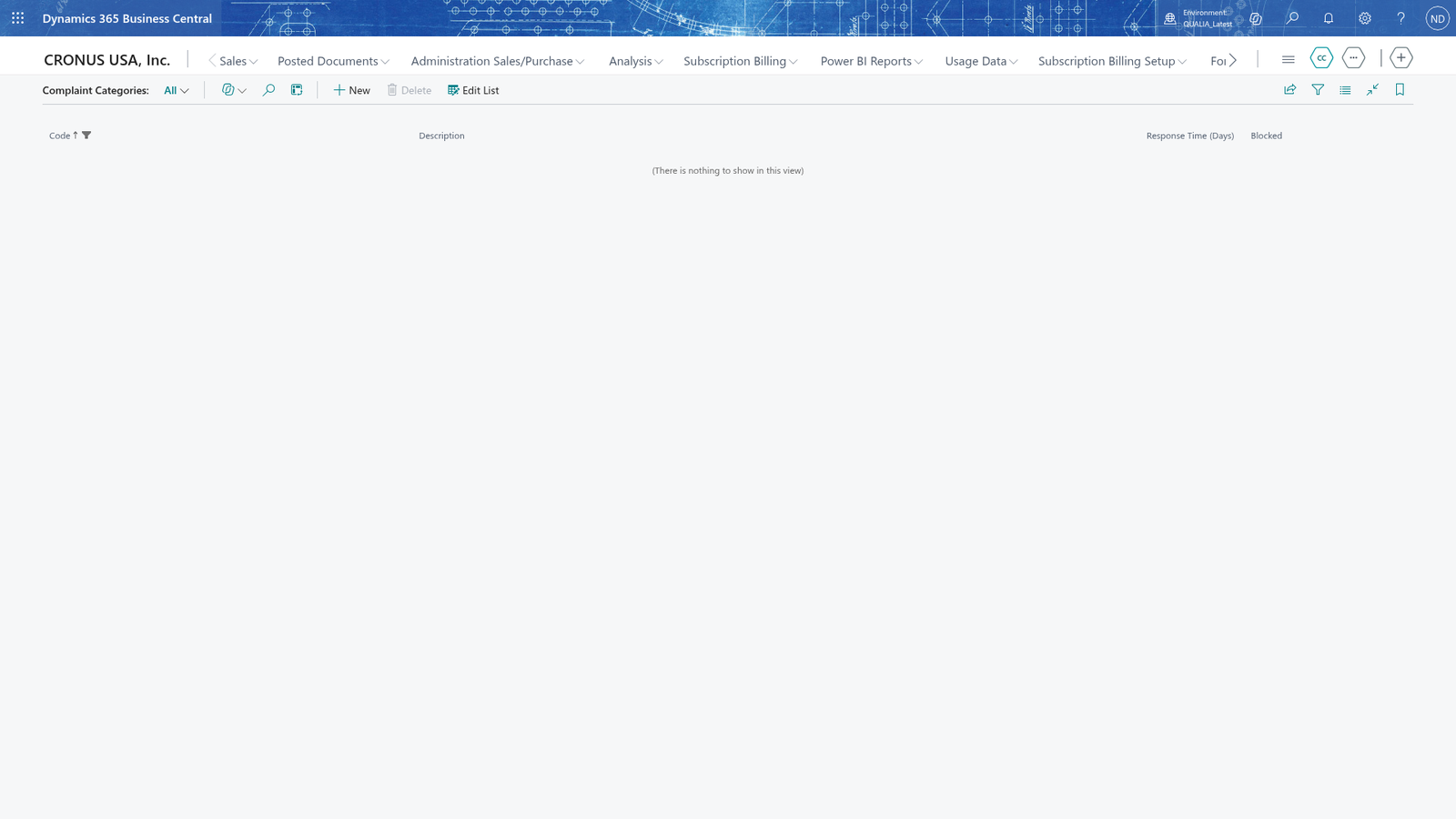
Focus on the Delete action. The category disappears from the list only when no complaint uses it; it is then removed from Complaint Categories.
Delete a category that is still in use
- Search for Complaint Categories and open it.
- Select the row of a category that at least one complaint already uses.
- Choose Delete, and confirm the delete.
The delete is refused: Business Central says that the category cannot be deleted because a complaint uses it, and the category stays in the list, so the complaints keep their category. The message names the category and one complaint that uses it, so you know which complaint to look for. Focus on that message.
Note: To delete such a category, first move the complaints that use it to another category or remove their category, and then delete it.