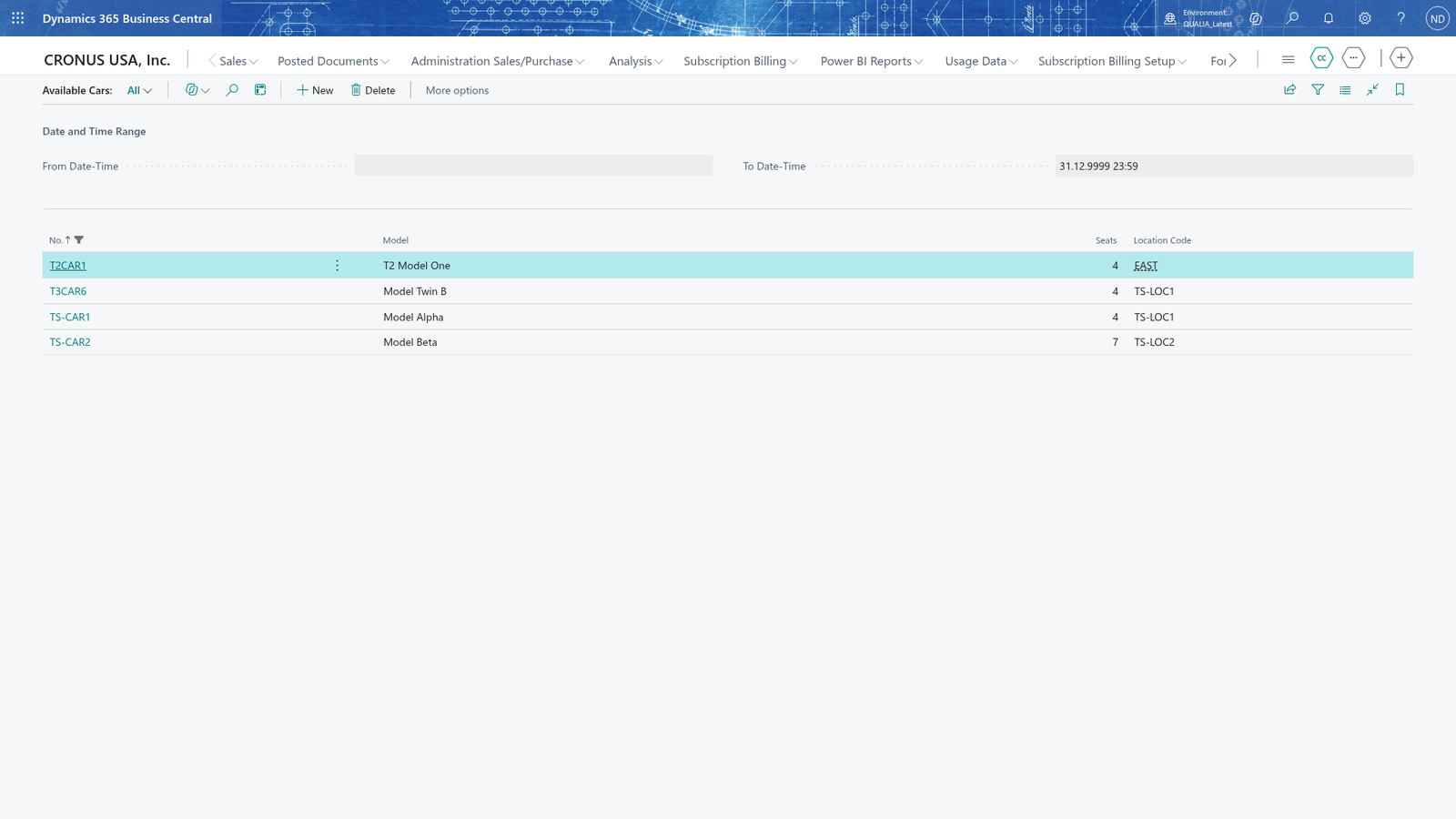
See which cars are free for a time
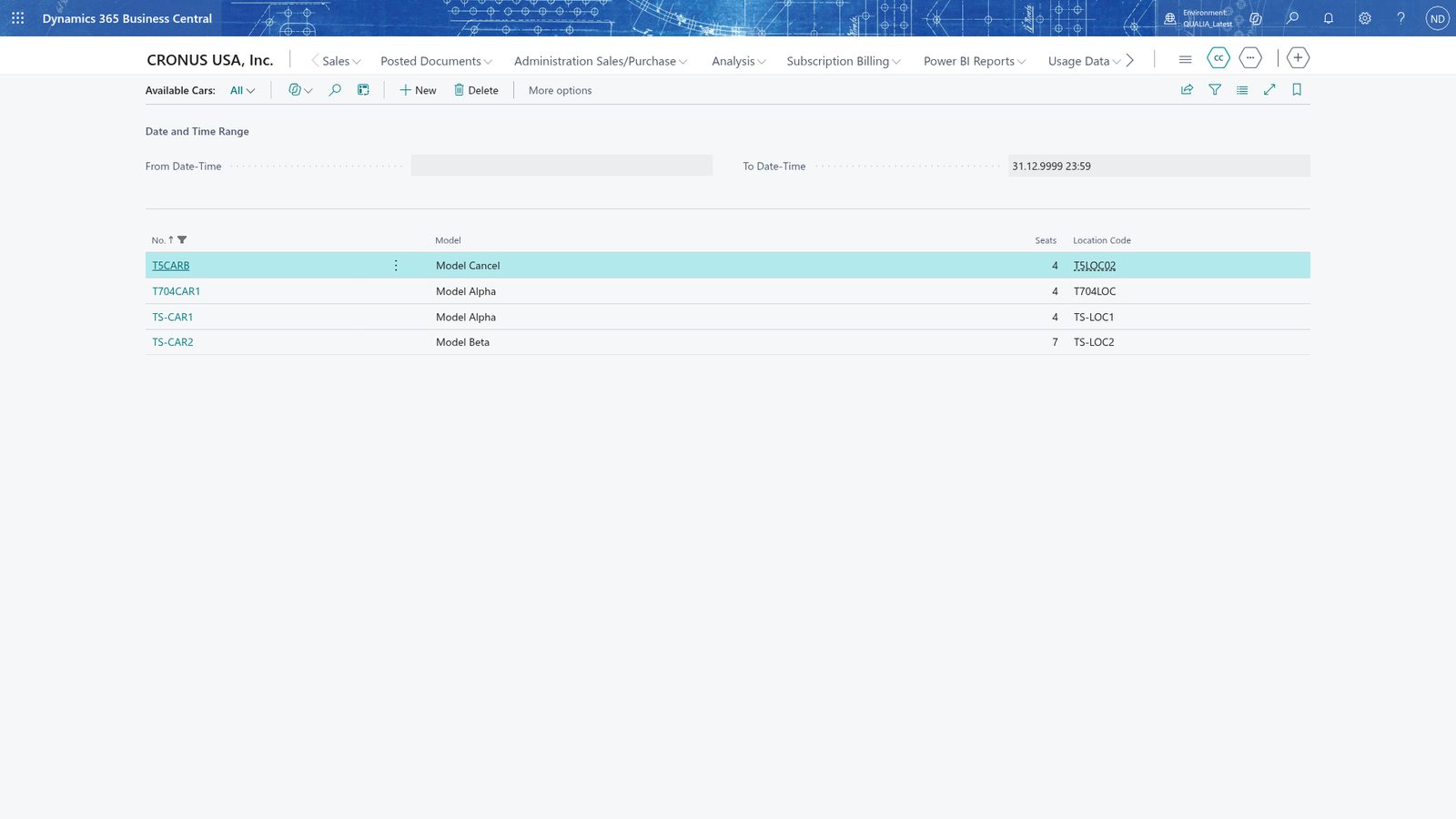
Before you book a pool car, you can check which cars are free for a date and time range. On the Available Cars page you enter a From Date-Time and a To Date-Time, and the list shows the active cars that have no booking overlapping that range. You then know which cars to book without opening each booking.
- Search for Bookings and open it.
- Choose Show Available Cars. The Available Cars page opens.
- In From Date-Time, enter the start of the range you want to check.
- In To Date-Time, enter the end of the range.
- Choose Show Cars. The list shows one line per free car, with its number, model, seats and location code.
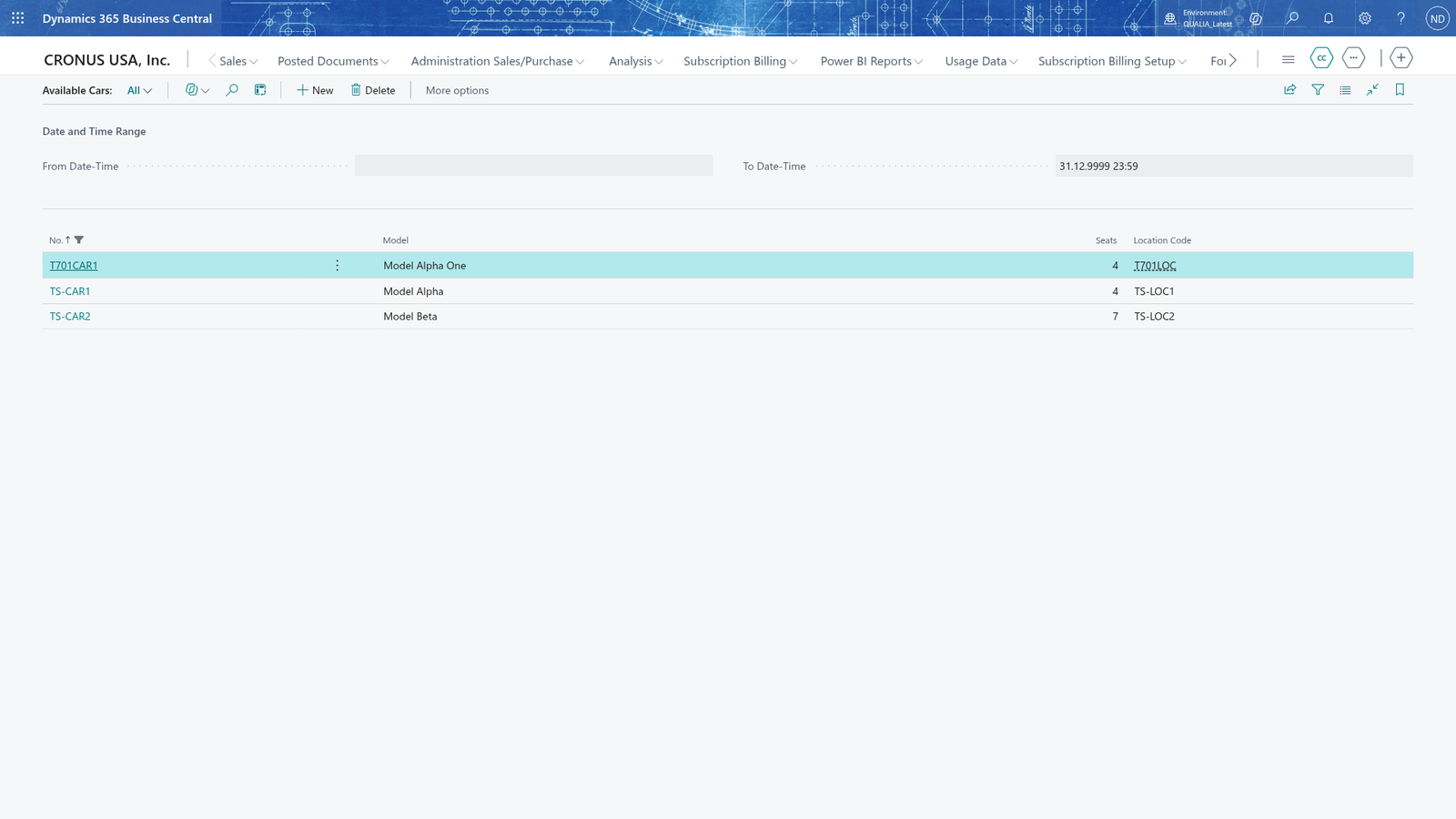
Note: Only cars you can still book are offered. A car that is not active is left out, and only active cars appear here.
A car with a booking in the range is not offered
A car that already has a booking overlapping your range is not shown on the Available Cars page, because you couldn't book it in that time. A car with no booking in the range is offered. A booking that ends exactly when your range starts is not an overlap, so the car is still offered.
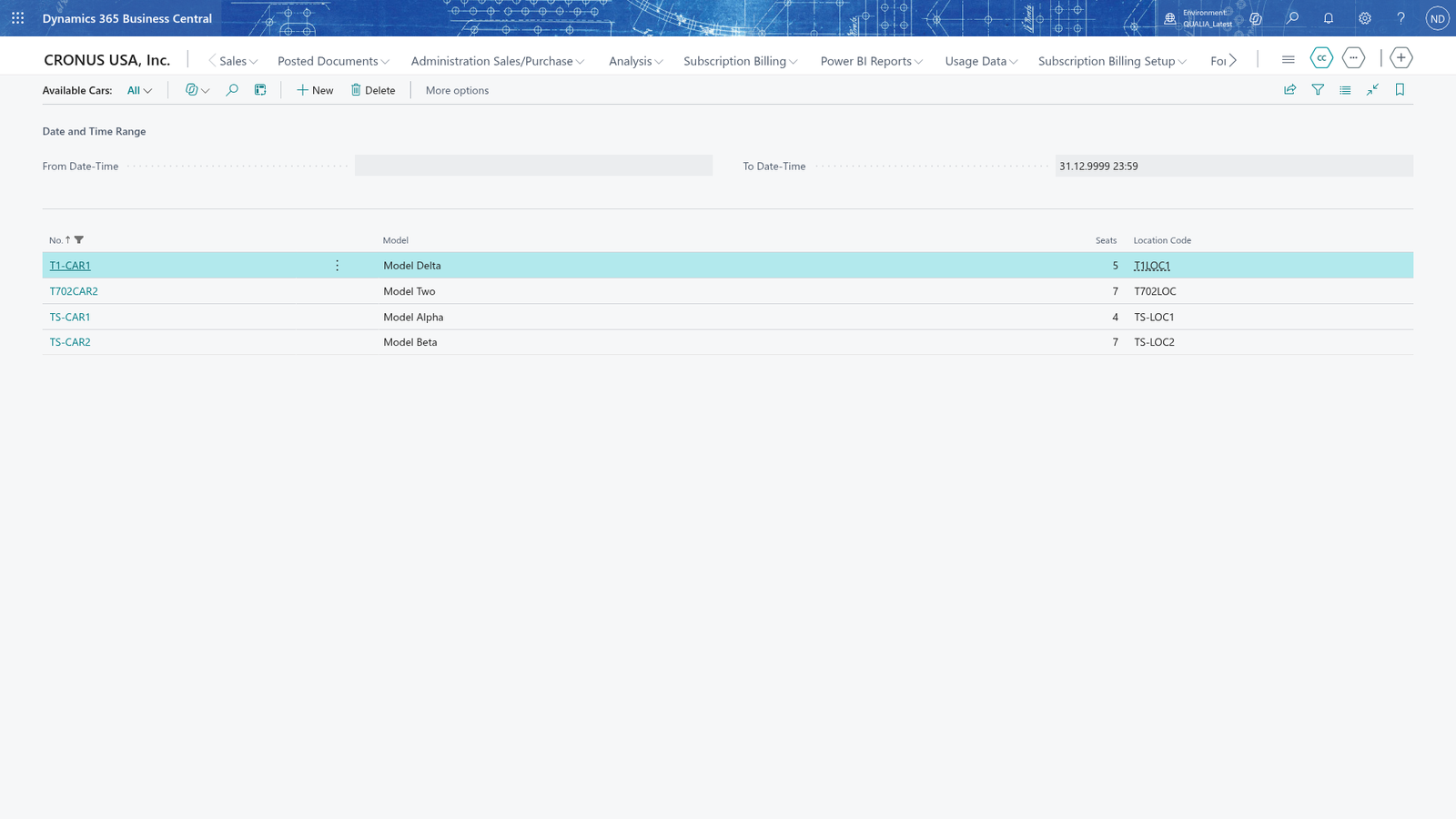
Note: Only bookings that are not cancelled make a car busy. A cancelled booking keeps the car free for the time it covered.
An inactive car is never offered
A car that is not active is never offered, even if it has no booking in the range. To get it back into the free-car list, set it to active on its card first.
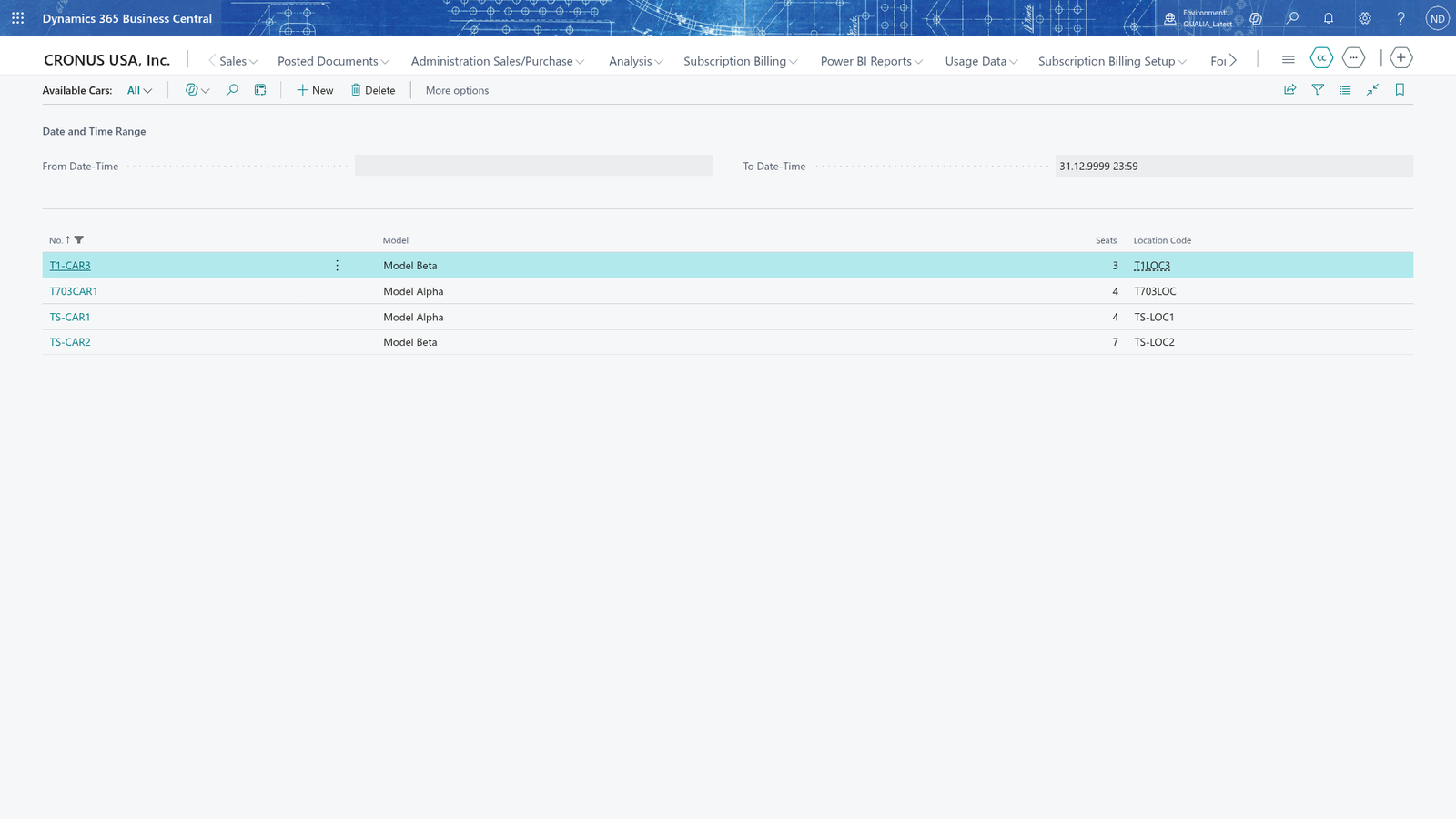
Note: Turning Active off takes a car out of this list and stops new bookings for it. You can still deactivate a car that has future bookings; the system neither blocks nor cancels those bookings, the office deals with them.
A cancelled booking does not block the car
When you cancel a booking, the car is free again for that time and shows up in the availability list.
Note: Cancelled bookings are kept as history and don't block anything. To free a car, cancel its booking instead of deleting it.
When every active car is booked, the list is empty
If no active car is free for the range you entered, the Available Cars page shows no cars. Enter a different From Date-Time and To Date-Time and choose Show Cars again, or book another time.