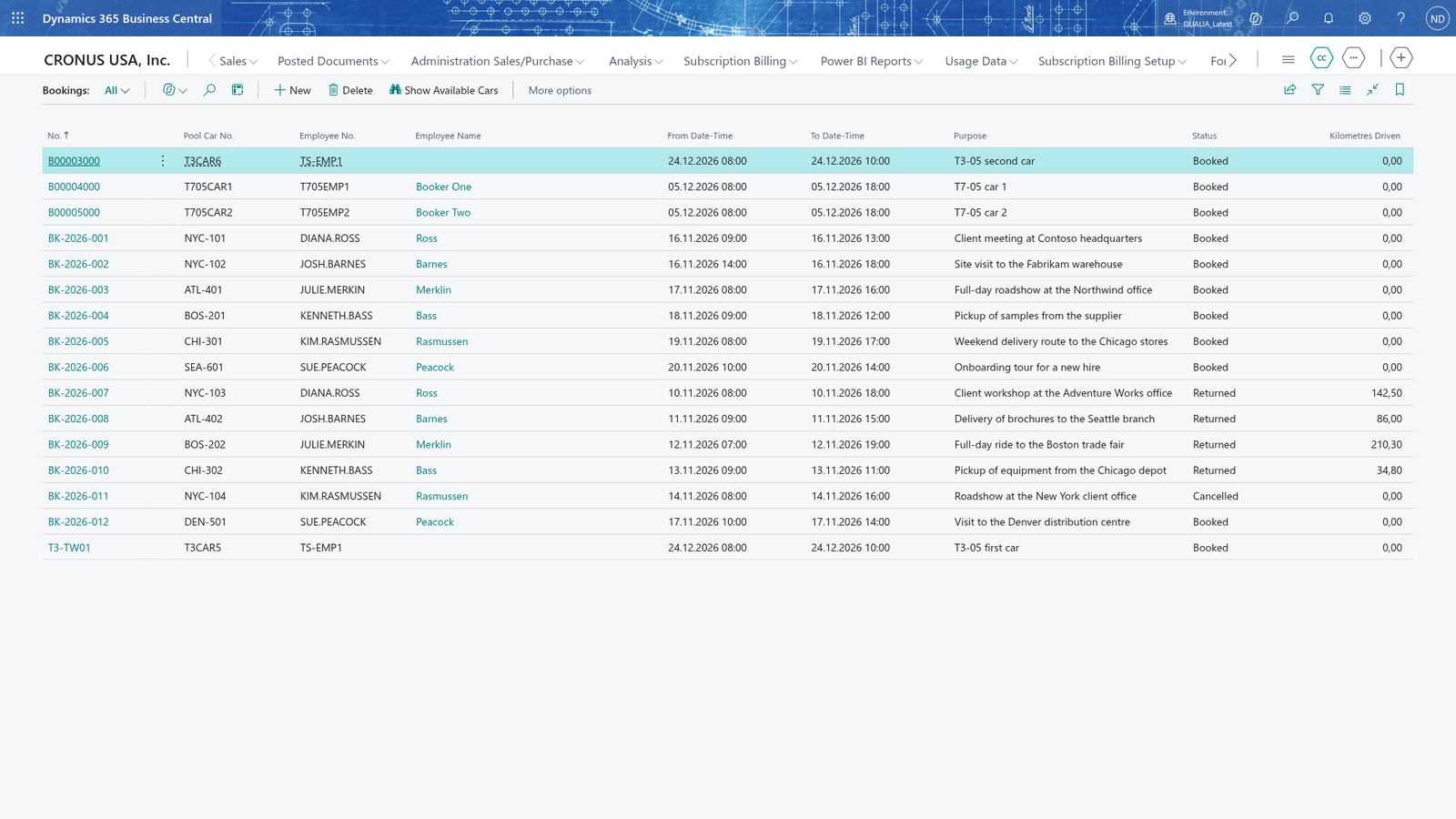
Never book a car twice for overlapping times
A pool car can only be used by one booking at a time, so the app refuses a booking that overlaps a booking another employee already made for the same car. When you leave the Booking Card, the booking is checked against the car's other bookings that are not Cancelled: if any of them overlaps the range, the booking is refused with an error naming the car and the other booking. Bookings that never overlap, a booking of a different car in the same range, and a booking that starts when the previous one ends are all fine.

Book the same car again when its previous booking ends
A booking that starts exactly when the previous booking of the car ends is allowed, because the car is free again the moment the earlier booking is over.
- Search for Bookings and open it.
- Add a booking to open the Booking Card.
- In Pool Car No., enter the registration number of the car you want to book.
- In Employee No., enter or choose the employee who books the car.
- In From Date-Time, enter the time the car is picked up.
- In To Date-Time, enter the time the car must be back. It must be after the start.
- In Purpose, describe what the car is booked for, and leave the card to save it.
The booking is saved with the status Booked and shows on the Bookings list.
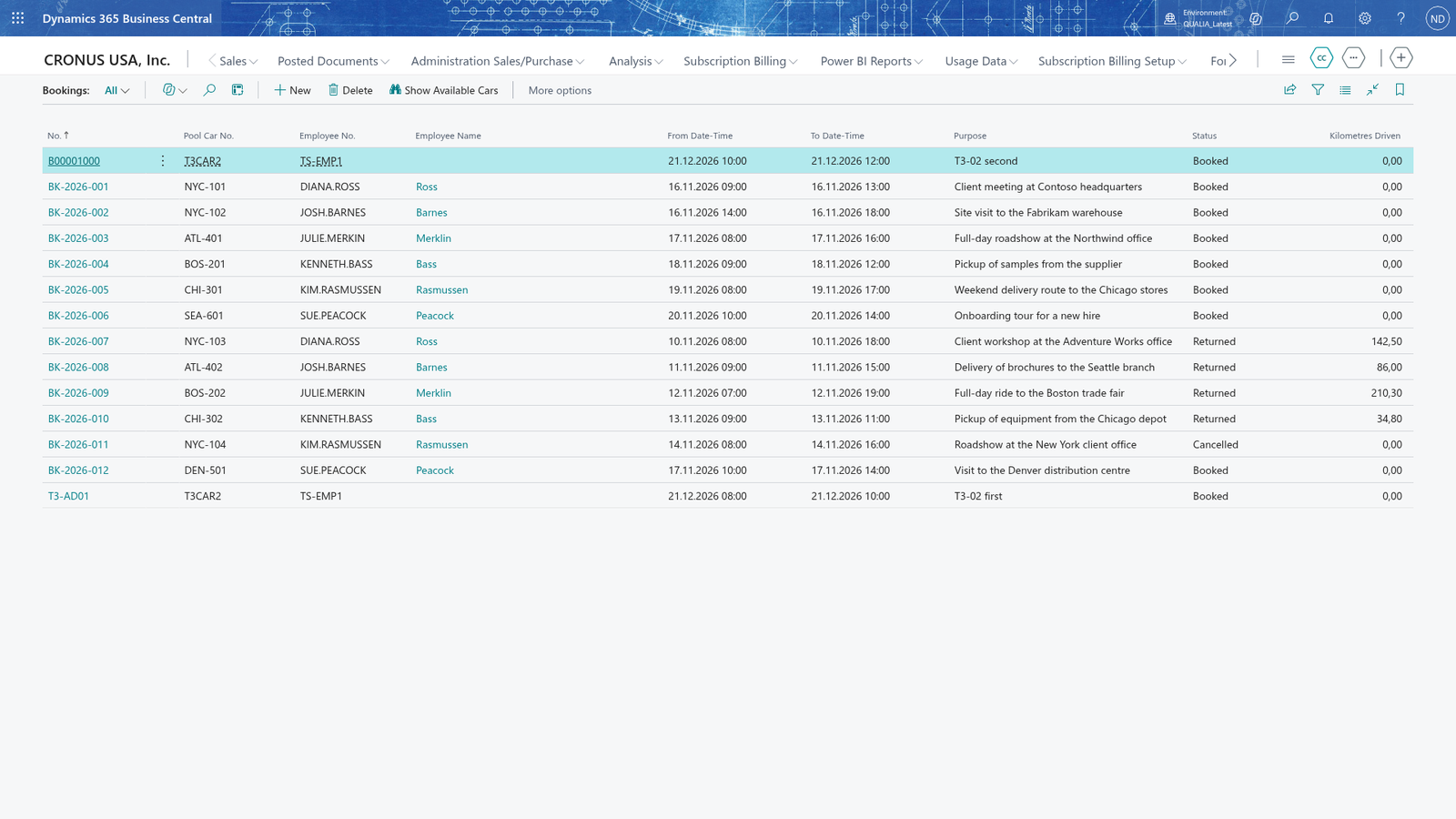
Change a booking's time so it overlaps another booking
When you move a booking's time into the range of another booking of the same car, the overlap check refuses it.
- On the Bookings list, choose the booking you want to change to open its Booking Card.
- Change From Date-Time or To Date-Time so the new range overlaps another non-cancelled booking of the same car.
- Leave the card. The booking is refused with an error naming the car, the other booking and its range.
Correct the time so the range does not overlap, or pick a different car.
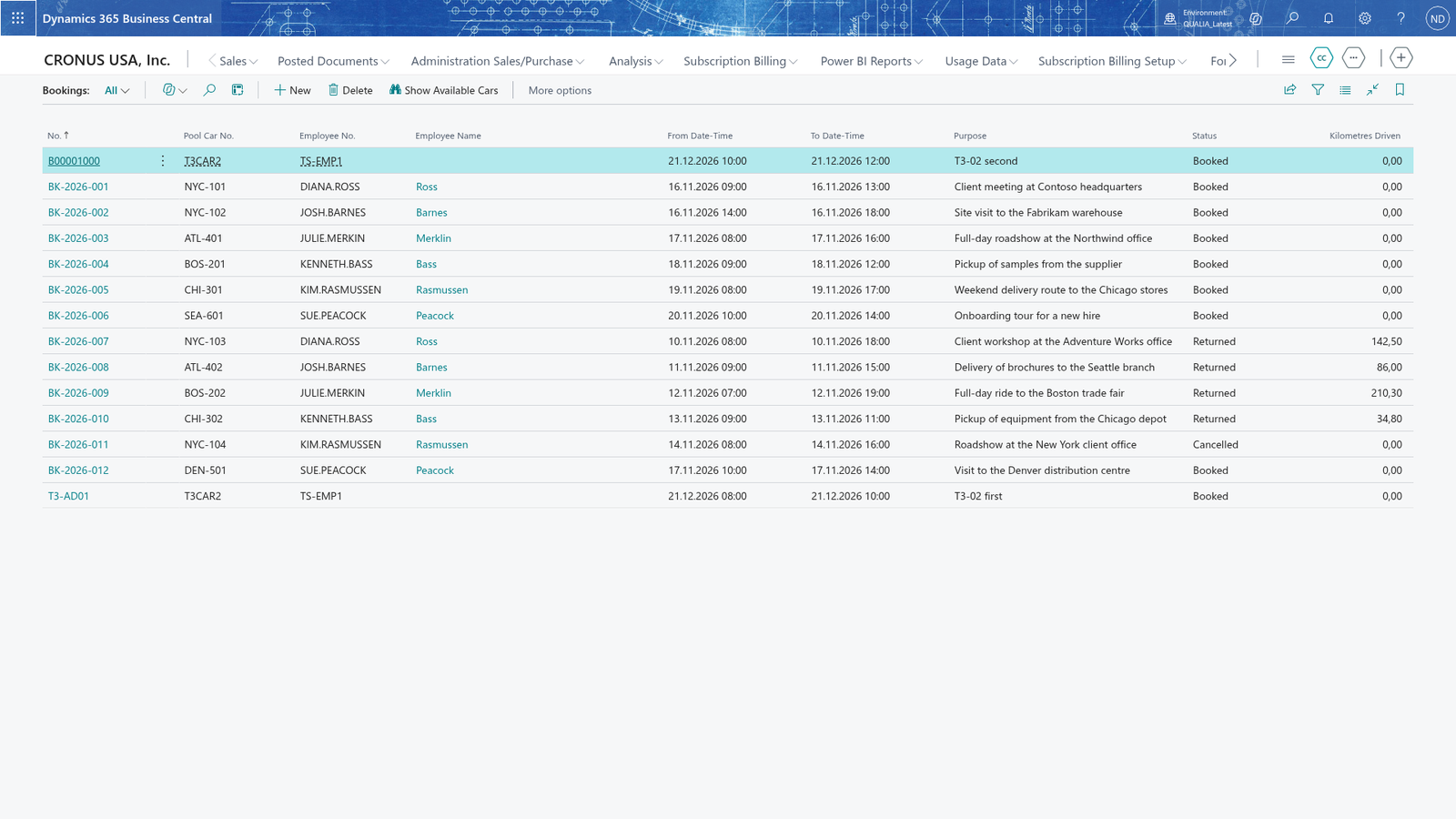
Note: The booking you are editing is not compared with itself, so you can correct a booking whose time does not touch any other booking.
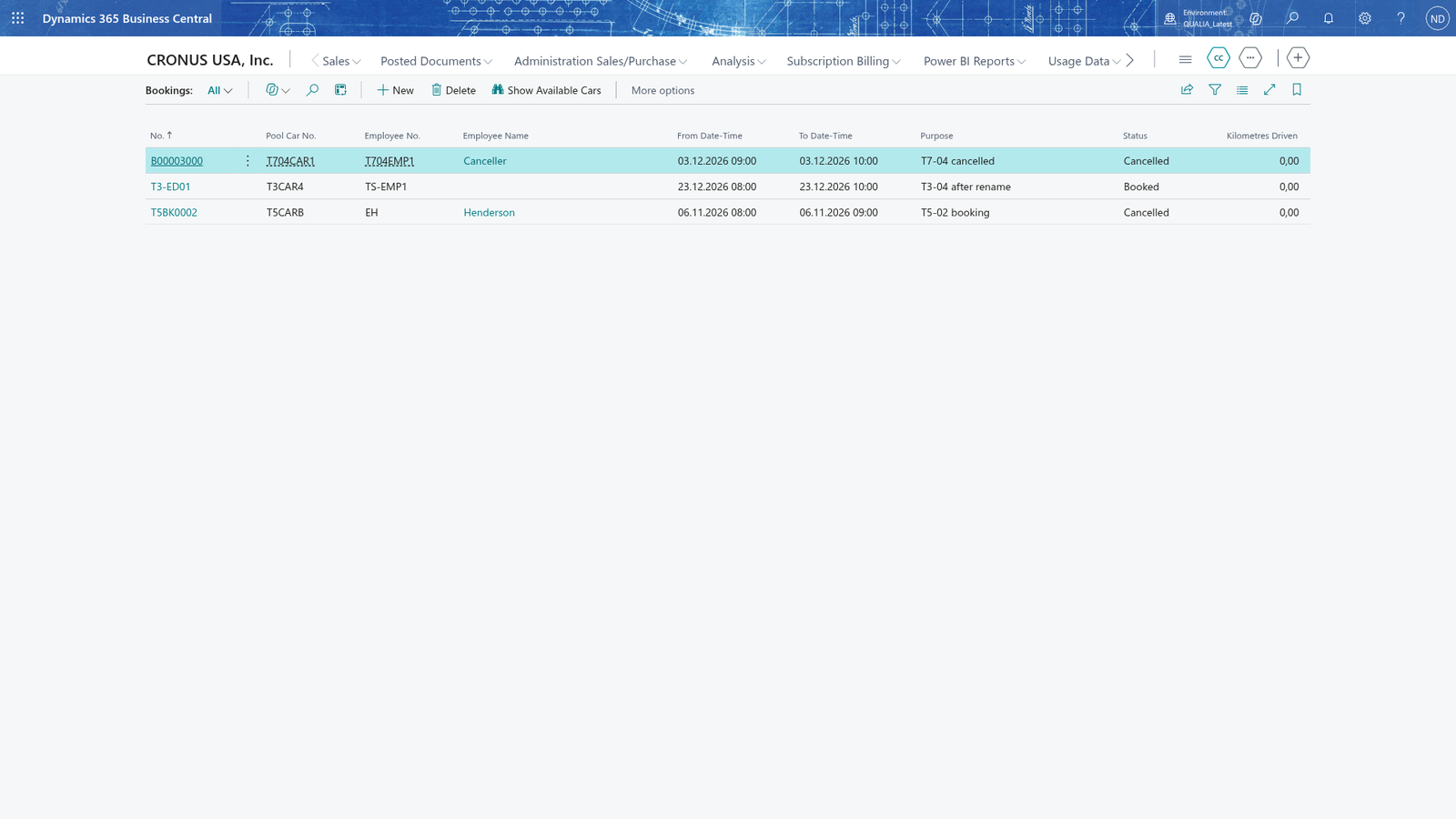
Book two different cars for the same time range
Different cars can be booked at the same time. The overlap check only compares bookings of the same car, so a car can be booked as often as you like as long as its bookings don't overlap each other.
- On the Bookings list, add a booking to open the Booking Card.
- In Pool Car No., enter the registration number of the car.
- In Employee No., enter or choose the employee who books the car.
- In From Date-Time and To Date-Time, enter the time range you want the car for.
- In Purpose, describe what the car is booked for, and leave the card.
Repeat for another car in the same range.