Cancel a booking
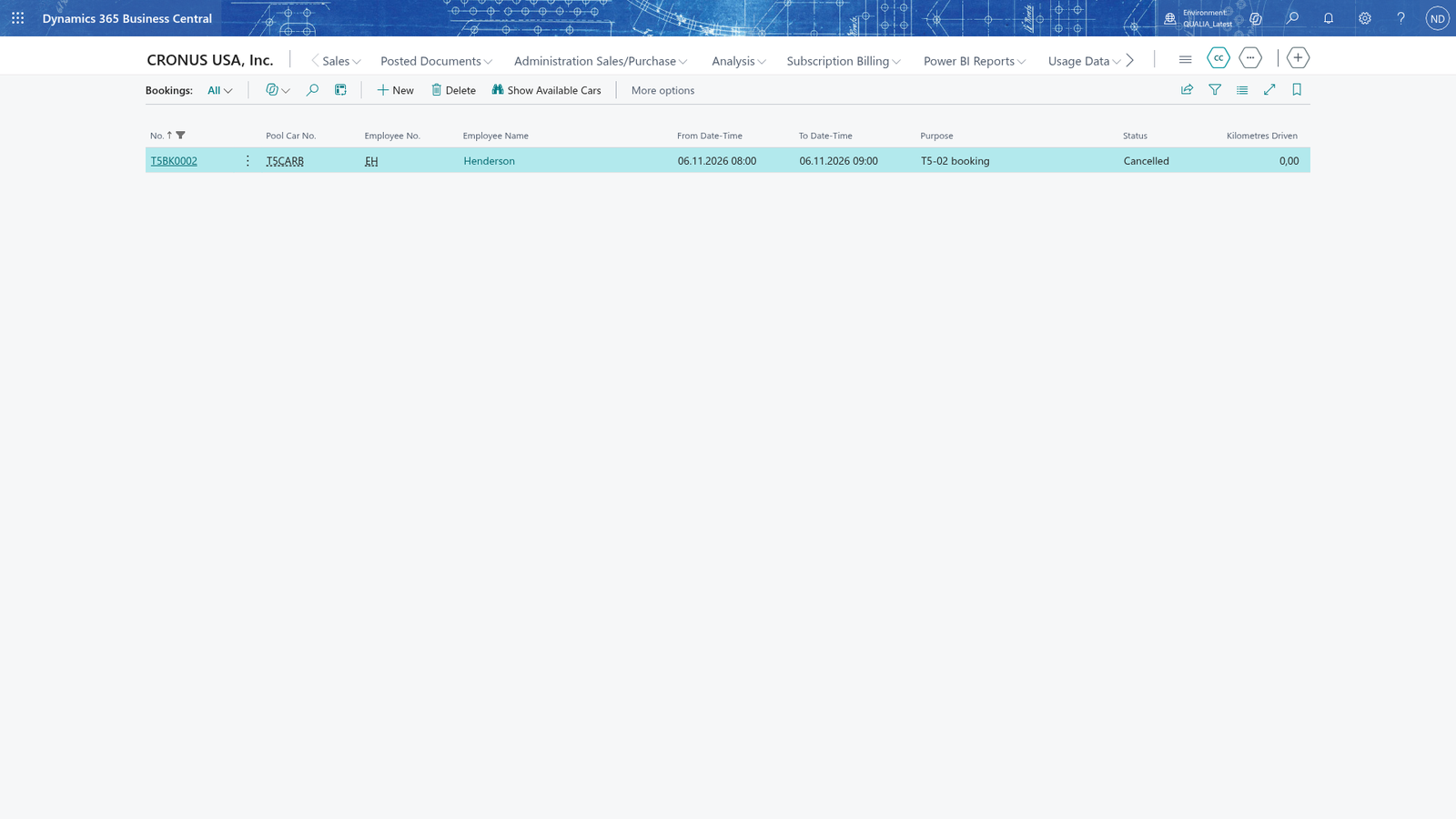
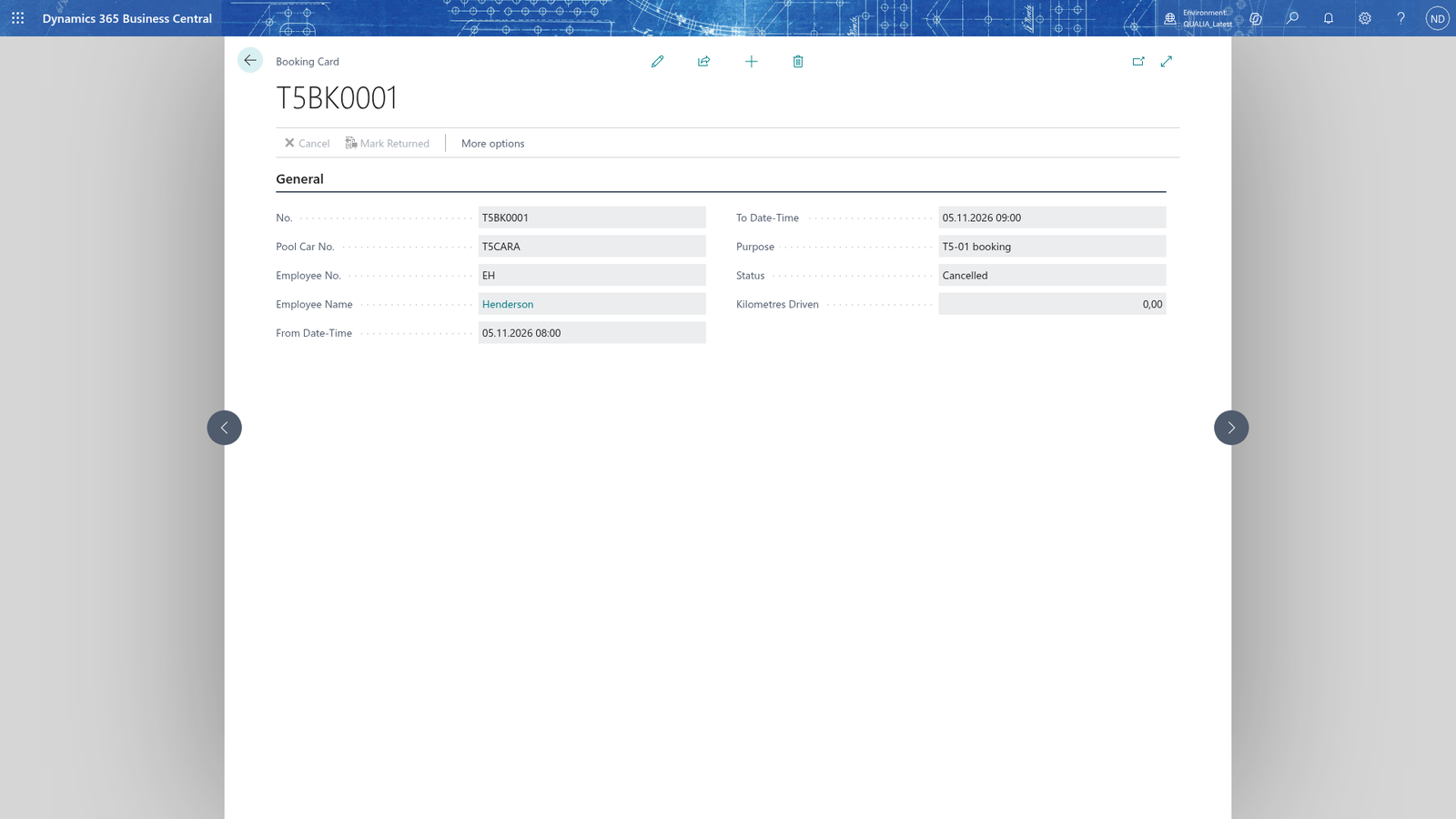
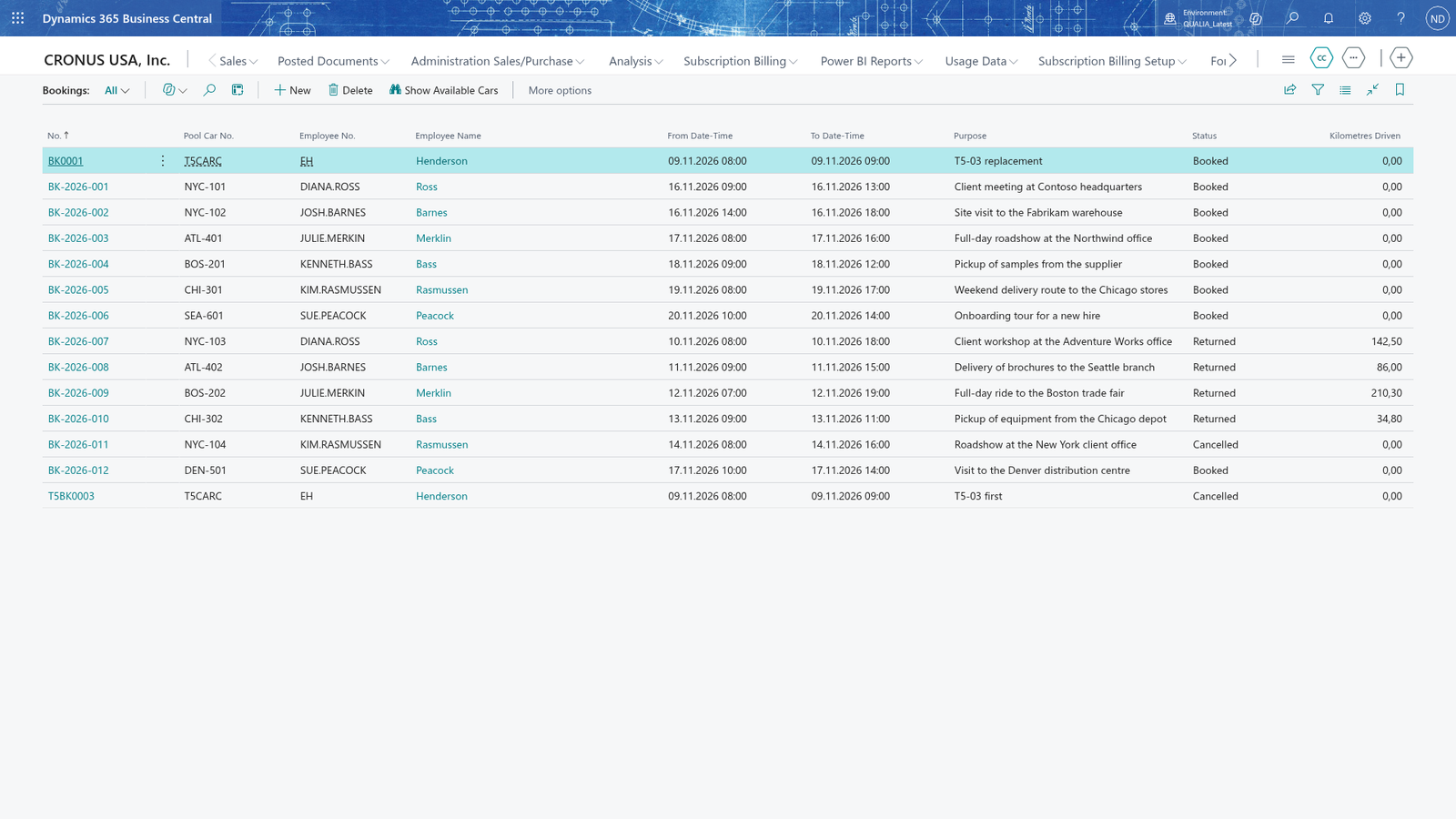
When a planned trip falls through, the employee cancels the booking instead of deleting it. The booking is never deleted: it is marked Cancelled and stays on the Bookings list as history, and the car is free again for that time range. Only a booking whose Status is Booked can be cancelled. Once Cancelled (or Returned), the booking is read-only.
Cancel a booking before it is returned
- Search for Bookings and open it.
- Choose the booking to open its Booking Card. Its Status must be Booked.
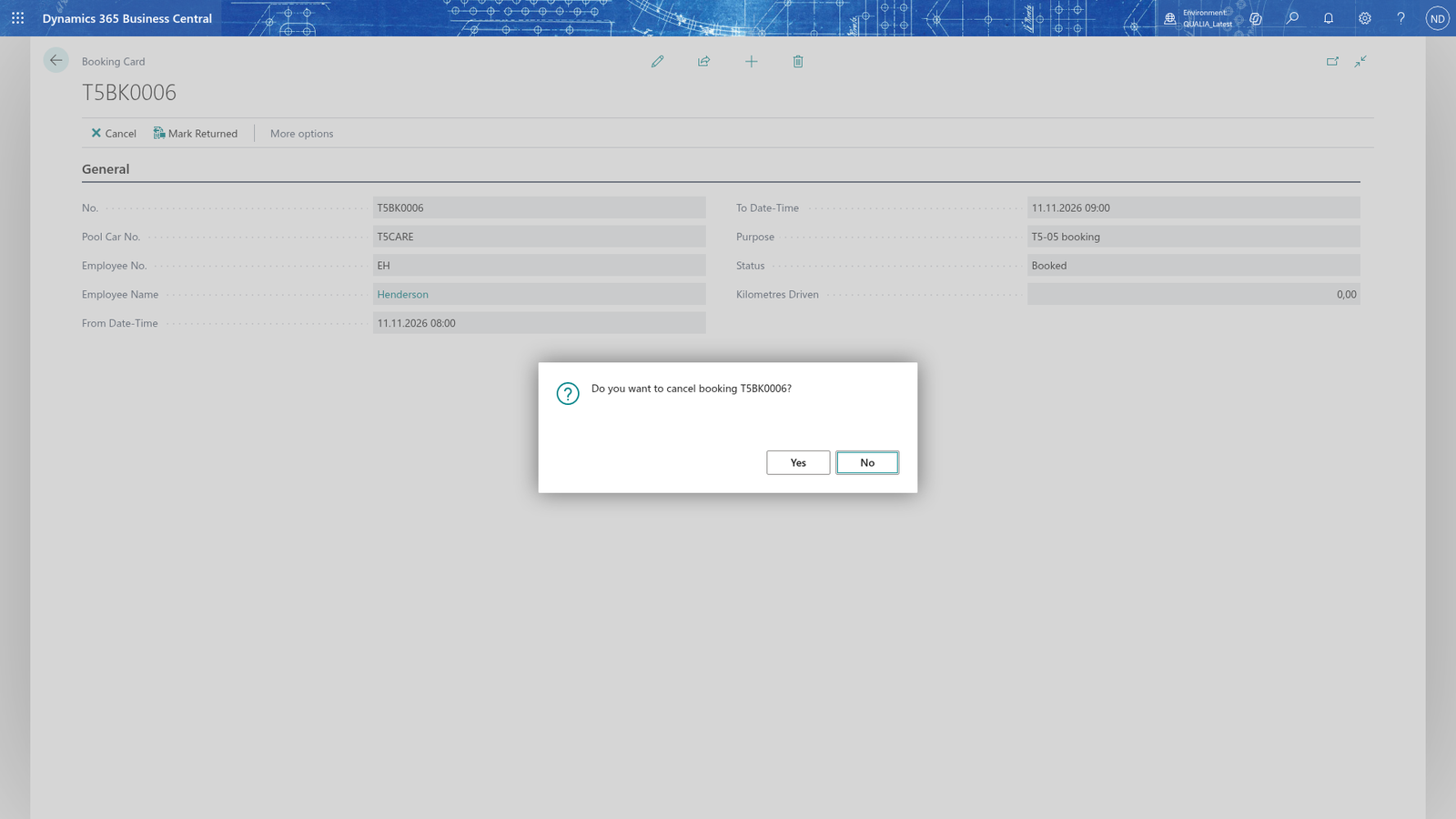
- Choose Cancel. A message asks "Do you want to cancel booking <number>?".
- Choose Yes. The Status shows Cancelled, the fields are no longer editable, and the car is free again in that range.
Note: Cancelled bookings stay on the Bookings list as history, so the record of who drove which car remains complete. That is why bookings are cancelled instead of deleted.
Note: Cancelled bookings block nothing: the car becomes bookable again in the cancelled range, and the cancelled booking doesn't stop a new booking of the same car.
Say no to the cancel question
- Choose Cancel on the Booking Card of a booking that is still Booked.
- Choose No. The booking stays Booked and you can cancel it later.
Book the car again for the freed time
- Search for Bookings and open it.
- Add a booking to open the Booking Card.
- In Pool Car No., pick the same car.
- In Employee No., pick the employee who books the car.
- In From Date-Time, enter the start of the freed range.
- In To Date-Time, enter the end of the freed range. It must be after the start.
- In Purpose, enter what the car is booked for, and save the booking.
The new booking is accepted even though it covers the same car and the same range as the cancelled one, because the cancelled booking doesn't block the car any more. It shows on the Bookings list with Status Booked.
See that the car is free again in the availability view
- Cancel the Booked booking on its Booking Card, as described above.
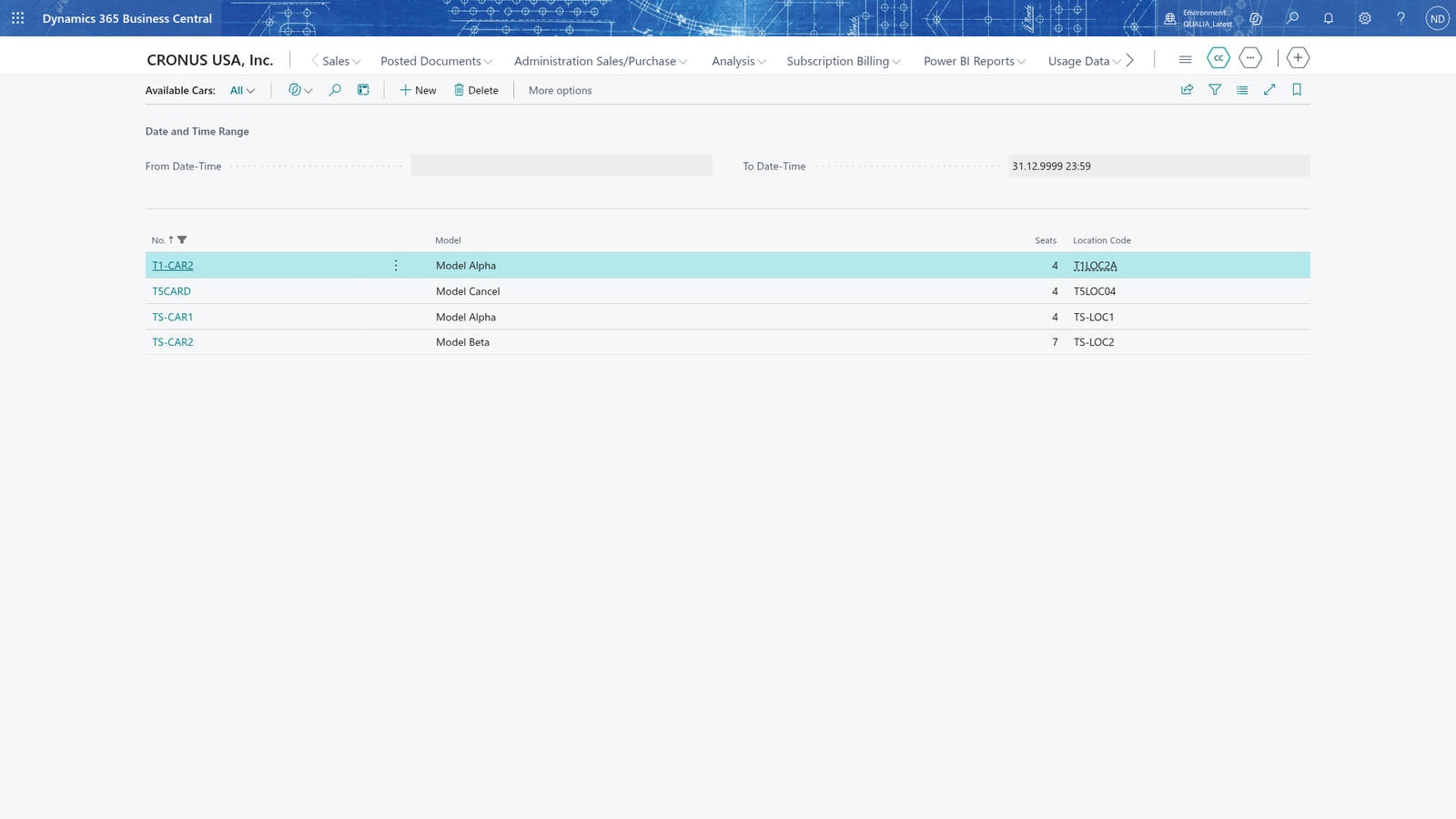
- On the Bookings page, choose Show Available Cars to open the Available Cars page.
- In From Date-Time and To Date-Time, enter the freed range.
- Choose Show Cars.
The car whose booking you cancelled appears in the list again: the cancelled booking doesn't block the car for availability either.