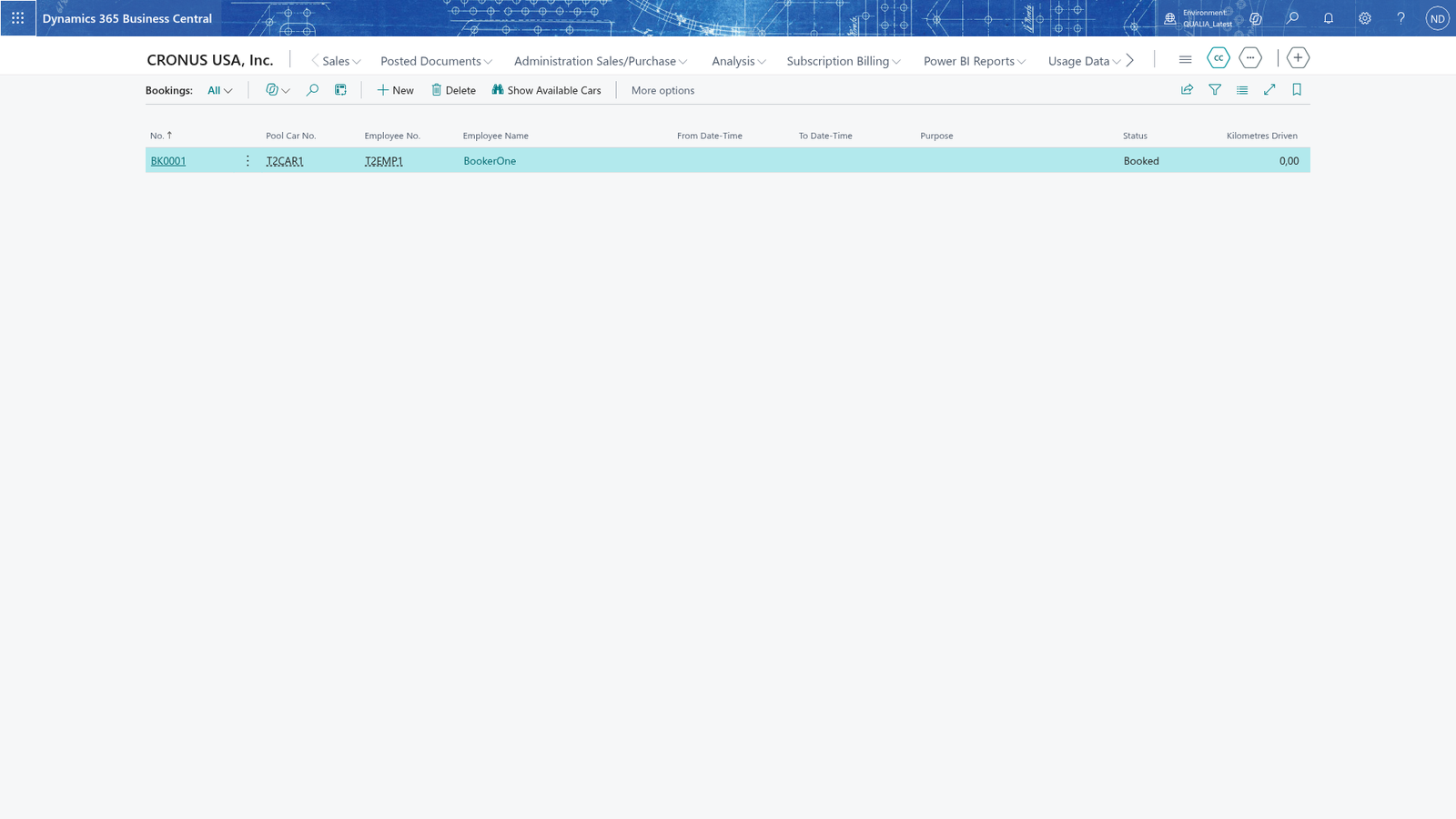
Book a pool car for a date and time range
An employee books a pool car for a date and time range in the Bookings list. Each booking records who booked which car, so you can see later which employee had which car and when. Employees book their own cars directly, and a booking does not need a manager's or the office's approval.
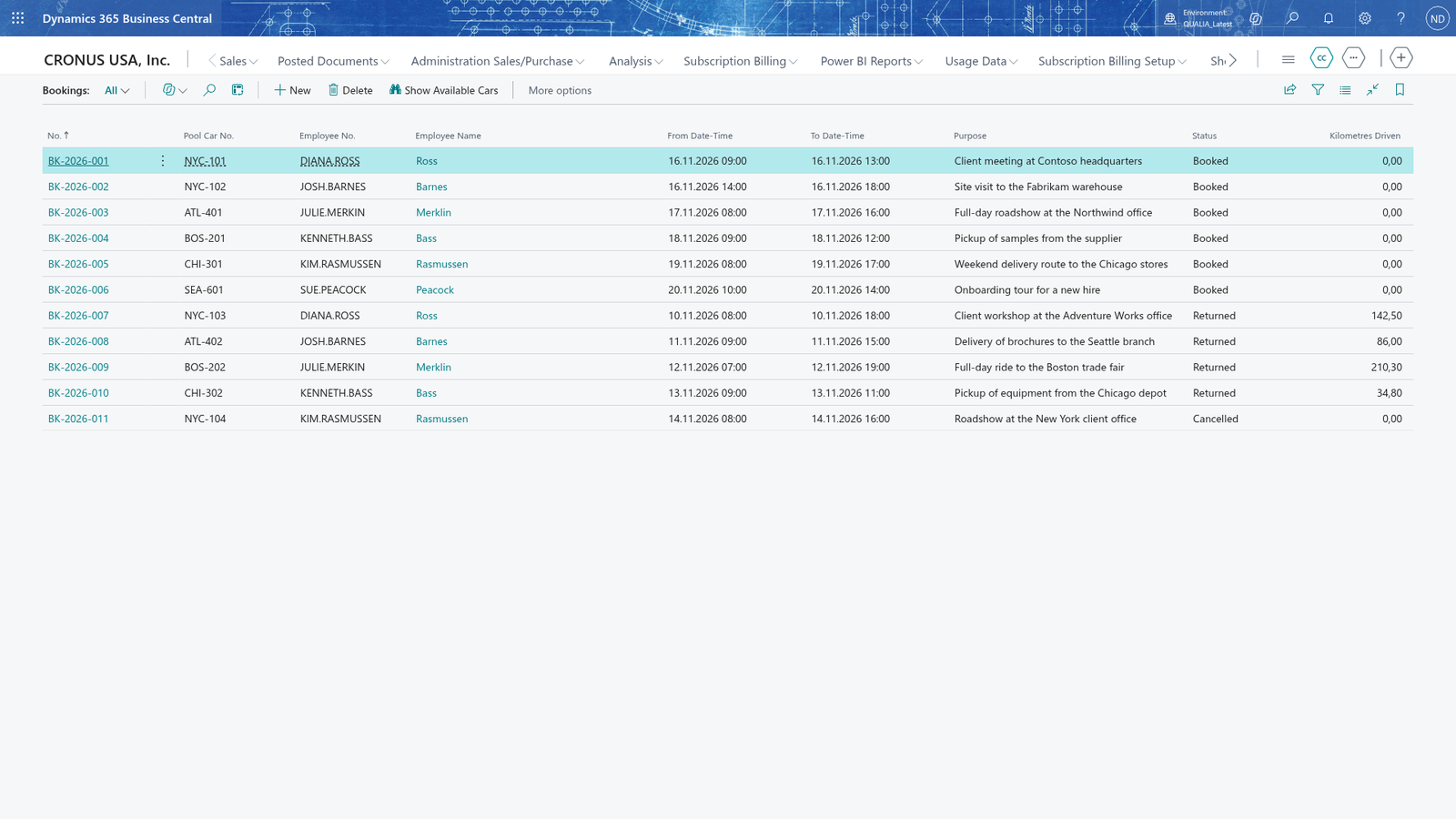
Create a booking for a car
- Search for Bookings and open it.
- Add a booking to the list to open the Booking Card.
- In Pool Car No., enter the registration number of the car you want to book.
- In Employee No., enter the number of the employee who books the car, or open the lookup and pick the employee. The employee's name is shown next to the number.
- In From Date-Time, enter when the car is picked up.
- In To Date-Time, enter when the car must be back.
- In Purpose, describe what the car is booked for, and leave the card to save it.
The booking is saved with the status Booked and gets a number of its own, and it shows on the Bookings list.
Note: Employee No., From Date-Time, To Date-Time and Purpose are required, and To Date-Time must be later than From Date-Time.
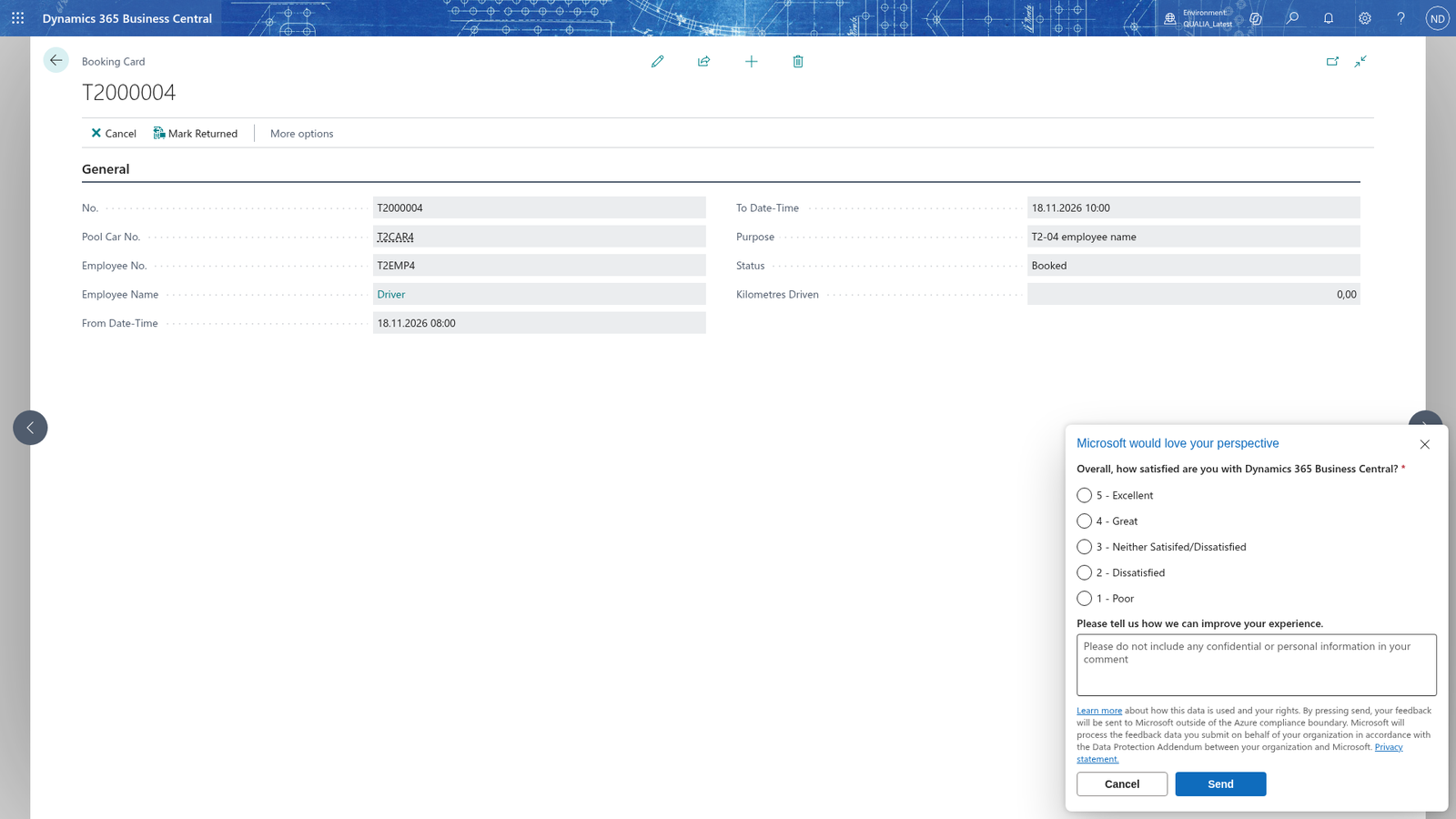
Correct a booking that ends before it starts
If To Date-Time is not later than From Date-Time, the booking is refused when you leave the card and you get the error "The To Date-Time must be later than the From Date-Time." Enter a start and an end where the end is later than the start, and leave the card again.
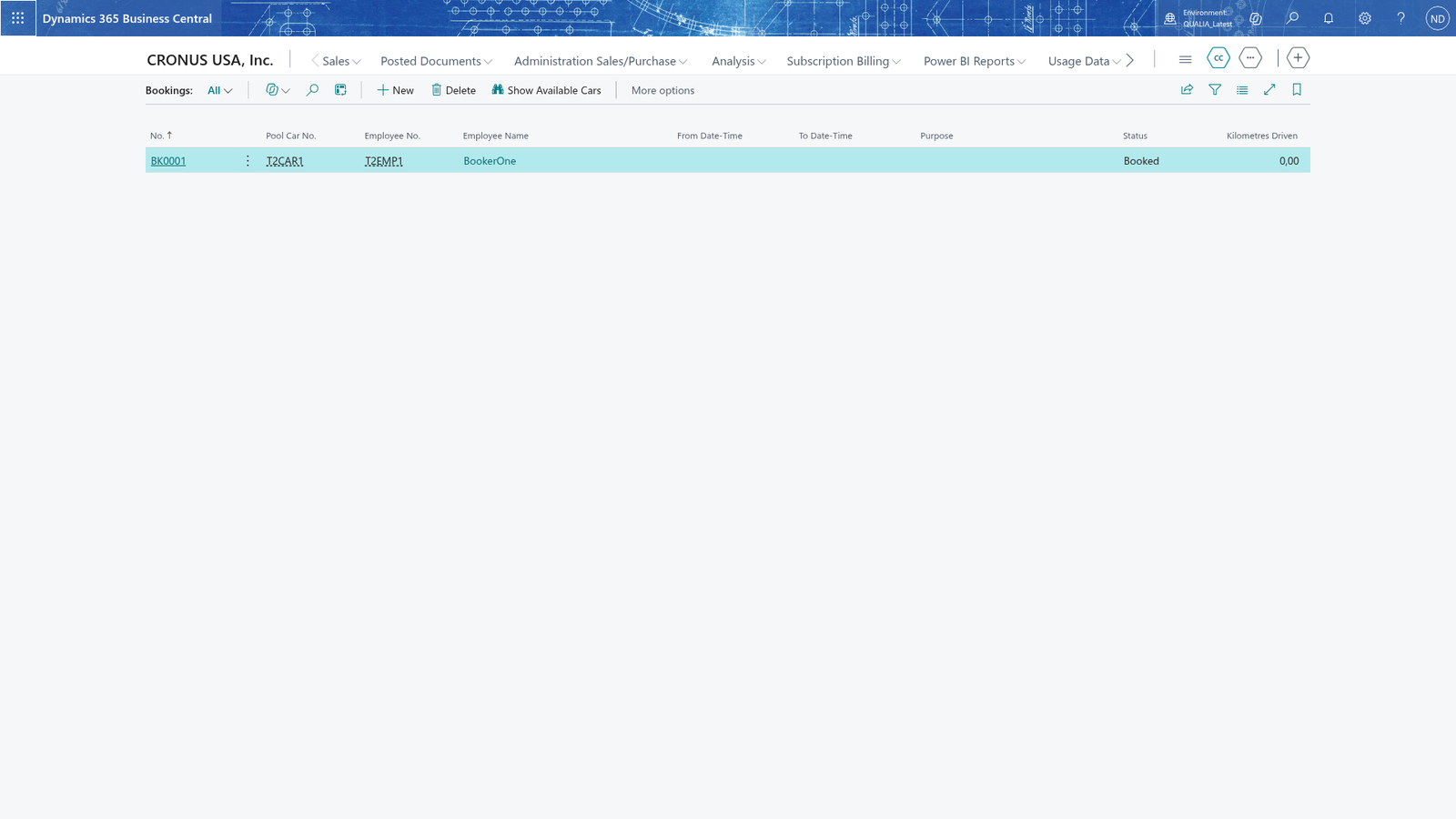
Book a car that is not active (refused with an error)
Only active cars can be booked. If the car in Pool Car No. is not active, the booking is refused when you leave the card with the error "Pool car <registration number> is not active. Only active pool cars can be booked." Book an active car instead, or ask the office to turn Active back on for the car.