
Stop invalid entries with an error
An error rule refuses a change before it is saved: the user sees your message and the record keeps its old value. Maria Lopez, the controller of CRONUS USA, wants no sales line with a quantity of zero or below. She writes the error text first, then the rule set SALES-QTYVAL with one rule on the Sales Line quantity, and adds the rule set to the rule group ALL. Tom Becker at the order desk then tries quantity 0 on order S-ORD101004.
Before you start
- Business Rule Setup has the rules switched on (see Setting up).
- You know the placeholders you need. Sales Line is table 37; its fields used here:
[37:3]Document No.,[37:4]Line No.,[37:6]No.,[37:15]Quantity. The Available Placeholders FactBox on the rule card lists them once the trigger field is set.
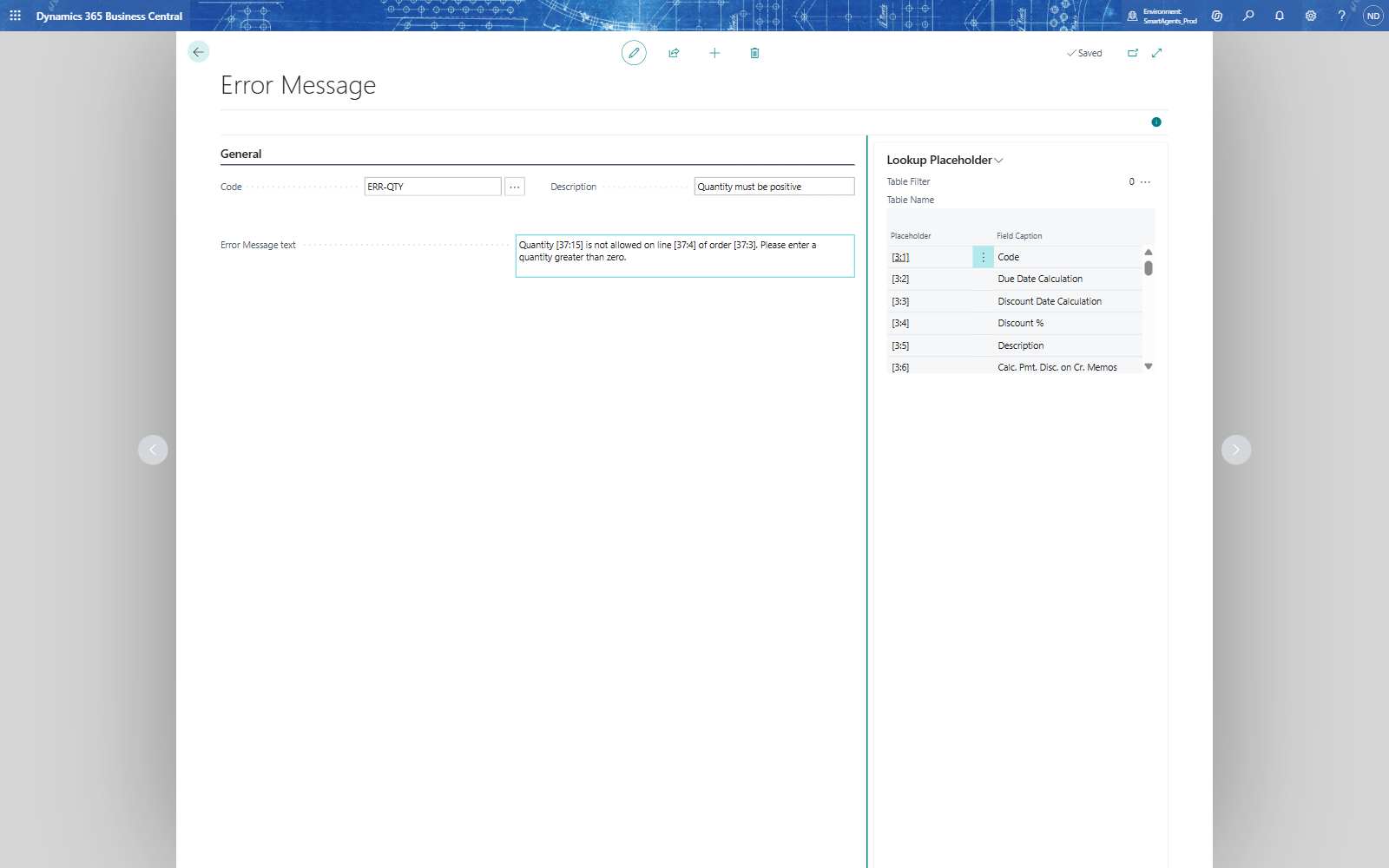
Write the error message
- Search for Error Messages and choose New.
- Fill in:
- Code: ERR-QTY
- Description: Quantity must be positive
- Error Message text: Quantity [37:15] is not allowed on line [37:4] of order [37:3]. Please enter a quantity greater than zero.
- Close the card.
Create the rule set and its rule
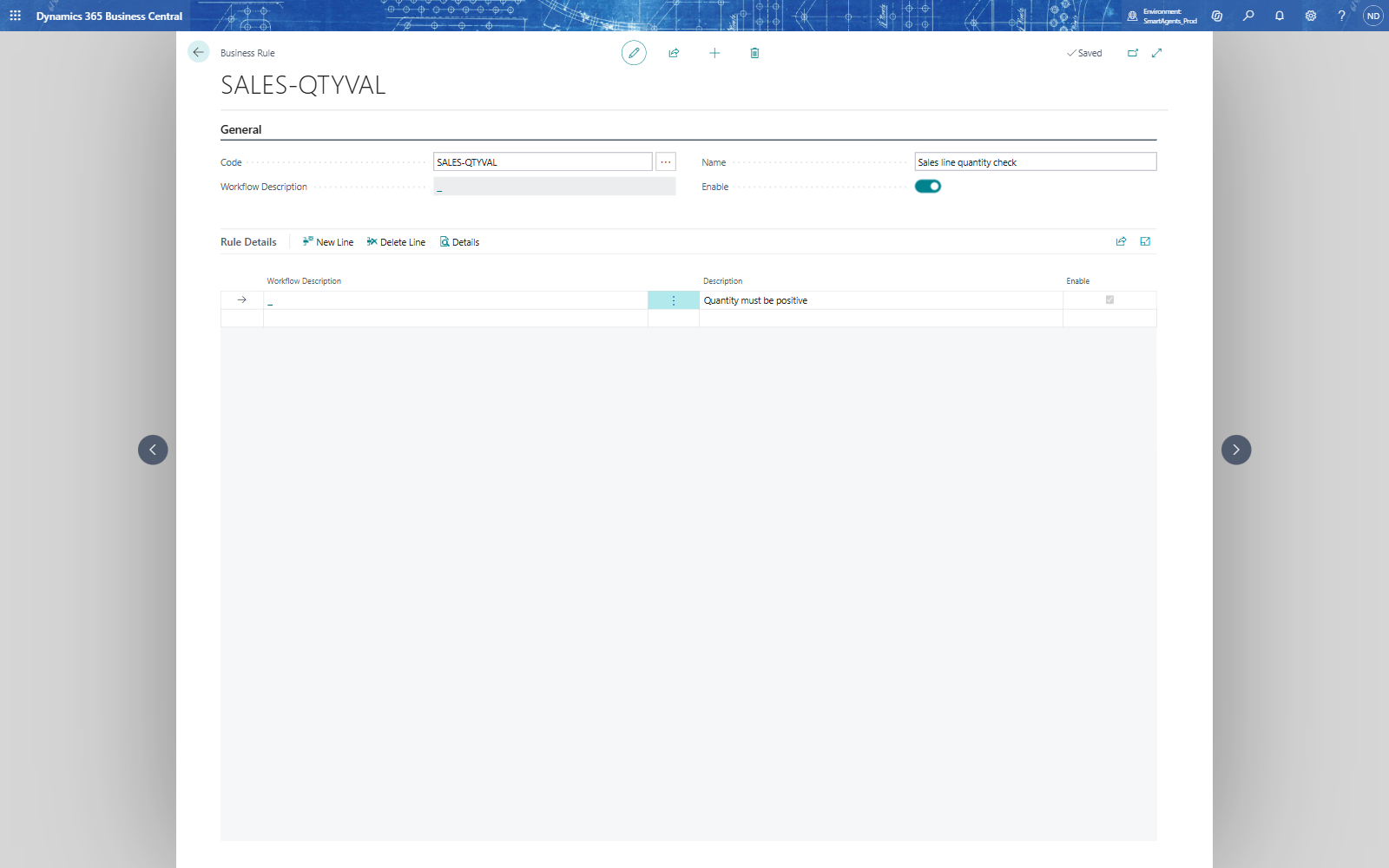
- Search for Business Rules and choose New.
- Fill in Code SALES-QTYVAL and Name Sales line quantity check.
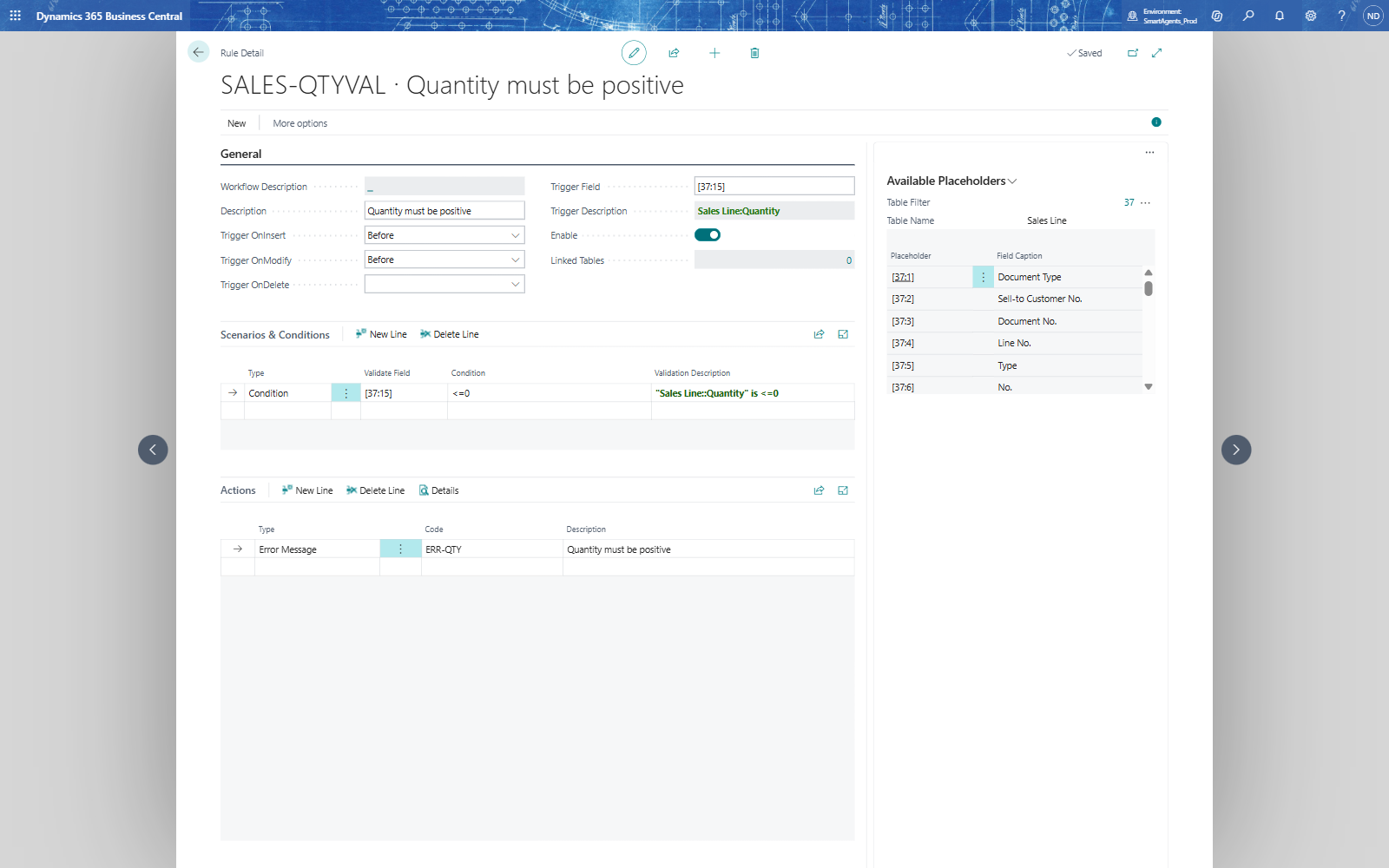
- In Rule Details, enter the Description of the first rule: Quantity must be positive. Select the line and choose Details - the Rule Detail card opens.
- On the rule card, fill in:
- Trigger OnInsert: Before
- Trigger OnModify: Before
- Trigger Field: [37:15] - Trigger Description then shows Sales Line:Quantity.
- In Scenarios & Conditions, on the first line:
- Type: Condition
- Condition: <=0
- Validate Field: [37:15] - Validation Description shows "Sales Line::Quantity" is <=0.
- Close the rule card and open it again with Details (see the note below). Select the condition line.
- In Actions, on the first line, choose Type Error Message; answer Yes when Business Central asks whether to continue. Then choose Code ERR-QTY - the Description is taken from the error message.
- Turn on Enable on the rule card.
- Back on the rule set card, turn on Enable.
Note: The Actions part shows the actions of the condition line that is selected in Scenarios & Conditions. Right after you typed a new condition, the cursor sits on the empty line below it; an action added then belongs to no condition, and Business Central says "The view is filtered, and the entry is outside the filter". Reopen the rule card, or click the condition line, before you add actions.
Put the rule set into a rule group
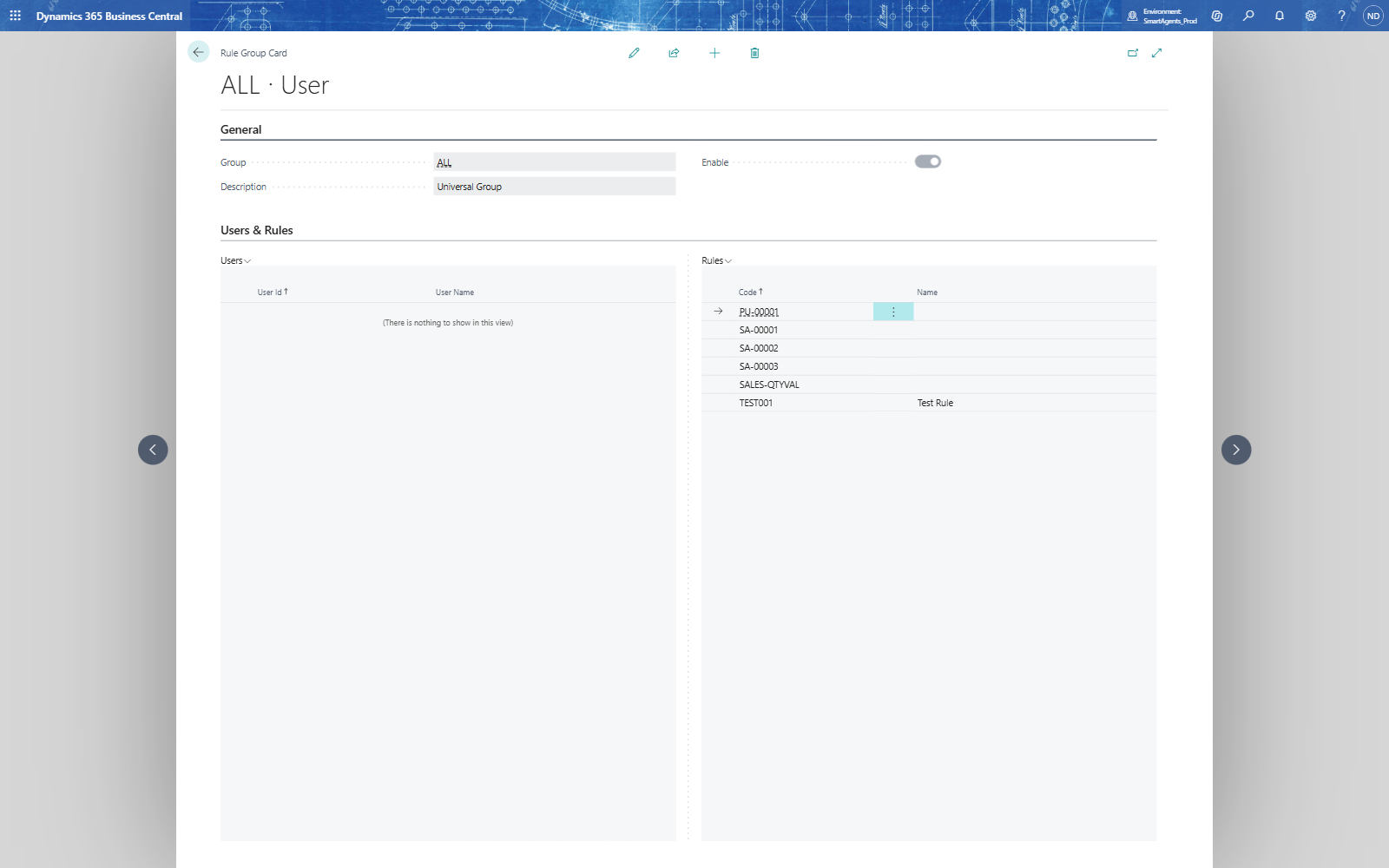
A rule set runs only when it is listed in an enabled rule group.
- Search for Rule Groups and open the group ALL (Rule Group Card).
- In Rules, on an empty line, choose the Code SALES-QTYVAL. The line moves to its place in the list sorted by code; Name shows the rule set's name.
What the order desk sees
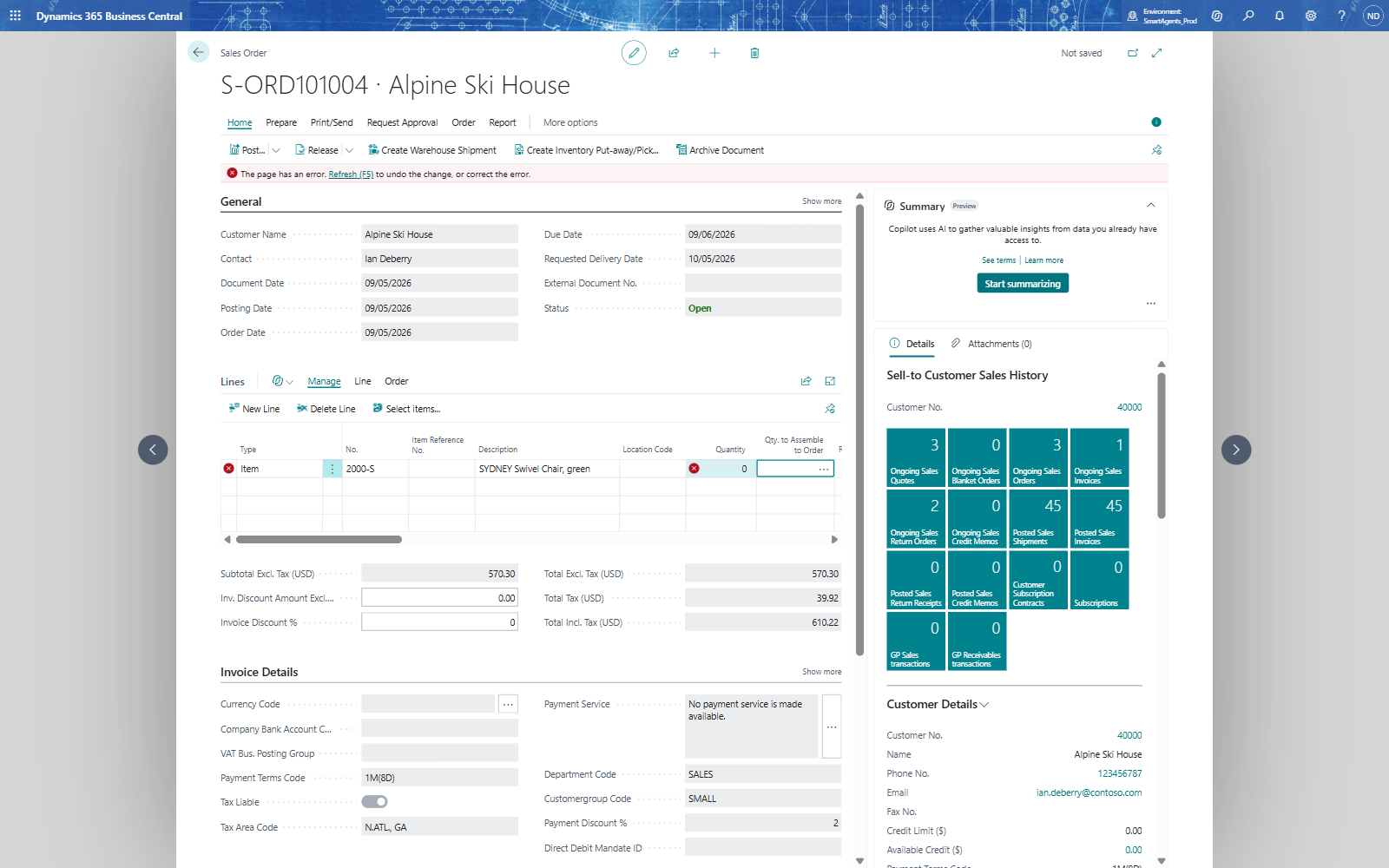
- Tom Becker opens sales order S-ORD101004 and enters Quantity 0 on line 10000.
- The change is not saved. The line is marked with an error and the page says "The page has an error"; the line's error reads: Business Rule: SALES-QTYVAL.10000 - Quantity 0 is not allowed on line 10000 of order S-ORD101004. Please enter a quantity greater than zero.
- Tom refreshes the page (F5) or enters a valid quantity; the line still has its quantity 3.
If something goes wrong
- Nothing happens when the quantity is 0: check the four switches - Enable Business Rules (or Enable Workflow) on the setup, Enable on the rule set, Enable on the rule card - and that the rule set is in an enabled rule group. If the rule is the first on Sales Line, start a new session.
- The error text shows no values: the error message's text was not saved - fill in Error Message text and leave the field before you close the card.
- "License limit exceeded": without a licence only two rule lines can be enabled.