
Setting up
- Search for Business Rule Setup and open it.
- Turn on the main switch. Its caption is Enable Business Rules; when QUALIA Advanced Workflow is installed as well, the same switch is shown as Enable Workflow.
- Choose the Log Level: Off (nothing is written), Actions Only (each action that runs or fails) or Full (every scenario, condition and action - for troubleshooting).
- Optionally choose number series for rule sets and action records (Business Rule Nos. - shown as Rule Nos. with Advanced Workflow -, Message Nos., Error Message Nos. and so on). Without a number series you type the codes yourself, as in this guide.
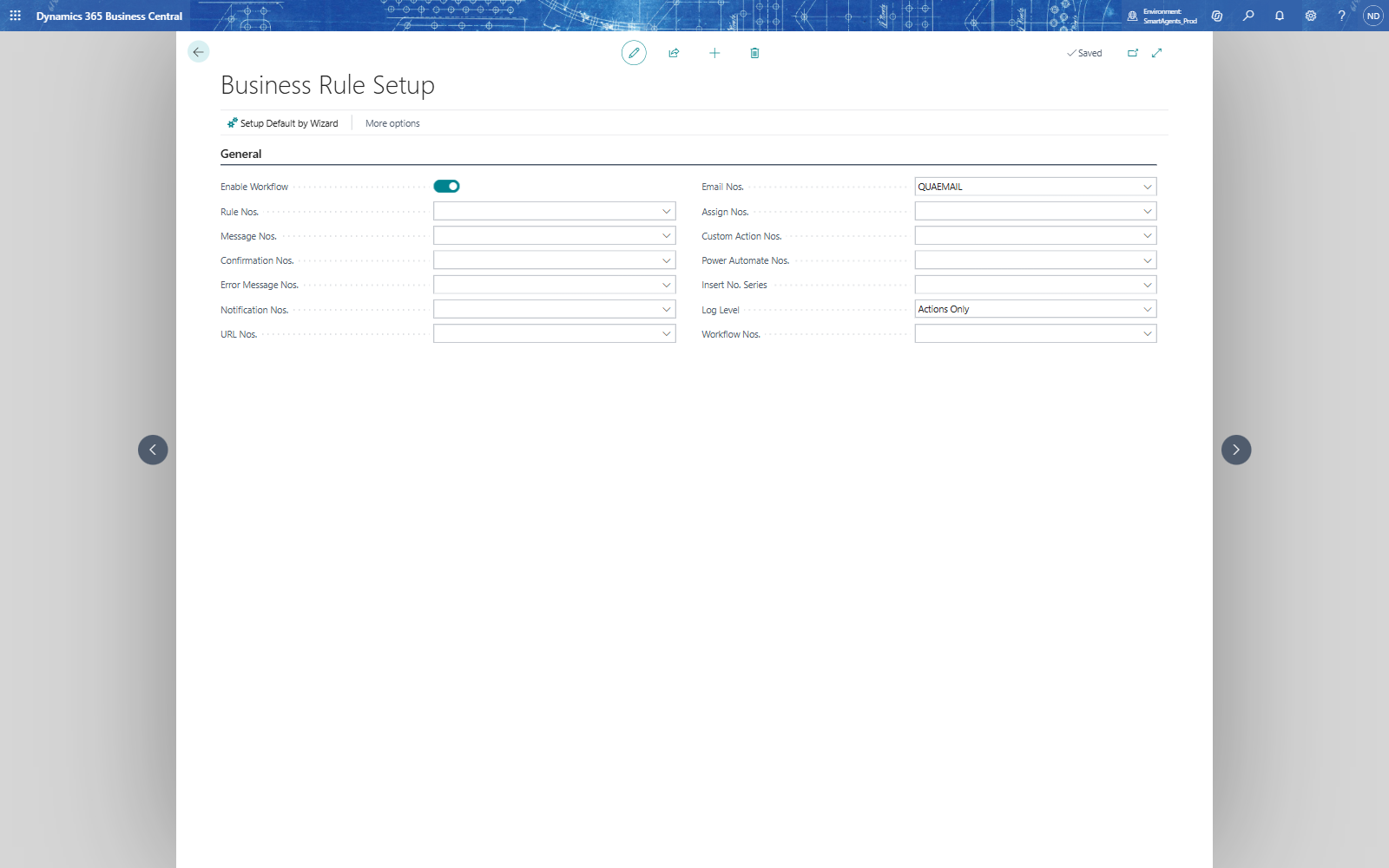
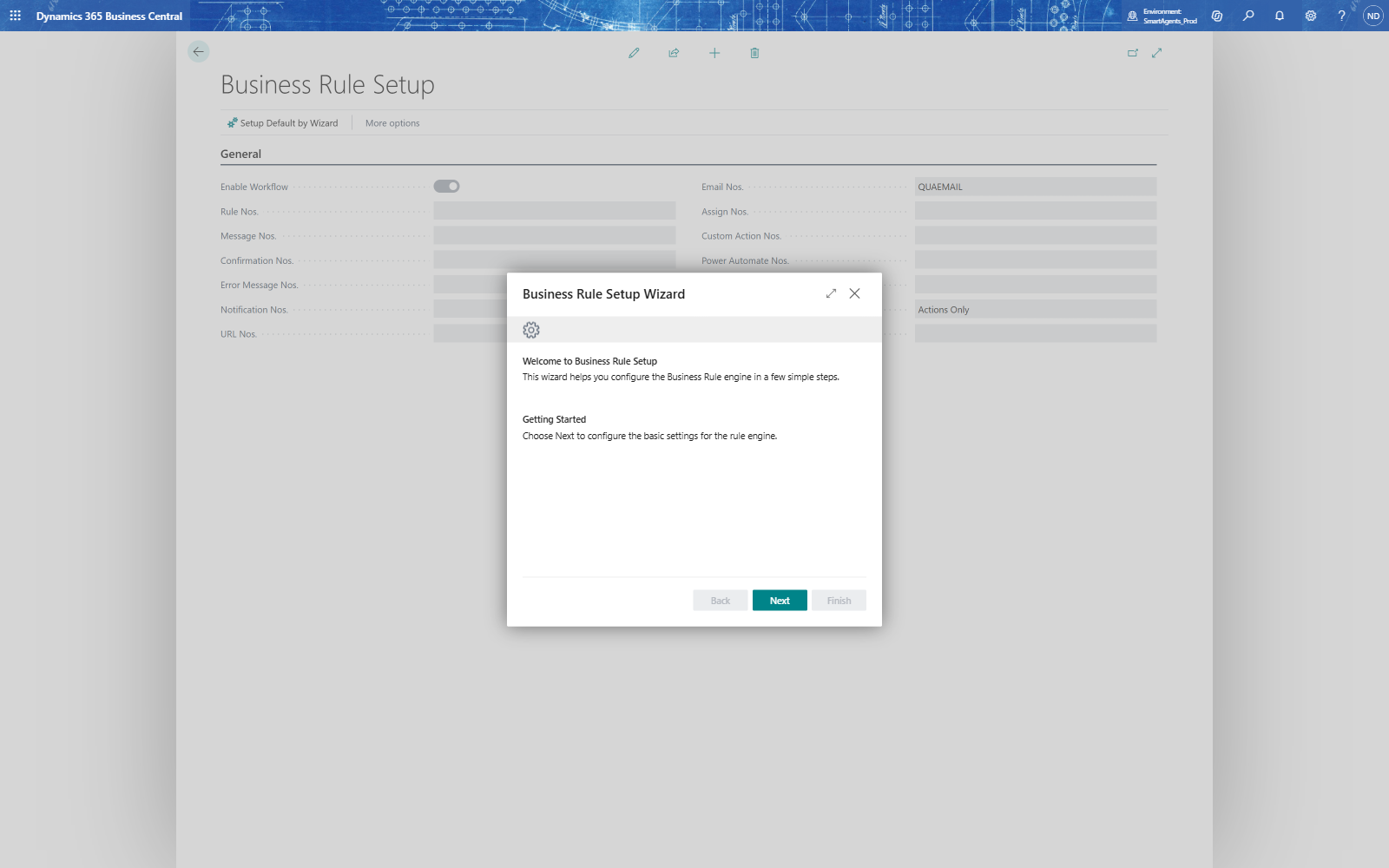
Setup Default by Wizard on the setup page opens the Business Rule Setup Wizard, which walks through the same settings and creates default number series.
Note: Without a licence (after the trial) at most two rule lines can be enabled at the same time; enabling a third one gives "License limit exceeded".
Note: When you enable the first rule on a table, Business Central switches on its Change Log for that table - the rule engine works through it. Business Central asks you to refresh or restart your session; rules on that table run from the next session on.