
Keep track: the Rule Log and the rule list
Maria Lopez checks what her rules did. With Log Level Actions Only on Business Rule Setup, every action a rule runs is written to the Rule Log.
Read the Rule Log
- Search for Rule Log.
- Each line shows the action (Description, Action Type, Action Code), the Rule ID and Rule Line No., the Table and Trigger (Before Modify, After Modify,...), the User and the Timestamp.
- Entry Type says what happened: Action Succeeded for a message, Action Failed for an error action - the change it was meant to stop was stopped.
- Clear Log empties the log.
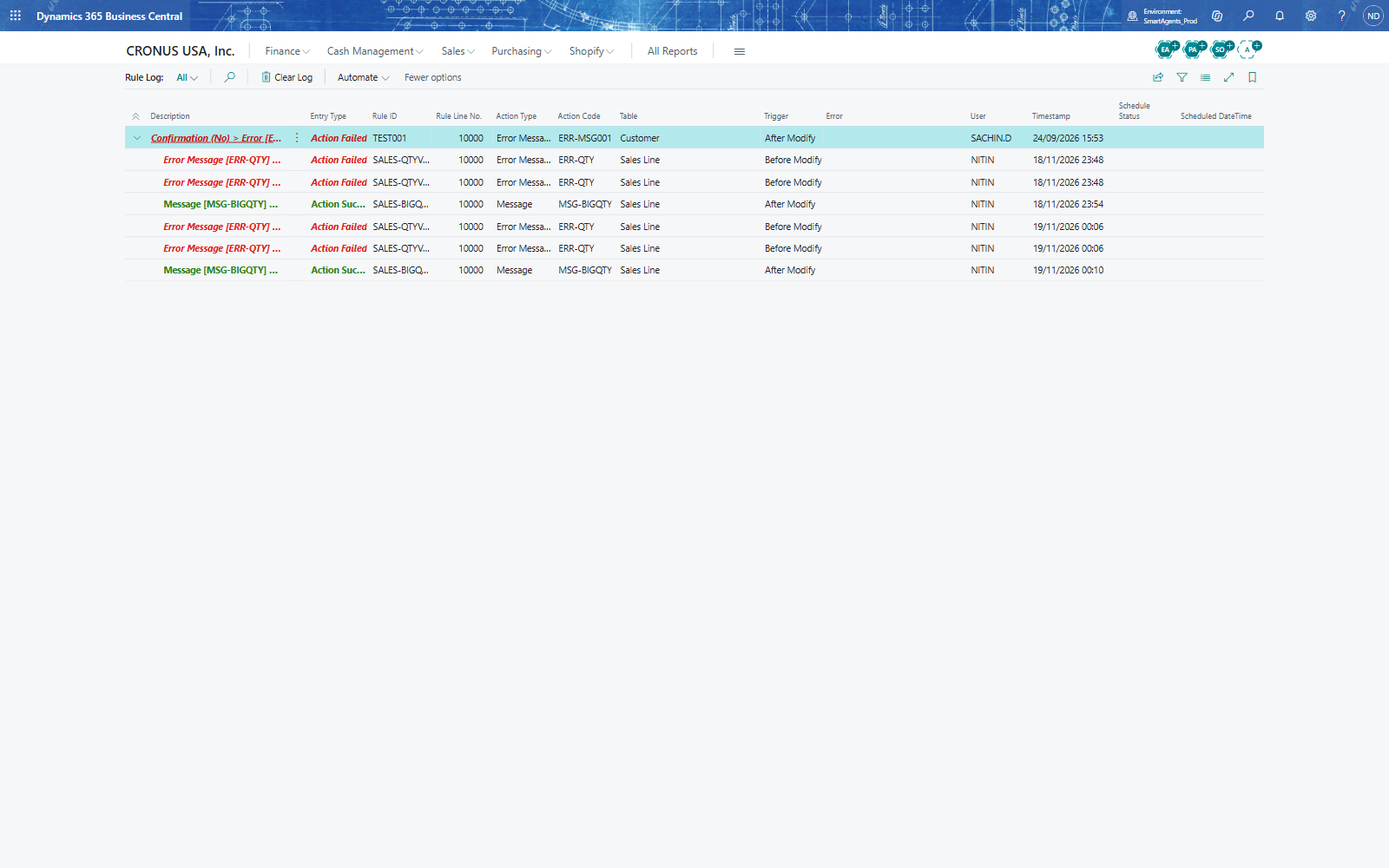
Note: With Log Level Off (the default) nothing is logged. Full also logs every scenario and condition that was checked - switch it on for troubleshooting, and back to Actions Only or Off afterwards.
The rule list
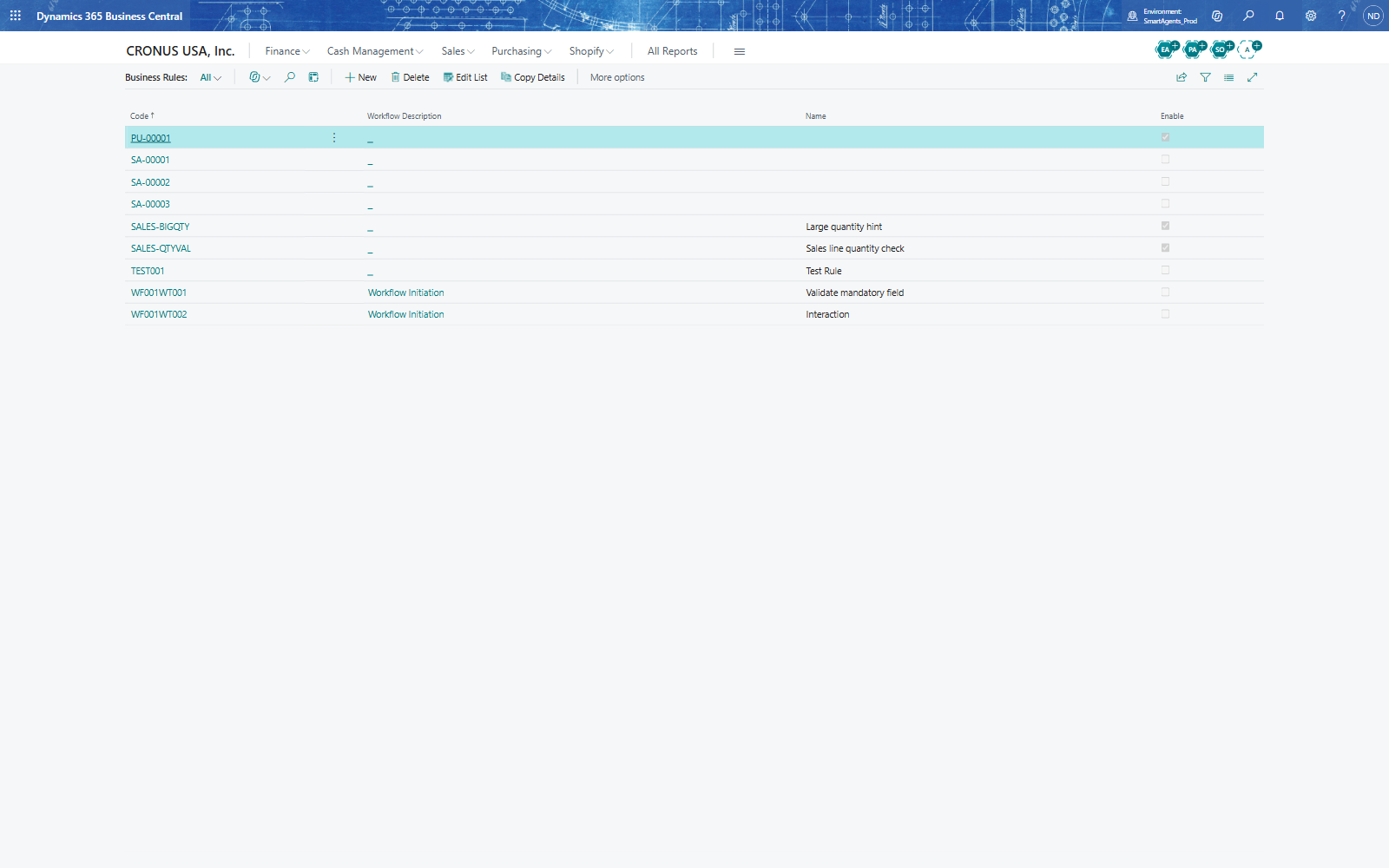
Business Rules lists the rule sets with Code, Name and Enable. Rule sets that QUALIA Advanced Workflow creates for its workflows are hidden here (filter System Created = No). Copy Details copies the rules of another rule set into the selected one; Sample Json data shows the selected rule set as a sample JSON request body, the format for creating rule sets through the integration interface.
Switch a rule off
Turn off Enable on the rule card (one rule) or on the rule set (all its rules), or remove the rule set from the rule group. Nothing is deleted; turn it on again when you need it.