
Give hints with a message
A message action informs the user and lets the change through. Maria Lopez wants the order desk to check stock when a line asks for more than 100 units. She writes the message MSG-BIGQTY and the rule set SALES-BIGQTY, which runs after the quantity has been changed.
Write the message
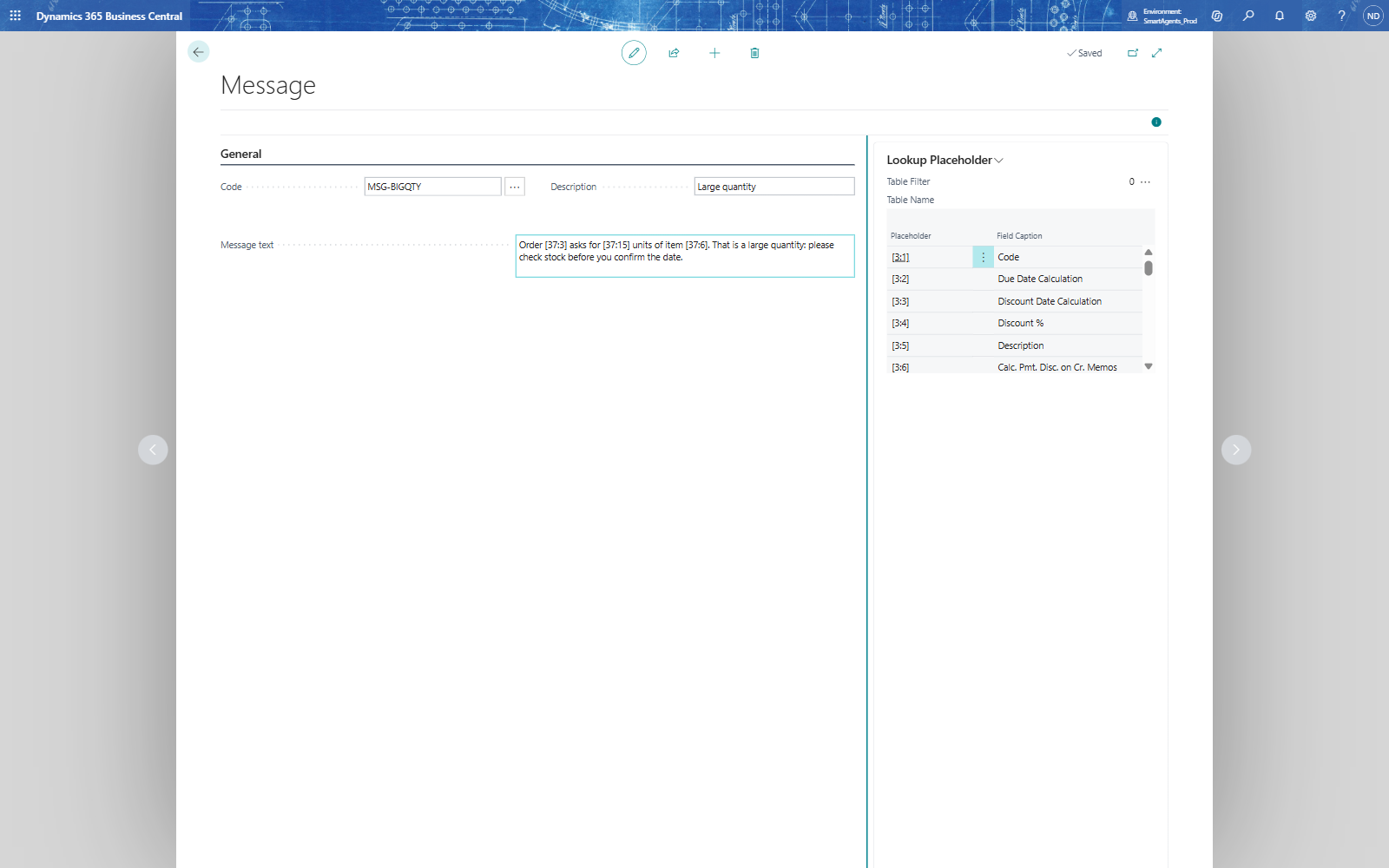
- Search for Messages and choose New.
- Fill in Code MSG-BIGQTY, Description Large quantity and Message Text: Order [37:3] asks for [37:15] units of item [37:6]. That is a large quantity: please check stock before you confirm the date.
Create the rule
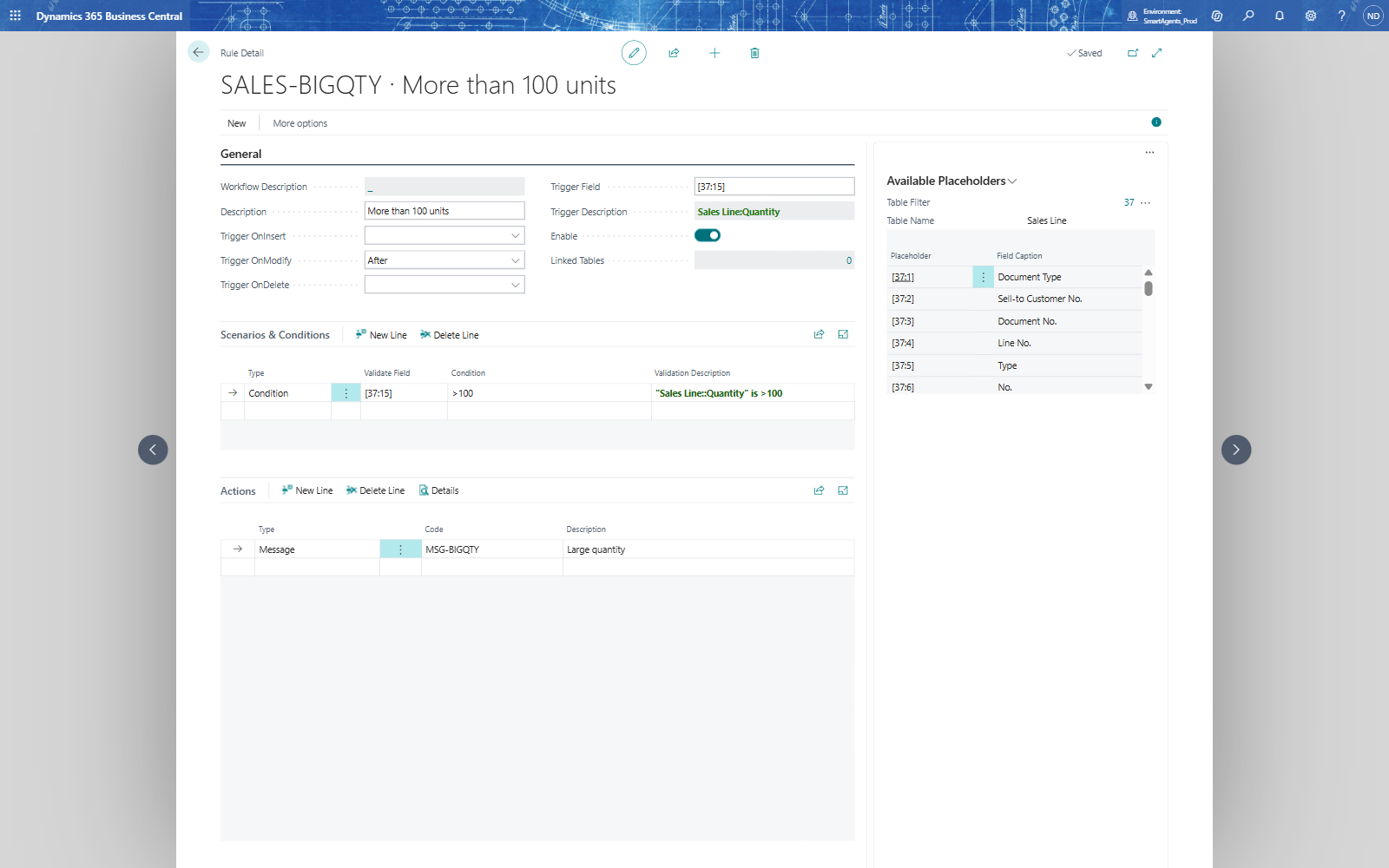
- On Business Rules, choose New: Code SALES-BIGQTY, Name Large quantity hint.
- In Rule Details: Description More than 100 units; Details.
- On the rule card: Trigger OnModify After, Trigger Field [37:15].
- In Scenarios & Conditions: Type Condition, Condition >100, Validate Field [37:15].
- Reopen the card, then in Actions: Type Message (answer Yes), Code MSG-BIGQTY.
- Turn on Enable on the rule card and on the rule set, and add SALES-BIGQTY to the rule group ALL.
What the order desk sees
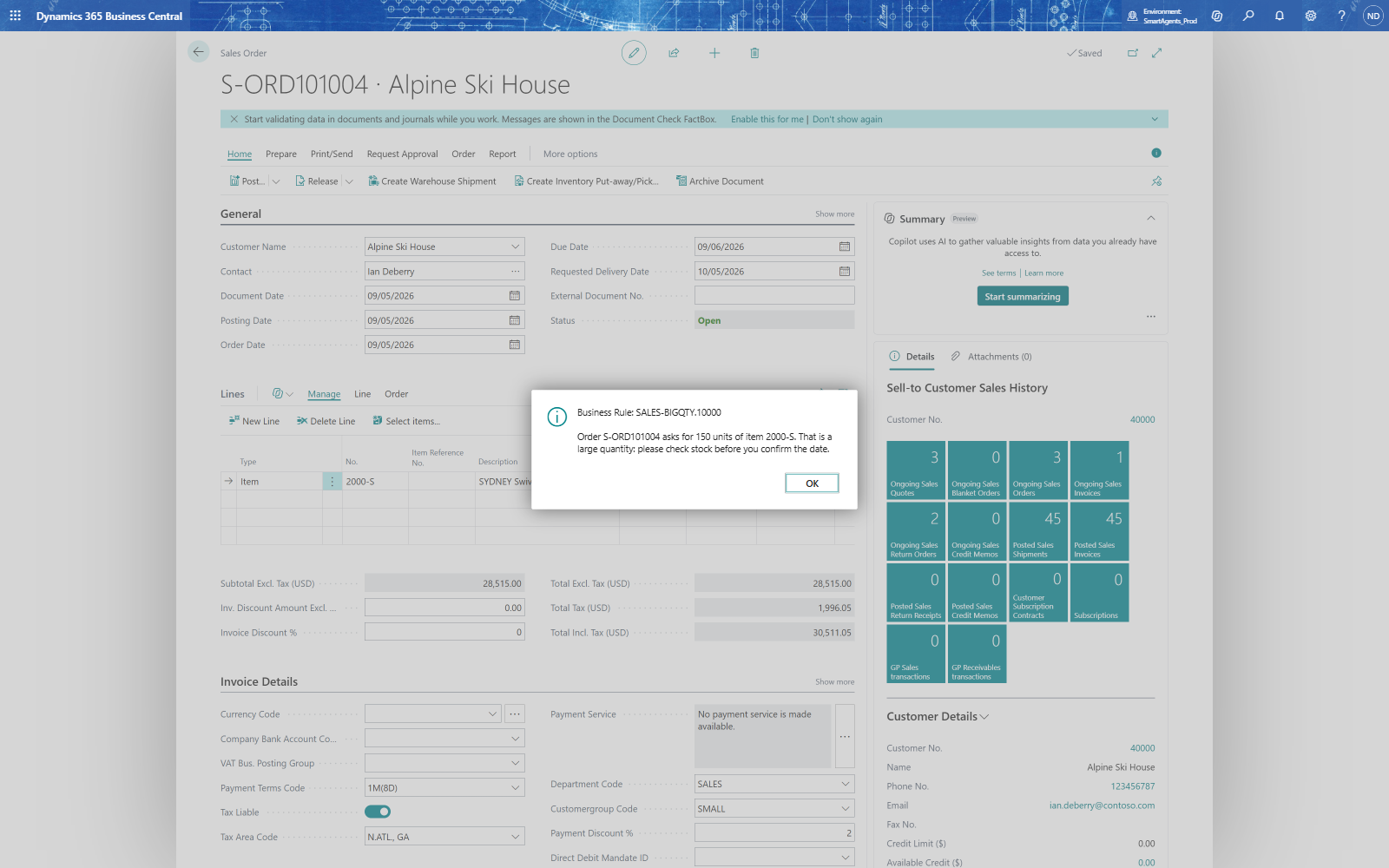
- Tom Becker enters Quantity 150 on line 10000 of S-ORD101004.
- A message appears: Business Rule: SALES-BIGQTY.10000 - Order S-ORD101004 asks for 150 units of item 2000-S. That is a large quantity: please check stock before you confirm the date. He chooses OK.
- The quantity 150 is saved - a message never stops the change.
Note: Before runs the rule before the change is saved - use it for errors and confirmations that must be able to stop the change. After runs it once the change is saved - use it for messages, notifications and e-mails.
Other actions
The same steps create the other action types; each has its own list and card: Confirmations (a question with follow-up actions If Yes and If No), Notifications, URLs, Emails (To, Cc, Bcc, Subject, Email Body, Attachments), Assignments (set field values), Inserts (create a record), Custom Actions and Power Automate Flows.