
Statistical entries
Statistical entries are quantities that don't exist in the books - headcount per department, square metres of space - that you keep in Business Central and use as a source for allocations. At QUALIA Technik GmbH the controller Timo Schulz posts the January headcount of the four departments before Monika Vogel shares the electricity over them, and floor space in the Statistical Journal when the new warehouse opens. He creates the statistical accounts and journal batches once; after Post the lines leave the journal and are kept in the Statistical Ledger Entries list. When a source with an allocation percentage is needed for an Advanced Allocations worksheet run, it is these posted entries the worksheet reads.
Before you start
- Turn on Advanced Allocations for the company: search for General Ledger Setup, open it and turn on Advanced Allocation Active (the switch described in Setting up).
- Create the units of measure you want the accounts measured in, such as
HEAD(Headcount) andSQM(Square metres) in Units of Measure. - Set up DEPARTMENT as a global dimension with the values
PROD,SALES,ADMINandITin Dimensions. - Create the statistical account types before the accounts that use them.
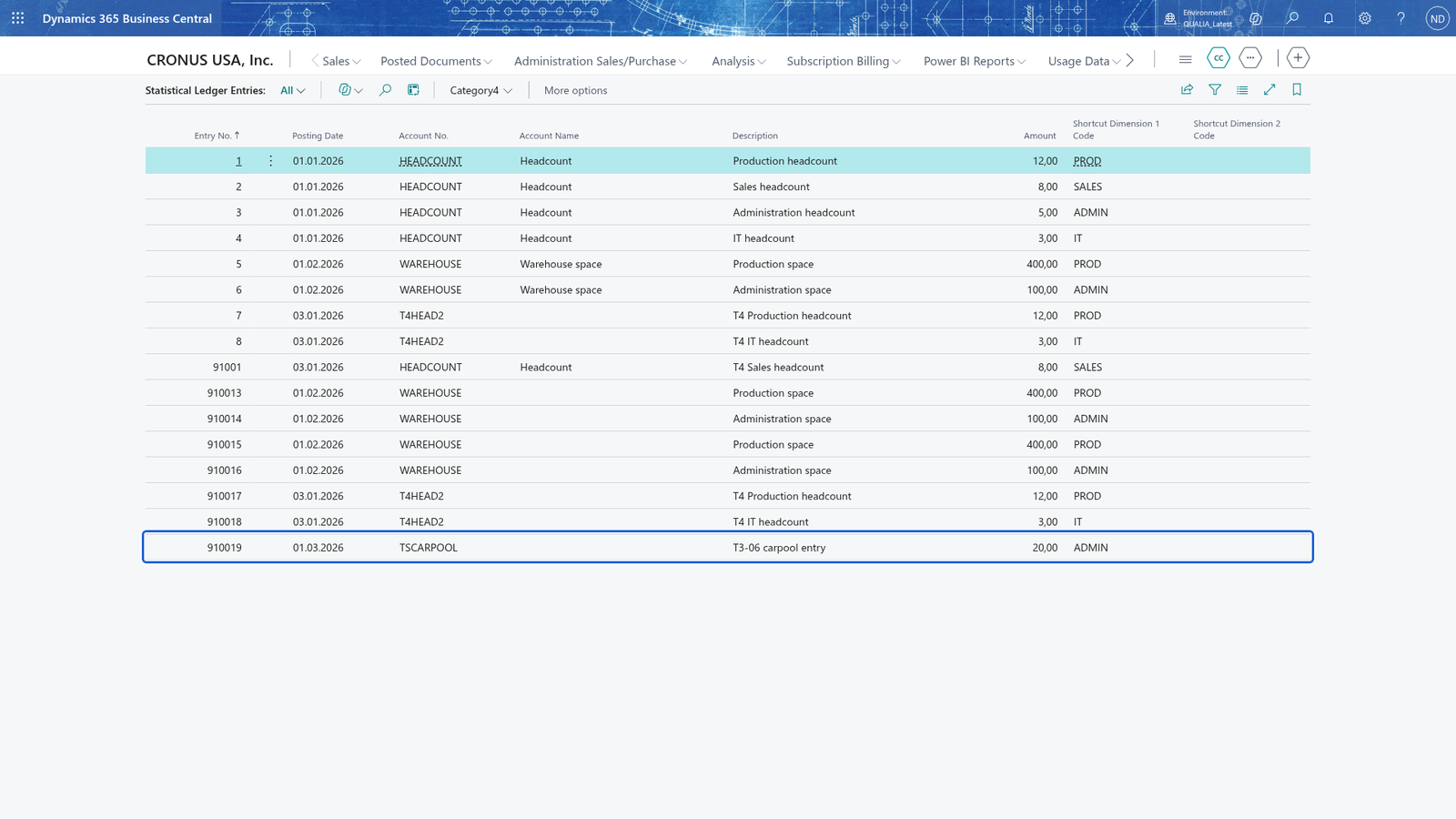
You can create an account before its unit of measure exists: a statistical account that has a type but no Base Unit of Measure is accepted and stays on the list. The picture shows such an account: it has a type and is saved without a unit of measure.
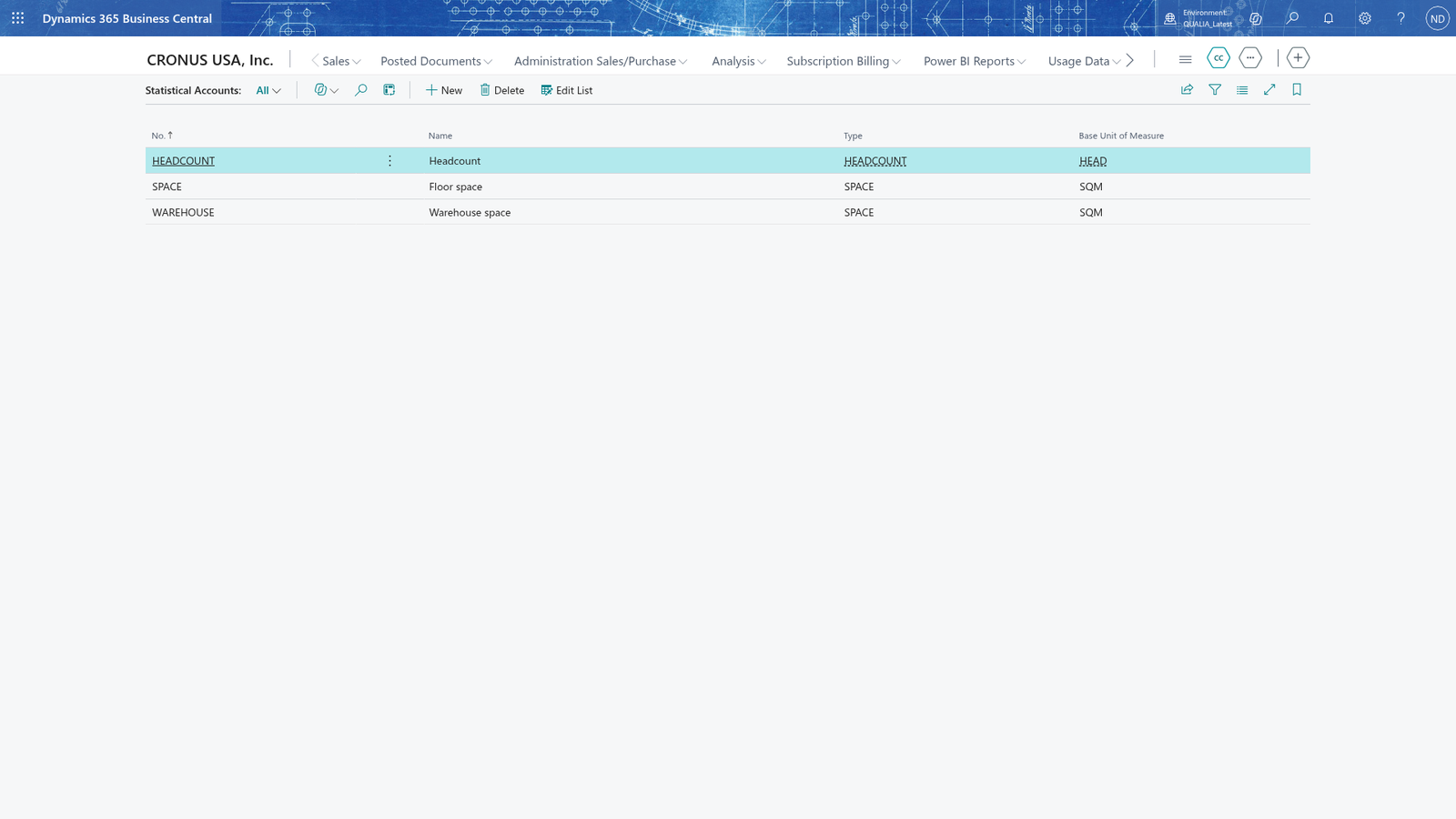
Create statistical account types
- Search for Statistical Account Types and open it.
- Choose New to add a record.
- In Code, enter a code such as
HEADCOUNT. - In Description, enter what the type is for, such as
Headcount. - Choose New again for each further type you need; at QUALIA Technik also
SPACEwith the descriptionFloor space.
The two types are now on the list.
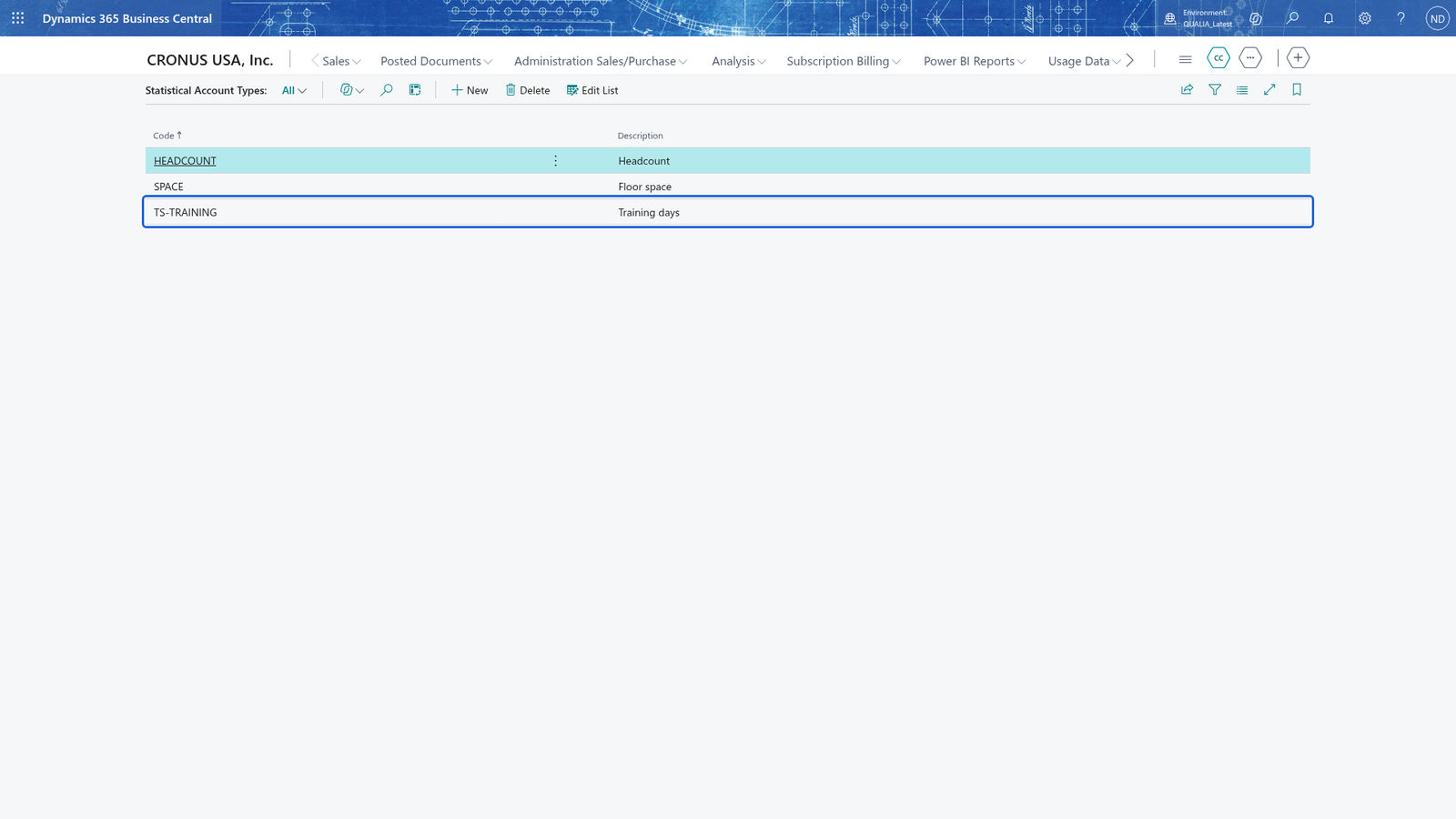
Note: The Type of a statistical account must be one of the types on Statistical Account Types, so create a type before you use it on an account.
Create a statistical account
- Search for Statistical Accounts and open it.
- Choose New to add a record.
- In No., enter a number for the account, such as
HEADCOUNT. - In Name, enter a name, such as
Headcount. - In Type, choose the statistical account type, such as
HEADCOUNT. - In Base Unit of Measure, enter the unit the entries are measured in, such as
HEAD. You can also leave the field empty and save the account without a unit of measure. - Choose New again before you enter the next No. to add another account.
The accounts are now on the list with their type and unit of measure.
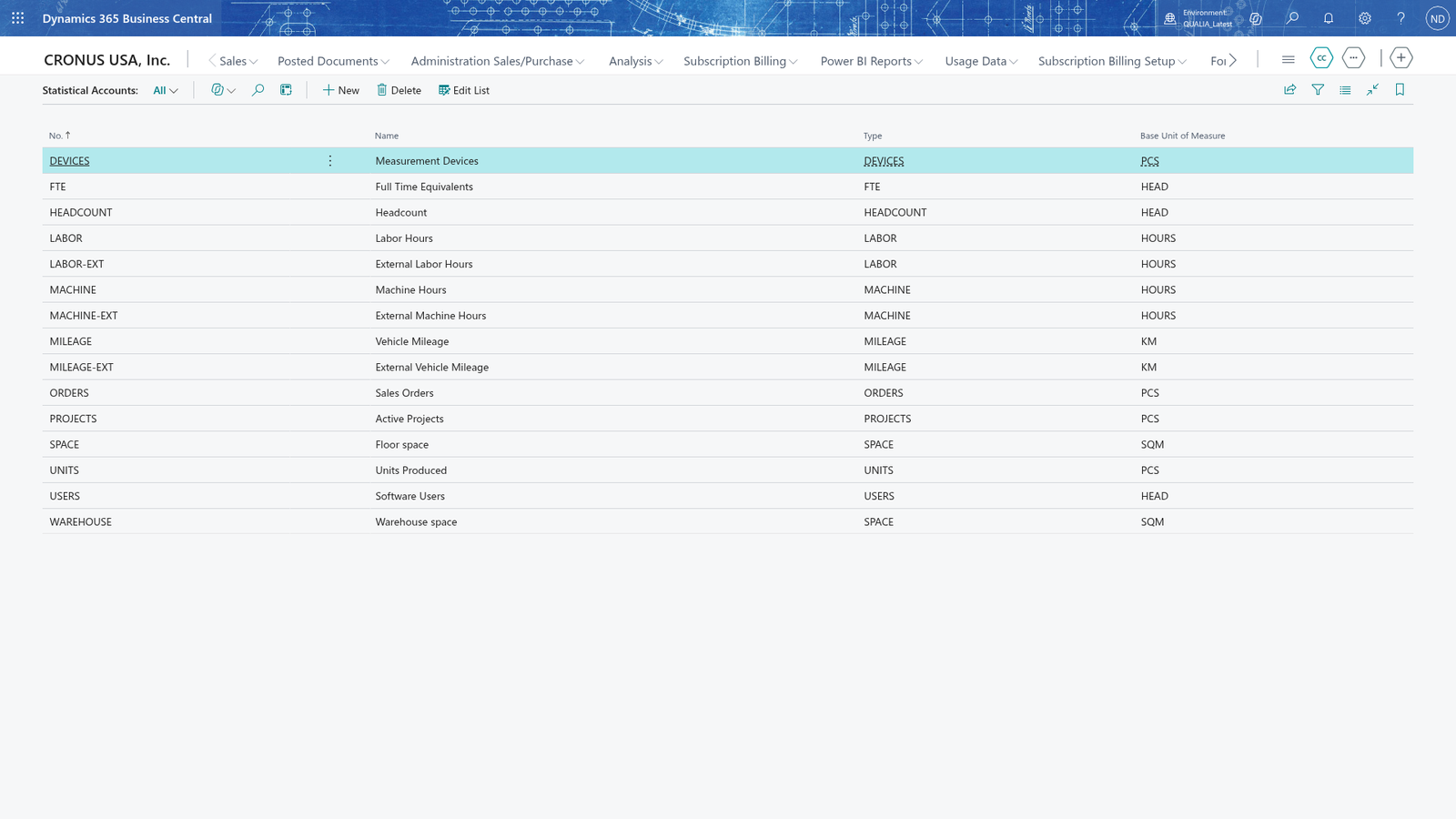
Note: Type must exist on Statistical Account Types and Base Unit of Measure must exist in Units of Measure. Both fields may also be empty, so an account without a unit of measure is saved as well.
Create a statistical journal batch
- Search for Statistical Journal Batches and open it.
- Choose New to add a record.
- In Name, enter a name for the batch, such as
YEAR2026. - In Description, enter what the batch is used for, such as
2026 headcount. - In Statistical Account No., choose the statistical account whose entries the batch contains, such as
HEADCOUNT. You can also leave the field empty. - Choose New again before you enter the next batch Name; at QUALIA Technik the second batch is
SPACE2026for the floor space (statistical accountWAREHOUSE). - Choose Edit Journal to open the Statistical Journal on the batch you last worked with; check in Batch Name that the journal shows your batch.
QUALIA Technik creates the batch YEAR2026 for the headcount (statistical account HEADCOUNT).
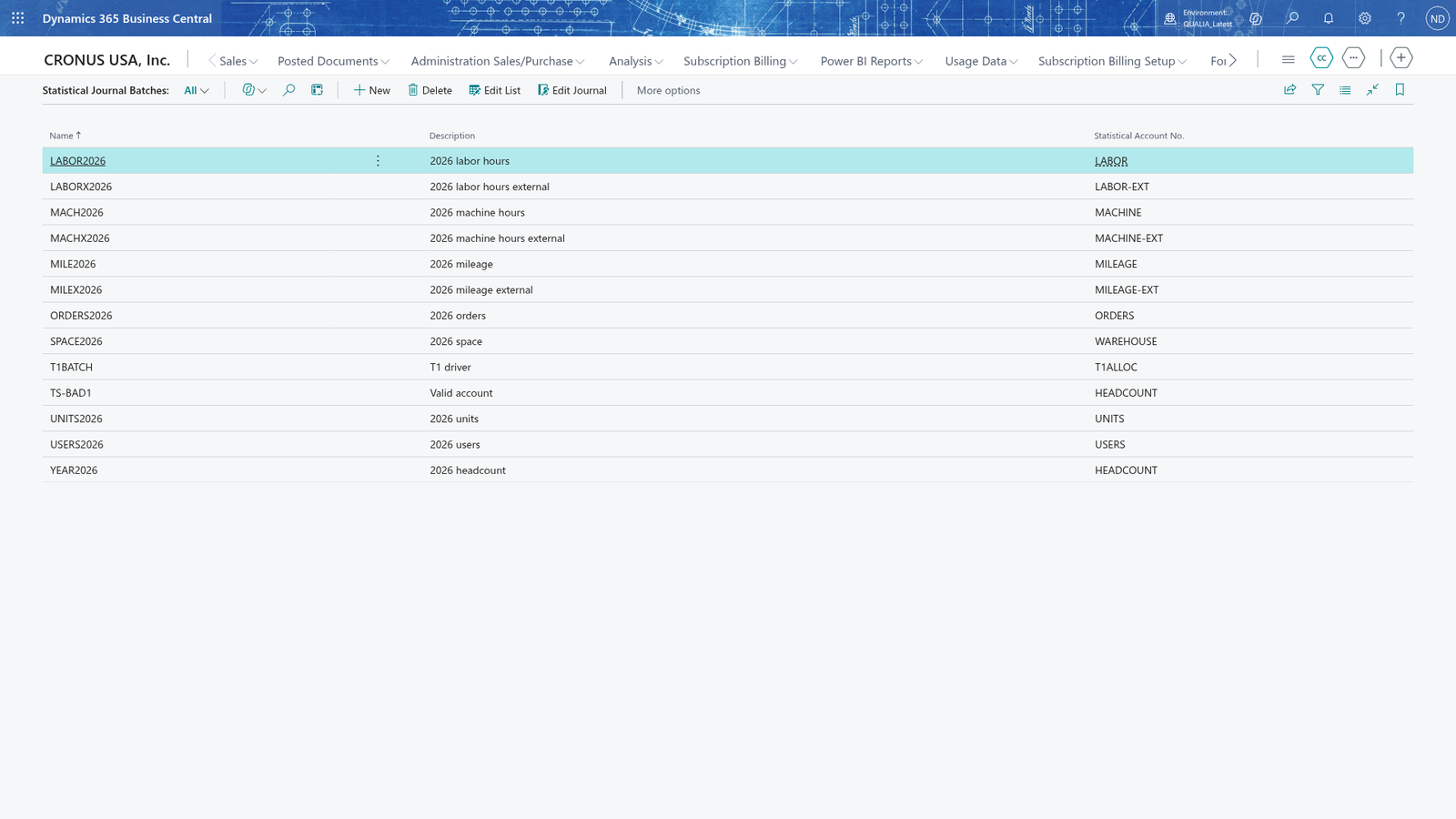
Note: Only Name must be filled in before the batch can be saved. Statistical Account No. may stay empty; if you fill it in, it must be a statistical account that already exists on Statistical Accounts.
Enter and post lines in the statistical journal
- Search for Statistical Journal and open it. The journal opens on the batch you last used. To use another batch, choose the Batch Name field and select it; the journal then shows that batch's lines.
- In Posting Date, enter the date of the entry, such as
01.01.2026. - In Account No., choose the statistical account, such as
HEADCOUNT. Account Name shows the account's name. - In Description, enter what the entry is for, such as
Production headcount. - In Amount, enter the quantity, such as
12. - Enter the entry's dimensions in the Shortcut Dimension 1 Code to Shortcut Dimension 8 Code columns of the line. At QUALIA Technik the departments share the costs, so enter the department (DEPARTMENT, the company's first global dimension) in Shortcut Dimension 1 Code, such as
PROD. - Add a line for each entry of the batch, then choose Post.
The journal lines are removed and the entries are kept in the statistical ledger entries.
Note: The Shortcut Dimension 1 Code to Shortcut Dimension 8 Code columns only show for the dimensions your company set up as global dimensions in General Ledger Setup. Once a line has dimensions, choose Dimensions on the &Line tab to view them.
Check the posted statistical entries
- Search for Statistical Ledger Entries and open it.
- Filter Account No. on the account to see one account's entries, such as
HEADCOUNT. - Select an entry and choose Dimensions on the Entry tab to see its dimensions.
You also reach the same list filtered to one account from the journal: open Statistical Journal, select a line of the account and choose Ledger E&ntries on the A&ccount tab.
The posted entries of the January headcount are in the list with posting date, account, description, amount and department.
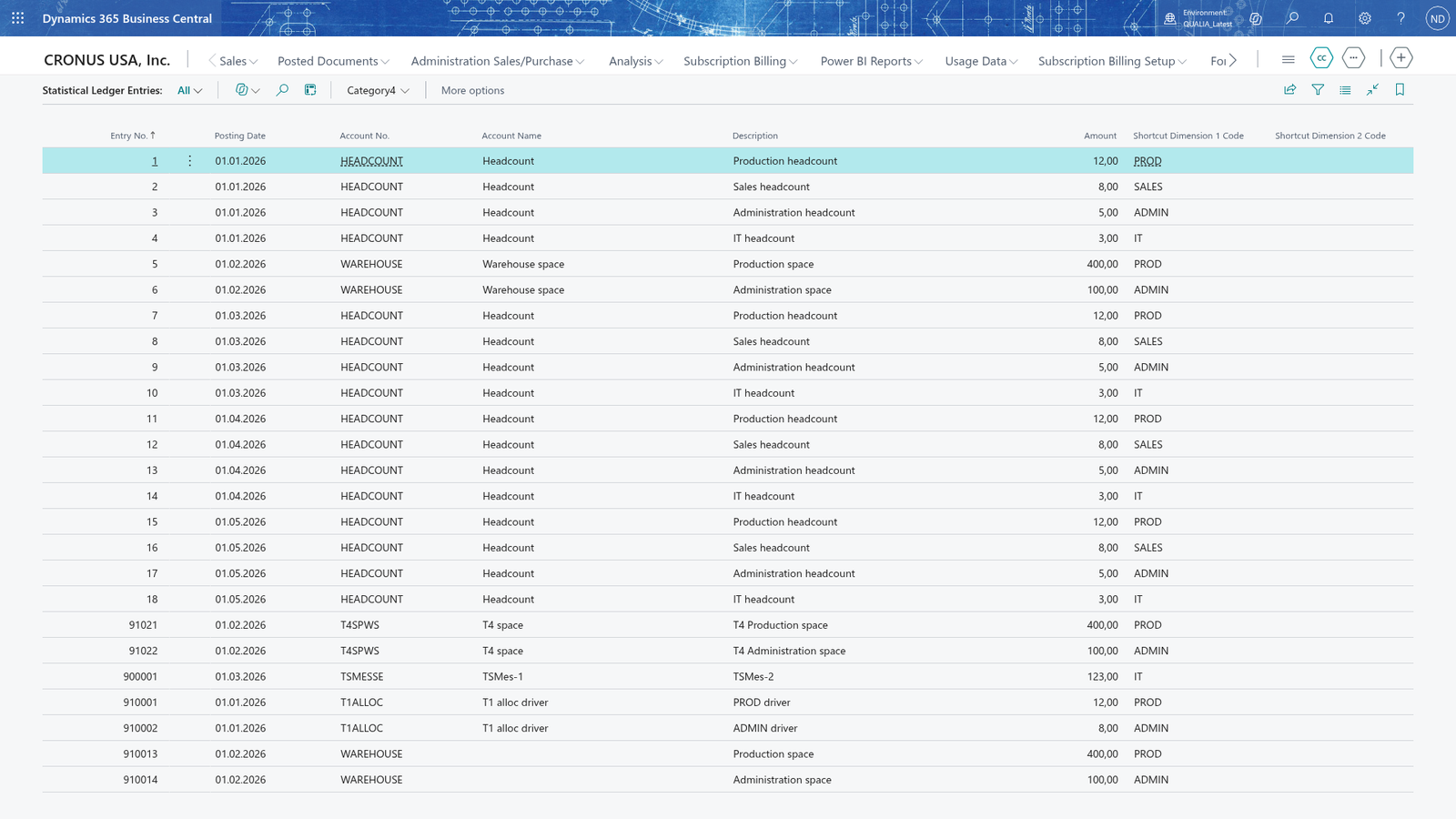
Note: The list is read-only: posted entries are kept as they were entered, and their dimensions can be viewed here but not corrected. If a posted entry is wrong, post a new line with the correct value from the Statistical Journal.
Example: January headcount for the electricity allocation
Timo Schulz enters the headcount that Monika Vogel needs for the January electricity allocation: batch YEAR2026 (statistical account HEADCOUNT), posting date 01.01.2026. He enters four lines, each with Description and the department in Shortcut Dimension 1 Code (DEPARTMENT):
| Line | Account No. | Description | Amount | DEPARTMENT |
|---|---|---|---|---|
| 1 | HEADCOUNT | Production headcount | 12 | PROD |
| 2 | HEADCOUNT | Sales headcount | 8 | SALES |
| 3 | HEADCOUNT | Administration headcount | 5 | ADMIN |
| 4 | HEADCOUNT | IT headcount | 3 | IT |
He chooses Post. The four lines leave the journal and are kept in Statistical Ledger Entries, each with a new entry number: posting date 01.01.2026, account HEADCOUNT, amounts 12, 8, 5 and 3 by department. For the allocation, Timo sets up the batch for the headcount in General Journal Batches: template ADVALLOC, batch HEADCNT, with Source Type Statistical, Source No. HEADCOUNT, Source Dimension 1 Code DEPARTMENT and Target G/L Account 6800. Monika Vogel opens Advanced Allocations on that batch (the source fields are read-only and copy the batch), enters Start Date 01.01.2026 and End Date 31.01.2026 and chooses Calculate Allocation; the lines come out on 6800 with PROD 12, SALES 8, ADMIN 5 and IT 3 as the source amounts (chapter 1). Timo enters the February headcount a month later with the same four lines and posting date 01.02.2026; the ledger entries then hold two months' headcount, and the worksheet reads only the period you enter. When the warehouse opens in February, Timo creates the account WAREHOUSE (type SPACE, unit SQM) and enters PROD 400 and ADMIN 100 in the batch SPACE2026.
What happens
Posting runs with the Post action on the Statistical Journal. Each line of the current batch becomes a new entry in Statistical Ledger Entries: an entry number is assigned, and the posting date, account, description, amount and dimensions are copied from the line. The lines of the posted batch are then removed from the journal, so posting the same batch again posts only the new lines and never repeats an entry.
You find the entries on Statistical Ledger Entries and use them as the source of an allocation: on a General Journal batch, set Source Type to Statistical and Source No. to the account number, then run Calculate Allocation on the Advanced Allocations worksheet with that batch (chapter 1). The entries list is read-only and the app has no reversal: the entries are kept as they were posted. If a posted entry is wrong, enter a new line with the correct value in the Statistical Journal and post it.
If something goes wrong
- The field Type... cannot be found in the related table (Statistical Account Type).: the type you entered doesn't exist. Create it on Statistical Account Types first, or choose a type from the list.
- The field Statistical Account No.... cannot be found in the related table (Statistical Account).: no statistical account has that number. Enter a number from Statistical Accounts.
- Choose a batch name first.: the journal was opened before any batch name was set. Choose the Batch Name field and pick a batch.
- The batch name <name> does not exist. Choose another batch name.: no statistical journal batch has that name. Check the spelling, or create the batch on Statistical Journal Batches.
- There are no lines in the batch <name> to post. Enter lines in the journal first.: the batch you chose has no lines. Enter the lines in the Statistical Journal, or switch to the right batch with Batch Name.
- A statistical journal line with an Account No. that isn't a statistical account is refused with the same type of table-relation error: enter the Account No. from the list of Statistical Accounts.