
Setting up
Set up the following once, before the first allocation. You don't need number series: you type the numbers yourself on Quick Key Allocations, Statistical Journal Batches and Statistical Accounts (the Quick Key allocation numbers, the statistical journal batch names and the statistical account numbers); posted statistical entries are numbered automatically. The app installs no setup records of its own, so create all of these records in your company; several are the setup data of the example company, so you can compare with your own.
Turn on Advanced Allocations for the company
- Search for General Ledger Setup and open it.
- Turn on Advanced Allocation Active.
- Close the page.
The General Ledger Setup page as it opens; the Advanced Allocation Active switch is on.
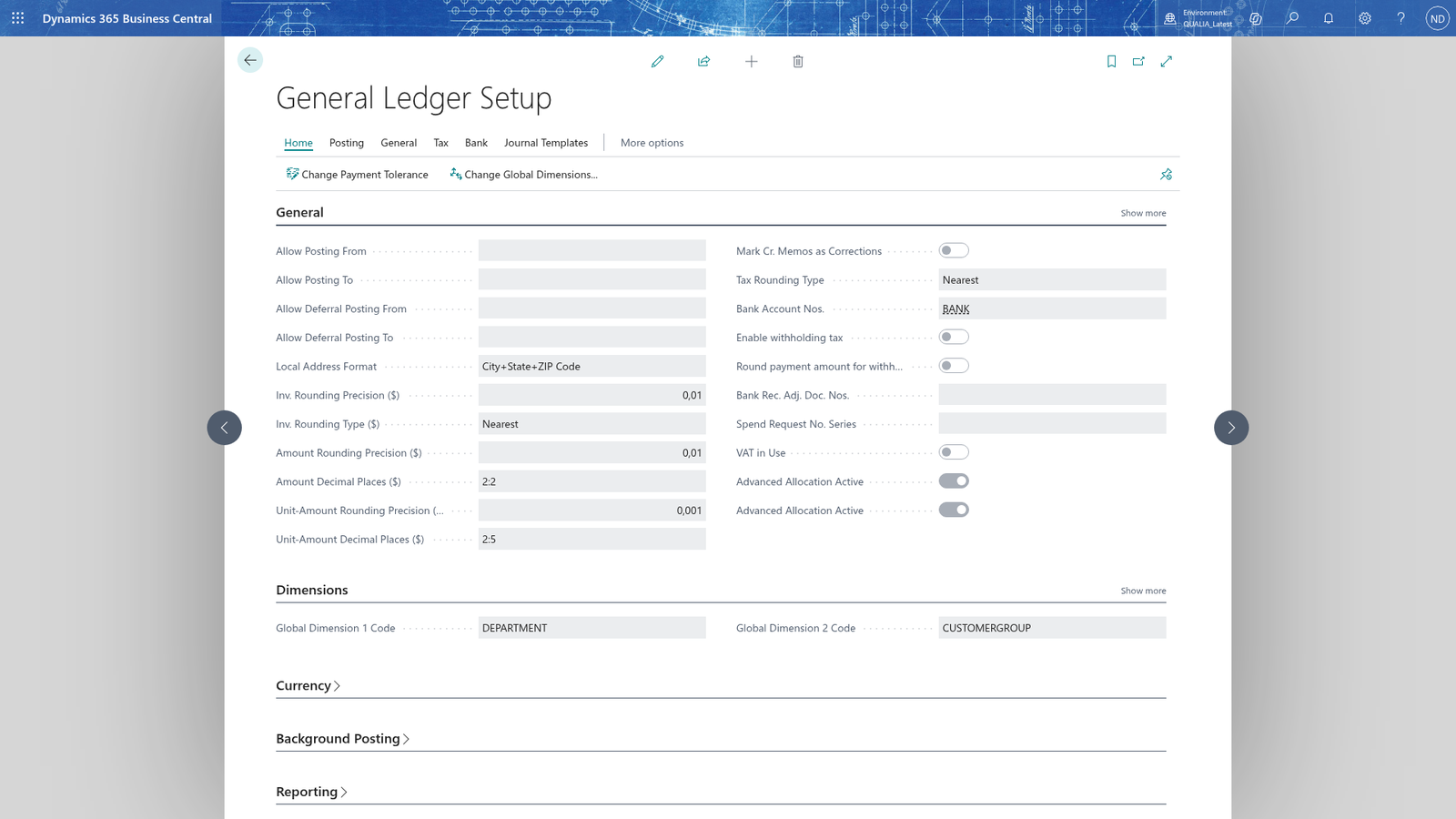
Note: Advanced Allocation Active turns on the Advanced Allocations features for the company; you make this decision per company on General Ledger Setup.
Set up the standard Business Central data
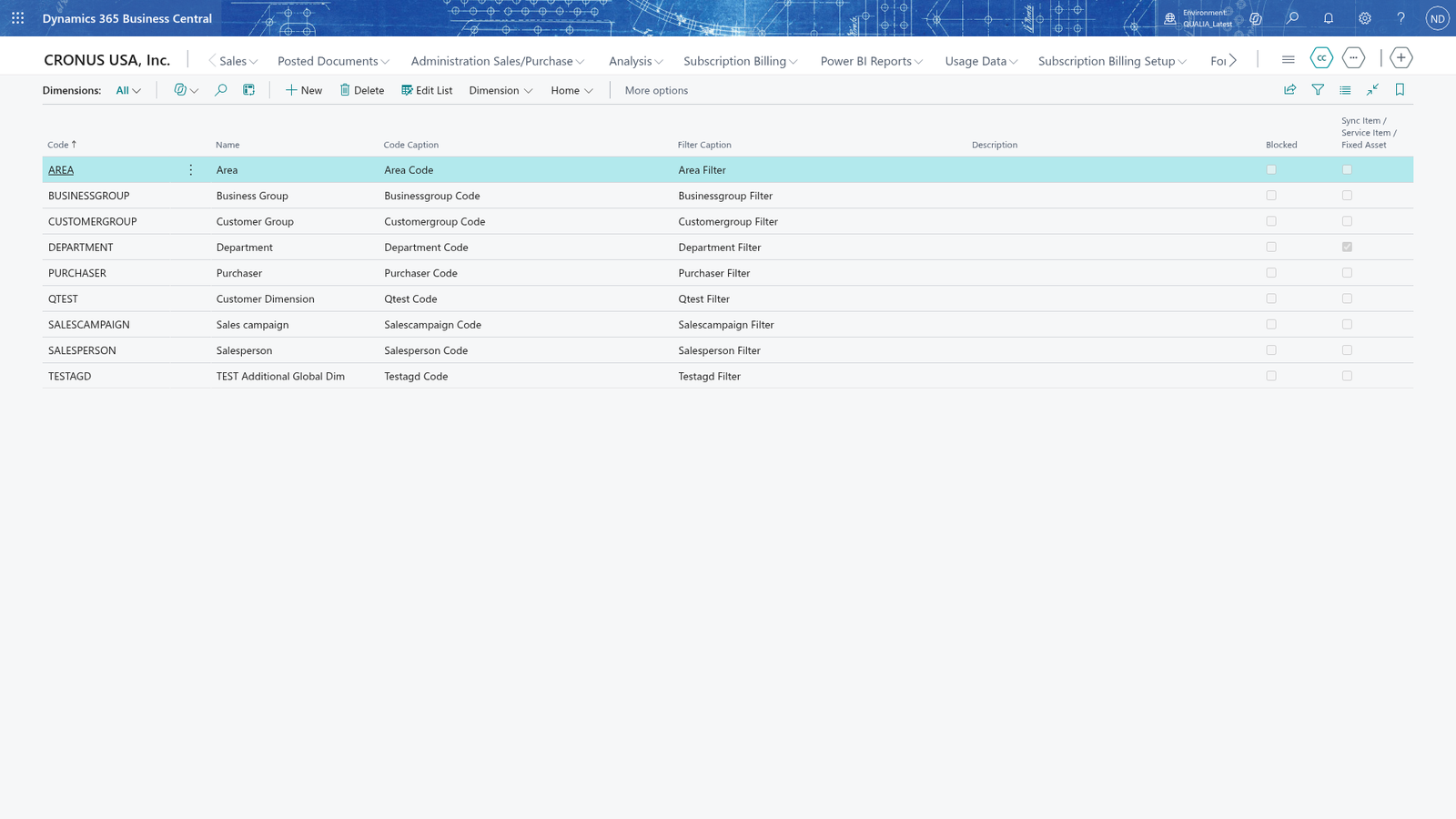
- Search for Dimensions and open it. Choose New to add a record and enter the code
DEPARTMENTand a Name. - Choose the dimension line and choose Dimension Values. Choose New for each value:
PROD(name Production),SALES(name Sales),ADMIN(name Administration) andIT(name IT Services). - Search for General Ledger Setup, choose Edit, and set Shortcut Dimension 1 Code to
DEPARTMENT, because the allocation is calculated by DEPARTMENT.
The Dimensions page as it opens, before you add DEPARTMENT.
- Search for Units of Measure and create
HEAD(Headcount) andSQM(Square metres). - Search for Chart of Accounts and create the G/L accounts
6510Electricity,6520Facility Rent,6700IT Services and5310IT Supplies, and6800Allocated Costs as the target account. - If you read the source amounts of an allocation through an analysis view: search for Analysis Views, create a view with a code and description, and on its card set Account Source to G/L Account, leave Account Filter and Start Date empty, set Date Compression to None, enter the dimension codes the allocation uses on the Dimensions fast tab and turn on Update on Posting, so the view keeps up with the posted entries.
Add the statistical account types
Create the types before the statistical accounts that use them.
- Search for Statistical Account Types and open it.
- Choose New to add a record.
- In Code, enter
HEADCOUNT. - In Description, enter
Headcount. - Choose New again to add the next record: type
SPACEwith the descriptionFloor space. Each type has a Code and a Description; the app requires both before you can save.
Note: The Type of a statistical account must be one of the types on Statistical Account Types, so create a type before you use it on an account.
Add the statistical accounts
- Search for Statistical Accounts and open it.
- Choose New to add a record.
- In No., enter
HEADCOUNT. - In Name, enter
Headcount. - In Type, choose
HEADCOUNT. - In Base Unit of Measure, enter
HEAD. - Choose New again, then add the account
SPACE(nameFloor space, typeSPACE, unitSQM) and the accountWAREHOUSE(nameWarehouse space, typeSPACE, unitSQM).
Note: The Type of a statistical account must exist on Statistical Account Types, and Base Unit of Measure must exist in Units of Measure; you can also save a statistical account with both fields empty.
Create the statistical journal batches
- Search for Statistical Journal Batches and open it.
- Choose New to add a record.
- In Name, enter
YEAR2026. - In Description, enter
2026 headcount. - In Statistical Account No., choose
HEADCOUNT. - Choose New again, then add the batch
SPACE2026with description2026 spaceand Statistical Account No.WAREHOUSE. Only Name must be filled in; Description may stay empty, and Statistical Account No. may stay empty too, but if you fill it in it must be an existing statistical account.
Note: Statistical Account No. must be a statistical account that already exists; if you enter a number that isn't in Statistical Accounts, the batch can't be saved.
Set up the General Journal batches that carry the allocation source
- Search for General Journal Templates and open it. Choose New to add a record, enter
ADVALLOCin Name and a Description, and leave the other fields at their default values; the allocated lines are posted as an ordinary General Journal. - Search for General Journal Batches and open it. At the top of the page, choose the journal template
ADVALLOC. - Choose New to add a batch and enter
FACILITYin Name (a batch name holds at most 10 characters; Business Central shows such a batch asADVALLOC/FACILITY) andFacilitiesin Description. - The allocation source fields belong to the app and are not shown on the page until you add them once: choose Settings > Personalize, drag Source Type, Source No., Source Dimension 1 Code and Target G/L Account from the fields of the table Gen. Journal Batch onto the FastTab, and choose Stop personalizing. You do this once for the company.
- In Source Type, select where the amounts come from: Statistical (posted statistical entries such as headcount) or G/L Account (actual posted G/L entries).
- In Source No., enter the source account:
6510for the electricity batch. You can enter several source accounts separated by commas or semicolons; all of them are read. - In Source Dimension 1 Code, enter the dimension the allocation is calculated by:
DEPARTMENT. - In Target G/L Account, enter the account the allocated amounts are booked to:
6800. Enter one target account: every calculated line is booked to it, and if you enter several values separated by commas or semicolons, only the first one is used. - Fill in Source Dimension 2 Code, Source Fund, Source Fund 2 and Analysis View only if you use them.
- Create the other batches the same way: choose New to add each batch. At QUALIA Technik: batch
SPACEon templateADVALLOCwith Source Type Statistical, Source No.WAREHOUSE, Source Dimension 1 CodeDEPARTMENTand Target G/L Account6800.
The source type Allocation is meant for carrying a Quick Key allocation template on the batch: it is the template that Distribute Lines uses on purchase and sales documents and journals (chapter 2). It is only used through Distribute Lines: Calculate Allocation on the Advanced Allocations worksheet doesn't calculate such a batch - it ends with the message that the source must be filled in on the journal batch. For batches that the Advanced Allocations worksheet works with, choose Statistical or G/L Account instead, or use the Quick Key template directly through Distribute Lines on the documents and journals.
The General Journal Batches page as it opens, showing the batch FACILITY on template ADVALLOC:
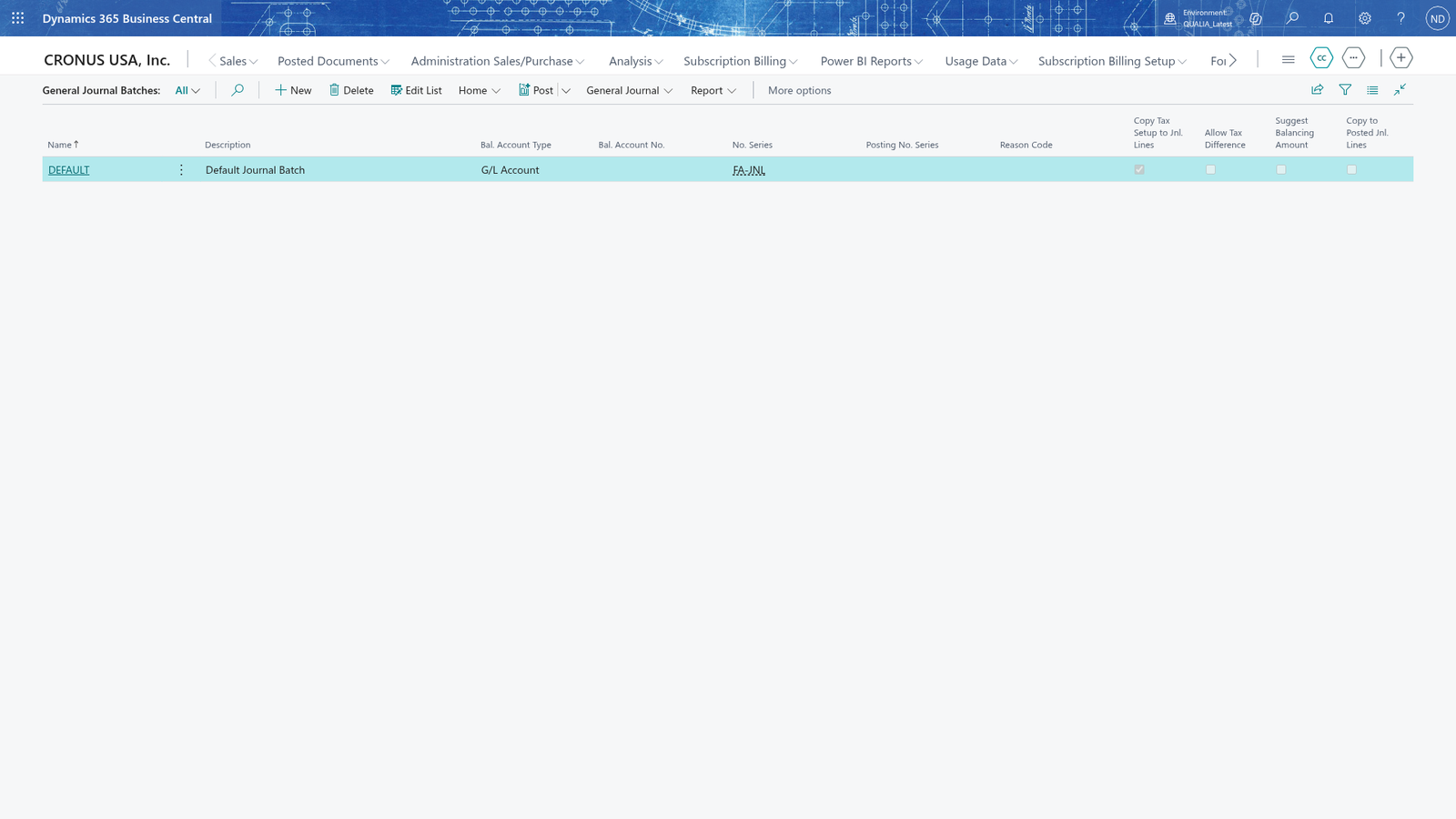
Note: The Advanced Allocations worksheet shows these source fields read-only and copies them from the batch: change the source on the batch, not on the worksheet.
Create the Quick Key allocation templates
On Quick Key Allocations, choose New to add the template IT-SUPPLIES with the name IT supplies split and leave Blocked off. Open the card, choose Edit (a card accepts input only in edit mode), and enter four lines in Quick Key Allocation Lines, each with G/L Account No. 6800, Shortcut Dimension 1 Code PROD, SALES, ADMIN and IT and Allocation % 40, 25, 25 and 10.
Note: Enter a G/L Account No. on every line you distribute amounts with: distribution puts each share of the amount on the template line's account. You can leave the account empty on a line that only carries dimensions to be filled in on documents and journals. The app doesn't check that the template's lines add up to 100 %, so make the sum of the lines' Allocation % 100 %; the card's Total Allocation % is read-only and may show nothing at all, so check the lines' percentages yourself.