
Quick Key allocations: distribute one amount across departments
A Quick Key allocation is a saved template that splits one amount over several G/L accounts and departments. Instead of deciding the split each time by hand, Monika Vogel enters the template number on a line and chooses Distribute Lines: Business Central replaces the line with one line per template line, at the template's percentage and with its dimensions. It removes data entry errors, because the percentages are entered once, and Monika Vogel doesn't have to know the split when she enters an invoice line. At QUALIA Technik GmbH Timo Schulz (controller) keeps the template IT-SUPPLIES up to date - 40 % PROD, 25 % SALES, 25 % ADMIN and 10 % IT on account 6800 Allocated Costs - and Monika Vogel uses it on the monthly IT invoice from Data Devices, on sales lines and on general journal lines.
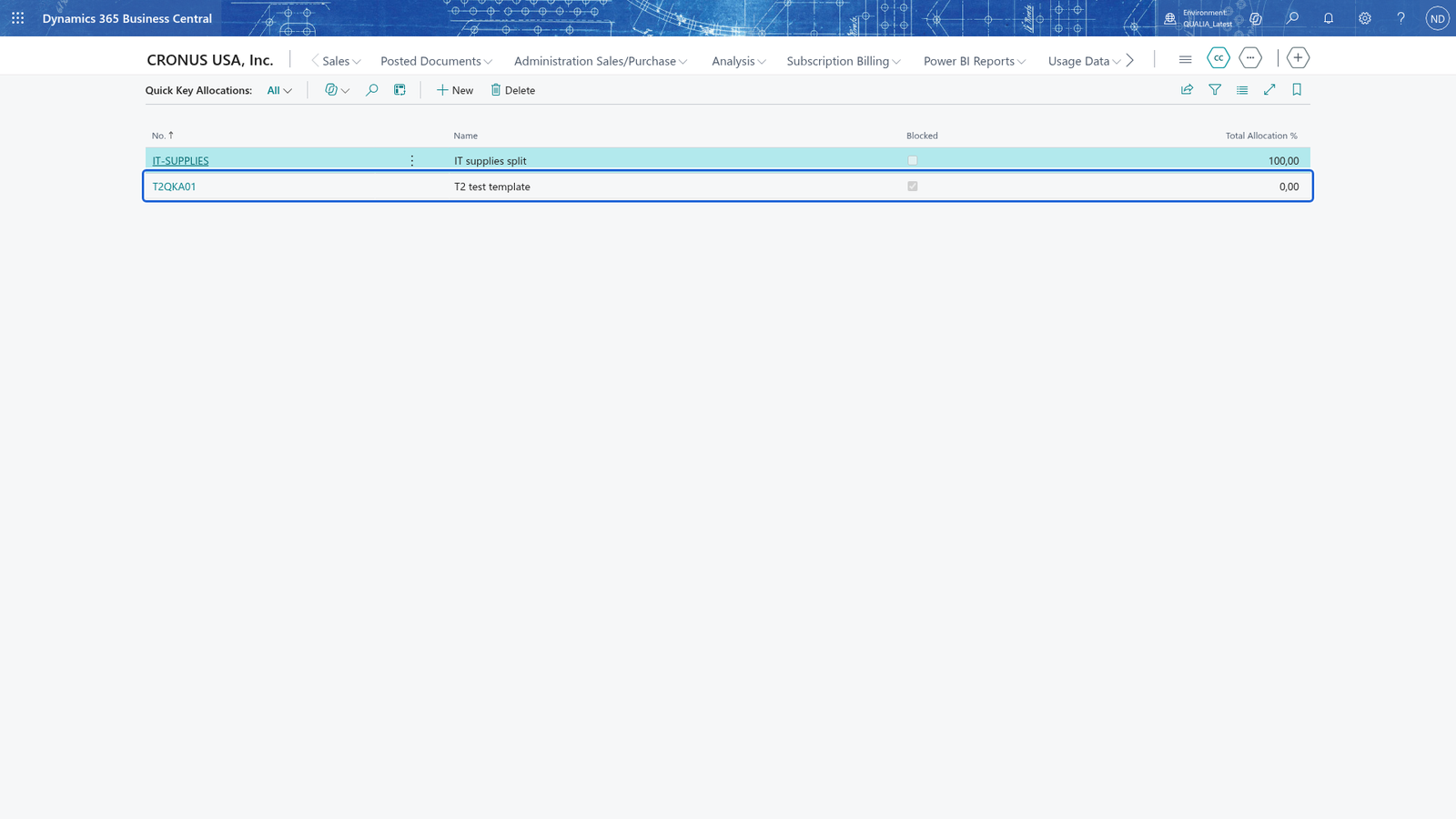
This chapter is about Distribute Lines on purchase, sales and return documents and on general journal lines.
Before you start
- The standard Business Central data of the example company exists (see the opening of this guide): the dimension DEPARTMENT with the values
PROD,SALES,ADMINandIT; the G/L accounts5310IT Supplies,6520Facility Rent and6800Allocated Costs (the account the template lines point to). - Advanced Allocation Active is turned on for the company on General Ledger Setup (chapter 1).
- You can create the template yourself, but at QUALIA Technik GmbH only Timo Schulz maintains it.
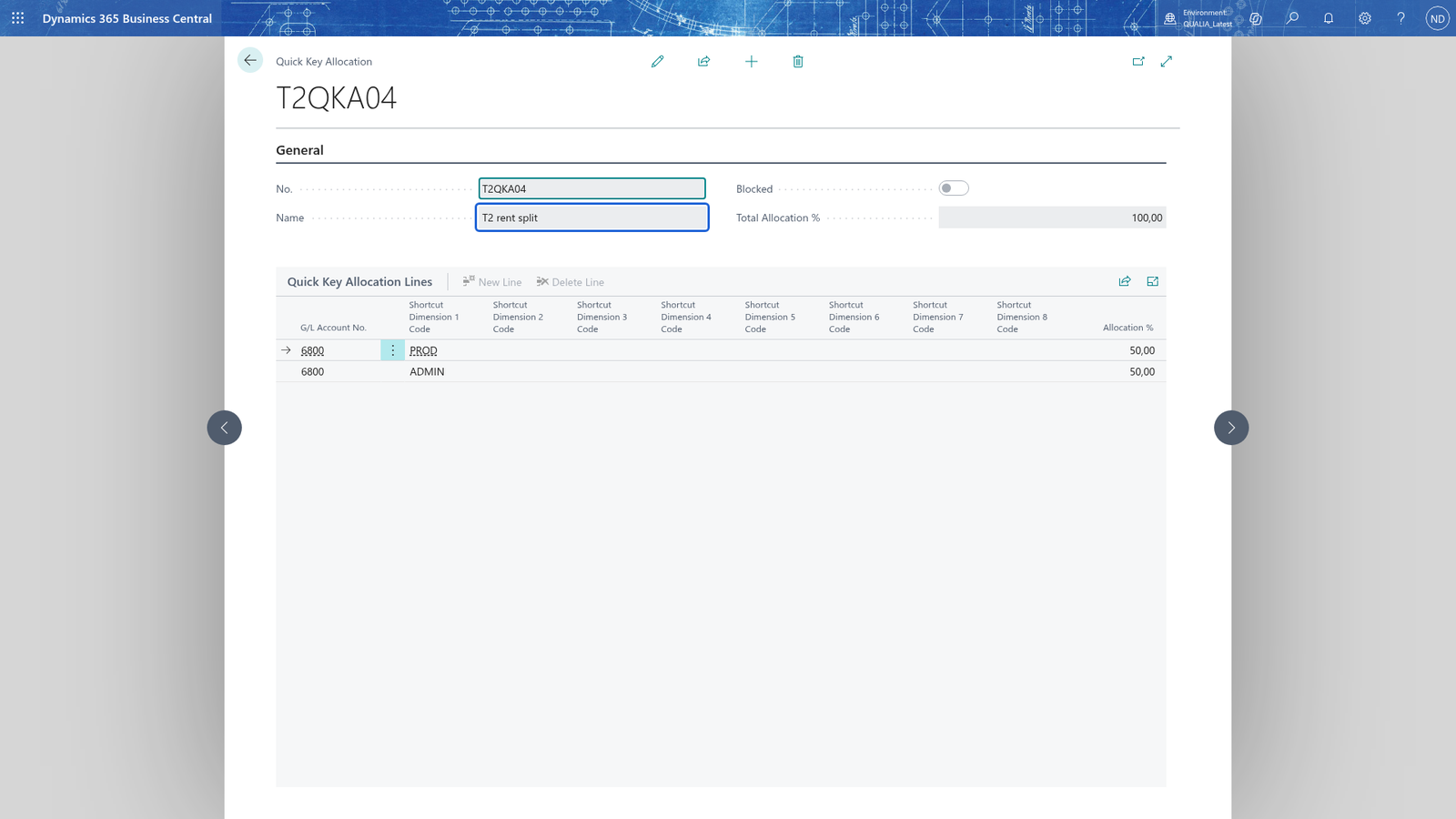
The finished template IT-SUPPLIES looks like this: four lines on 6800, one per department, with Allocation % 40, 25, 25 and 10.
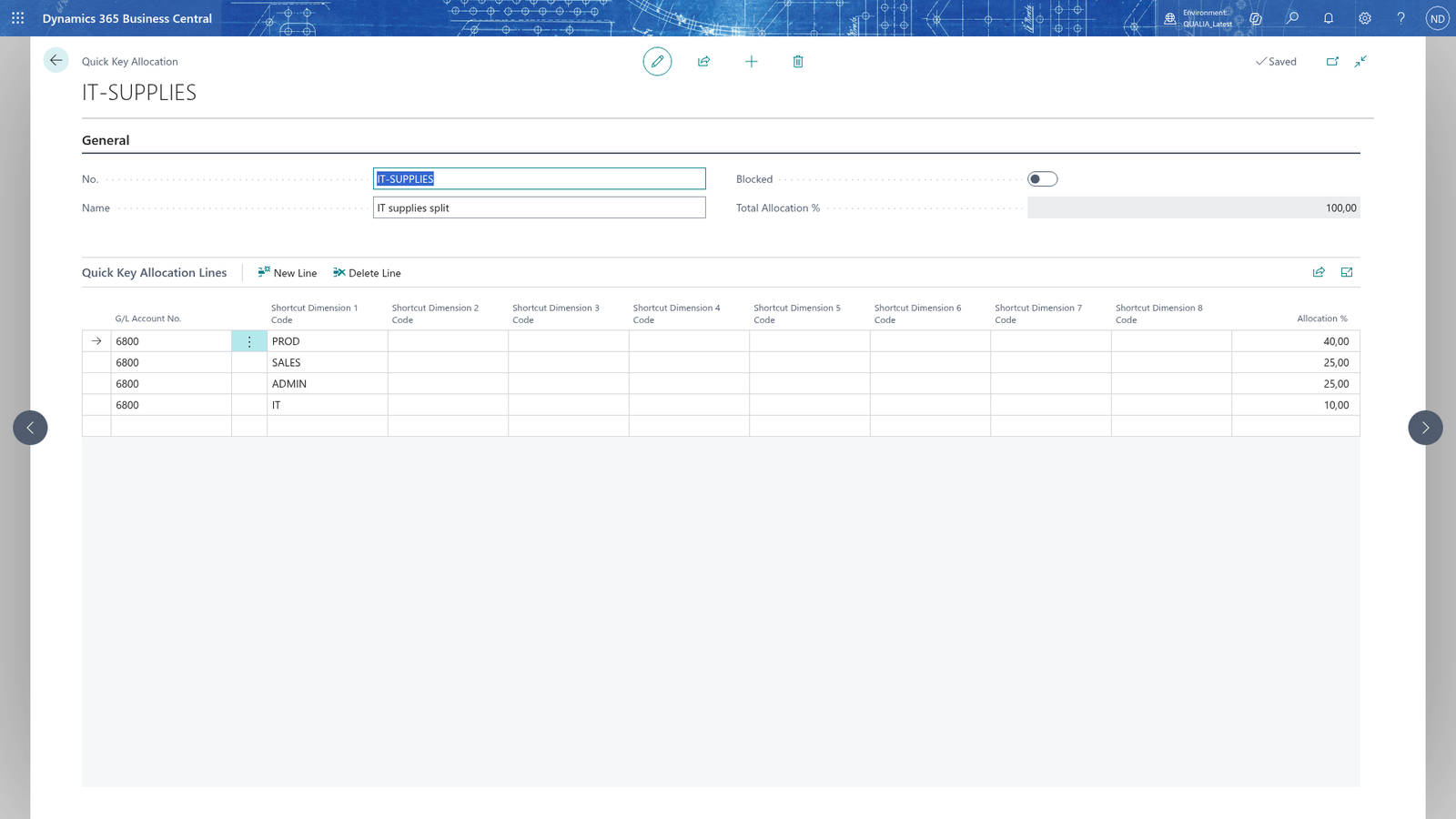
Note: Total Allocation % on the card is read-only, so you can't type in it; it may also show nothing at all. Don't rely on it: add up the lines' Allocation % yourself and enter lines that add up to 100 %, because the app doesn't check the total and each share of a distribution is amount × Allocation % / 100, so a template whose lines add up to 90 % distributes only 90 % of the amount.
Create the Quick Key allocation template
Timo Schulz creates the template once; every later use is by its number.
- Search for Quick Key Allocations and open it.
- Choose New on the list, then choose Edit (top right of the card): a card page accepts input only in edit mode.
- In No., enter
IT-SUPPLIES. - In Name, enter IT supplies split.
- Leave Blocked off. Turn it on only for templates you no longer want to use on new journal, purchase or sales lines.
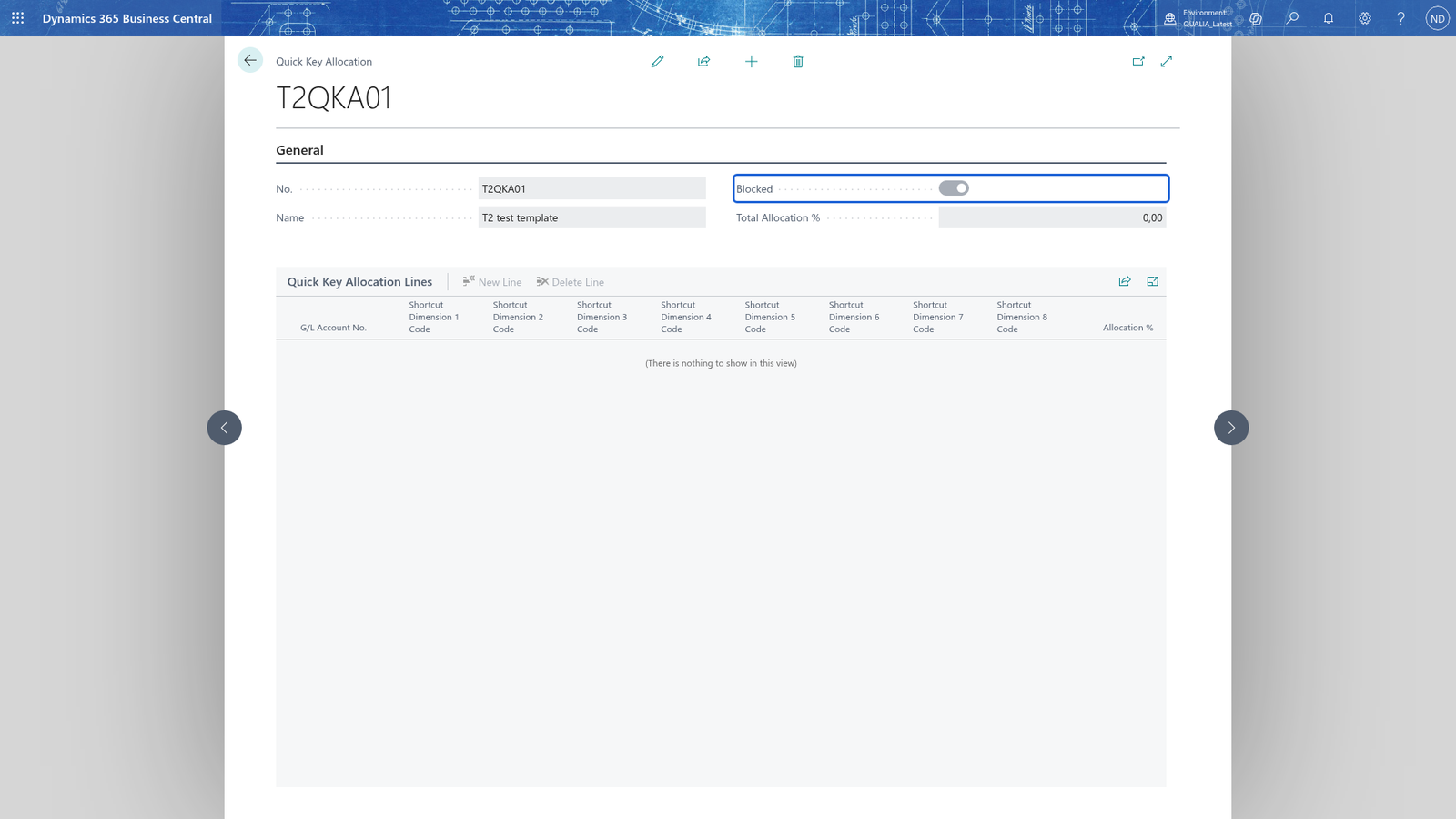
- While the card is still in edit mode, in the Quick Key Allocation Lines grid add one line per department: G/L Account No.
6800, Shortcut Dimension 1 CodePROD,SALES,ADMINandIT, and Allocation % 40, 25, 25 and 10. - Check the lines: their Allocation % must add up to 100 (40 + 25 + 25 + 10 = 100). Total Allocation % at the top of the card is read-only and may show nothing, so don't rely on it.
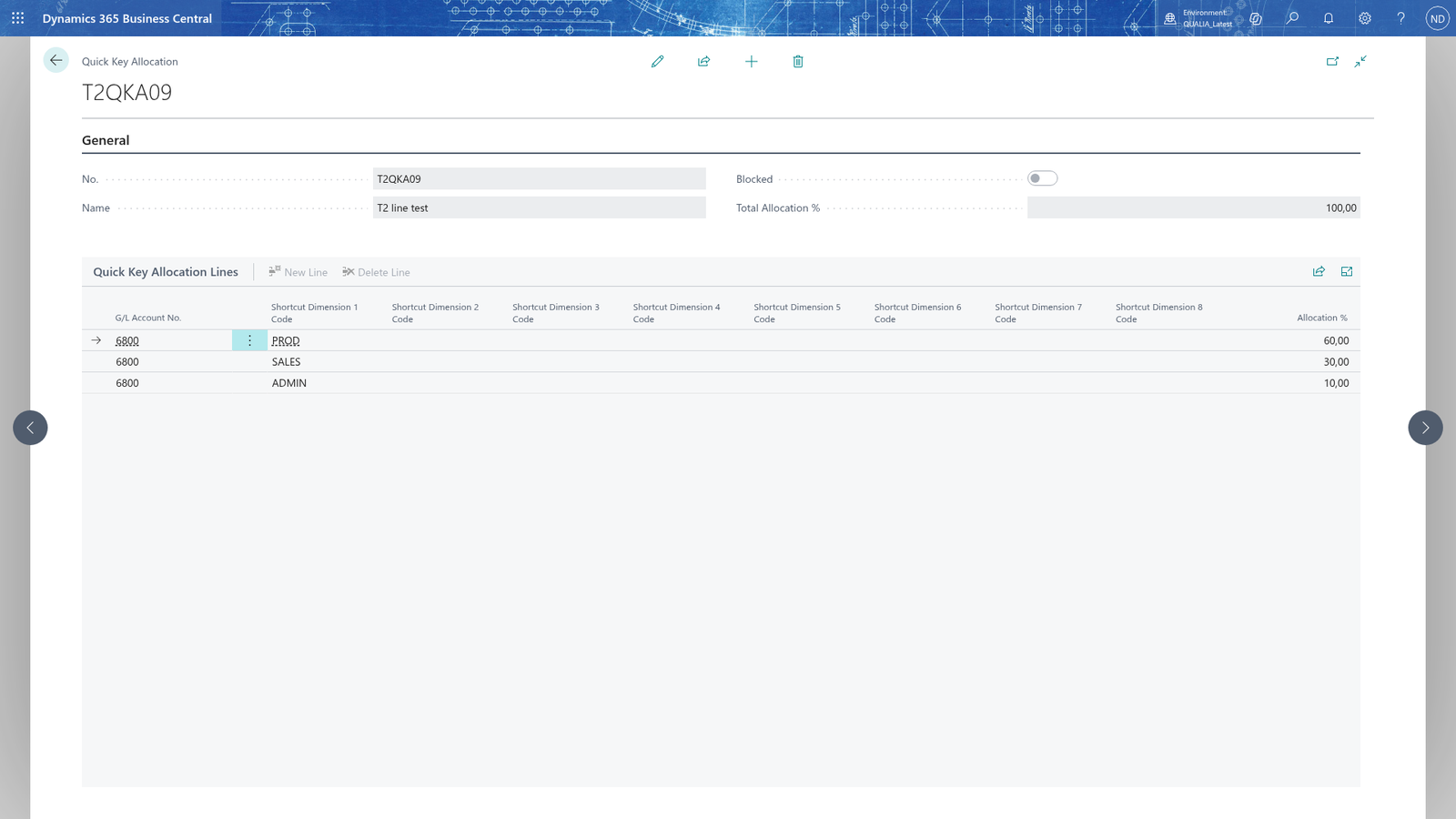
Note: Enter a G/L Account No. on every line you distribute amounts with: distribution books each share on that line's account. A line without an account carries only dimensions.
Correct a percentage on a template line
Timo Schulz finds that a department's share of the IT supplies is wrong.
- Search for Quick Key Allocations and choose the template, for example
IT-SUPPLIES. - Choose Edit on the card, and in Quick Key Allocation Lines enter the correct percentage in Allocation % on the line.
- The new percentage is kept when you close the card.
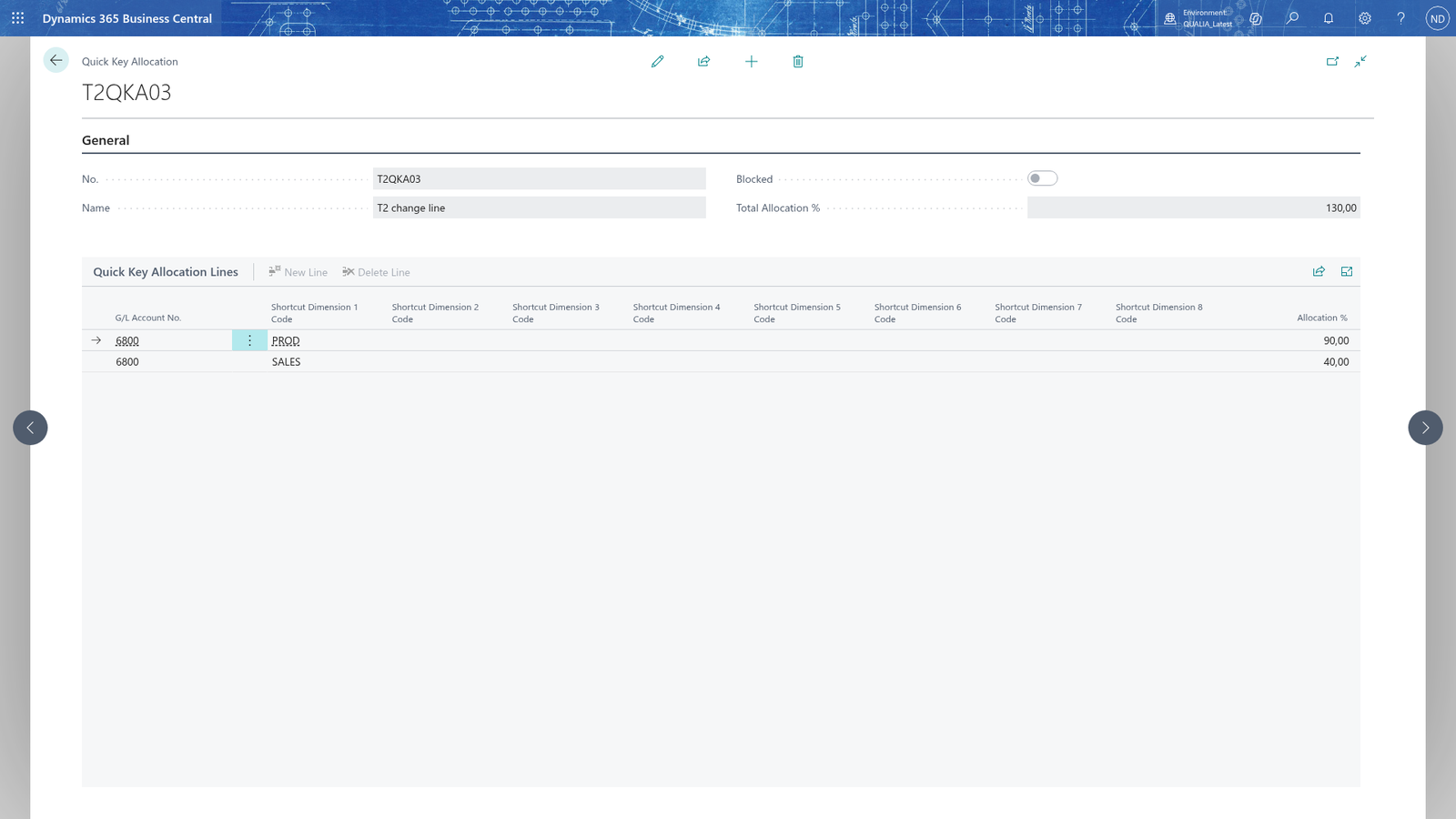
Note: Lines you distribute afterwards use the new percentage; documents you already distributed keep their own amounts.
Book a purchase invoice with the template
- Search for Purchase Invoices and choose New.
- Enter the header: Vendor Name Data Devices (vendor
DTD), Vendor Invoice No.INV-2601-01, Posting Date31.01.2026. - Enter the line: Type G/L Account, No.
5310, Description Data Devices IT supplies, Direct Unit Cost8,000.00and Allocation No.IT-SUPPLIES. If your company posts VAT, keep the VAT posting groups you use for purchases. - Select the line with Allocation No. on the Lines FastTab and choose Distribute Lines on the action bar of the lines. The line is replaced by one line per template line, and the message The line has been distributed over Quick Key allocation IT-SUPPLIES. appears.
- Check the lines, then choose Post.
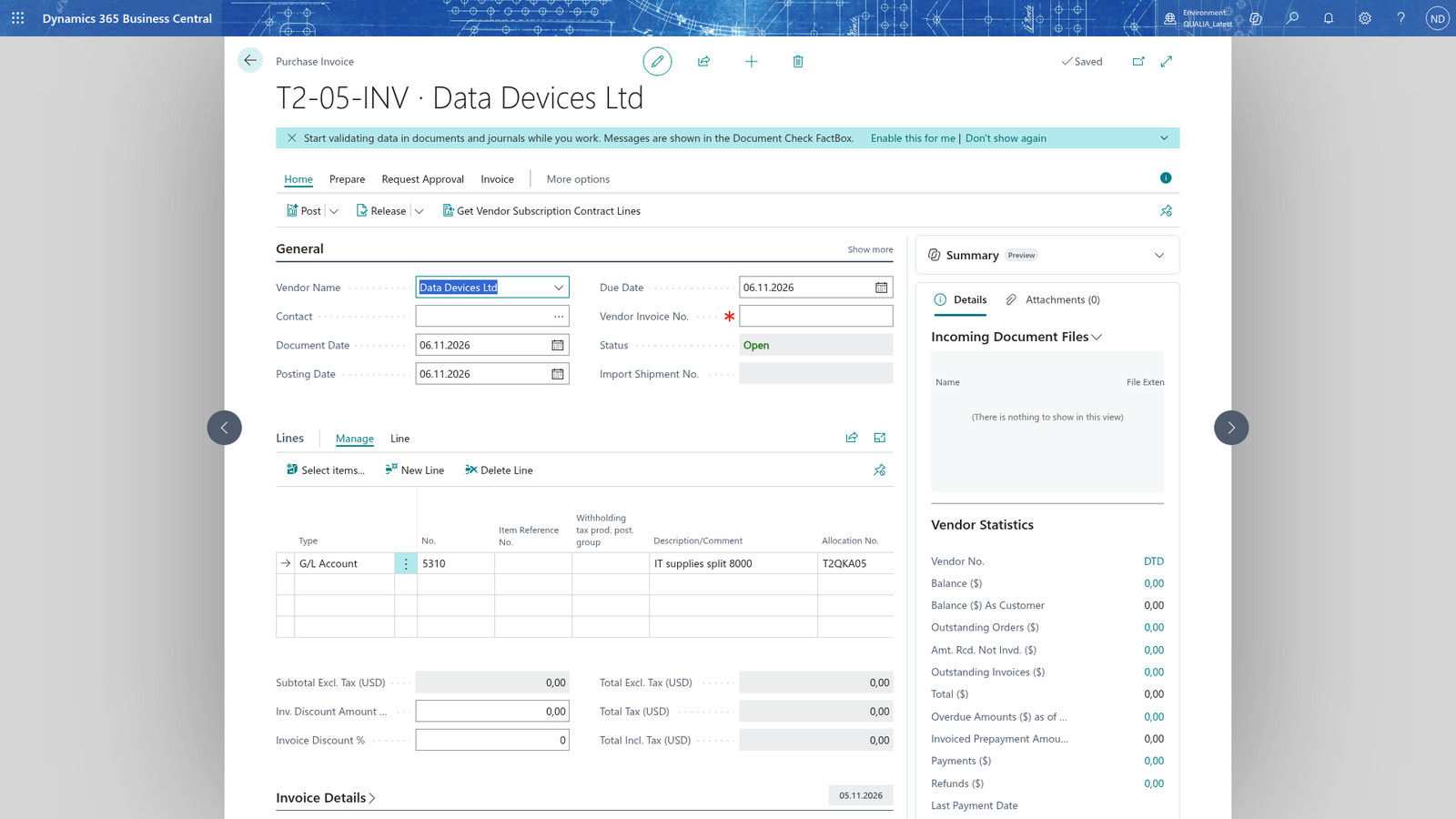
The 5310 line is replaced by four lines on 6800 with the departments PROD, SALES, ADMIN and IT and the amounts 3,200.00, 2,000.00, 2,000.00 and 800.00; the invoice still totals 8,000.00 EUR.
Note: Distribute Lines splits only the line you selected on the document; the other lines of the document keep their own account and dimensions. The purchase line's own dimensions are removed with it, so let the template lines carry the dimensions.
Distribute a sales invoice line with a Quick Key
Sales lines carry the same field and the same action, so Monika Vogel splits a sales invoice line in the same way she splits a purchase invoice line.
- Search for Sales Invoices and choose New.
- Enter the customer in Customer Name and the Posting Date, for example 31.01.2026.
- Enter the line: Type G/L Account, No.
6700, Description IT services passed on to the customer, Quantity 1 and Unit Price 5,000.00, and Allocation No.IT-SUPPLIES. - Select the line with Allocation No. on the Lines FastTab and choose Distribute Lines on the action bar of the lines; check the message The line has been distributed over Quick Key allocation IT-SUPPLIES.
- Post the document.
The line is replaced by four lines on 6800, one per department, each with Unit Price 40, 25, 25 or 10 percent of the 5,000.00 EUR you entered and the department from the template. Check the document total before you post.
Note: The same action is available on sales orders, sales credit memos and sales return orders, and on purchase orders, purchase credit memos and purchase return orders - always on the line that carries Allocation No.
Book a general journal line with the template
- Search for General Journals, choose the batch you post to, and add a line: Account Type G/L Account, Account No.
6520, Description January facility rent, Amount 12,000.00 and Allocation No.IT-SUPPLIES. - Select the line and choose Distribute Lines in the action bar of the General Journal worksheet. The journal asks for confirmation: Distribute the line over the Quick Key allocation template IT-SUPPLIES? The line is replaced by one line per template line. Choose Yes.
- The journal shows the four lines on
6800, one per department. Post the journal.
Note: On the general journal, Distribute Lines first asks whether the line may be replaced; on a purchase or sales document the line is replaced immediately. A line without Allocation No. does nothing.
Example: Monika books the Data Devices IT invoice with IT-SUPPLIES
Monika Vogel has the January invoice from Data Devices (vendor DTD) for IT supplies: 8,000.00 EUR on account 5310 IT Supplies. She books it on Purchase Invoices with Vendor Invoice No. INV-2601-01 and Posting Date 31.01.2026, puts IT-SUPPLIES in Allocation No. on the line and chooses Distribute Lines. The 5310 line becomes four lines on 6800:
| Account | DEPARTMENT | Share of the template | Amount |
|---|---|---|---|
| 6800 | PROD | 40 % | 3,200.00 |
| 6800 | SALES | 25 % | 2,000.00 |
| 6800 | ADMIN | 25 % | 2,000.00 |
| 6800 | IT | 10 % | 800.00 |
| 8,000.00 |
She posts the invoice with Post. Data Devices owes 8,000.00 EUR, and account 6800 carries 3,200.00 EUR PROD, 2,000.00 EUR SALES, 2,000.00 EUR ADMIN and 800.00 EUR IT; Iris Baumann reads the department costs there after the close.
What happens
- Distribute Lines replaces the line you selected on the document with one line per template line: the G/L account from the template line, the template line's dimensions (Shortcut Dimension 1-8 Code) and amount × the template line's Allocation % / 100. On a purchase line the share goes to Direct Unit Cost, on a sales line to Unit Price, and on a journal line to Amount.
- The original line is deleted, so the document keeps its total. You see the result in the document before you post; after posting, filter the entries on
6800by DEPARTMENT. - Before posting you can undo a distribution by deleting the distributed lines and entering the line again with its own account. After posting, correct or reverse the entries in standard Business Central.
- The app rounds each share to two decimals but does not adjust the last line, so a split that doesn't divide exactly can leave a cent difference; check the document or journal total after distributing.
If something goes wrong
- The Quick Key allocation <number> has no lines to distribute the line to.: the template named in the message has no lines with a percentage. Open it on Quick Key Allocations and add its lines, then choose Distribute Lines again.
- Distribute Lines does nothing: the line has no Allocation No.. Enter the Quick Key allocation number on the line and choose Distribute Lines again.
- The distributed lines don't add up to the line's amount: the template's lines add up to more or less than 100 %. Correct the Allocation % of the template's lines - the header Total Allocation % is read-only - and distribute the line again.
- You can't find the template on Allocation No.: open Quick Key Allocations and check the number; a template you no longer use is Blocked, so use a current template.
- The line has been distributed over Quick Key allocation <number>. is the confirmation that the line was replaced. If the wrong template number was on the line, delete the distributed lines, enter the line again with the right Allocation No. and choose Distribute Lines again.